Switch between linked children
Use your Parent account to open the child you want to view. Switching selects an existing linked profile; it does not add a child, change a guardian relationship or sign you in as the Student.
For Parent
On this page
Before you begin
- Parent access to the intended school portal.
- At least two children already linked to your Parent account for the switching steps.
- Finish any action in progress before changing the selected child. This guide covers viewing, not unsaved forms or submissions.
1. Choose a linked profile
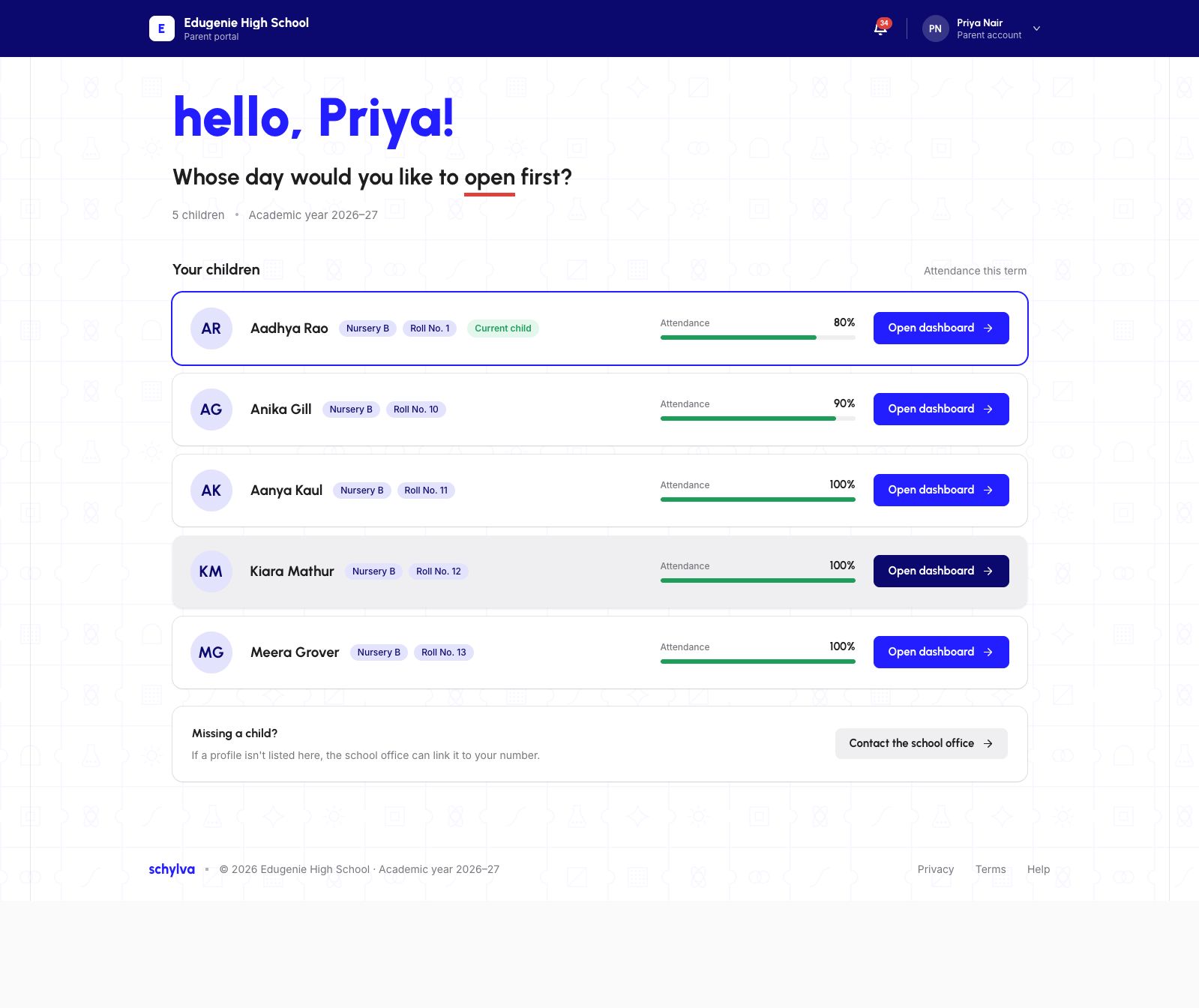
On “Your children”, find the intended child and check the name, class and roll number before opening the dashboard. The desktop example shows five existing profiles and marks the selected one as “Current child”.
Choose the child’s profile row or its “Open dashboard” control. The number of profiles in these screenshots belongs to this demonstration account; your own list depends on the children linked by your school.
Demo data · Desktop web · existing linked profiles
 Enlarge screenshot
2. Confirm the dashboard identity
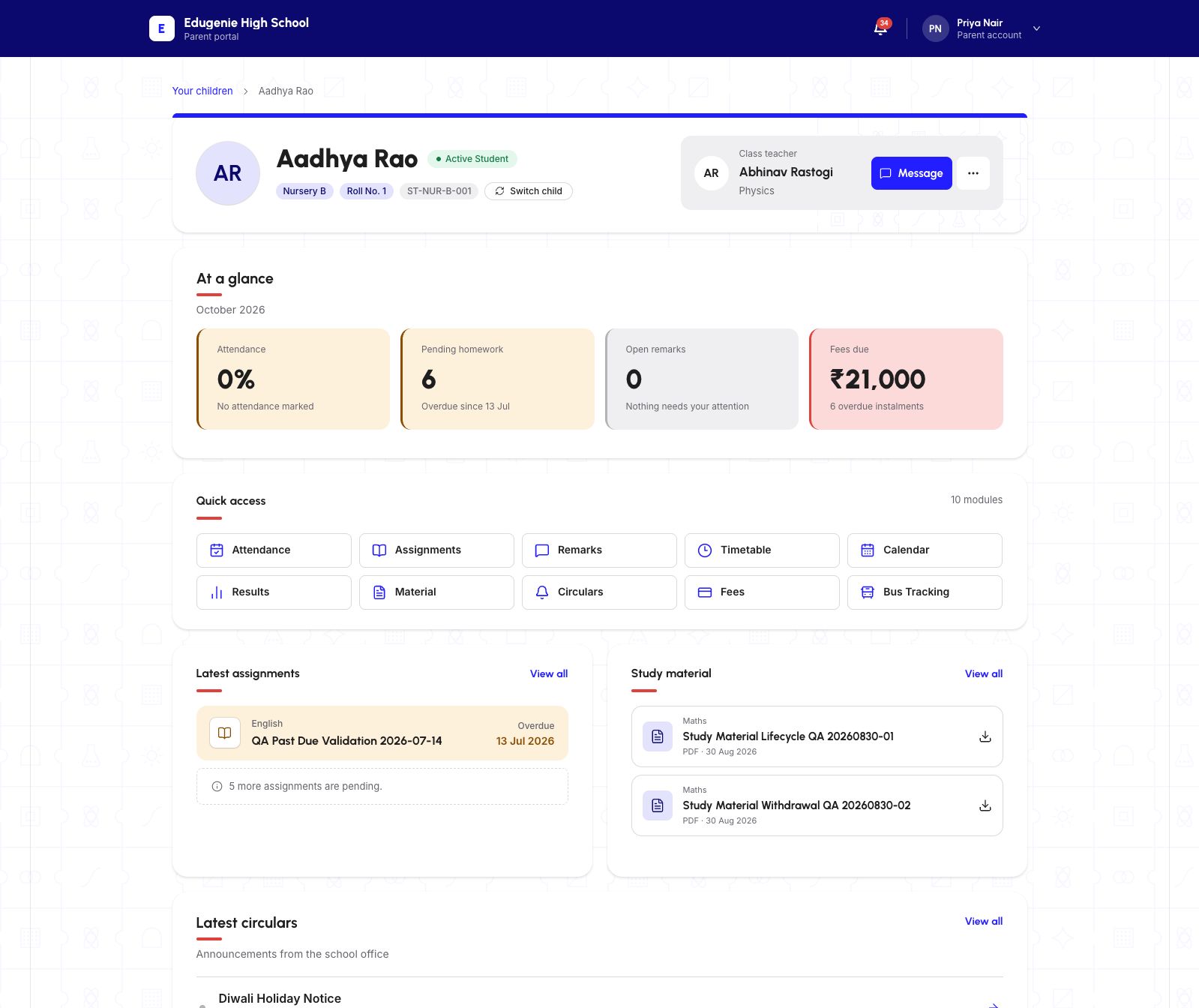
After opening the dashboard, read the child’s full name, class and roll number in the profile heading. Wait for “Loading dashboard” to finish before interpreting the summary cards.
The Parent account name in the header identifies the signed-in parent, not the child whose dashboard is open. In this example Priya Nair remains in the account header while Aadhya Rao appears in the student profile.
To return to the profile list, choose “Switch child”. On desktop, “Your children” is also shown above the profile. Choose the next child, then repeat the identity check.
Demo data · Desktop web · child identity and Switch child
 Enlarge screenshot
3. Switch from the account menu
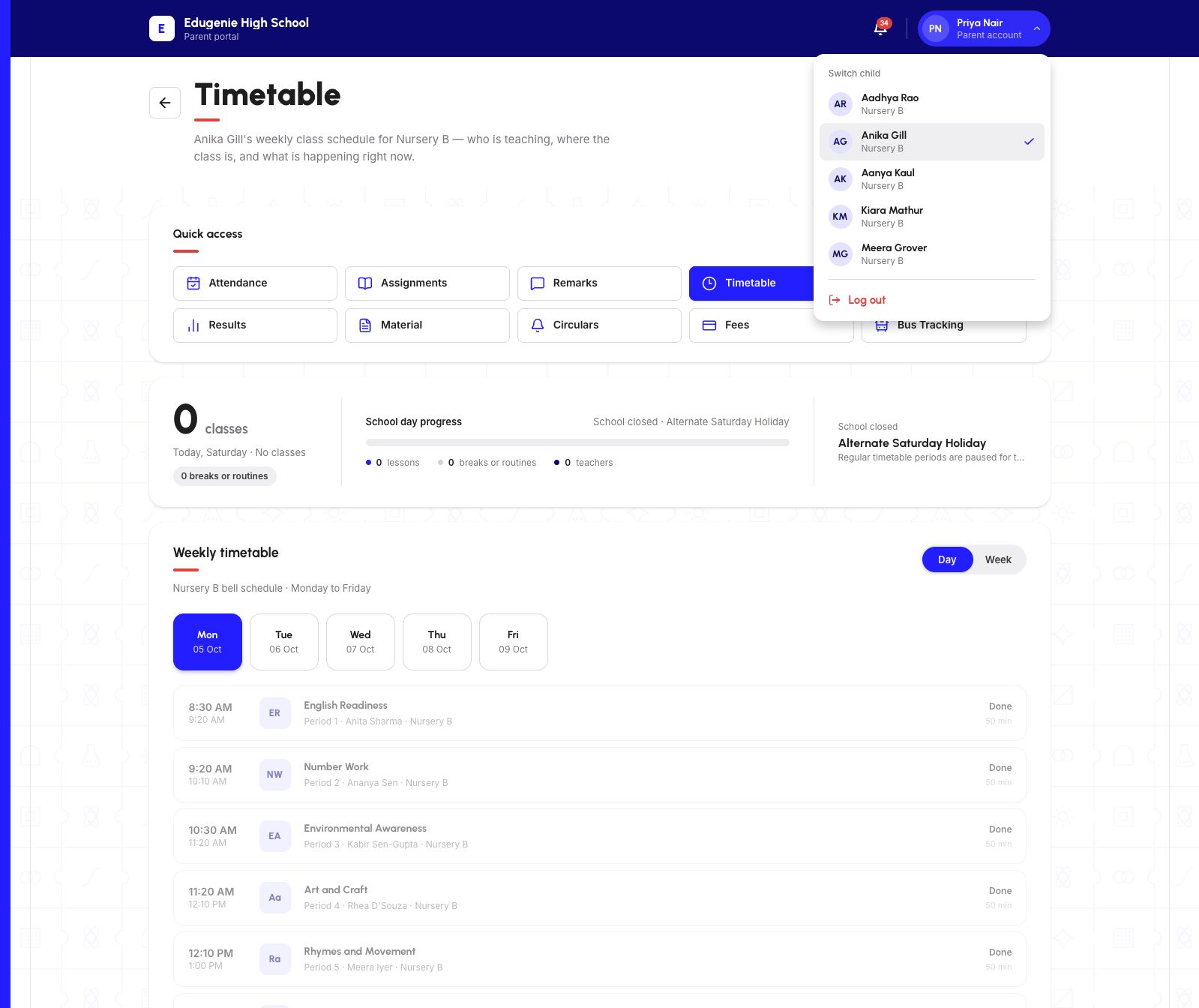
While viewing a module, open the Parent account menu at the top right. Under “Switch child”, the checkmark identifies the selected child. Choose another linked name.
In the Timetable example, selecting Aadhya Rao from Anika Gill’s account-menu context kept Timetable open and changed the child’s name in its description. Read the updated page identity before continuing; do not rely on a previous screenshot or summary.
This example does not establish how every module handles a child change. If the displayed identity does not match your selection after loading, stop before acting on the information.
Demo data · Desktop web · selected child in a module
 Enlarge screenshot
On a phone
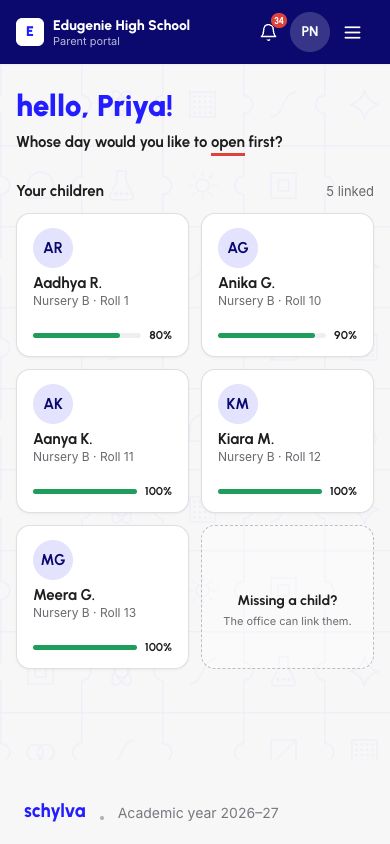
The mobile website uses compact profile cards. Names may be abbreviated on the list, so compare the class and roll number, then confirm the full name after opening the dashboard.
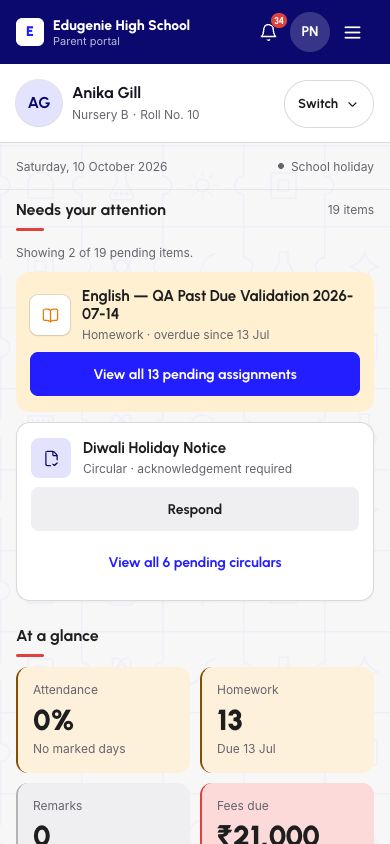
The dashboard control is visibly labelled “Switch” on a phone; its accessible name is “Switch child”. It returns to the same linked-profile list.
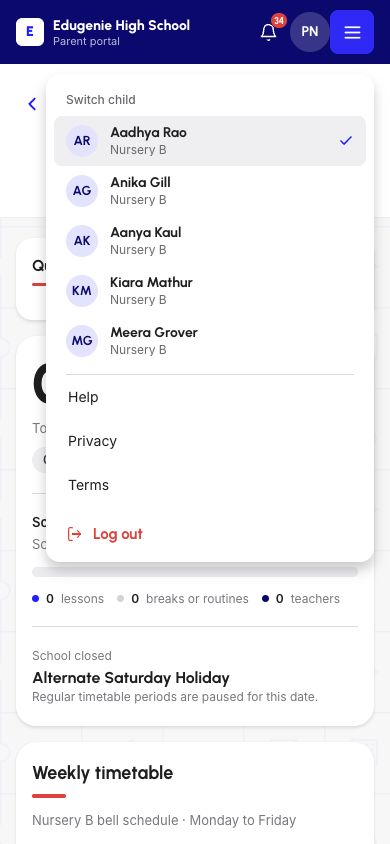
For in-module switching, use the top-right menu button, labelled “Open account menu”, then choose the intended child under Switch child. Check the selected-name checkmark and the updated page identity. These screenshots show mobile web, not native iOS or Android.
Demo data · Mobile web · linked-profile cards
 Enlarge screenshot
Demo data · Mobile web · full name and Switch
 Enlarge screenshot
Demo data · Mobile web · account menu
 Enlarge screenshot
Check identity before taking an action
Confirm the intended child again before you submit homework, acknowledge a notice, download a record or make a payment. Those actions have their own procedures; this switching guide does not perform or verify them.
Shared class information can look the same for siblings. The two children in this walkthrough both belong to Nursery B, so an unchanged class schedule is not evidence that a switch failed—or proof of different-class data isolation. Use the child name and the selected-menu state.
If you cannot find or select the child
Use the checks below without changing school records or trying another person’s account.
- A child is missing from the list
- Switching cannot create the missing link. Follow the related “A child is missing from the Parent view” guide and ask your school to check the relationship through its approved contact channel. Never share a verification code.Check the missing-child list and school-contact route
- Two cards look similar
- Compare class and roll number, then open the intended profile and read the full name. Do not distinguish children only by initials, fees or attendance values.Confirm the full dashboard name
- The old child’s name still appears
- Let loading finish, then check the account-menu selection and page identity. If they disagree, stop before submitting or acknowledging anything and report the screen and mismatch to the school.Recheck the selected child in the account menu
- Only one child is available
- This walkthrough uses a multi-child account. Do not assume a second profile can be added from this menu. Ask the school to check any expected missing relationship.Ask the school about an expected missing link
- You need to change school or Parent account
- A child selection does not change the school or account. Use the correct school portal and your own authorised Parent access. Cross-school switching is not covered here.Find the correct school portal