Find homework, feedback and learning resources
Homework and learning resources live in two different places. Open Assignments to see work set by teachers and existing feedback. Open Material to find the class’s shared learning resources. Start with the correct child selected.
For Parent
On this page
Before you begin
- An authorised Parent account for your school.
- The intended child selected in the Parent portal.
- Your school’s instructions about homework and deadlines.
1. Check the child and choose the right place
Check the school and child before reading any work. If the wrong child is selected, use Back to dashboard and Switch child before continuing.
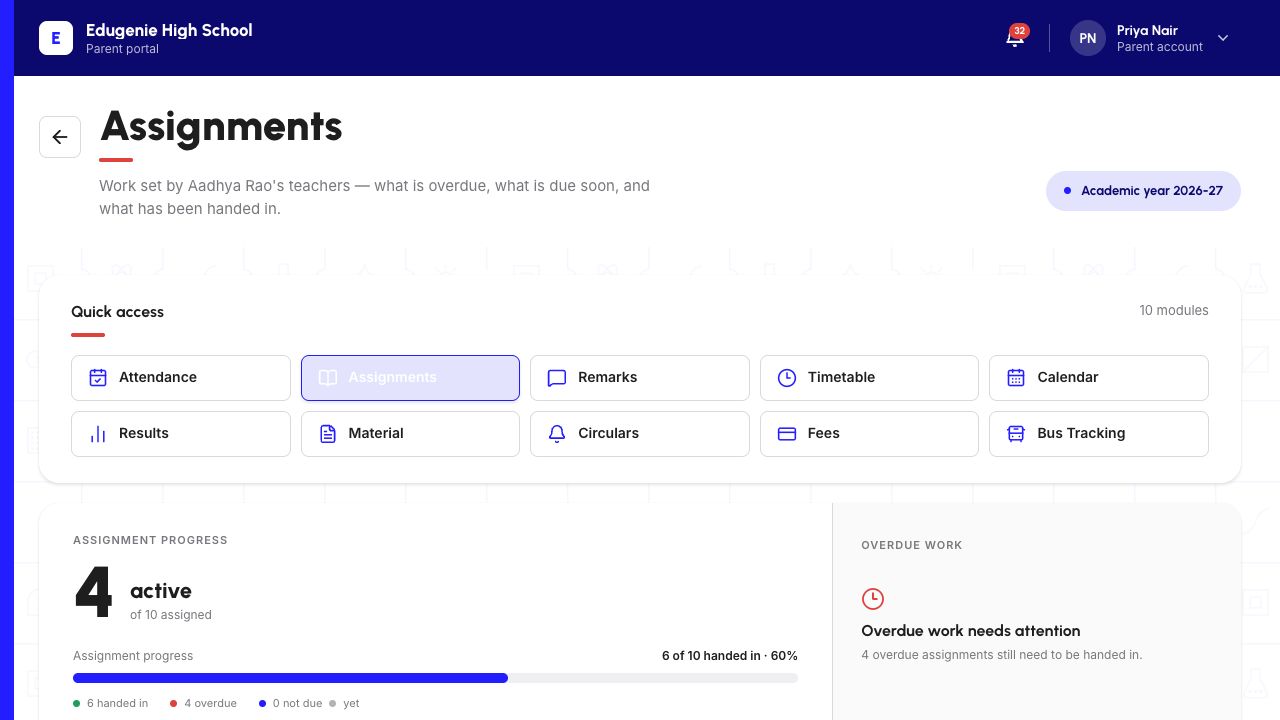
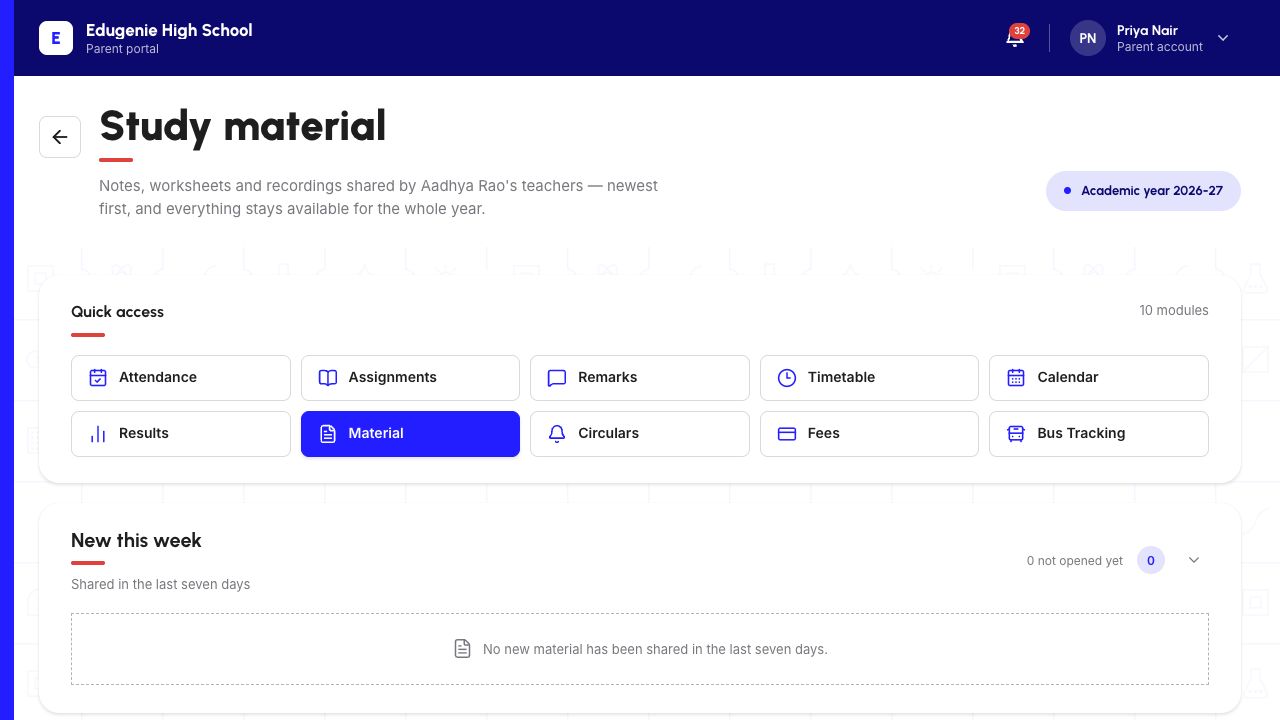
In Quick access, choose Assignments for homework, or Material for learning resources. Material opens a page titled “Study material”. These are separate lists; a worksheet in Material is not by itself a homework submission request.
Demo data · Desktop web · Assignments
 Enlarge screenshot
- Confirm the child named above the progress summary.
- Assignments and Material are separate Quick access controls.
2. Check all three homework groups
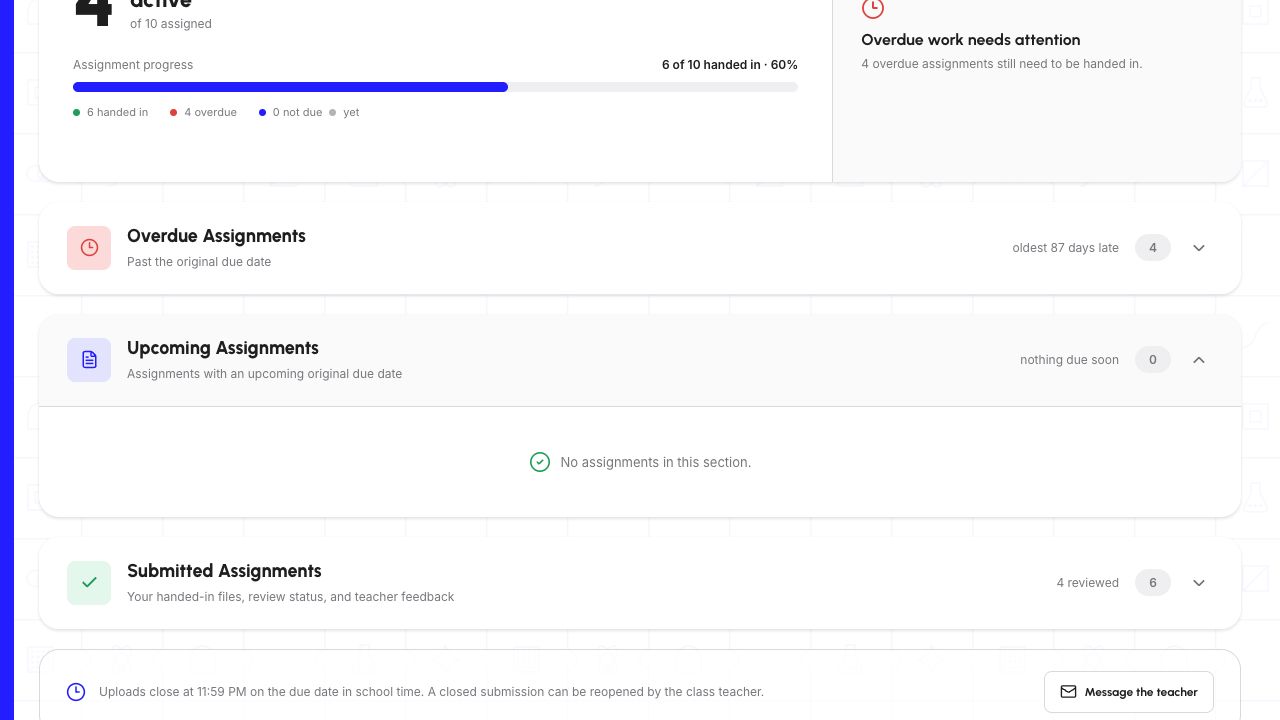
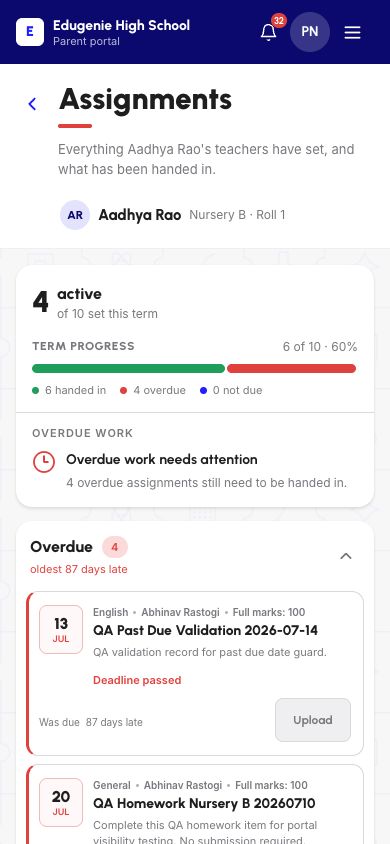
Expand the group you want to inspect. The 8 October 2026 desktop examples use Overdue Assignments, Upcoming Assignments and Submitted Assignments; the mobile headings shorten these to Overdue, Upcoming and Submitted.
An empty group does not mean that there is no homework elsewhere. In this example, Upcoming has no assignments, while Overdue still has four and Submitted has six.
- Overdue Assignments
- Work past its original due date. Read the individual card’s current status and any deadline information before deciding what to do.
- Upcoming Assignments
- Work grouped by an upcoming original due date. Expand the group to read its cards; a count of zero only describes this group.
- Submitted Assignments
- Previously handed-in work, review status and teacher feedback. Handed in, Resubmitted and Reviewed are different labels; being in this group does not mean every item has been reviewed.
Demo data · Desktop web · an empty group
 Enlarge screenshot
- Upcoming is expanded with zero items while the other group counts remain nonzero.
- The empty message belongs to that group, not to all homework.
3. Read the instructions and recognise the teacher’s file
Find the assignment by title, subject and teacher. Read the instructions, due date and current status on that card. The date and counts in the screenshots are examples, not deadlines for your child.
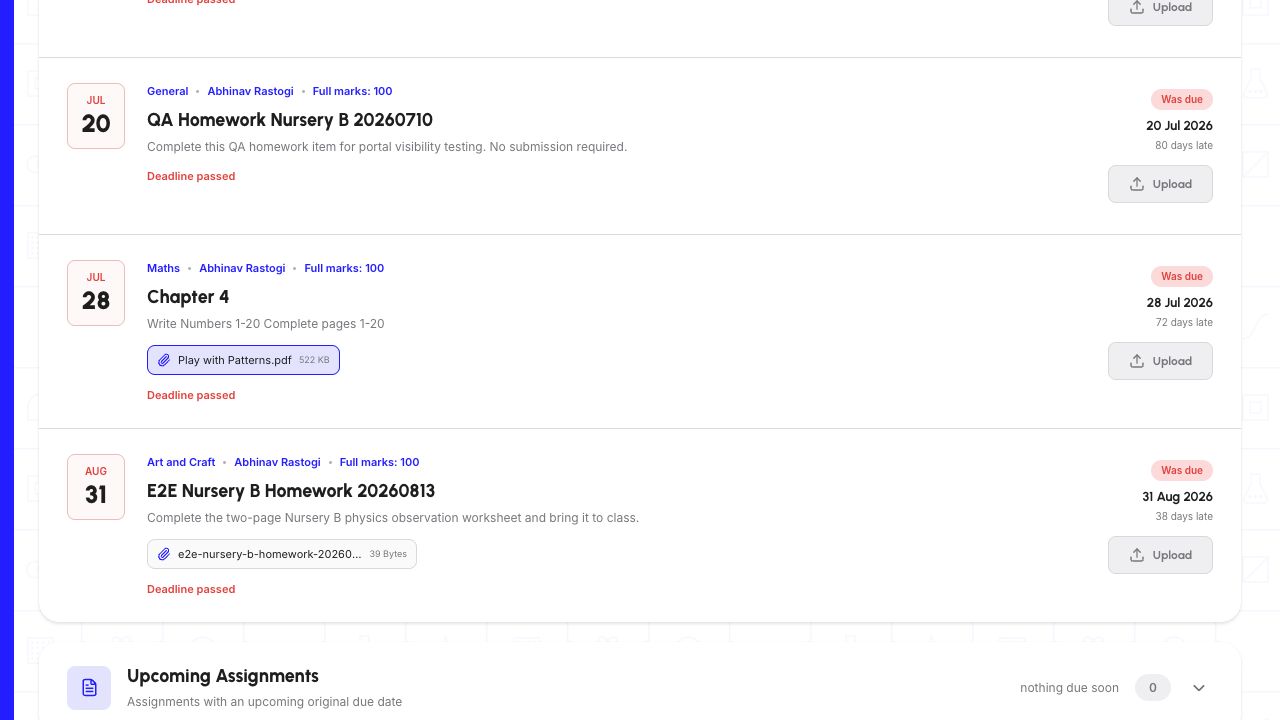
When a teacher has attached a file, its filename appears below the instructions. That teacher-file control is separate from Upload, which concerns sending the child’s work.
The Chapter 4 example shows a teacher PDF control alongside “Deadline passed” and a disabled Upload button. Do not use Upload to try to open the teacher’s file. This guide does not cover uploading, handing in or resubmitting homework.
Demo data · Desktop web · teacher attachment and deadline
 Enlarge screenshot
- The teacher’s PDF control sits with the written assignment instructions.
- Upload is a different control and is disabled beside Deadline passed.
4. Find feedback on work already handed in
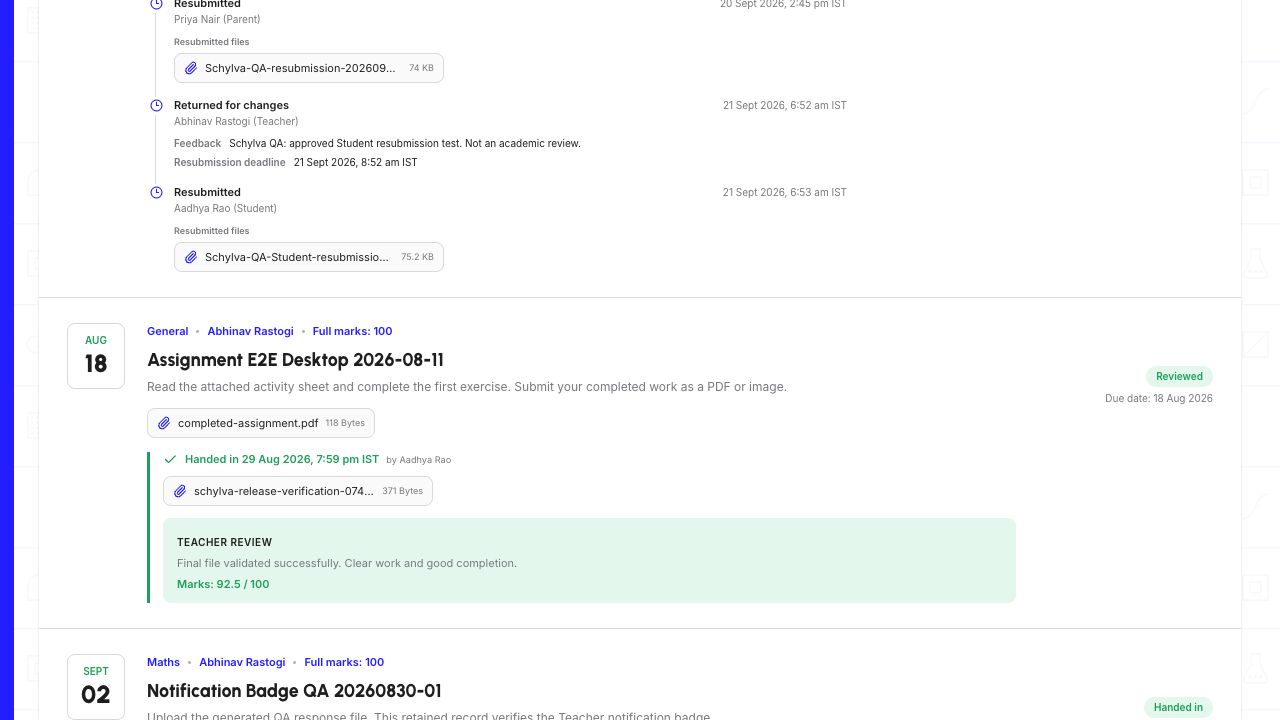
Expand Submitted Assignments and find the intended assignment. Look for its current status, handed-in information and “Teacher review” area when present.
A review may include written feedback and marks, or may have no marks recorded. Read the current review rather than assuming that an older entry in Submission activity is the latest result. If work is returned for changes, follow the teacher’s current instructions; the resubmission procedure is outside this guide.
Demo data · Desktop web · existing teacher review
 Enlarge screenshot
- Look for Reviewed and the Teacher review area on this existing record.
- Read the current feedback and marks; older activity is not automatically the latest review.
5. Open Material for learning resources
Choose Material in Quick access. Check that the Study material introduction names the intended child. The library separates “New this week”, “Earlier this term” and “Always available”.
New this week describes resources shared in the last seven days. In this walkthrough that section was empty, but Earlier this term contained four resources. Expand the older section before concluding that nothing is available.
Always available is a separate area for school-office reference documents. The demo had no permanent reference files for this class. That message does not describe the teacher resources above it.
Demo data · Desktop web · Study material entry
 Enlarge screenshot
- The navigation says Material; the page heading says Study material.
- Empty New this week does not mean the older resource list is empty.
6. Filter by subject, then check the resource
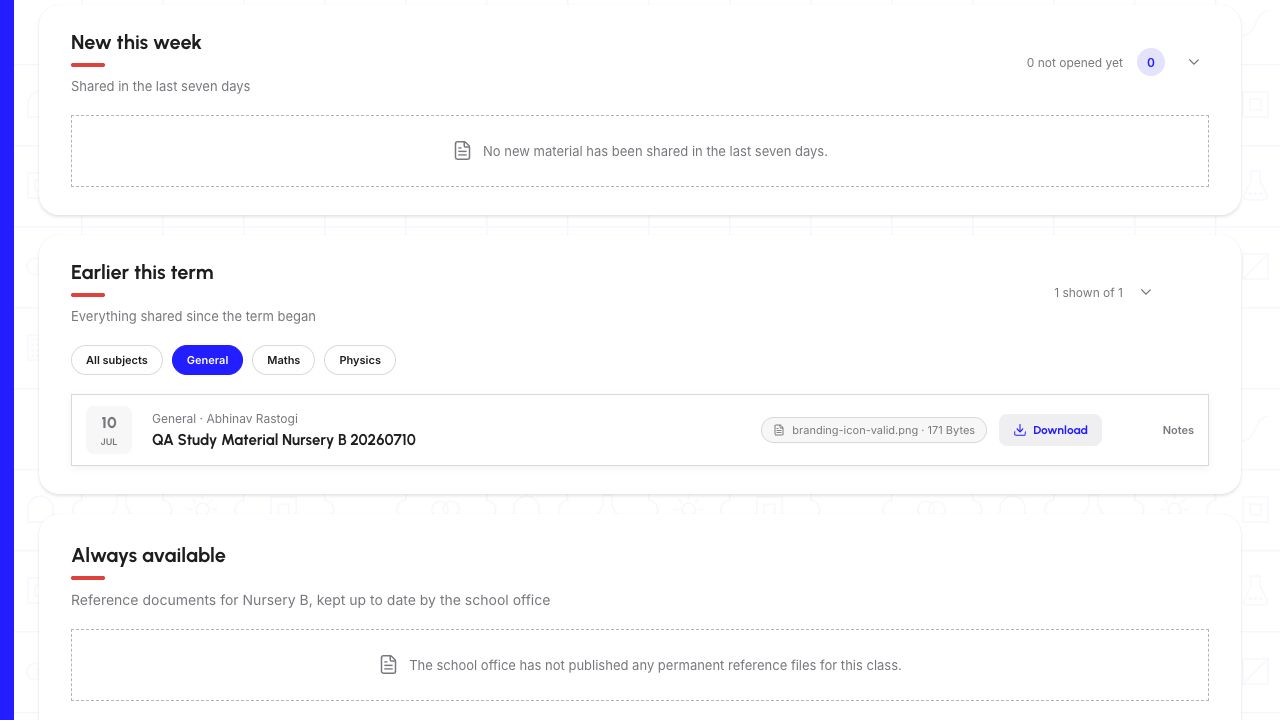
In Earlier this term, choose a subject to narrow the list. The selected subject is highlighted. Choose All subjects to restore the full list if a resource appears to be missing.
The reviewed General filter reduced four resources to one. Restoring All subjects brought back all four. Wait for loading to finish before treating a temporary message as the final result.
Compare the title, subject, teacher, date, file label and type, such as Notes or Worksheet, to identify the resource you need. This guide covers finding resources; it does not demonstrate opening or downloading a learning file.
Demo data · Desktop web · subject filter
 Enlarge screenshot
- General is selected and its loaded result count is one of one.
- Always available is a separate reference-document area, not the teacher-resource list.
On a phone: the same tasks, stacked vertically
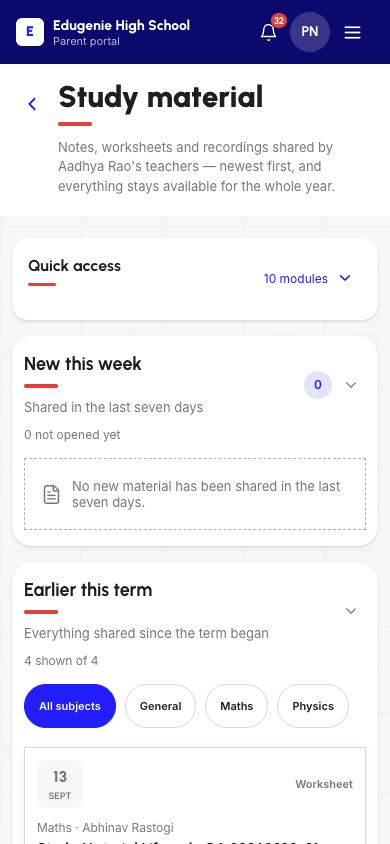
Use the Parent website in your mobile browser. If the module buttons are hidden, expand the module-count control beside Quick access (labelled “10 modules” in this example), then choose Assignments or Material.
Homework groups and resource cards stack vertically. Scroll past the progress summary or New this week section to reach the rest of the list. These screenshots show mobile web, not the native iOS or Android apps.
Demo data · Mobile web · homework
 Enlarge screenshot
- Confirm the child’s name above the mobile progress summary.
- Scroll through the stacked assignment groups; this viewport is only part of the page.
Demo data · Mobile web · learning resources
 Enlarge screenshot
- Quick access is collapsed at the top; the module-count control expands it.
- New this week is empty while Earlier this term and its subject filters are visible below.
If something is missing or unavailable
Start with these checks before asking the school to change a record. Opening a list is not the same as handing in homework.
- The expected homework is missing
- Check the child, then expand Overdue, Upcoming and Submitted. Look for the assignment title and subject; do not rely on a single group’s count.Check all three homework groups
- A study resource is missing
- Check Earlier this term and choose All subjects. If it is still absent after loading, ask the teacher to confirm that it is available to this child’s class.Restore All subjects and review older resources
- Upload is disabled or Deadline passed is shown
- Read the card’s current status and contact the teacher through your school’s approved channel. Do not change the device date or repeatedly attempt to bypass a closed submission.Distinguish the teacher file from Upload
- A file does not open
- Note the intended teacher-file or Material resource title and the visible message, then ask the school through its approved channel. Opening files is outside this guide. Do not share private links, login codes or unrelated student information.Identify the intended learning resource