Review fee records and download existing receipts on desktop
On desktop Parent web, open Fees to review the selected child’s charges and existing payment records. Check the student and academic year first. The receipt and fee-structure examples are separate documents for separate demo children; this guide does not make a payment.
For Parent
On this page
Before you begin
- An authorised Parent account for the intended school.
- The correct child selected in the Parent portal.
- A desktop or larger screen if fee details are clipped on your phone.
1. Open Fees and check the student
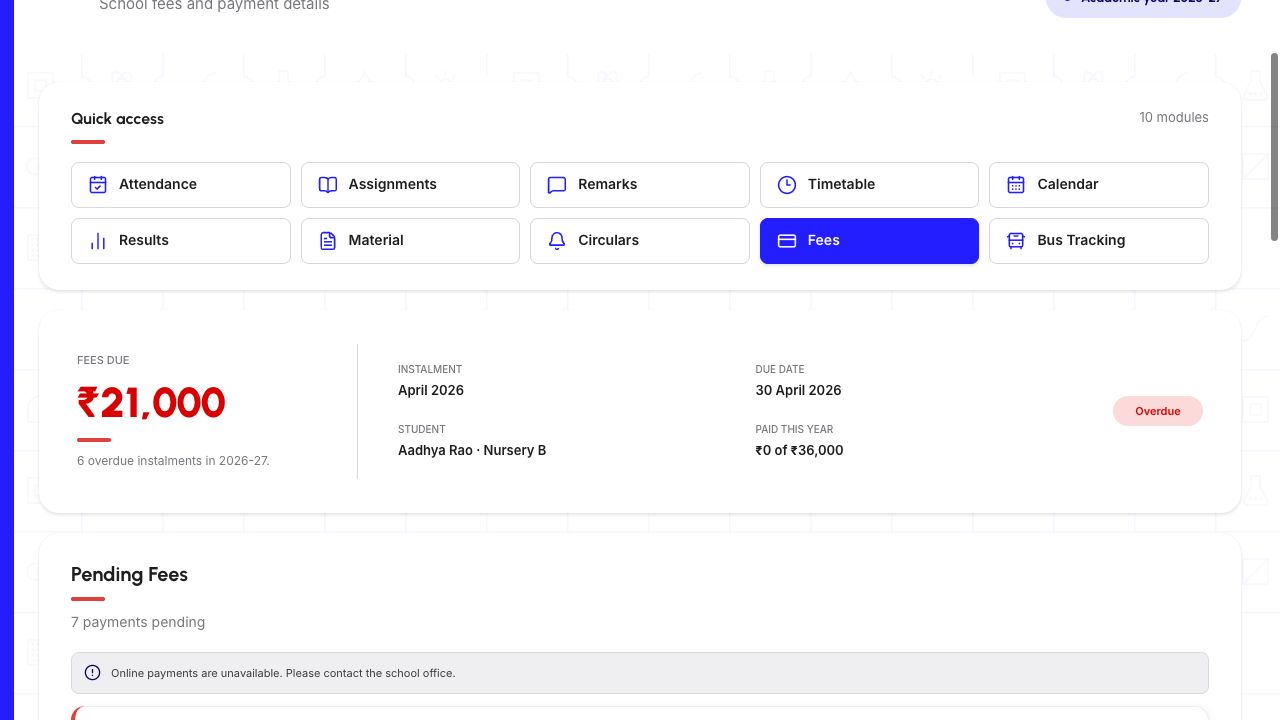
From Quick access, choose Fees. On the Payments page, find Student in the Fees due summary and compare the child’s name and class with the account you intended to open. Also check the academic year.
For another linked child, open the Parent account menu and choose the intended child under Switch child. Wait for Loading payments to finish, then check Student again. The walkthrough checked Aadhya and Anika and restored the original selection.
The amounts, dates and names below belong to an approved demo account. They are not Skyva pricing or a fee demand for your child.
Demo data · Desktop web · student and fee summary
 Enlarge screenshot
- Find Student and the 2026–27 year before reading the balance.
- ₹21,000 is the displayed due amount; ₹36,000 is the annual total, not another overdue charge.
2. Read each pending instalment
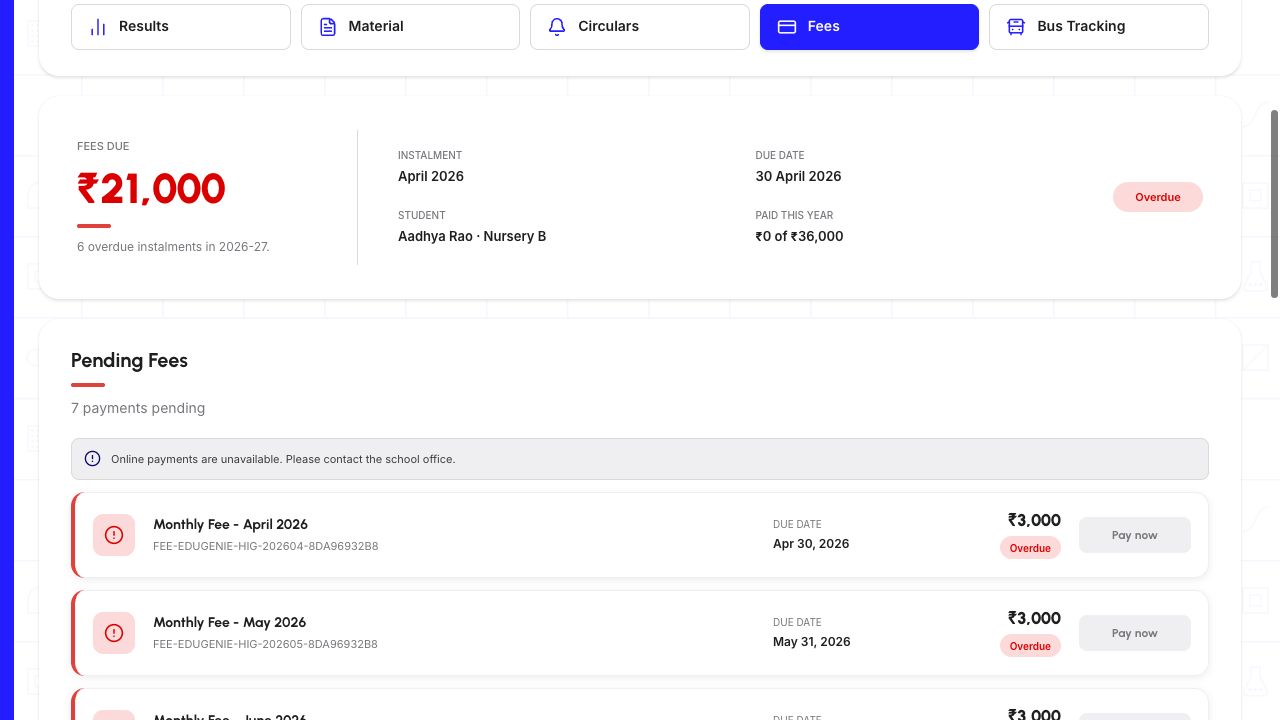
Scroll to Pending Fees. Each card shows a fee title, reference, due date, amount and status. Use the individual cards to understand the total rather than assuming every listed amount is already overdue.
In the example, seven fee items are pending: six overdue instalments from April to September at ₹3,000 each, plus October at ₹3,000 marked Due. Together they account for the displayed ₹21,000. The six overdue instalments alone total ₹18,000.
The label “7 payments pending” describes the listed fee items in this example. It is not evidence that seven bank or payment-provider transactions have been started.
- Overdue
- The example uses this label for the April–September instalments whose listed due dates have passed. Check the date and school record for the particular item.
- Due
- The October item is listed as Due, with a due date of 31 October 2026. Due and Overdue are different labels; do not infer the same deadline from the page-wide badge.
- Upcoming
- The instalment schedule groups November–March separately as future instalments. These are not included in this example’s seven Pending Fees cards.
3. Check whether online payment is available
The reviewed page displays “Online payments are unavailable. Please contact the school office.” Its Pay now controls are disabled. A visible Pay now label does not mean payment is available.
Contact the school office through a channel you already trust to confirm the permitted next step. Do not change accounts or repeatedly activate a control to get around the warning. This guide covers checking records, not making a payment.
Demo data · Desktop web · unavailable online payment
 Enlarge screenshot
- The notice says online payments are unavailable and Pay now is disabled.
- Only the first pending cards fit in this capture; the seven-item count is not seven completed transactions.
4. Compare the monthly fee with the annual structure
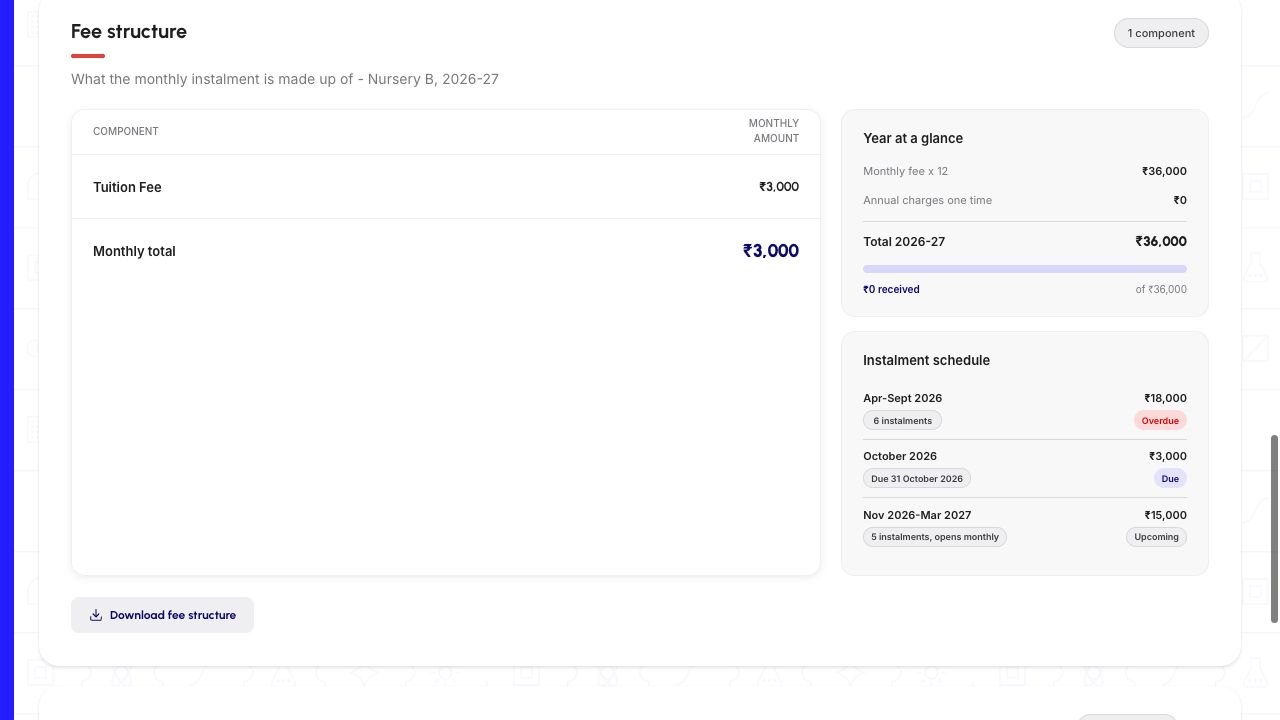
Fee structure lists the components of the monthly instalment. Year at a glance shows the monthly-fee calculation, any one-time annual charges, the annual total and the amount recorded as received.
The demo shows one monthly component: Tuition Fee at ₹3,000. Its annual calculation is ₹3,000 × 12 = ₹36,000, with ₹0 one-time annual charges. That annual total is not the same as the ₹21,000 currently listed as due. Use your child’s actual components and dates; schools may have different structures.
Read Instalment schedule to separate overdue, current and future groups. In this example, ₹18,000 overdue + ₹3,000 current + ₹15,000 upcoming accounts for the ₹36,000 annual structure.
Download fee structure is below this section. Select it once, allow Preparing PDF to finish, then open the saved PDF from your browser’s downloads. The separate 20 October desktop check succeeded; the two rendered pages below show its output. A fee structure describes charges; it is not a payment receipt.
Demo data · Desktop web · fee structure and schedule
 Enlarge screenshot
- Tuition Fee is ₹3,000 per month; Year at a glance shows the separate ₹36,000 annual calculation.
- Instalment schedule separates ₹18,000 Overdue, ₹3,000 Due and ₹15,000 Upcoming.
5. Open Past Payments
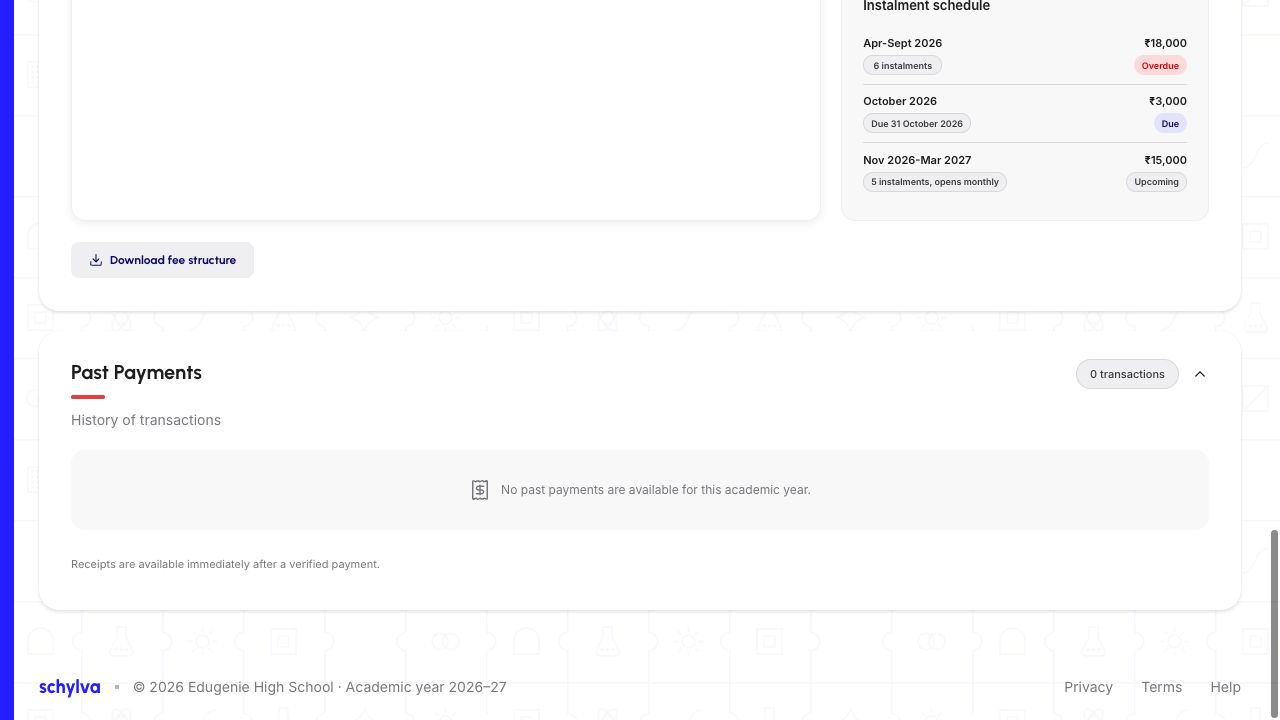
Scroll to Past Payments. Its transaction-count control expands or collapses the history. In both children reviewed on 9 October it showed 0 transactions and “No past payments are available for this academic year.” The separate 20 October Aarav example below has an existing transaction.
An empty history is the portal’s displayed result for that child and year. It does not by itself establish what happened in a bank account, with a payment provider, or in another academic year.
If you have already paid but the record looks wrong, ask the school office to reconcile the child, fee reference, amount and date through its approved channel before making another payment. Do not share login codes, full payment credentials or unrelated student details.
For an existing row, compare its fee month, date, amount and displayed status before choosing its receipt control. The next section follows one verified demo transaction; the fee-structure download is a different document.
Demo data · Desktop web · empty payment history
 Enlarge screenshot
- Past Payments is expanded and shows 0 transactions for this academic year.
- The receipt-availability sentence is visible product text, not a receipt delivery verified by this guide.
6. Open a receipt for an existing payment
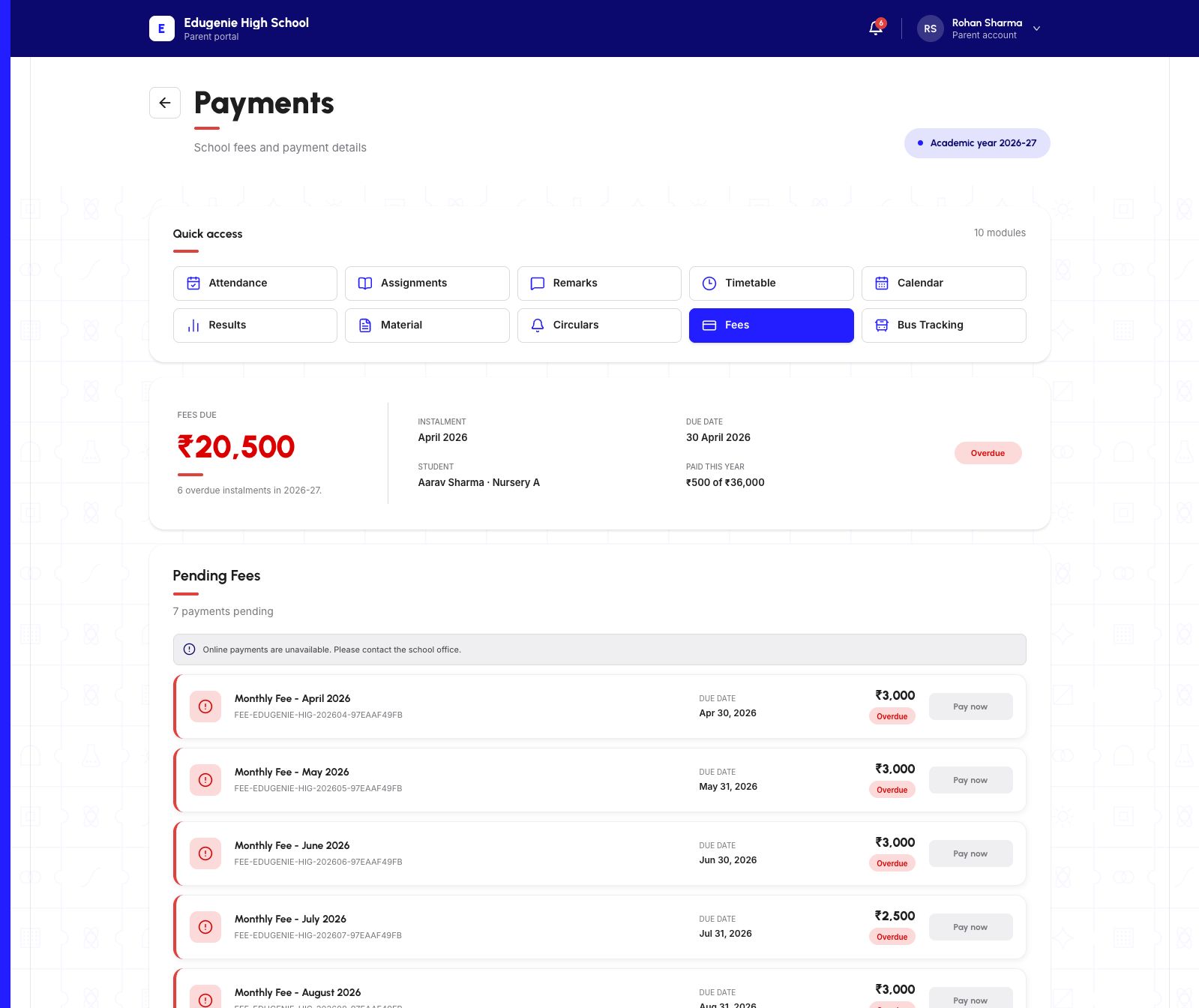
Demo data — verified Parent web, 20 October 2026. This sequence belongs to Aarav, Nursery A, 2026–27. It is separate from the earlier fee-viewing examples and Aanya’s fee structure below. No payment was made to create these images.
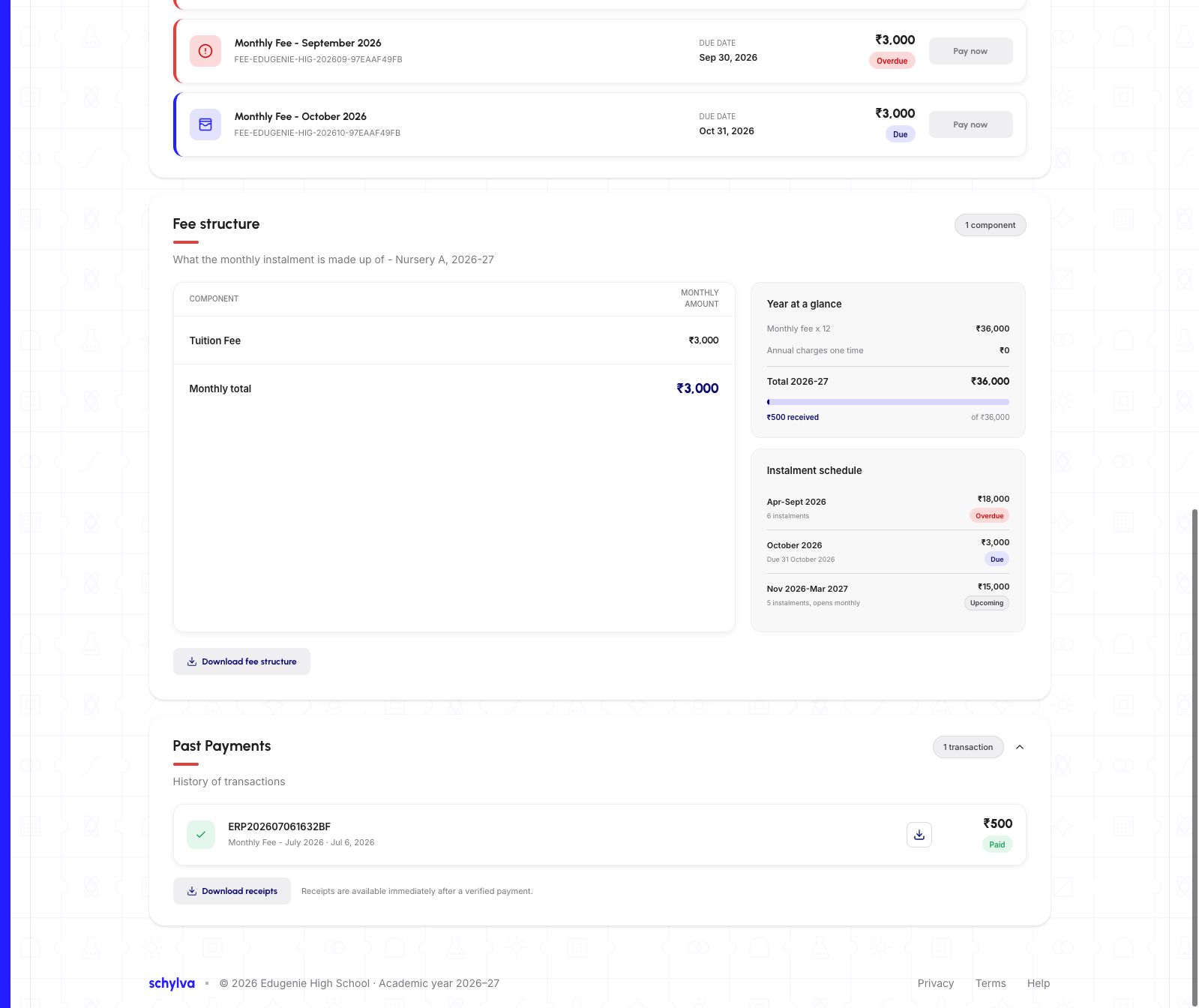
The summary shows ₹500 received and ₹20,500 currently due. Past Payments contains one existing July fee entry dated 6 July 2026, showing ₹500 and Paid. That status describes the recorded transaction, not full payment of the ₹3,000 July invoice.
Use the receipt download control on that same row, then check your browser’s downloads and open the saved PDF. This sequence verified the individual receipt, not the separate all-receipts control. No separate interactive payment-detail screen was exposed in this Parent view.
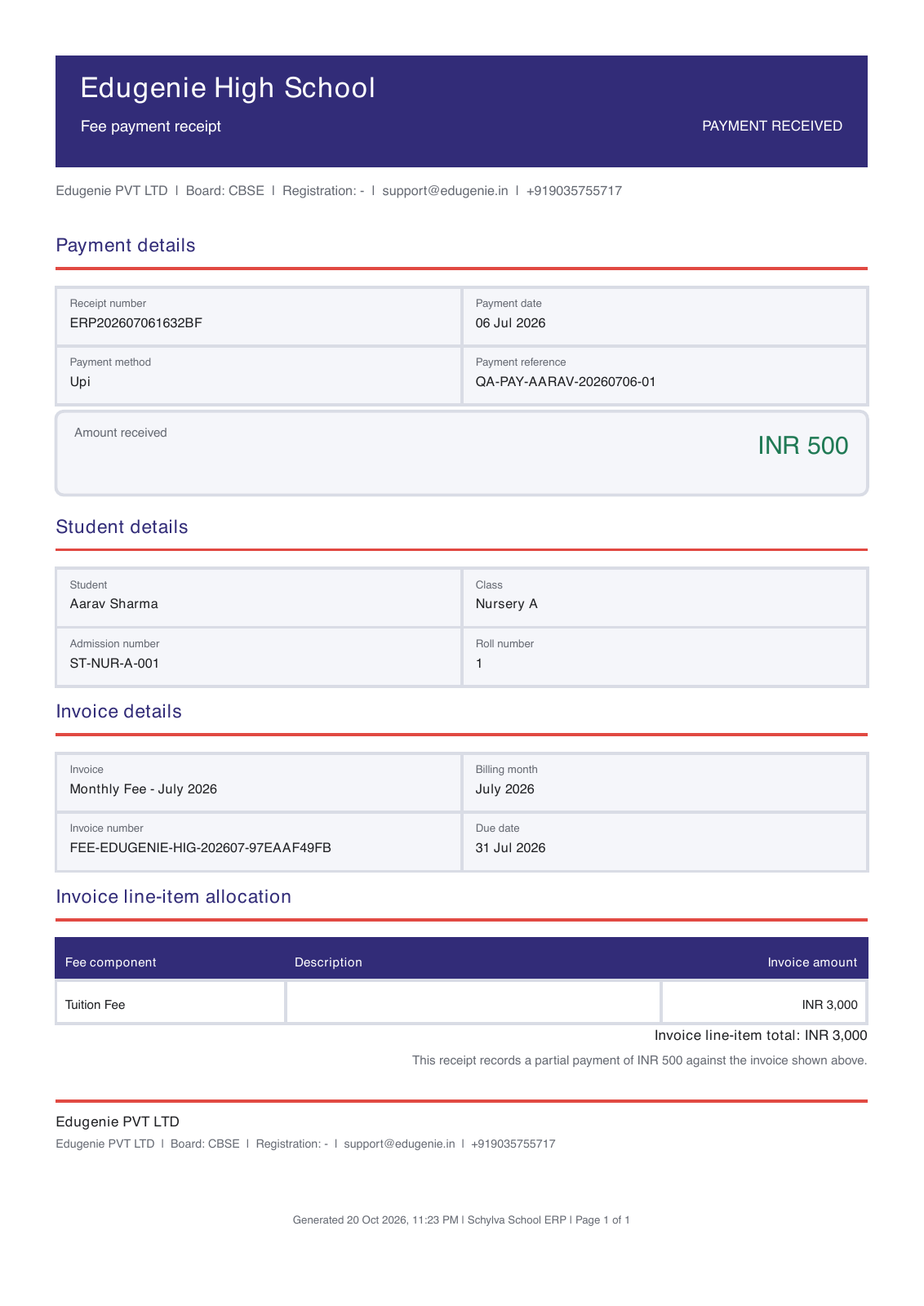
Text equivalent of the PDF example: the one-page receipt identifies Aarav, Nursery A, Monthly Fee – July 2026, payment date 6 July 2026 and ₹500 received against a ₹3,000 invoice. It explicitly describes a partial payment. Match the child, class, fee reference, amount and date with the row before using a receipt.
The final image is a complete rendered page of the actual downloaded PDF, not a PDF-viewer screenshot or a fabricated receipt. The PDF was parsed and visually reviewed; PDF screen-reader accessibility was not established. This verifies an existing ERP record, not independent bank/provider settlement or full fee clearance.
Demo data · verified Parent web · fee context
 Enlarge screenshot
- Confirm Aarav, Nursery A and 2026–27 before reading the amounts.
- ₹500 received and ₹20,500 currently due belong to this demo record, not the older examples.
Demo data · verified Parent web · existing payment
 Enlarge screenshot
- Match the July fee, 6 July date and ₹500 amount before choosing the row’s receipt control.
- Paid is the recorded transaction status; it does not clear the whole ₹3,000 invoice.
Demo data · verified receipt PDF · complete page
 Enlarge screenshot
- Read the partial-payment disclosure and match the child, July invoice, date and ₹500 amount to the row.
- This complete PDF render verifies the downloaded record, not independent bank settlement.
Open the fee-structure PDF, a different document from a receipt
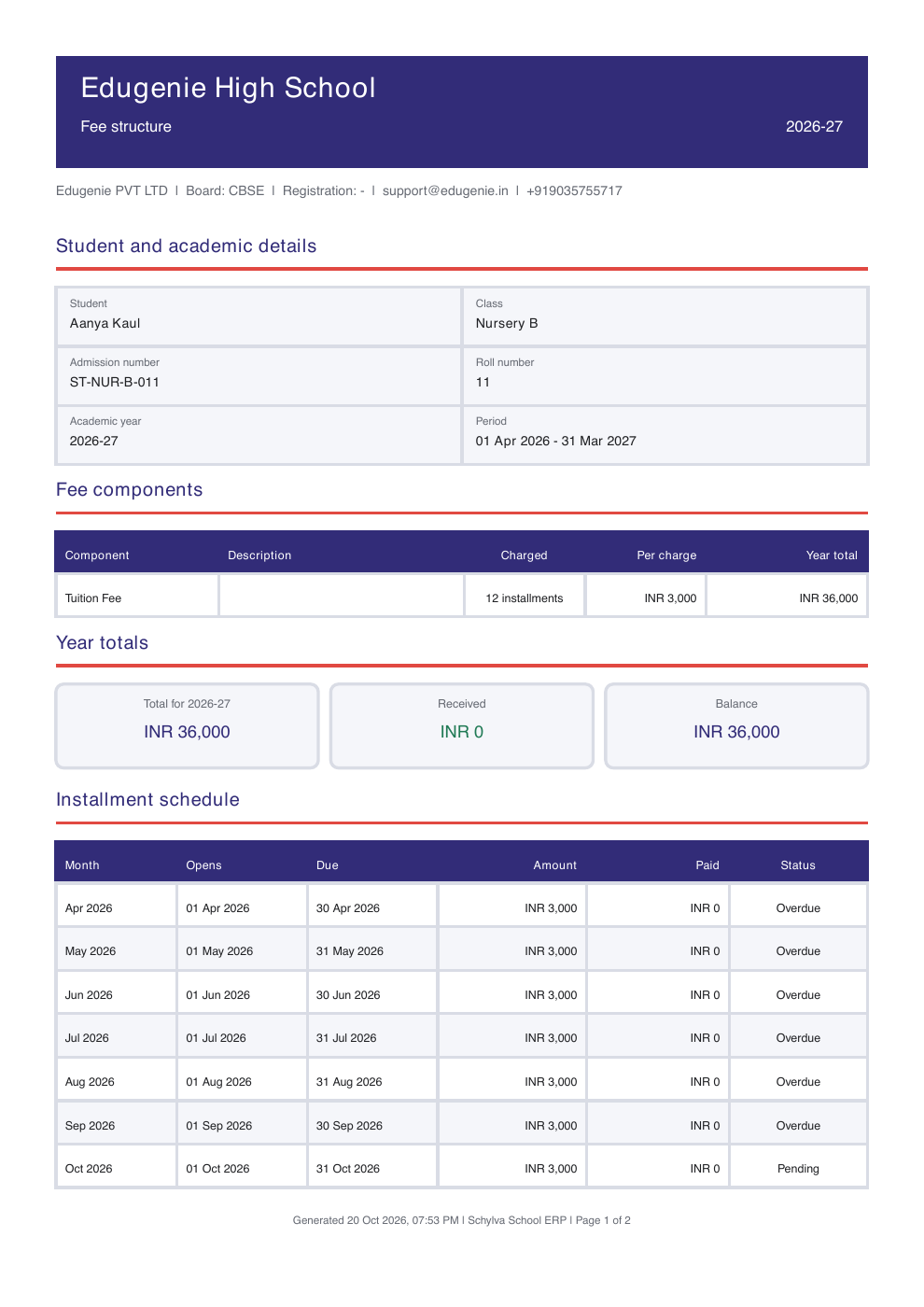
On 20 October 2026, Download fee structure produced a readable two-page PDF through the Parent website. Both pages below are complete renders of that actual downloaded document, not screenshots of a PDF viewer. A fee structure lists charges; it is not a receipt.
This separate example is for Aanya, Nursery B, 2026–27, not the other screenshots above. Check your downloaded document’s child, class, academic year and period before using it. Its twelve ₹3,000 instalments total ₹36,000, with ₹0 received. The PDF’s ₹36,000 annual balance includes future instalments and is not the same as ₹21,000 currently due in the portal.
Page 1 lists the child, fee components, annual totals and April–October instalments. Page 2 continues November–March. October is labelled Pending in this PDF and Due in the portal; both show a 31 October due date. Use the dates and amounts rather than assuming that different labels mean different charges.
The earlier empty-history screenshots and their receipt-availability sentence are not verified receipt delivery. The separate Aarav sequence above now shows a matching existing payment and downloaded receipt; do not combine that transaction with Aanya’s fee structure.
A fee structure lists charges. A payment-history entry records what the portal shows, and a receipt is a separate document. Do not treat one as proof of the others or of bank/provider settlement.
Demo data · Downloaded fee structure · page 1 of 2
 Enlarge screenshot
- Check the child, class, year and period before using the document; this separate example is for Aanya.
- The ₹36,000 annual balance includes future charges; it is not the same as ₹21,000 currently due.
Demo data · Downloaded fee structure · page 2 of 2
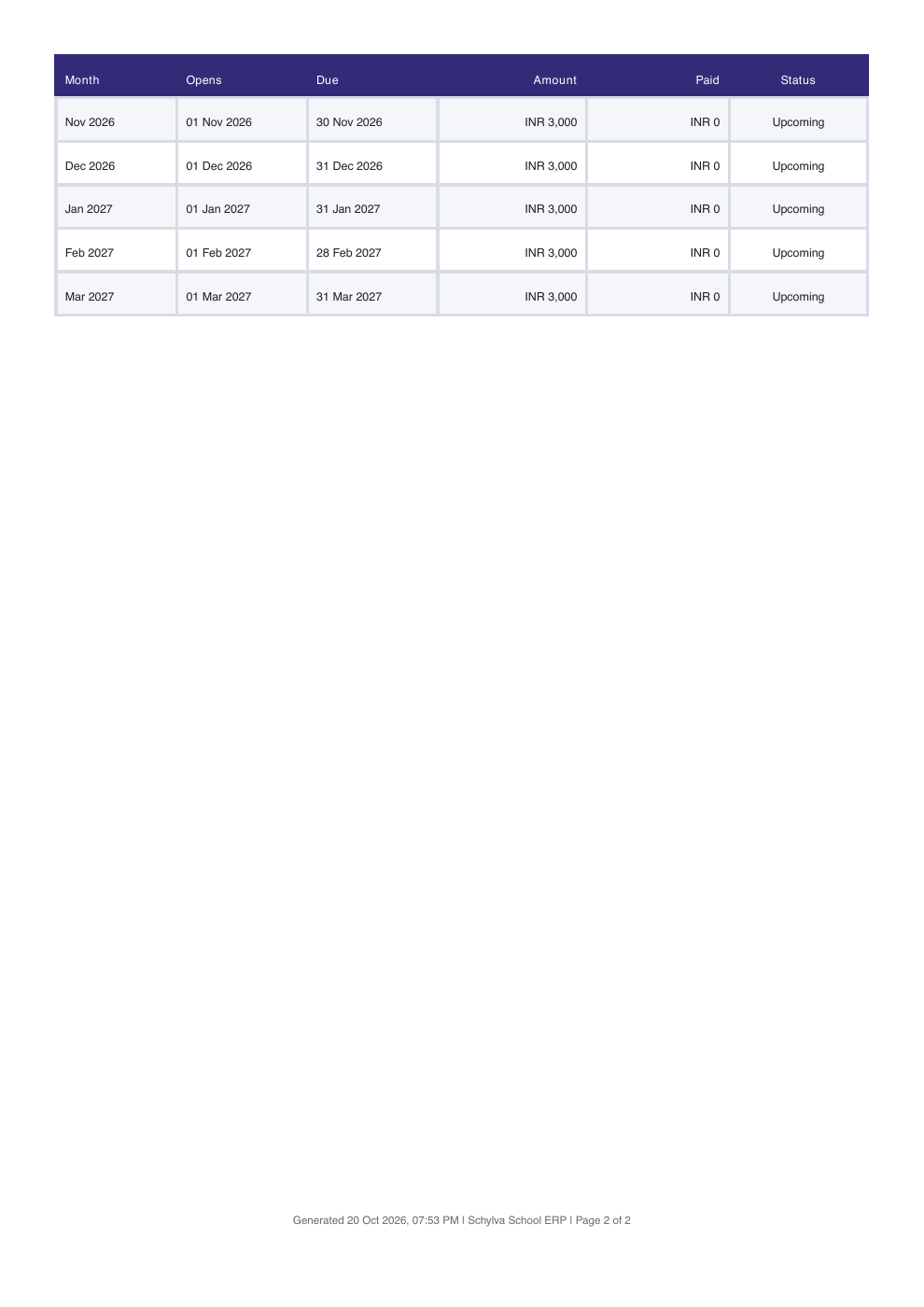 Enlarge screenshot
- This is the continuation of the same downloaded PDF, not a separate fee demand.
- November–March are five upcoming ₹3,000 instalments; read both pages for the complete annual schedule.
If fee details are clipped on a phone
Use desktop Parent web if your phone cuts off a child’s name, due date, amount or receipt reference. Do not act on a record you cannot read fully.
The screenshots in this guide demonstrate desktop fee review. A repaired live mobile Fees layout and mobile receipt downloads are not established by these examples. This Help page itself can be read on a phone.
If a record does not look right
Keep the child, academic year and exact fee item together when asking for help. Viewing these records does not change them.
- The amount looks higher than the overdue total
- Compare the Pending Fees cards and Instalment schedule. A current Due item can be included alongside overdue items; the annual total can also include future instalments.Compare the three instalment groups
- The wrong child is shown
- Use the Parent account menu to select the intended child, wait for loading to finish and recheck Student before reading the figures.Recheck the child and academic year
- The payment history is empty or unexpected
- Confirm the academic year and child, then ask the school office to check the exact record. Do not interpret missing history as an instruction to pay again.Read the empty-history and reconciliation checks
- The fee structure does not download
- Check the browser’s visible download or new-tab result. If no usable file appears, ask the school for its current fee structure rather than relying on an unconfirmed download.Check the fee-structure PDF and receipt limitations