View your child’s timetable
Open Timetable from your child’s dashboard, check the name and class, then choose Day or Week. Changing the displayed day helps you read the schedule; it does not change the school’s timetable.
For Parent
On this page
Before you begin
- Parent access to the correct school portal.
- The intended child selected from your linked profiles.
1. Open Timetable for the right child
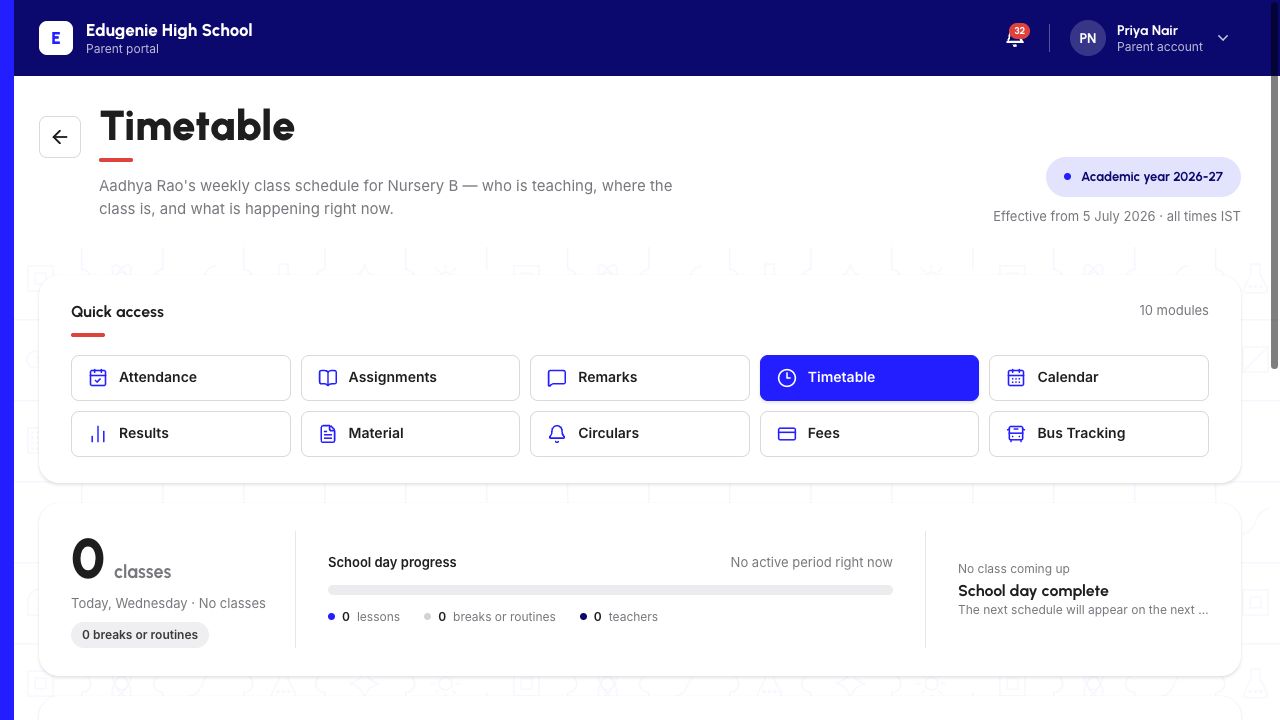
From the Parent dashboard, choose “Timetable” in Quick access. Read the child’s name and class directly below the Timetable heading before using the schedule.
The desktop example also shows the academic year, effective date and time zone. Its “all times IST” label belongs to this demonstration school; use the time information shown by your own school.
Demo data · Desktop web · child and school context
 Enlarge screenshot
- Read the child’s name and class beneath Timetable.
- Use the school’s displayed academic year, effective date and time-zone label.
2. Choose a day and read its lessons
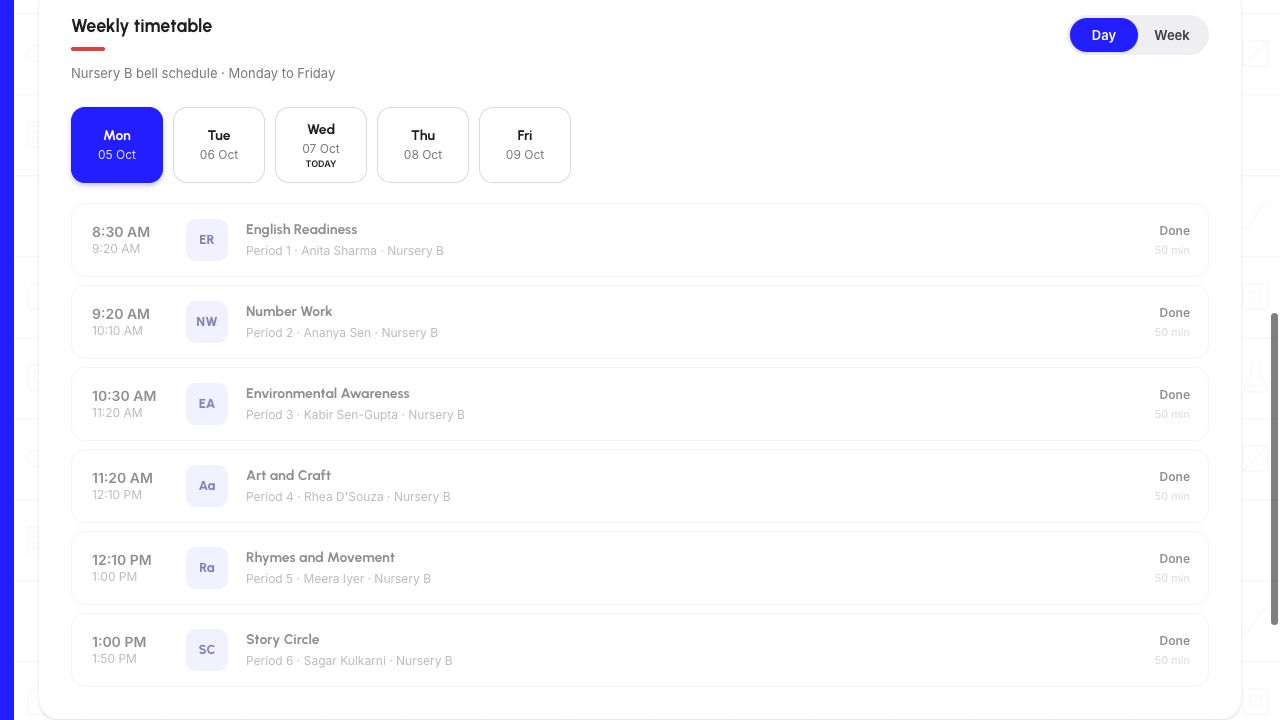
Scroll to “Weekly timetable”. Choose “Day”, then select the required weekday and date from the displayed school week. The selected day is highlighted.
Read each lesson’s start and end times, subject, period and teacher. The Monday example below has six lessons. It is an example schedule, not a timetable to copy.
The summary above this section is labelled “Today”. In this walkthrough it continued to describe Wednesday even while Monday was selected below. Use the selected date in Weekly timetable to identify the lessons you are reading. A “Done” label on an earlier period is not proof that your child attended it.
Demo data · Desktop web · selected day
 Enlarge screenshot
- Monday is the selected lesson list; Wednesday has the separate Today marker.
- Read each lesson’s time, subject and teacher. Done is not attendance evidence.
3. Compare days in Week view
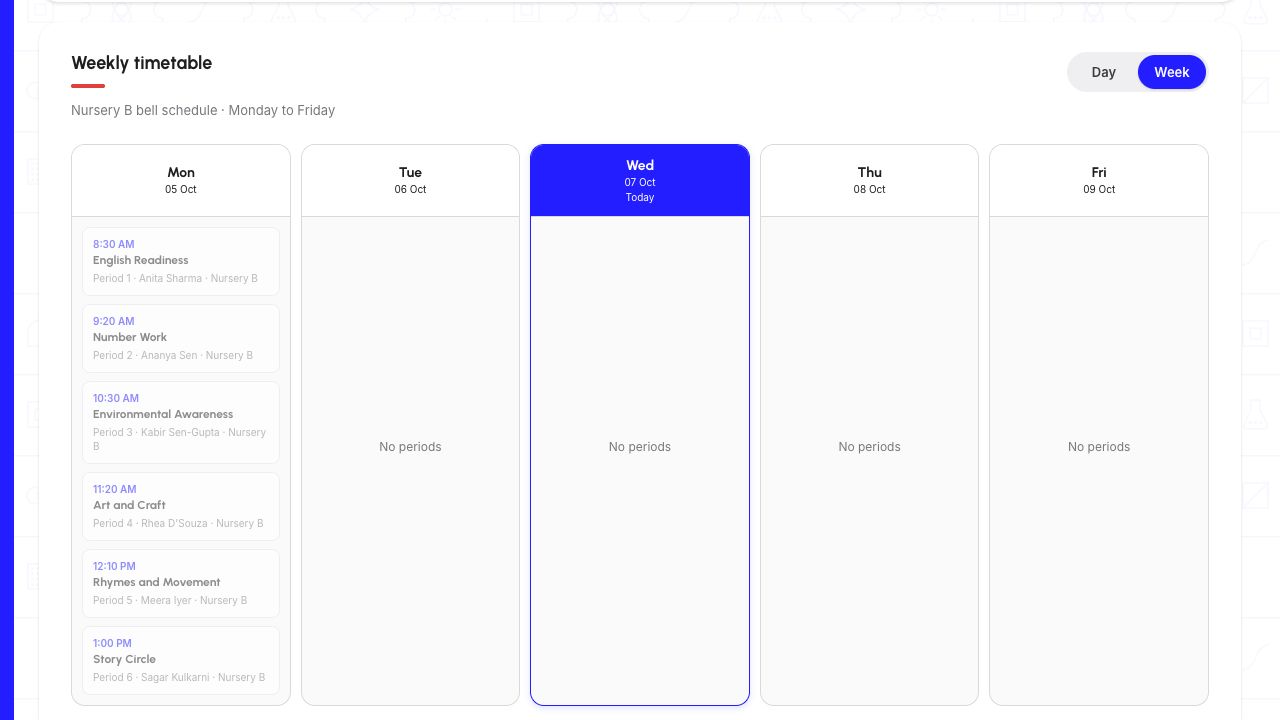
Choose “Week” to see the displayed school week together. The desktop layout uses one column per day. Check each column’s date and its lesson list or “No periods” message.
Choose a day’s heading in Week view to open that day in Day view. In the example, choosing Mon 05 Oct opened Monday’s six lesson rows. The highlighted Today column identifies the current date, not a lesson you need to select.
This guide covers the week and weekday controls shown here. It does not describe a date picker or navigation to arbitrary past or future weeks.
Demo data · Desktop web · school week
 Enlarge screenshot
- Compare the dated weekday columns and their lessons or No periods messages.
- A weekday heading opens that day’s details; Today identifies the current date.
Use the same views on a phone
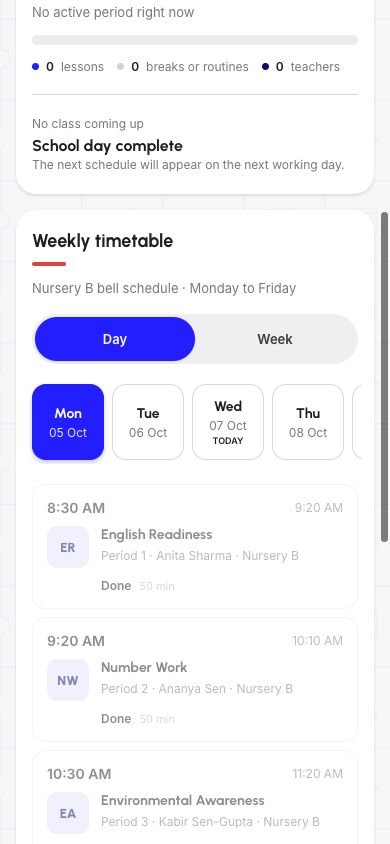
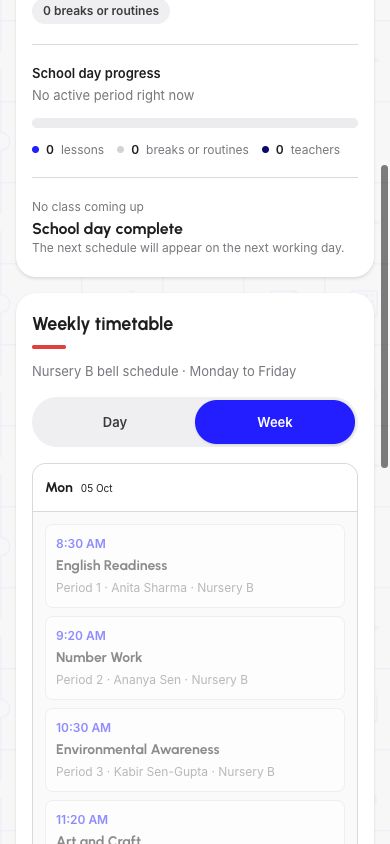
On mobile web, check the child beneath the Timetable heading, then scroll to Weekly timetable. The Day and Week controls sit above the schedule.
Day view uses stacked lesson cards below the weekday strip. Week view stacks the day panels vertically instead of placing them side by side. Scroll down to read the remaining lessons and days; the first visible card is not the whole schedule.
These are screenshots of the responsive website. They do not show the native iOS or Android apps.
Demo data · Mobile web · day cards
 Enlarge screenshot
- Find the Day/Week controls and the highlighted weekday above the lesson cards.
- The screen shows only the first lessons; scroll to see the rest of the day.
Demo data · Mobile web · stacked week
 Enlarge screenshot
- Week is selected, but the phone shows vertically stacked day panels.
- Monday’s visible cards are not the entire school week.
If a day has no timetable entries
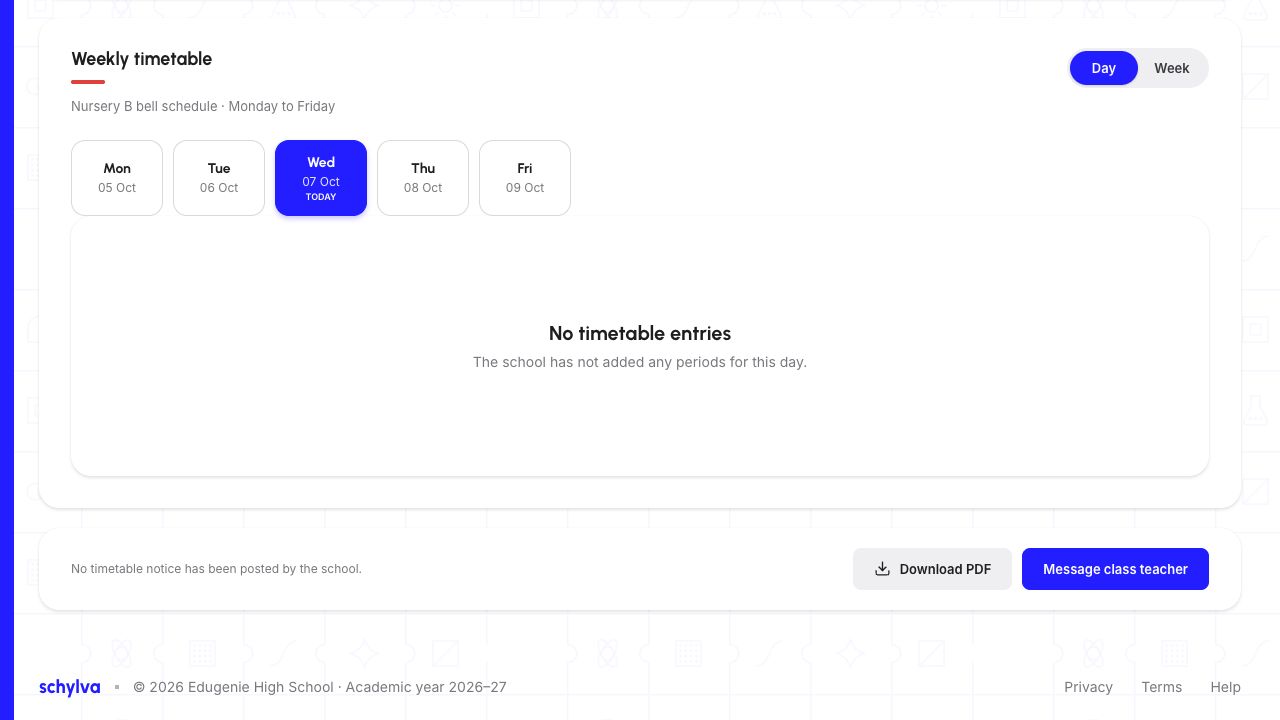
Check the selected date before assuming the schedule has failed. The reviewed Wednesday displayed “No timetable entries” and “The school has not added any periods for this day.” Monday still had lessons.
An empty day does not by itself confirm a holiday, an absent child or a missing account link. If you expected lessons, confirm the child, class and date, then ask the school to check its schedule.
- No timetable entries or No periods
- Check the selected day and compare Week view. Ask the school about the expected schedule; do not infer attendance or a holiday from this message.Compare the other days in Week view
- Loading timetable has not finished
- Wait for the schedule or an error message before treating the list as empty. Check your connection and reload the page if it remains stuck.Recheck the named child and page context
- The name or class is not the child you intended
- Return to the dashboard, use Switch child and open Timetable again. Recheck the name and class below its heading.Switch to the intended linked child
- A lesson, time or teacher seems incorrect
- Tell the school which child, class, date and lesson you are viewing. Parent timetable viewing does not edit the school schedule.Check the selected date and lesson details
Demo data · Desktop web · genuine empty day
 Enlarge screenshot
- Check Wednesday’s selected date and the loaded No timetable entries message.
- No entries is not proof of a holiday, an absence or a missing child link.
Check another child’s schedule
Choose “Back to dashboard”, then “Switch child”. Select the intended profile and open Timetable again. Confirm the name and class beneath the heading before reading its lessons.
Children in the same class may share a class timetable. A similar lesson list alone does not prove that switching failed; check the named child and class. The walkthrough confirmed the heading changed between two linked children in Nursery B and restored the original child afterwards.
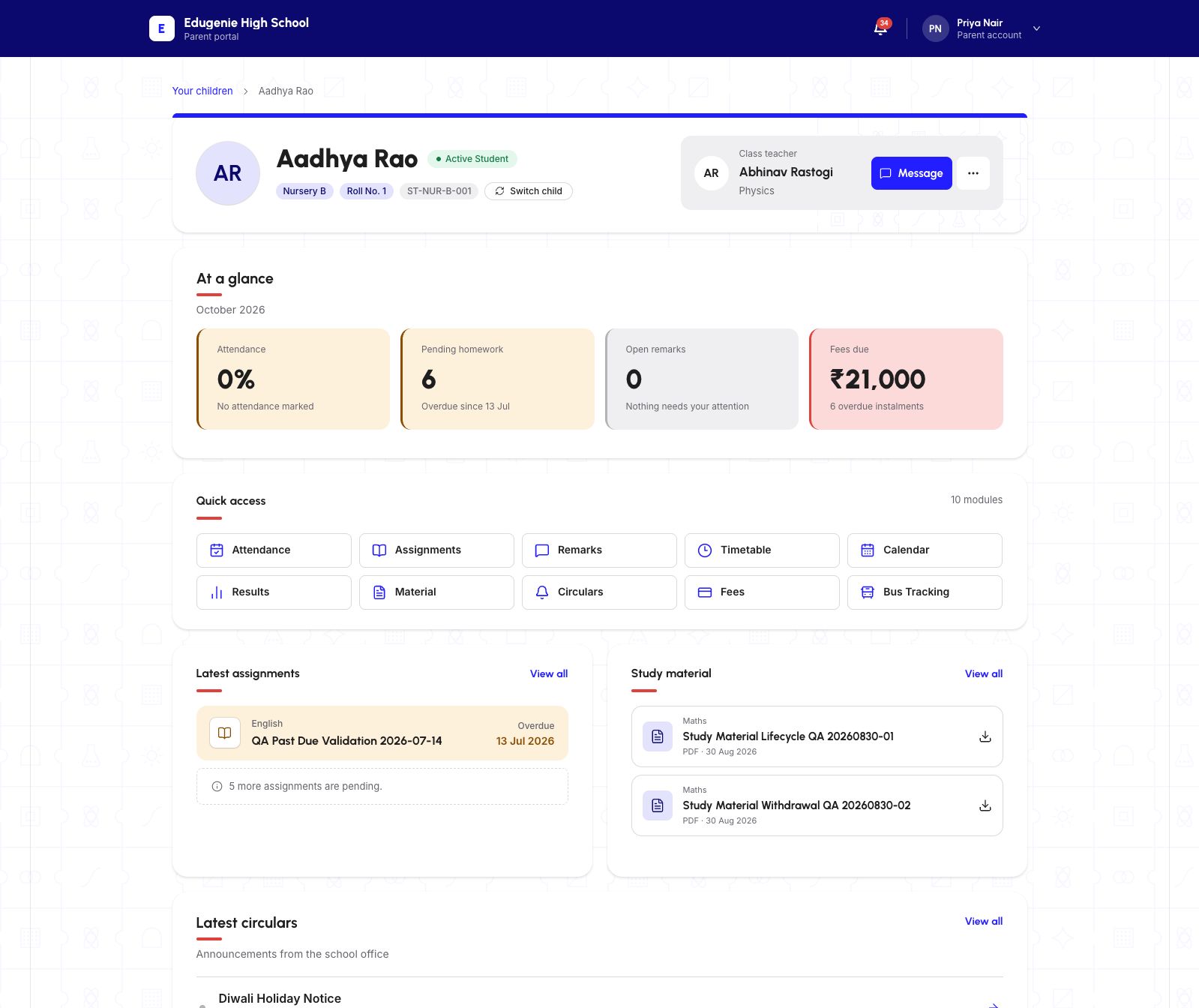
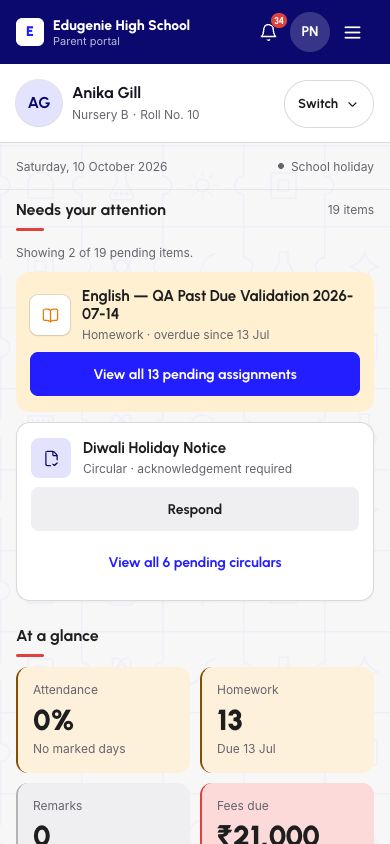
The two dashboard references below come from the separate 10 October child-switching walkthrough. Desktop visibly says Switch child; the phone control says Switch. They illustrate where to change the profile, not a newly captured timetable result.
Demo data · Desktop web · reused child-switching reference
 Enlarge screenshot
- The profile names the child; the account header separately names the Parent.
- Switch child is beside the class and roll number; Timetable is in Quick access below.
Demo data · Mobile web · reused child-switching reference
 Enlarge screenshot
- The full child name, class and roll number appear at the top.
- The phone control says Switch; the summary cards are not proof of profile identity.
Download and check the timetable PDF
Confirm the child and displayed week, then choose “Download PDF”. Open the downloaded file from your browser’s downloads. Compare its child name, class, academic year, week and lesson times with the schedule you intended to save.
On 20 October 2026, this Parent-web action produced a readable one-page timetable for Aadhya Rao, Nursery B, academic year 2026–27, week 19–25 October. The image below is a rendering of that downloaded PDF, not a screenshot of an in-app document viewer. The earlier page screenshots show a different October week.
A downloaded timetable is a dated copy. Check the current portal if the school changes its schedule. If no usable file appears, ask the school for the schedule through its usual contact channel.
“Message class teacher” was not tested. Do not share login codes or another child’s records when asking the school about a lesson.
Demo data · Downloaded timetable · rendered PDF page
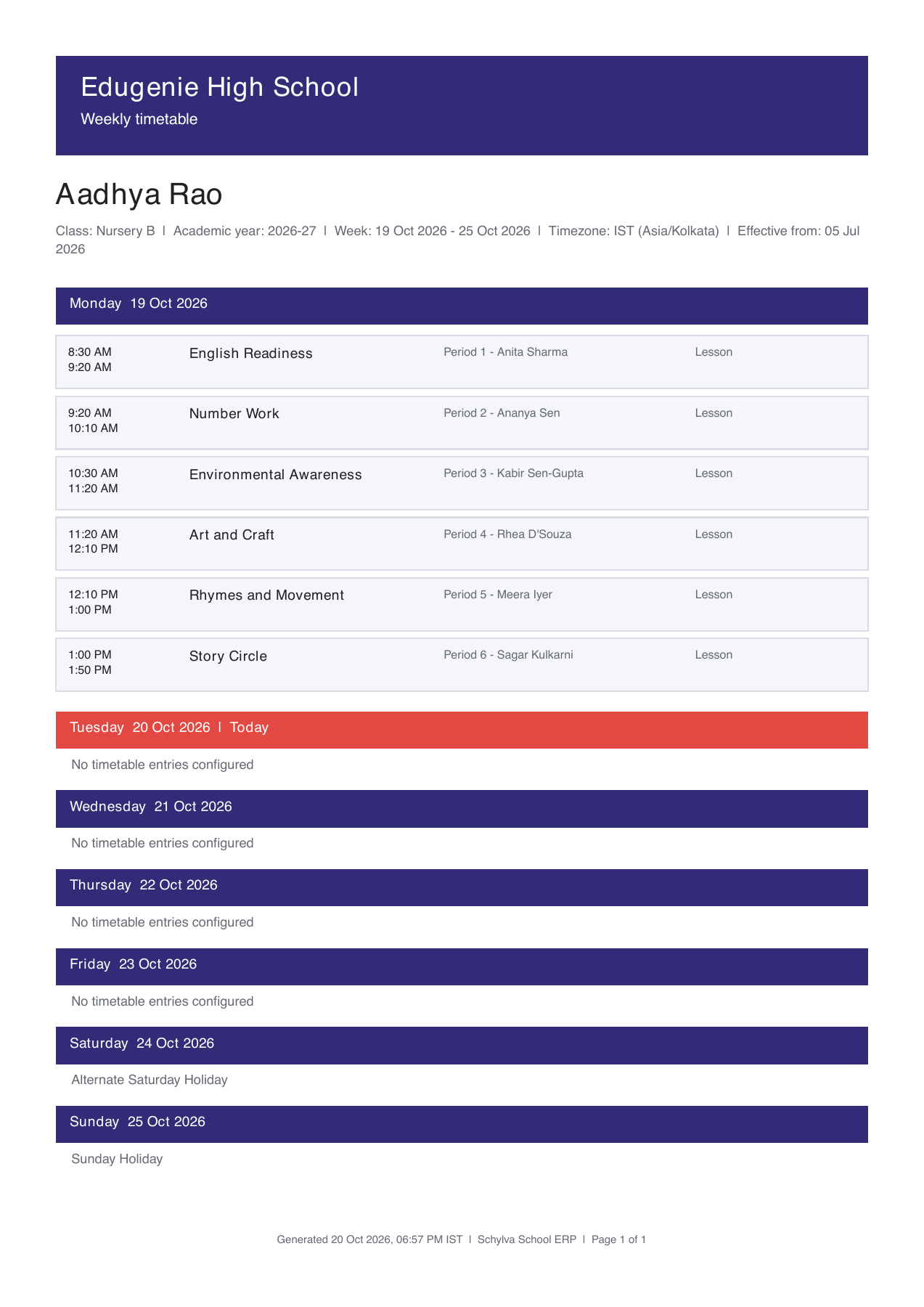 Enlarge screenshot
- Compare the child, class, academic year and week at the top with the schedule you selected.
- This downloaded PDF is a dated copy; check the current portal for later schedule changes.