A child is missing from the Parent view
Check the school and the children listed in your Parent view. If an expected child is absent, ask the school office to check the link to your Parent account. A missing profile does not by itself mean a student record has been deleted.
For Parent · Administrator
On this page
Before you begin
- The school portal you normally use.
- The Parent role supplied by your school.
Check the school and role first
Confirm that you opened the intended school’s portal and chose the Parent role. If you have links for more than one school, check which one you used.
Return to the full child list
If you are already on a child’s dashboard, choose “Switch child”. In the 7 October 2026 Parent-web walkthrough, this returned to the “Your children” selection screen. The desktop dashboard also includes a “Your children” breadcrumb.
A dashboard belongs to one selected child. Check the full list before reporting that another child is missing. Selecting a child opens that child’s dashboard; it does not create a new link or repair a missing profile.
Check the children listed
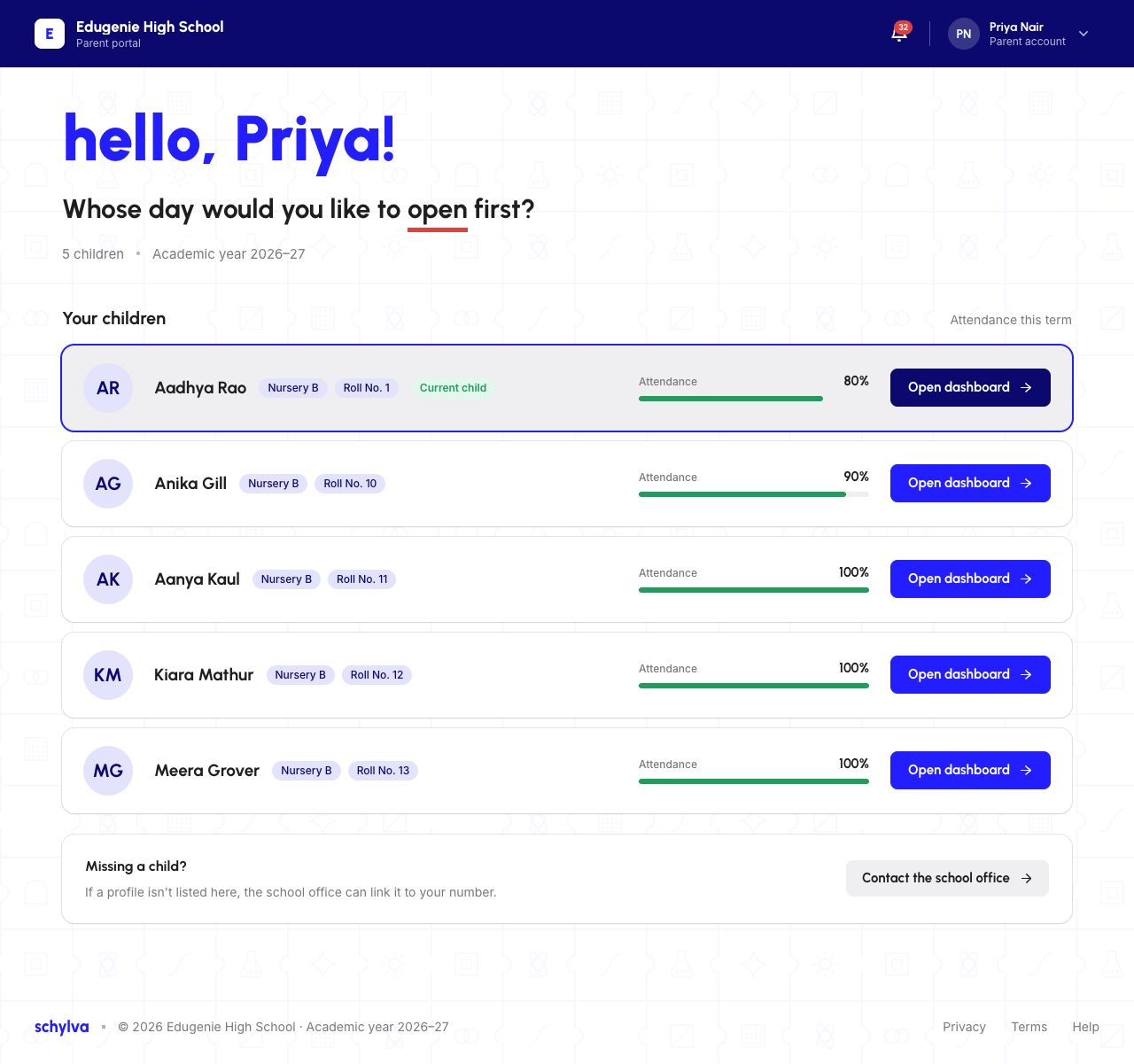
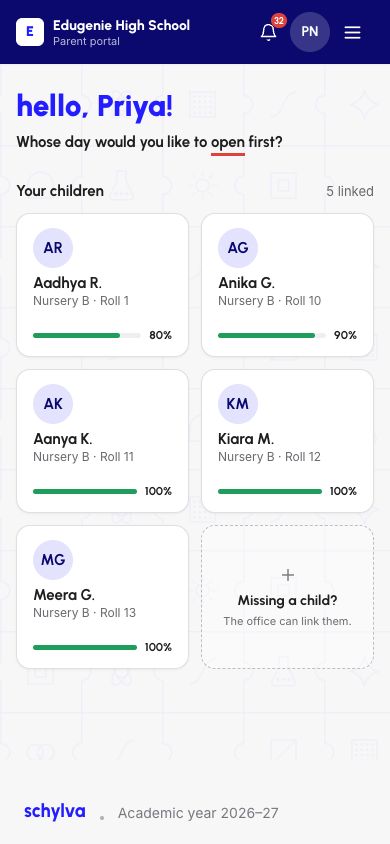
On the child-selection screen, look under “Your children”. Compare the names and class details with the child you expect. The five children shown here belong to the demo account; your account may list a different number.
In the desktop example, each row includes “Open dashboard”, and the selected profile has a “Current child” label. The mobile-web example uses cards and a linked-child count. Do not mistake one selected child for the complete list.
Demo data · Desktop web
 Enlarge screenshot
Demo data · Mobile web
 Enlarge screenshot
Choose the check that matches your screen
Describe what you can see before assuming the cause. A missing child, an empty module and a page that failed to load are different problems.
- One expected child is missing
- Check the school and Parent account, then ask the school office to review the missing link. Do not create a second student record to work around it.Ask the school office to check the link
- No children are listed
- Note whether the page finished loading or shows an error. If the loaded list is empty, ask the school office to check the Parent account and linked children.Check the school and Parent role first
- The child is listed, but a module is empty
- Check that the module belongs to the intended child and note its message or selected date. An empty module does not itself indicate a missing account link.Confirm the selected child before checking the module
- The page shows a loading or connection error
- Check your connection and try loading the page again. If it still fails, record the exact message; a failed load is not proof that a child was removed.Prepare the visible error safely for the school
Ask the school office to check the link
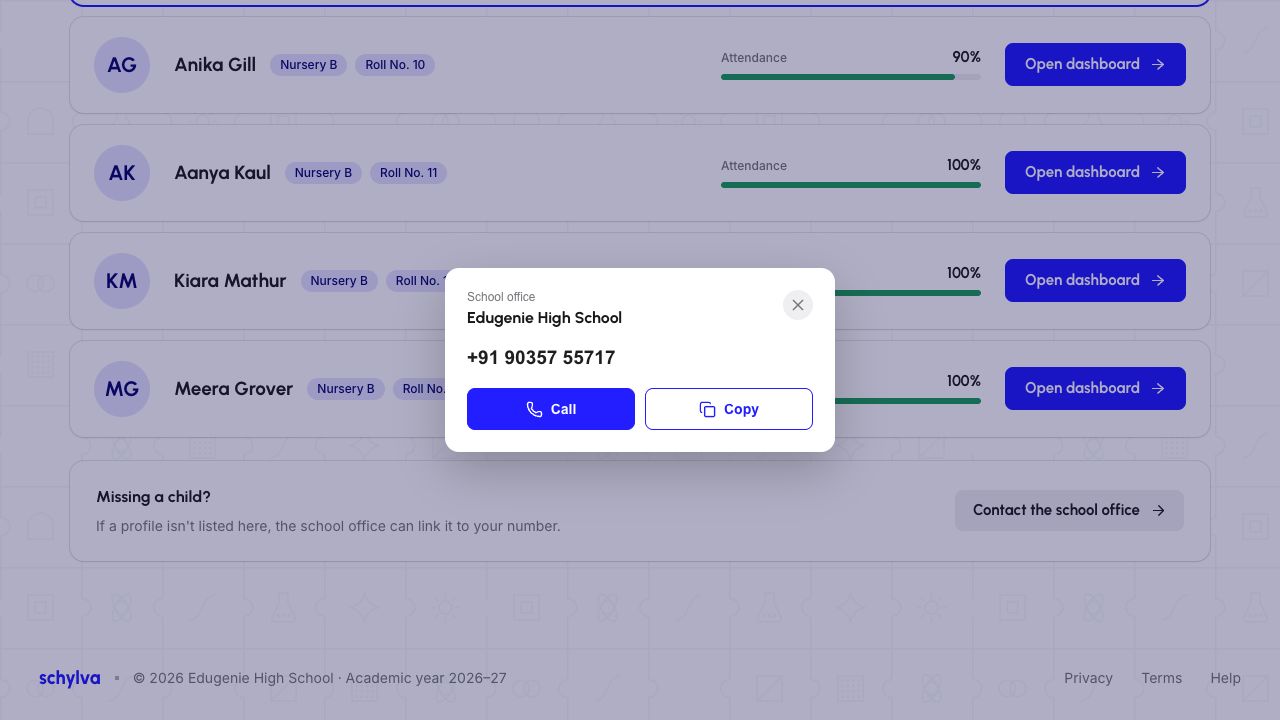
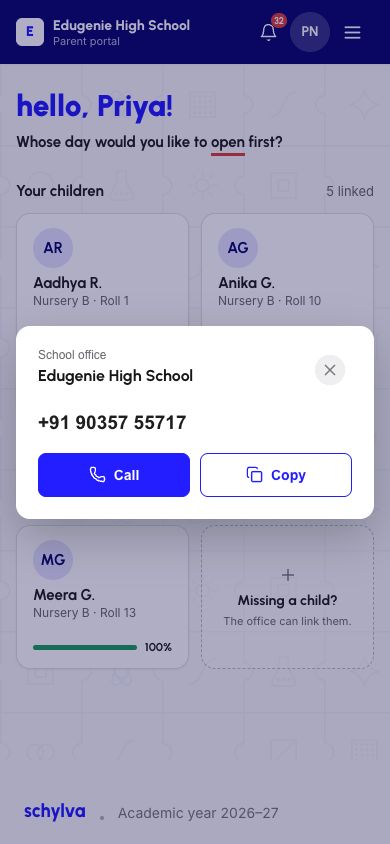
On desktop, choose “Contact the school office” below the child list. On mobile web, tap the “Missing a child?” card. Both opened the same school-office contact panel in the demo walkthrough.
Check the school name and office number in that panel. It offers Call and Copy controls; opening the panel alone does not place a call or send a support request. Close it with the × control when finished. The number in these screenshots belongs to the demonstration school, not a universal Skyva support line.
Ask your school office to check which students are linked to the Parent account you normally use. If no suitable contact is shown, use a school channel you already trust. Do not ask another parent for their login or verification code, or switch roles to access a child’s records.
Demo data · Desktop web · school-office panel
 Enlarge screenshot
Demo data · Mobile web · school-office panel
 Enlarge screenshot
Check the view after the school responds
Follow the school’s instructions, then check that the expected child appears with the correct name and class. If the profile is still absent or its details are wrong, report that to the school office.
The screenshots above show a selection screen, not a completed repair. They do not establish how long a linking change takes to appear.
For administrators checking the relationship
Parents should ask their school office to investigate a missing link. Do not create duplicate accounts or use another person’s login to access a child’s records.
This guide does not demonstrate saving or repairing a parent–student relationship. Administrators should use the school’s authorised support process rather than treating a new-account form as an existing-account repair procedure.