Find your child’s published results
Results presents published assessments and report cards. Check the selected child and academic year, choose the intended assessment, then read its subject details and report. This guide includes a verified desktop sequence with fictional demo data and separate empty-state and mobile-web examples.
For Parent
On this page
Before you begin
- An authorised Parent account for your school.
- The intended child linked to your account.
- The assessment name and expected release information supplied by your school, if you are looking for a particular report.
1. Open Results from Quick access
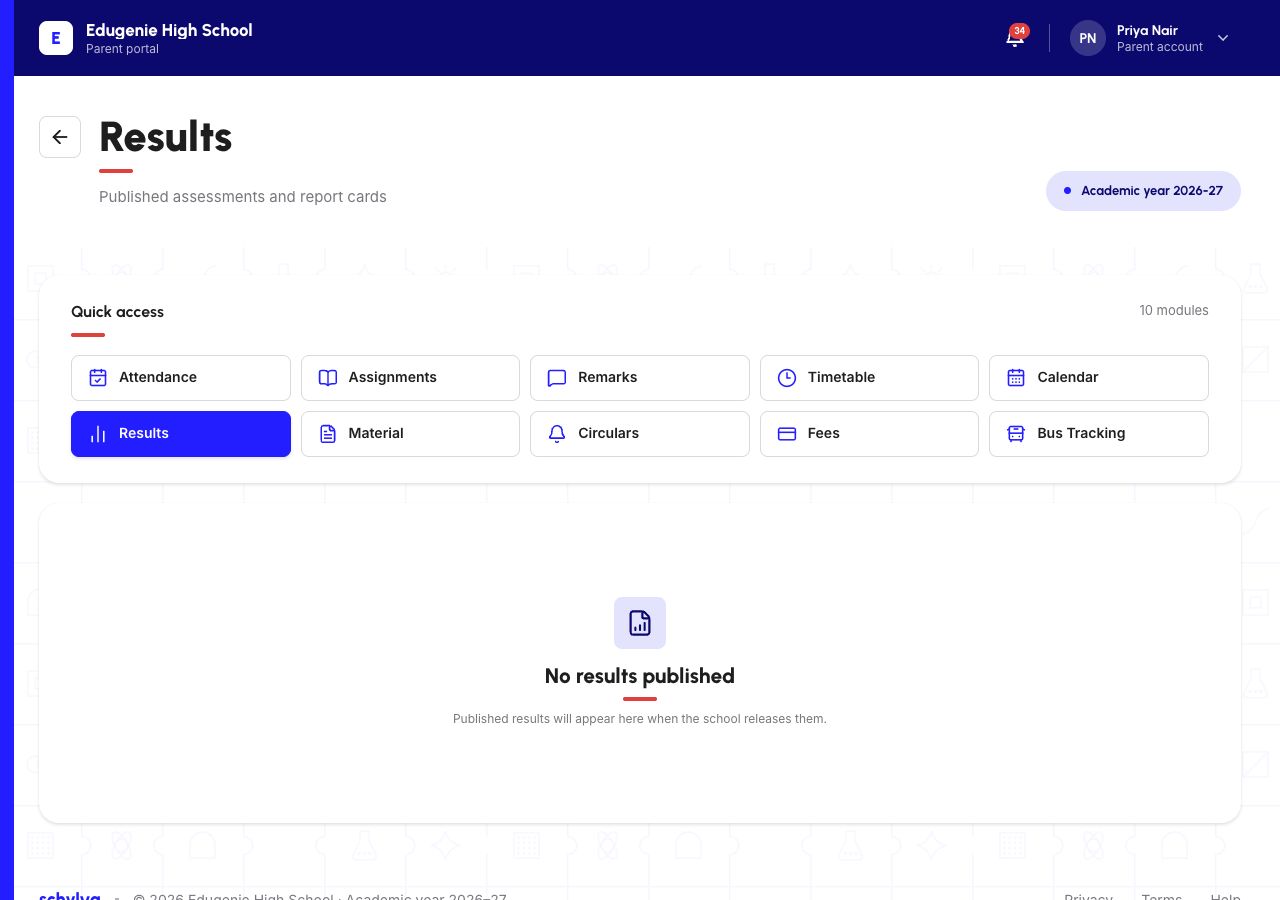
Open the intended child’s dashboard, then choose Results in Quick access. The page heading is Results and the description is “Published assessments and report cards”.
Check the academic year displayed on the page. The desktop example shows it near the title; the mobile example shows it in the footer. An academic-year label is not itself a year-selection control.
Demo data · Desktop web · Results entry
 Enlarge screenshot
- Results is selected in Quick access; the academic year appears beside the page heading.
- No results published is a loaded empty state, not a mark or a report card.
2. Confirm which child is selected
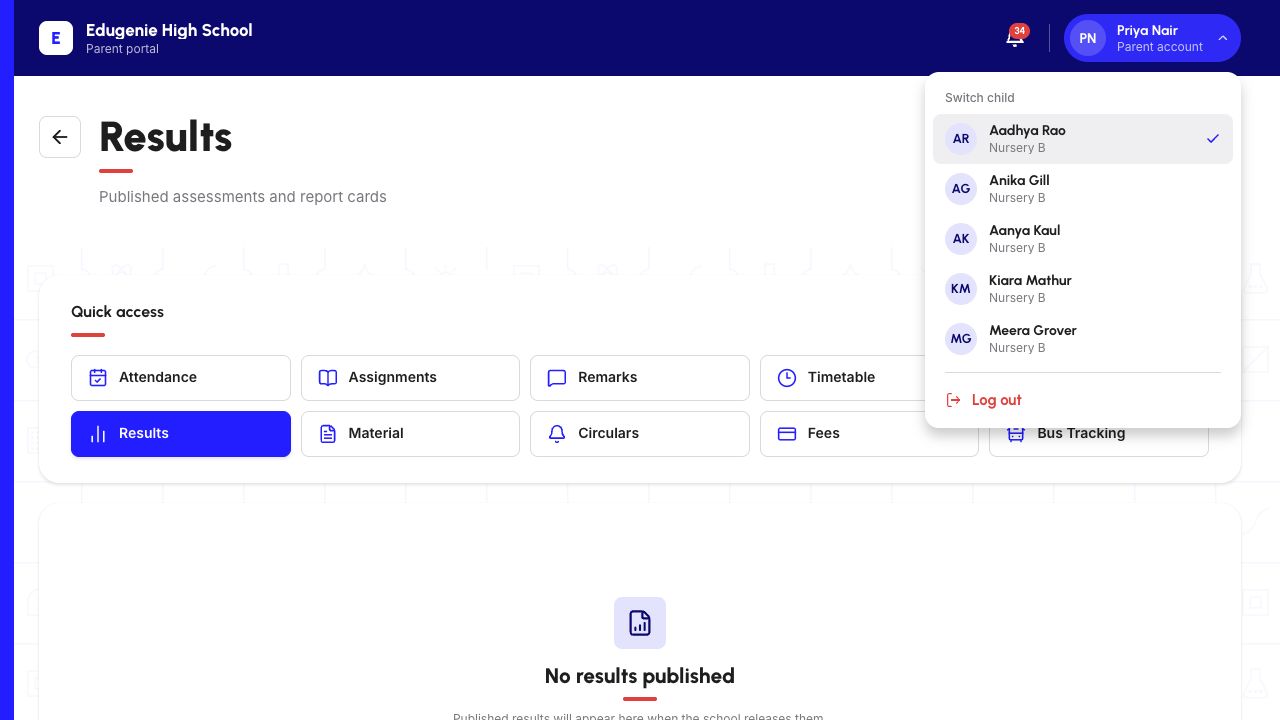
Open the Parent account menu in the top-right corner. Under Switch child, the checkmark identifies the selected child. Compare the name and class before looking for a report.
Select another linked child only when you intend to view that child’s information. Wait for Loading results to finish after switching. The reviewed empty-results page does not repeat the child’s name beside its message, so the account menu is the useful context check.
The example shows Aadhya selected. Anika was also checked, then the original Aadhya selection was restored. Both children showed the same empty-results message on 9 October 2026; matching messages do not identify which child is selected.
Demo data · Desktop web · selected child
 Enlarge screenshot
- The checkmark beside Aadhya identifies the selected child; Priya in the header is the Parent.
- Matching empty messages for two children do not identify which profile is open.
3. Read the current result state
“No results published” is followed by “Published results will appear here when the school releases them.” Once loading has finished, this means the current view has no published report to show.
This message is not a zero mark, a fail grade or confirmation that a result has been withheld. It does not explain why a particular report is absent. Check the selected child and academic year, then ask the school about the expected release if necessary.
Loading results is a separate state. Wait for it to finish before interpreting the page. If loading does not complete or an error appears, report that visible problem rather than describing it as an unpublished result.
On a phone
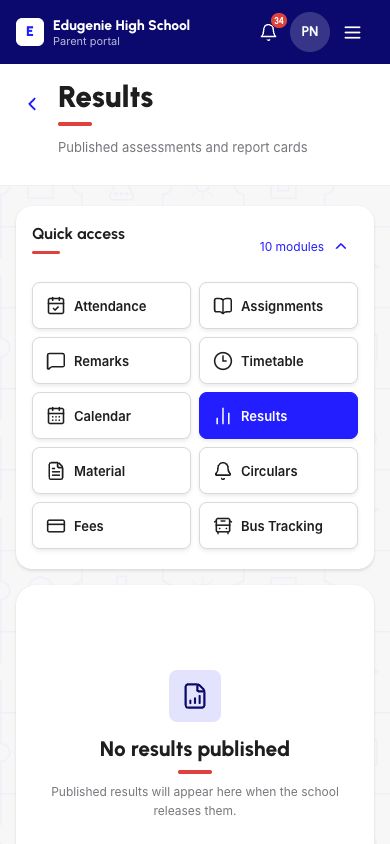
Open the Parent website in your mobile browser. If the module buttons are hidden, expand the module-count control beside Quick access (labelled “10 modules” in this example) and choose Results. The menu can be collapsed again to leave more room for the page content.
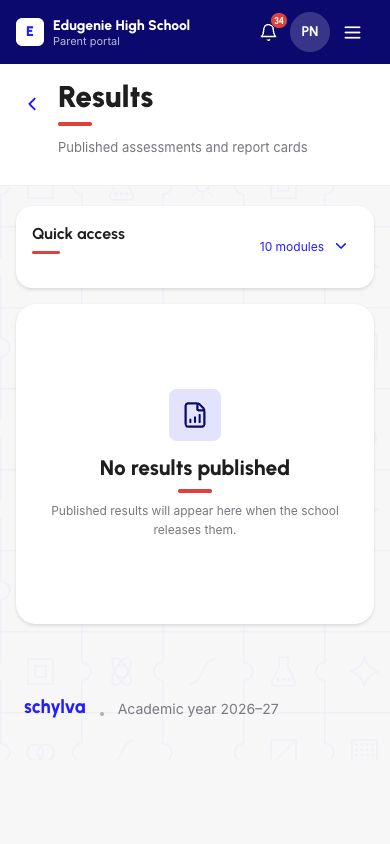
Use the account-menu button in the top-right corner to check the child. Scroll to the footer for the academic year in this mobile layout. These are responsive-web screenshots, not native iOS or Android screens.
Demo data · Mobile web · find Results
 Enlarge screenshot
- The 10 modules control is expanded, revealing the highlighted Results button.
- This is responsive mobile web, not a native-app screen.
Demo data · Mobile web · no published report
 Enlarge screenshot
- Quick access is collapsed so the complete empty-state message is visible.
- The academic year is in the footer; no year-selection control is shown.
4. Choose the published assessment
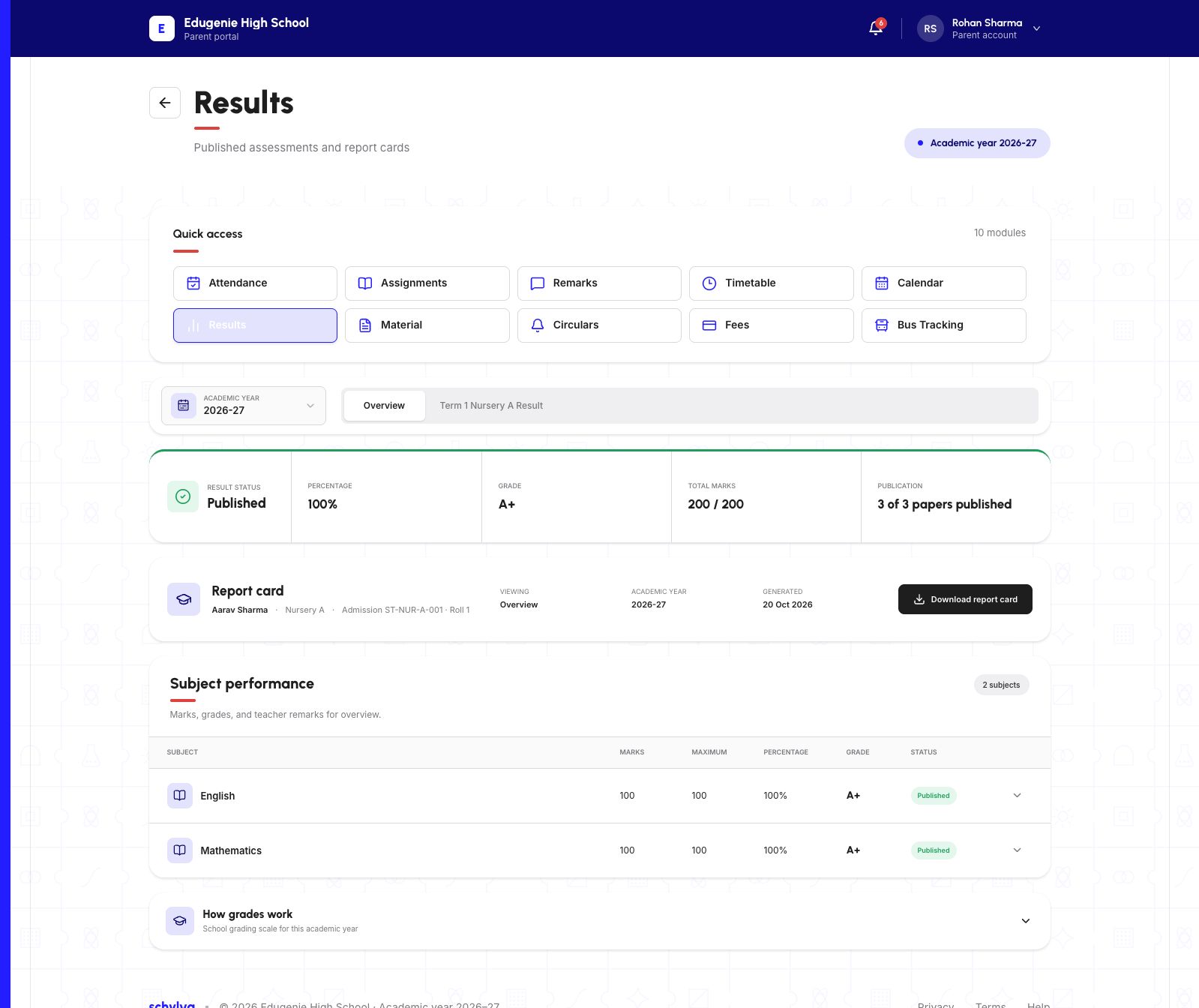
Demo data — verified Parent web, 20 October 2026. The following sequence is for Aarav, Nursery A, academic year 2026–27. It is separate from the older empty-state examples. Check the child identity above the score and the year displayed before reading the results.
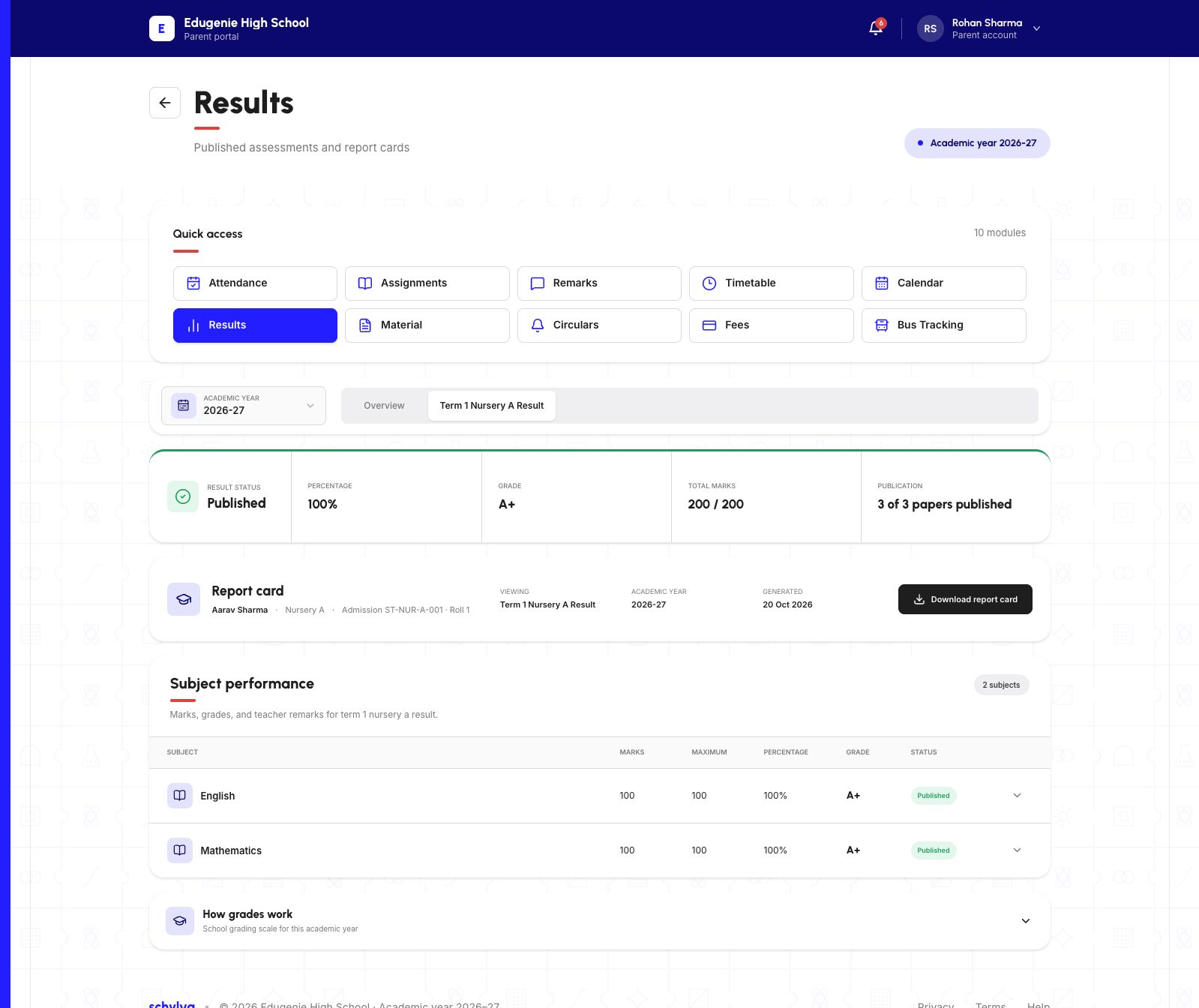
Overview is a summary. Choose the actual assessment tab beside it; this example is “Term 1 Nursery A Result”. Confirm that Viewing changes to that assessment. A Published badge on Overview alone does not identify which assessment you selected.
The selected demo assessment shows 3 of 3 papers published, 200 out of 200 marks, 100% and A+. These are existing fictional demo values, not expected marks for another child. The year control displayed 2026–27 but was disabled; switching academic years was not verified.
Demo data · verified Parent web · Overview
 Enlarge screenshot
- Overview is selected; the assessment tab is a separate control.
- Confirm the demo child and year before choosing the assessment.
Demo data · verified Parent web · selected assessment
 Enlarge screenshot
- Viewing identifies Term 1 Nursery A Result after the tab selection.
- Three of three papers are published; the disabled year control does not verify year switching.
5. Expand subject details and grading
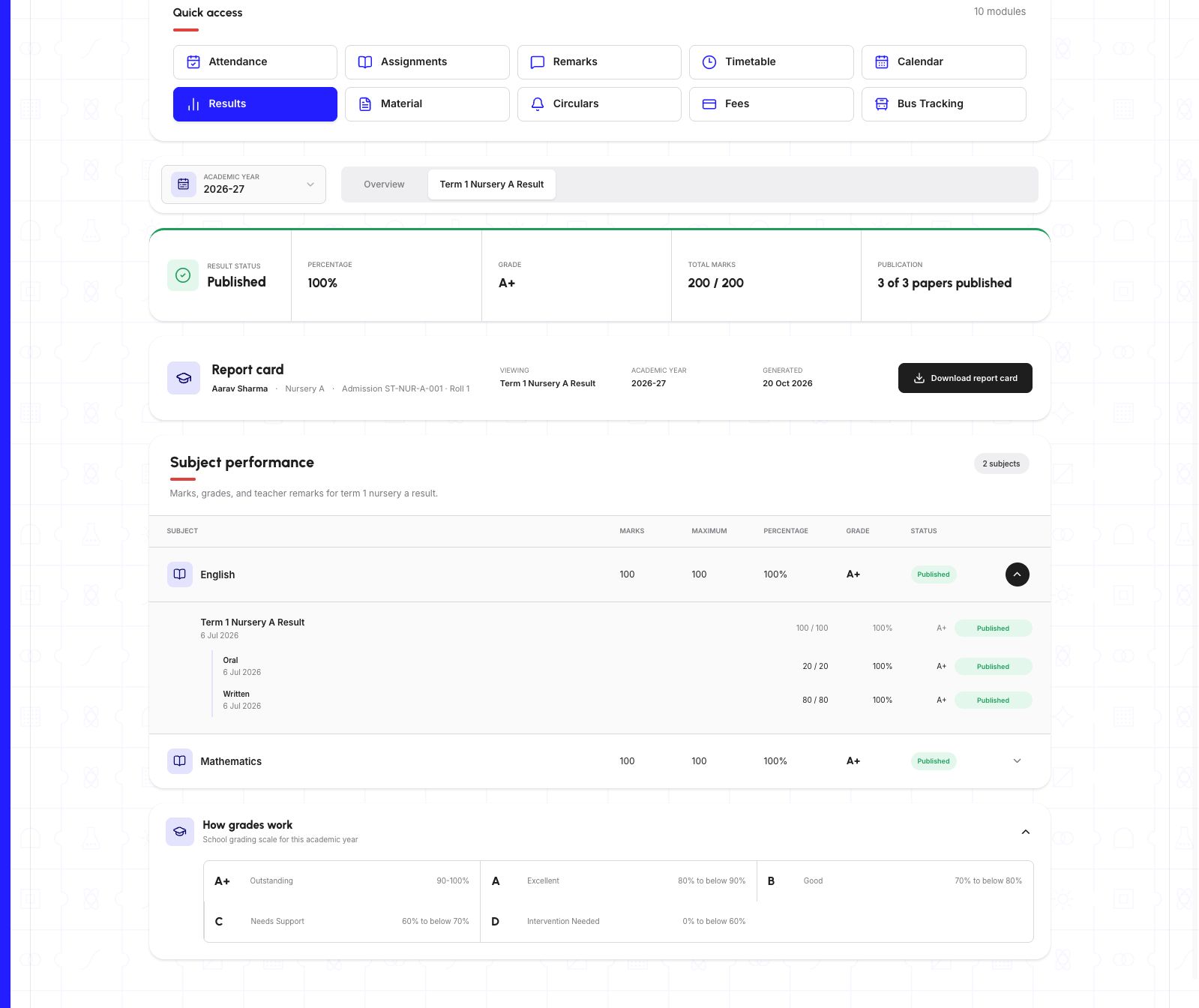
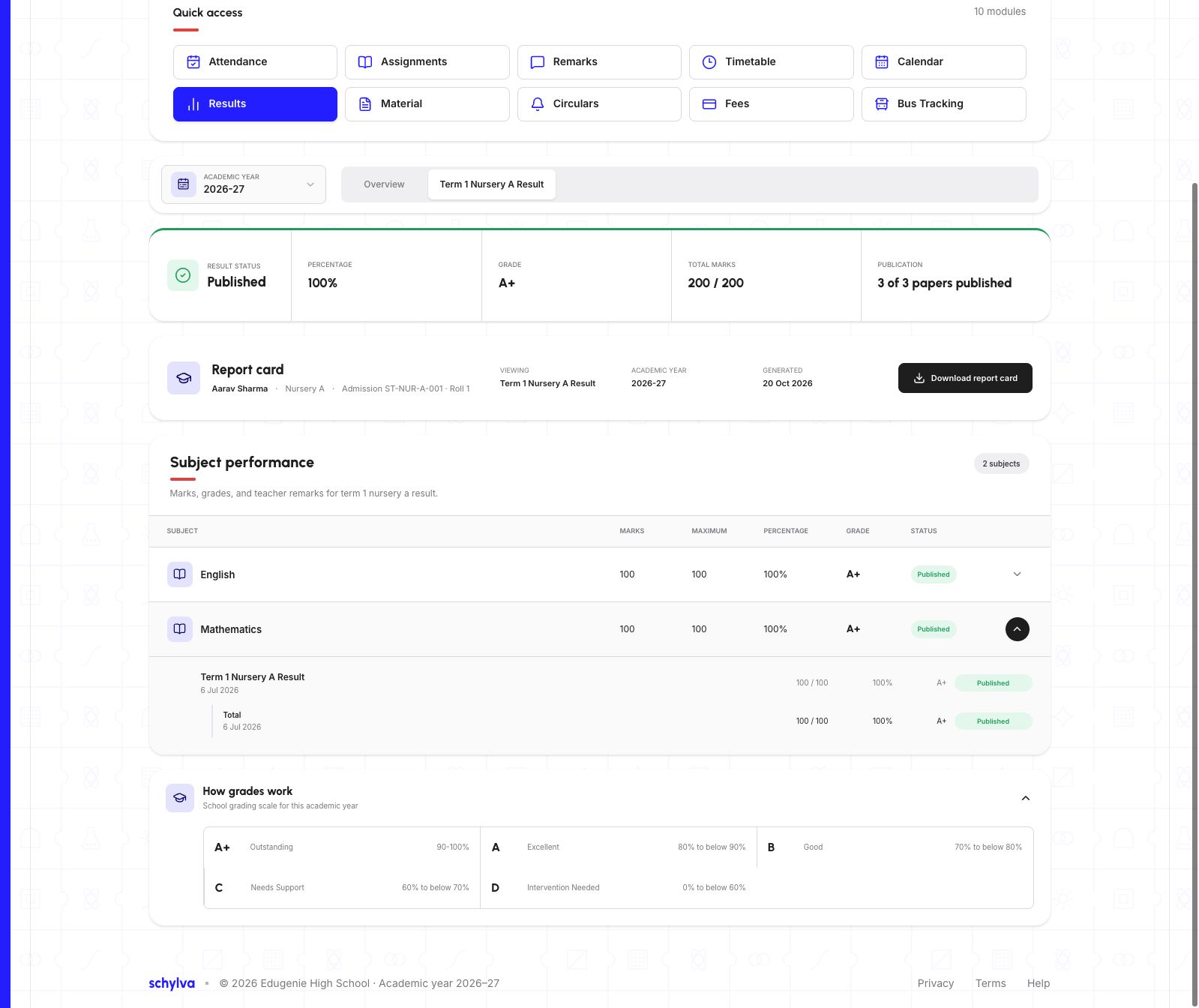
Choose a subject row to read its components. In this example, English expands to Oral 20/20 and Written 80/80; Mathematics expands to Total 100/100. Each component is marked Published. Read the component maximums as well as the marks.
Opening Mathematics collapsed English. Expand one subject at a time; the two images below are consecutive views of the same selected assessment, not two reports or a screen with every row open together.
Expand “How grades work” to read this report’s displayed scale: A+ is 90–100%; A is 80% to below 90%; B is 70% to below 80%; C is 60% to below 70%; D is 0% to below 60%. Use the scale shown by your school rather than assuming these demo bands apply everywhere.
The matching downloaded report states “No remarks were recorded for this assessment.” There is no populated teacher-comment example in this sequence. Missing remarks are not a hidden comment or evidence of a loading problem.
Demo data · verified Parent web · English and grading
 Enlarge screenshot
- English contains Oral 20/20 and Written 80/80, each Published.
- How grades work is expanded below; these are this demo report’s bands.
Demo data · verified Parent web · Mathematics and grading
 Enlarge screenshot
- Mathematics contains Total 100/100; opening it collapsed English.
- This is the same selected assessment, shown lower on the page.
6. Download and check the report card
With the intended assessment selected, choose “Download report card”. Check your browser’s downloads and open the saved PDF. Compare its child, class, academic year and assessment name with the selected portal view before using or sharing it.
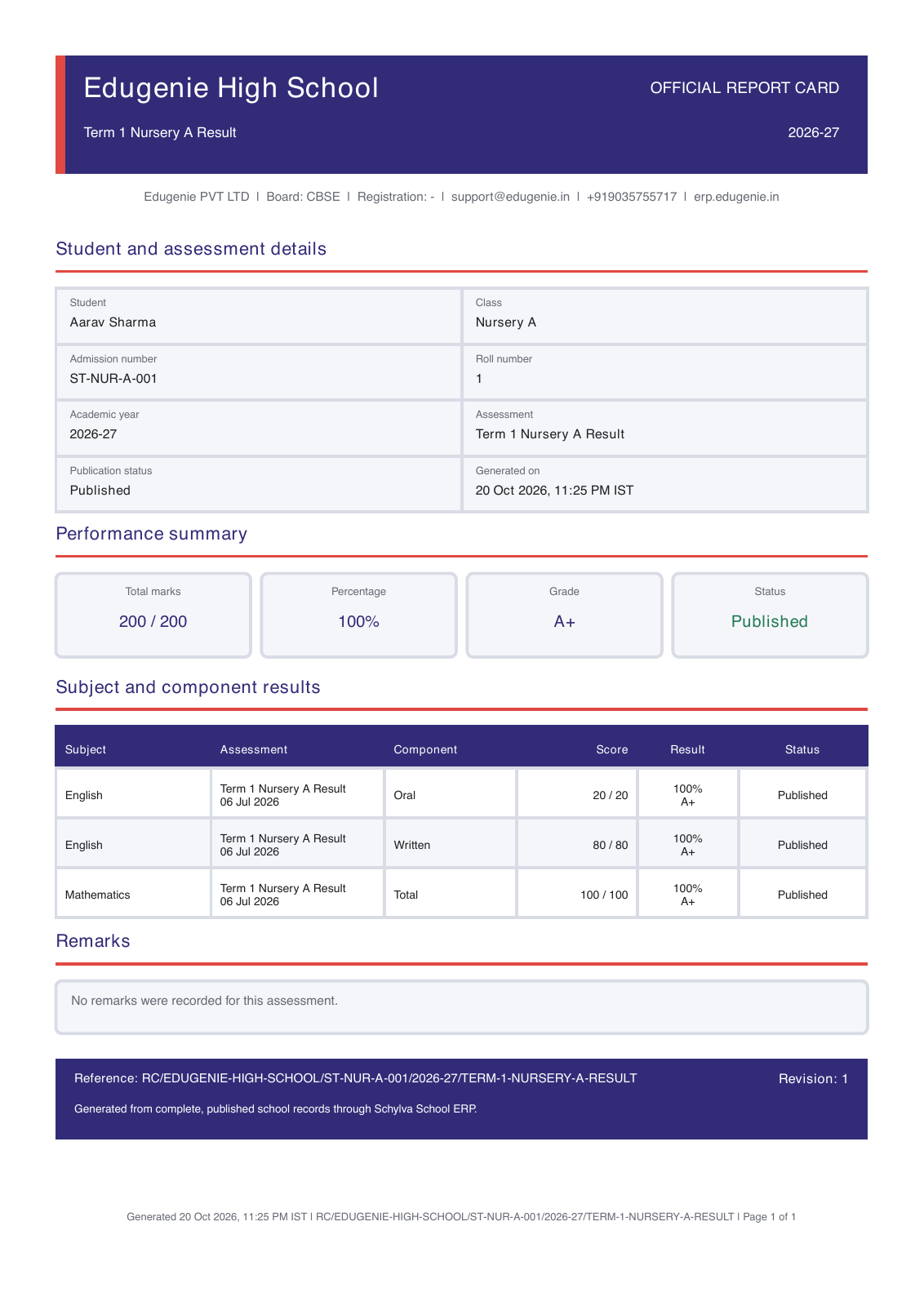
Text equivalent of this PDF example: Aarav, Nursery A, academic year 2026–27, Term 1 Nursery A Result, Published; English Oral 20/20 and Written 80/80, Mathematics Total 100/100; overall 200/200, 100%, A+. The remarks section explicitly says no remarks were recorded.
The full page below was rendered from the actual one-page PDF downloaded on 20 October 2026. Its identity, assessment and scores matched the portal. It is a complete document render, not a screenshot of a PDF viewer.
The downloaded PDF was readable in visual review but is untagged; PDF screen-reader accessibility is not established. The text above gives the example’s essential meaning without requiring you to read the image. This check covers one desktop Parent report, not every assessment, mobile download or native app.
Demo data · verified report PDF · complete page
 Enlarge screenshot
- Match the child, class, academic year, assessment and component scores to the portal.
- No remarks were recorded; the text equivalent above preserves the essential information outside the image.
Scope of this report example
This is one existing desktop Parent assessment, its subject and grading details, and its matching report. The mobile screenshots demonstrate navigation and an empty state, not a mobile report download.
Populated remarks, withheld or partially published results, switching academic years and native-app report downloads are not covered. The downloaded PDF is untagged; PDF screen-reader accessibility has not been established. The text equivalent above describes the demonstrated report without requiring the image.
If the expected report is missing
Use your school’s established contact channel. Share the child and assessment context needed to identify the report, without sending verification codes, private links or another child’s records.
- The school says the report has been released
- Confirm the selected child, academic year and exact assessment name. Ask the school to check availability for that child rather than treating the empty message as a grade.Recheck the selected child before asking the school
- A child is not listed in the account menu
- Use the missing-child guide and contact the school office to check the relationship. Do not use another child’s account or create a duplicate login as a workaround.Check a missing child without changing relationships
- Loading results does not finish
- Check your connection and try a normal reload. If the problem continues, tell the school which screen and message you see. An unfinished load is not evidence that results are unpublished.Distinguish loading from a loaded empty view
- You need a previous academic year
- Confirm the year currently shown and ask the school how to obtain the intended record. This empty-state walkthrough did not expose a year selector, so it does not provide a historical-year navigation procedure.Find the displayed academic year