Read fee ledgers and clearance reports
Move from a monthly fee overview to a student’s recorded balance, then check the wider scope and warnings on a clearance report.
For Administrator
On this page
Before you begin
- An authorised Admin account with permission to view this area of your school portal.
- The relevant academic year and the class, person or record you intend to check. Demo names, amounts, dates and counts are examples, not current school information.
1. Check the month and academic year
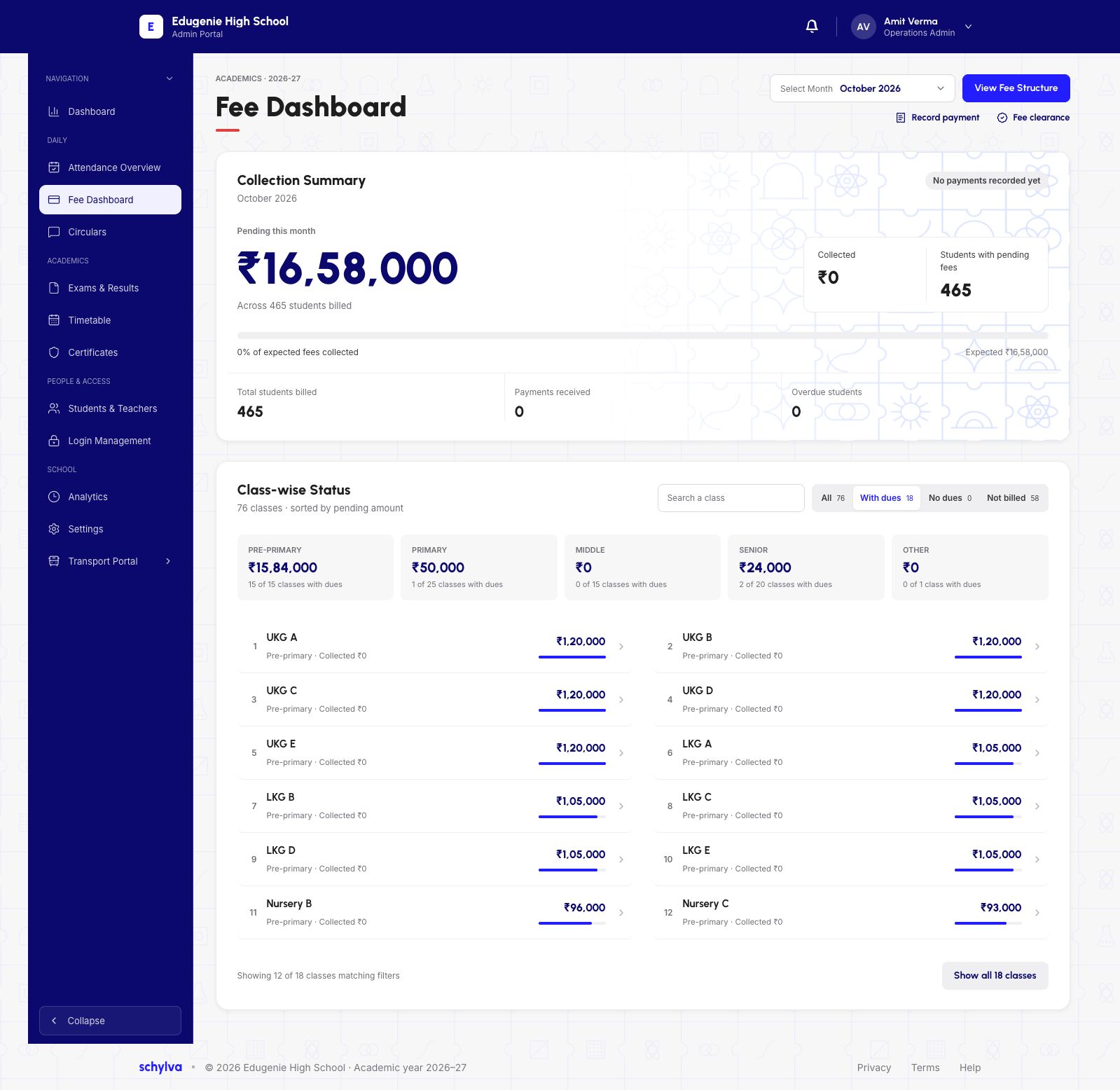
Open Fee Dashboard. Read the academic year and month before interpreting Pending, Collected or student counts. The example is October 2026 in academic year 2026–27.
Class-wise status separates With dues, No Dues and Not billed. A class that has not been billed is not the same as a class whose bills have been paid. The dashboard can show only a subset of matching classes; check the displayed count and Show all control.
Demo · Admin desktop web
 View full screenshot
2. Read a class ledger and student invoice
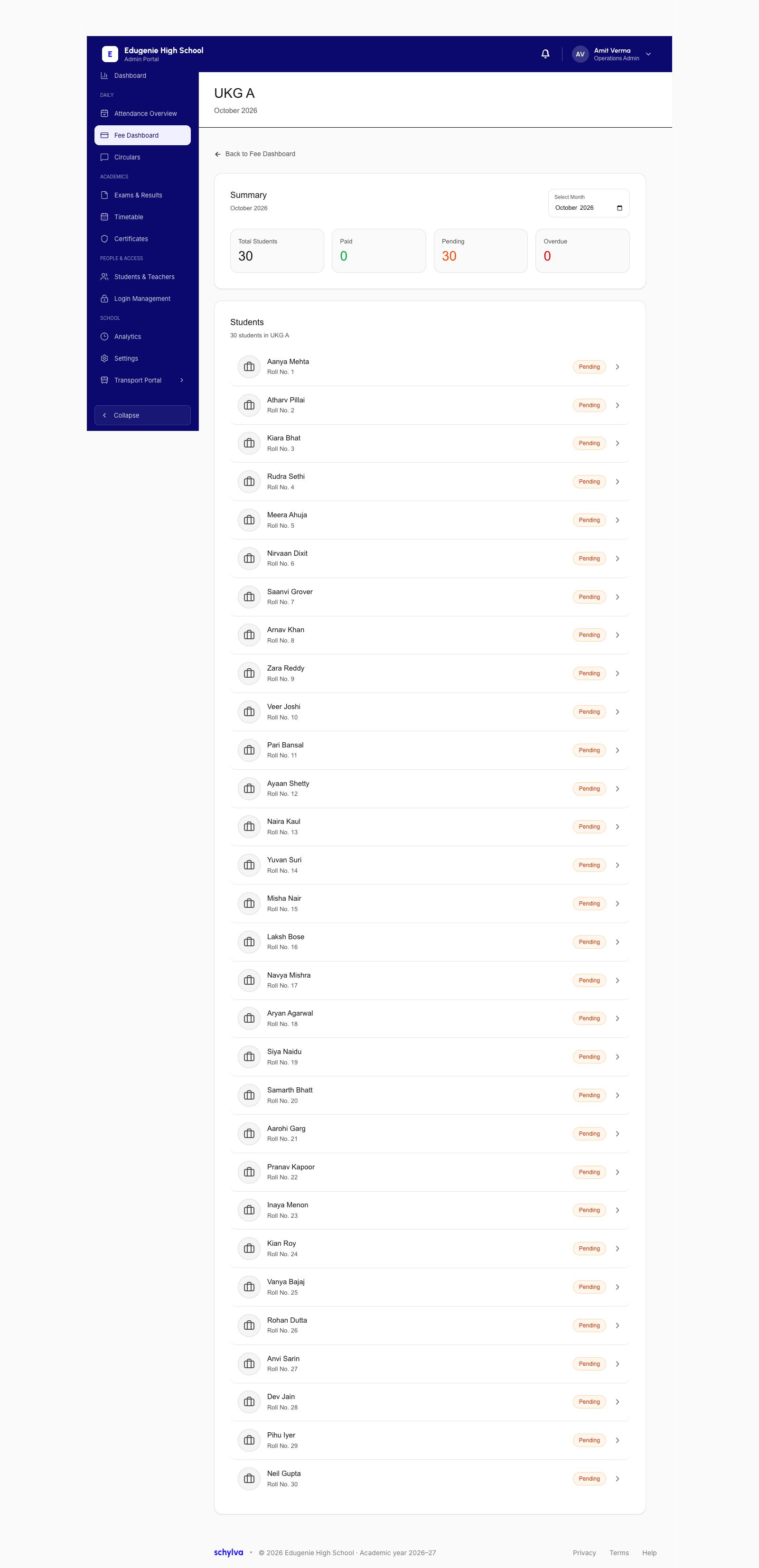
Open the intended class in the class-wise listing. The UKG A example shows 30 students, with separate Paid, Pending and Overdue counts.
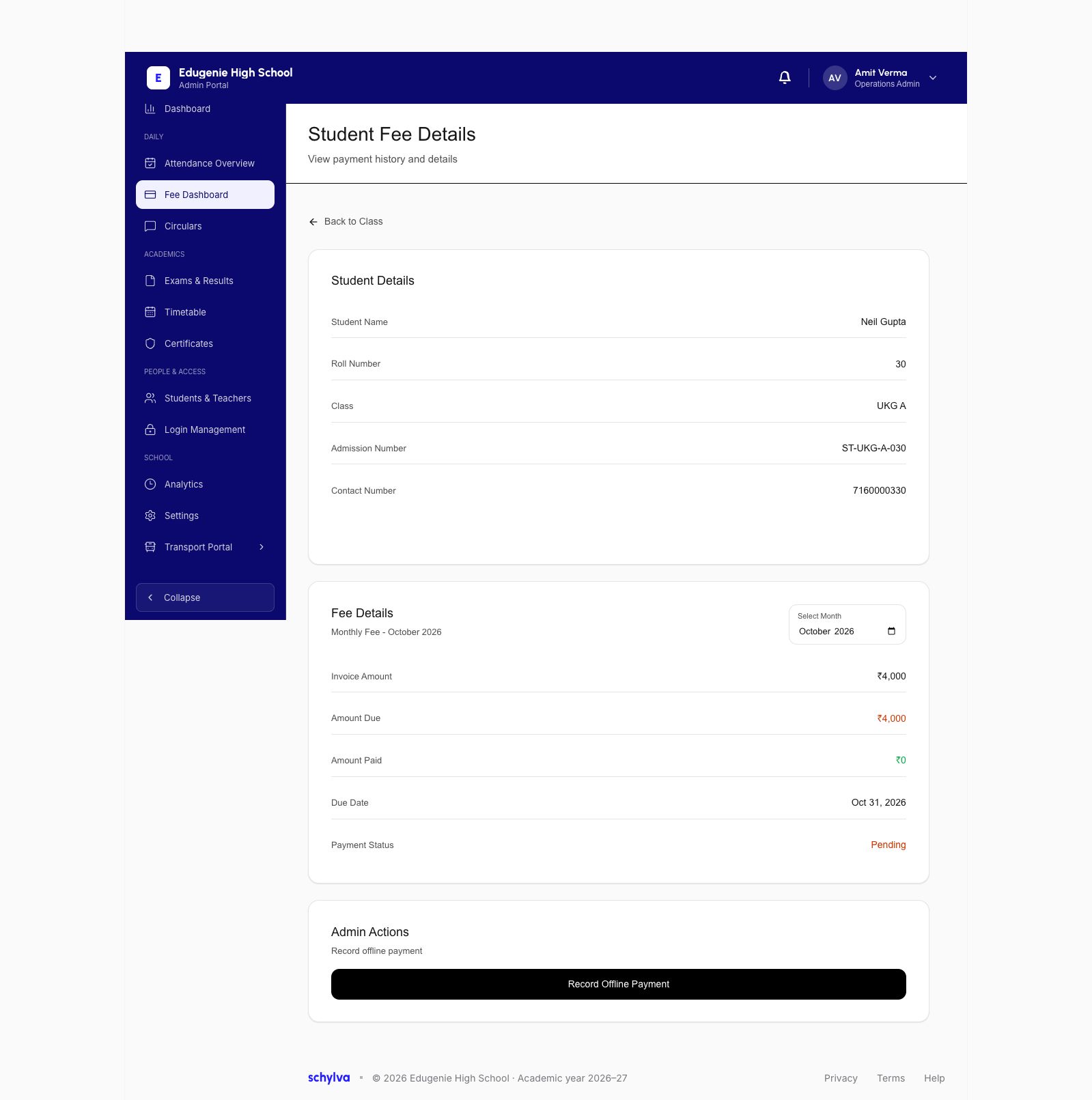
Open the relevant student row and match the name, class, roll number and admission number. The student example is Neil Gupta in UKG A. His October invoice shows ₹4,000 due, ₹0 paid and Pending, with a due date of 31 October 2026.
Pending and Overdue describe different states. Check the invoice date and amount rather than assuming that every outstanding amount is already overdue.
Demo · Admin desktop web
 View full screenshot
Demo · Admin desktop web
 View full screenshot
3. Use Fee Structure as a reference
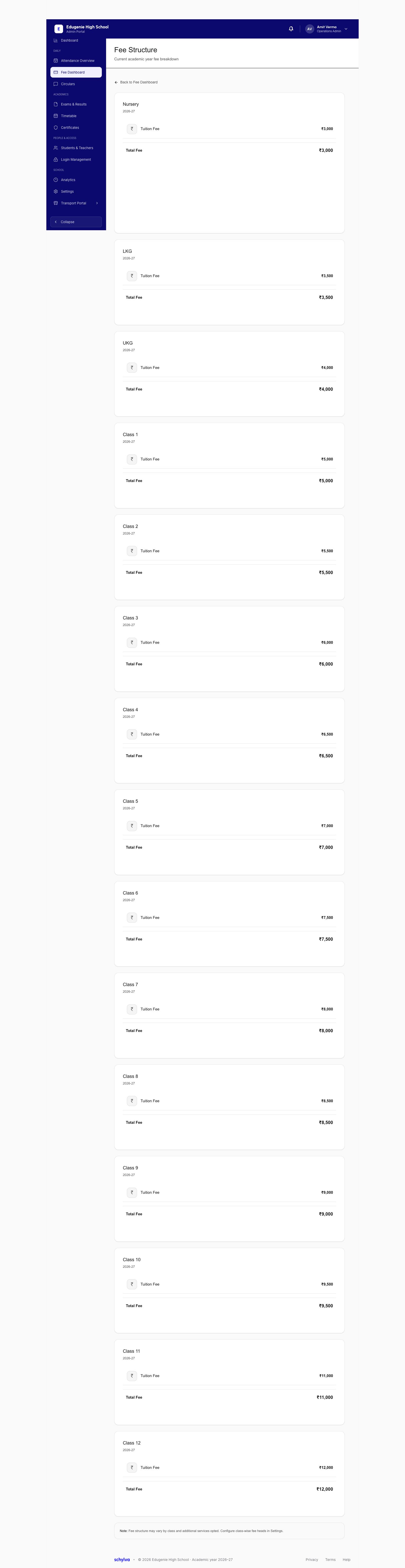
View Fee Structure shows the current academic year’s class-level fee breakdown. Match the class and year before comparing it with an invoice.
A fee structure describes charges; it is not a receipt, a payment confirmation or a complete statement of a student’s account.
Demo · Admin desktop web
 View full screenshot
4. Check the clearance report separately
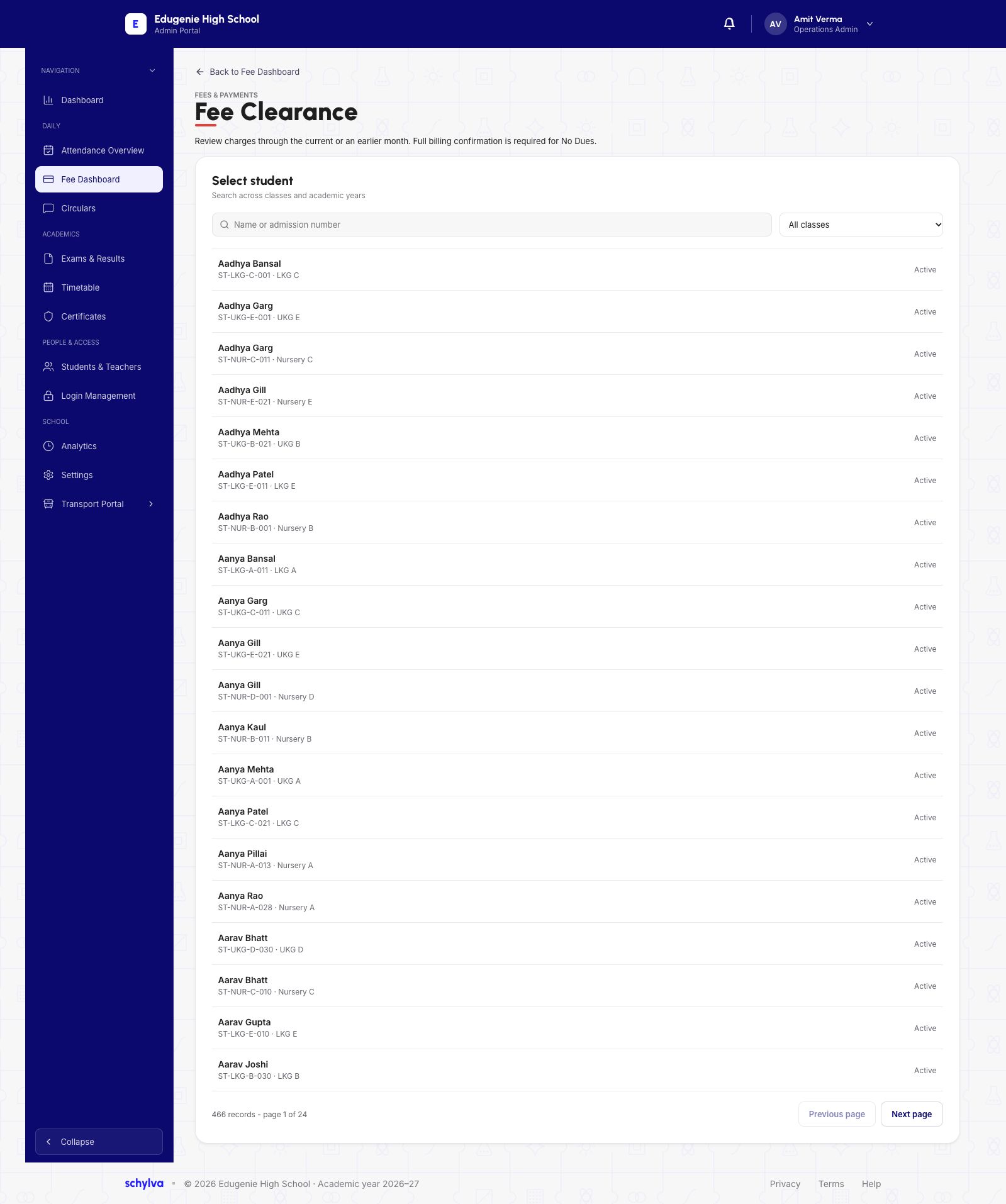
Choose Fee clearance from the dashboard, then find the student by name or admission number and check the class filter. The selection screen covers classes and academic years; its result count and pagination matter.
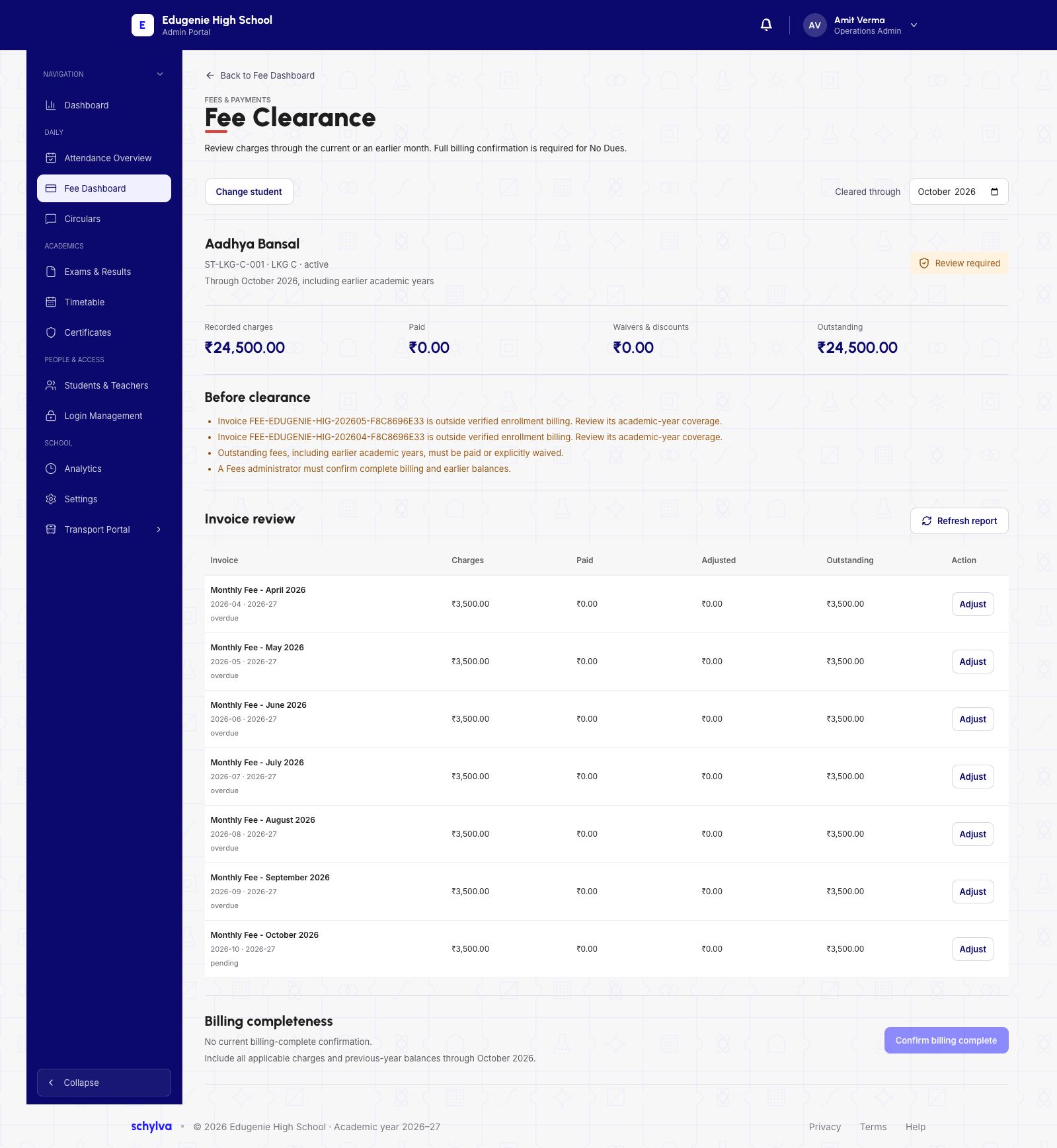
The clearance example is Aadhya Bansal in LKG C, a different student from the UKG A ledger above. It reviews recorded charges through October 2026, including earlier academic years. Do not read these screenshots as one continuous student transaction.
Read Recorded charges, Paid, Waivers / discounts and Outstanding, then the Before clearance warnings. This example says Review required and has no current billing-complete confirmation. A balance alone is not proof that every required invoice has been raised.
Demo · Admin desktop web
 View full screenshot
Demo · Admin desktop web
 View full screenshot
If a balance or status needs attention
Contact the school’s fees administrator with the student, year, month and invoice reference.
- An invoice is missing
- Ask whether it has been billed and which academic year it belongs to. Do not record a payment to create a missing invoice.
- The amount differs from the fee structure
- Ask the fees administrator to review the student’s recorded charges and adjustments.
- The report says Review required
- Resolve the listed billing-scope questions with the fees administrator before treating the account as cleared.