Find a student profile and its linked information
Use Students & Teachers in the Admin portal to move from a class roster to a student profile. Confirm the student’s identity before reading the linked summaries.
For Administrator
On this page
Before you begin
- An authorised Administrator account with access to school records.
- The student’s class/section and a second identifier, such as roll or admission number.
1. Open Students & Teachers
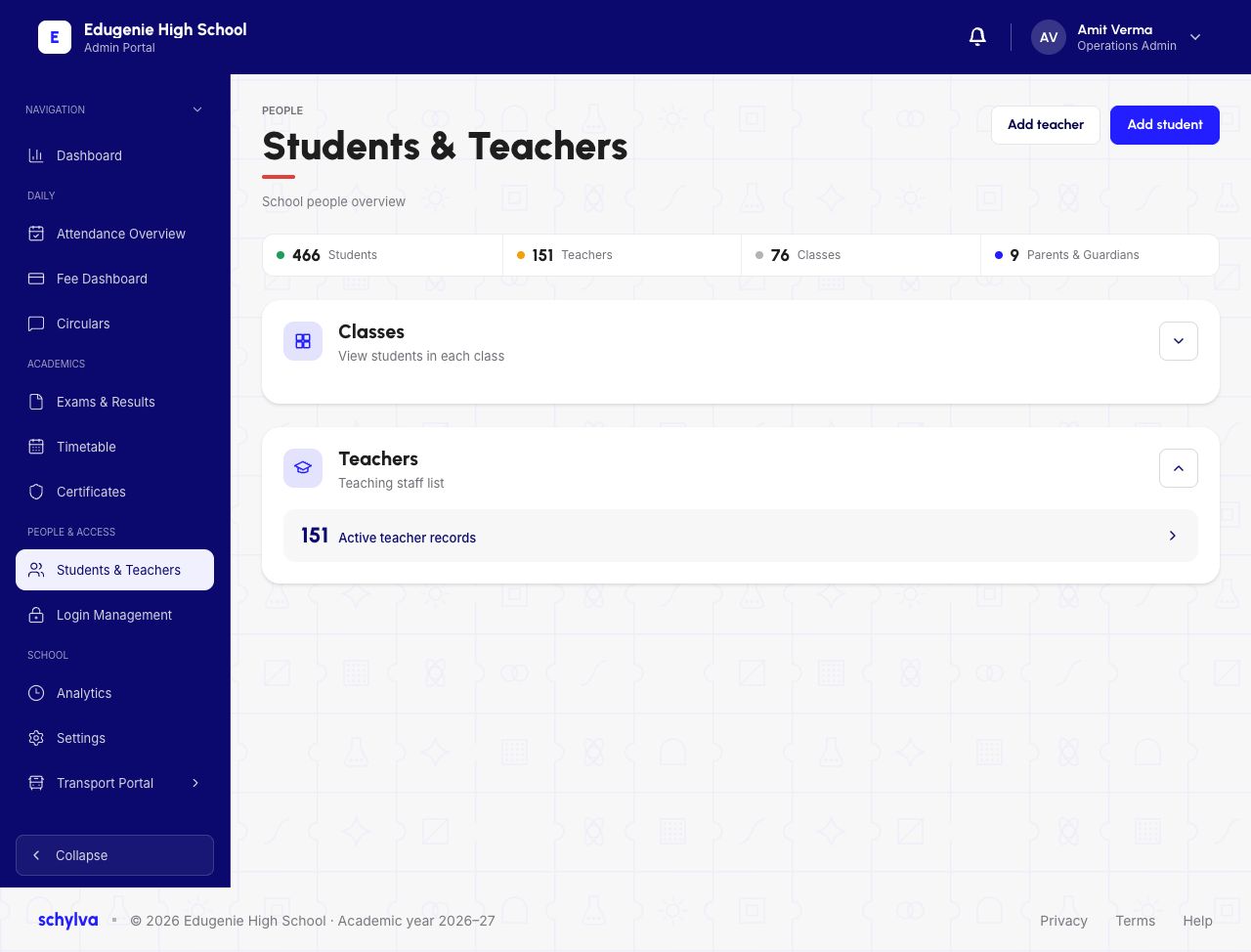
In the Admin navigation, open Students & Teachers under People & access. The overview separates Classes from Teachers. Expand Classes to find student rosters.
The top counts describe the demo school at capture time. They are not totals for your current school or proof that every record is complete.
Demo · Administrator desktop web
 Enlarge screenshot
2. Find the correct class and section
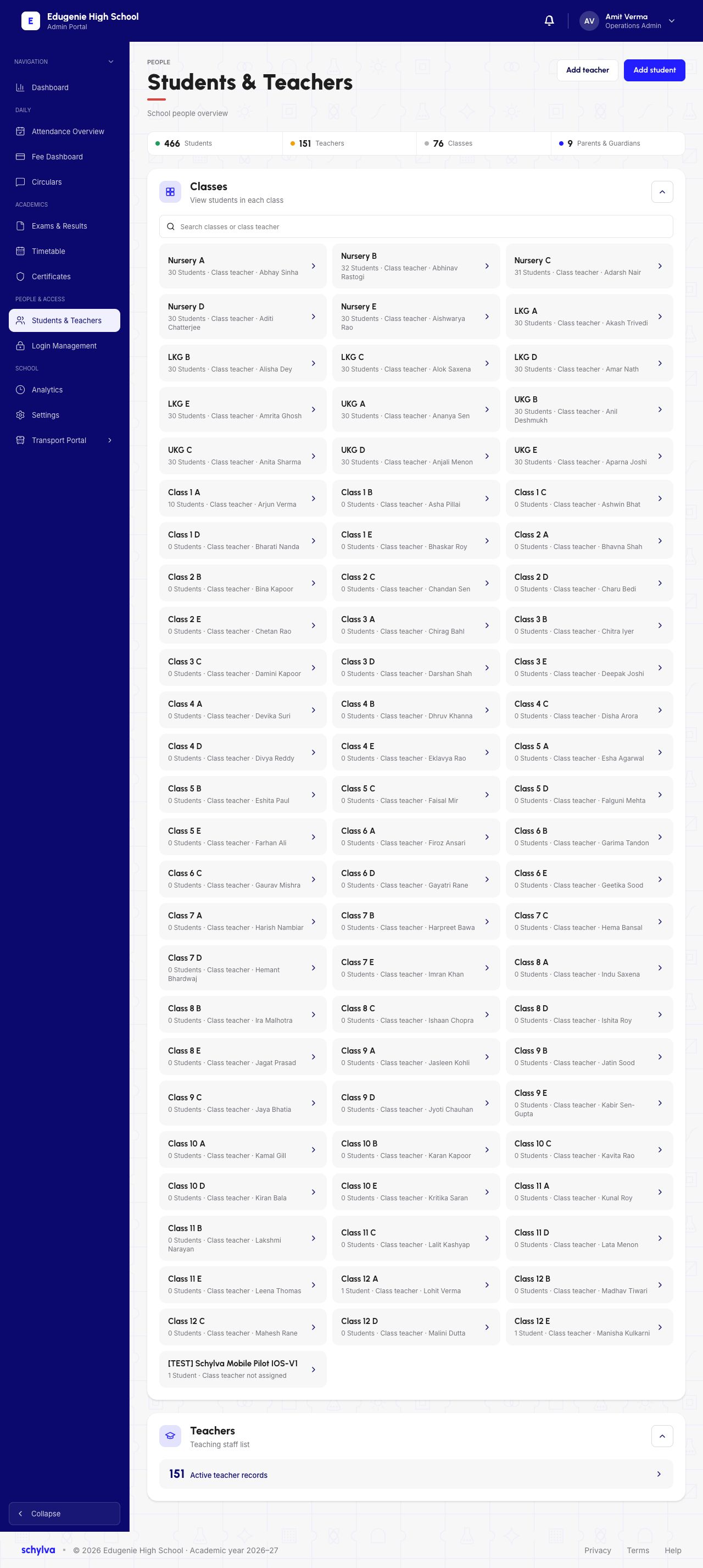
Use the Classes list and its search field to locate the intended class or class teacher. Read the class/section label, student count and named class teacher before opening it.
The demo opens Nursery A. A similarly named class or another section has a separate roster.
Demo · Administrator desktop web
 View full screenshot
3. Select the student from the roster
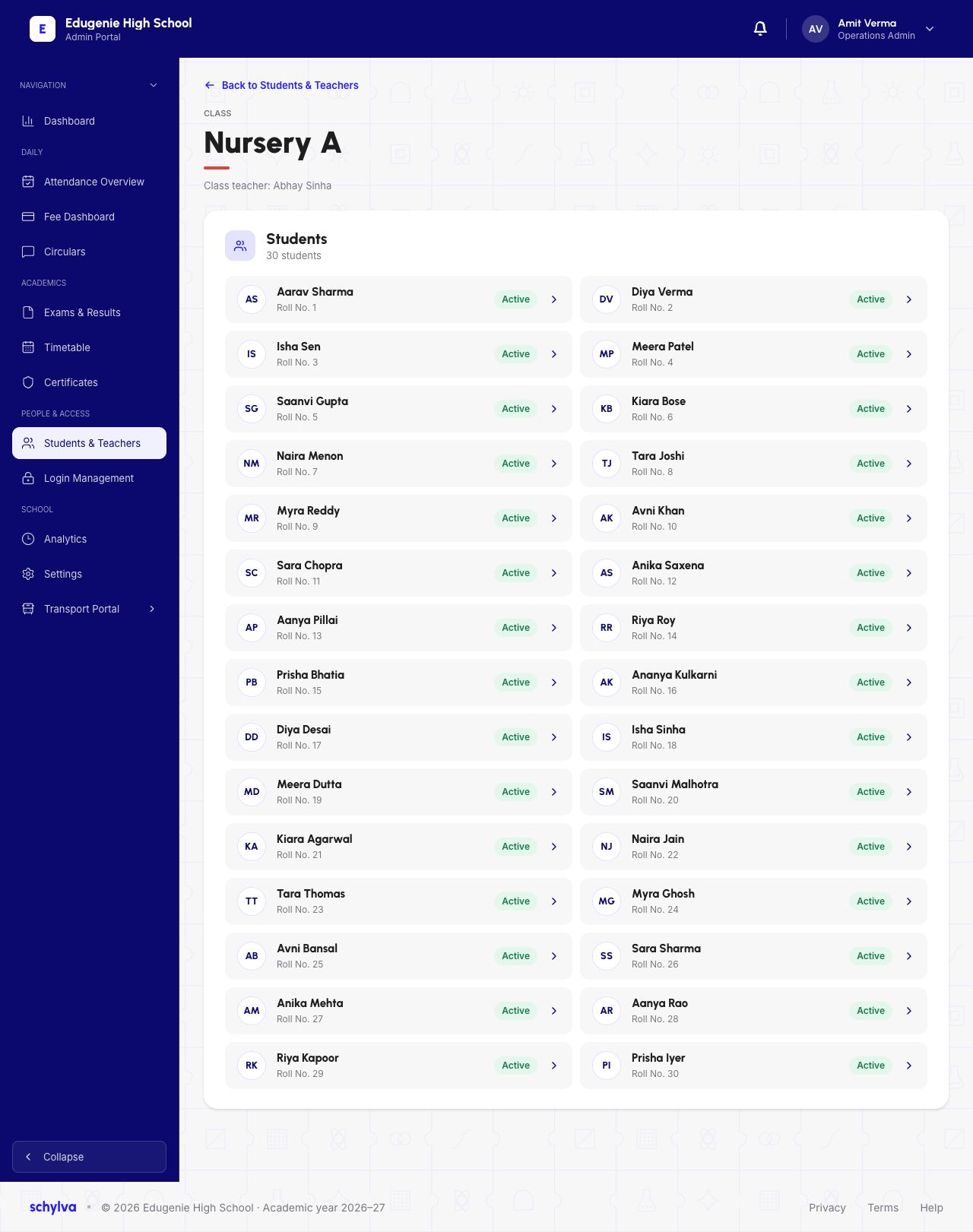
Confirm the class heading and class-teacher name. Find the student by name and roll number in the Students list, then open the matching profile.
The example selects Aarav Sharma, Roll No. 1, from Nursery A. A roster’s Active label is a record status; it does not prove a successful sign-in or new access grant.
Demo · Administrator desktop web
 Enlarge screenshot
4. Read the profile in context
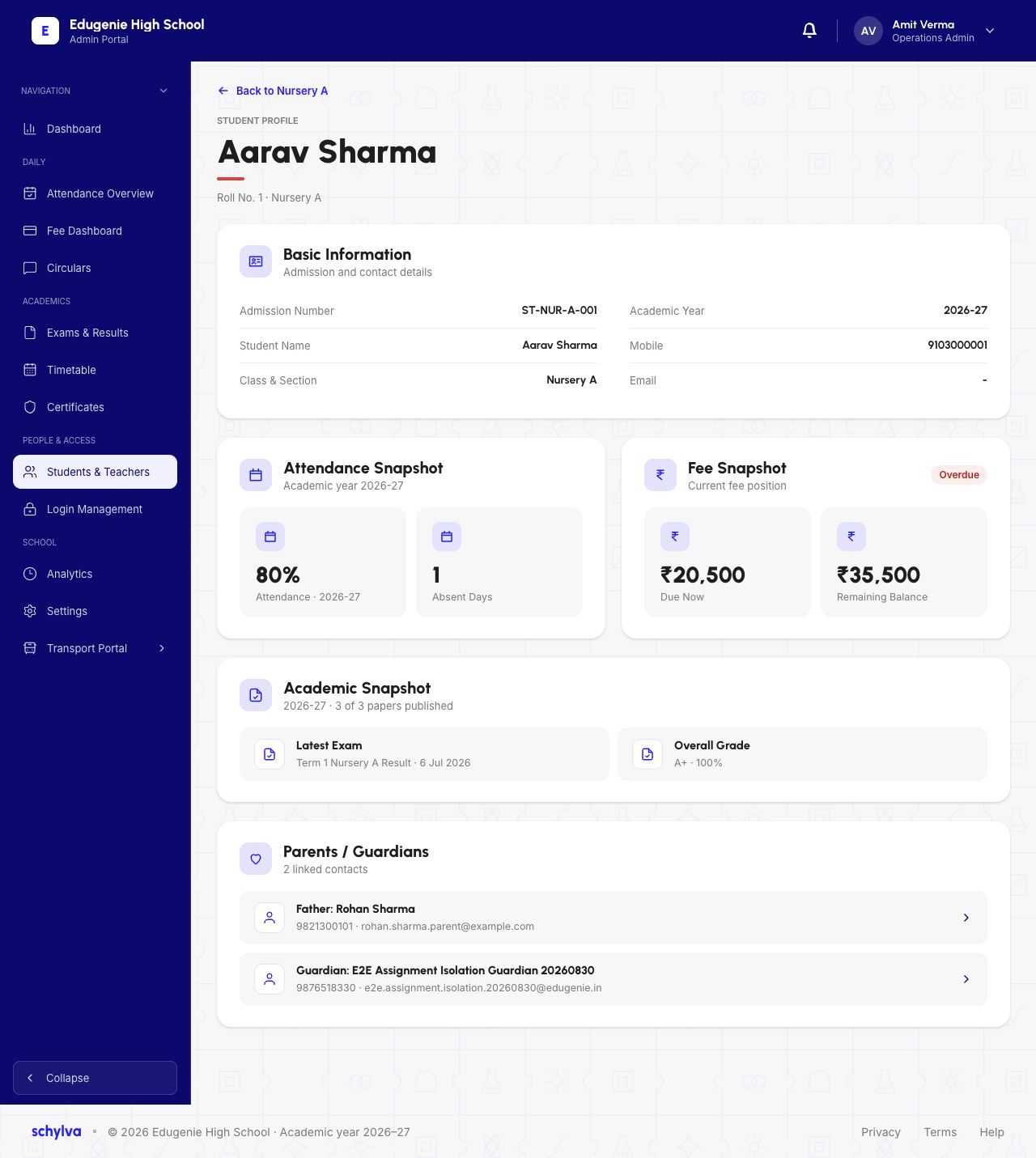
Start with Basic Information: admission number, student name, class/section and academic year. Contact fields can be blank; a dash means no email address is shown.
Attendance Snapshot and Fee Snapshot summarise different records. Read Due Now separately from Remaining Balance. Do not infer a payment, exact attendance denominator or accounting adjustment from the summary alone.
Academic Snapshot identifies the latest exam and published-paper context. Parents / Guardians lists linked contacts separately; inspect the intended relationship rather than assuming the first row is the only contact.
This demo profile shows two linked contacts. A listed relationship is not a new Parent sign-in test, and this guide does not add, remove or change links.
Demo · Administrator desktop web
 Enlarge screenshot
If the profile looks wrong
- Two names look similar
- Return to the roster and confirm class/section plus roll or admission number.
- A summary differs from a detailed record
- Check the academic year and period, then ask the responsible school team to reconcile the records.
- A linked contact is missing or unexpected
- Use the authorised school process to review the relationship. Reading a profile does not authorise granting Parent access.