Understand offline-payment fields
Identify the class, student and monthly invoice before reading the fields used to record cash, cheque or bank-transfer payments.
For Administrator
On this page
Before you begin
- Use an authorised Admin account for the correct school.
- Confirm the academic year and the class, student, invoice or result set relevant to your task.
1. Read the class and billing month
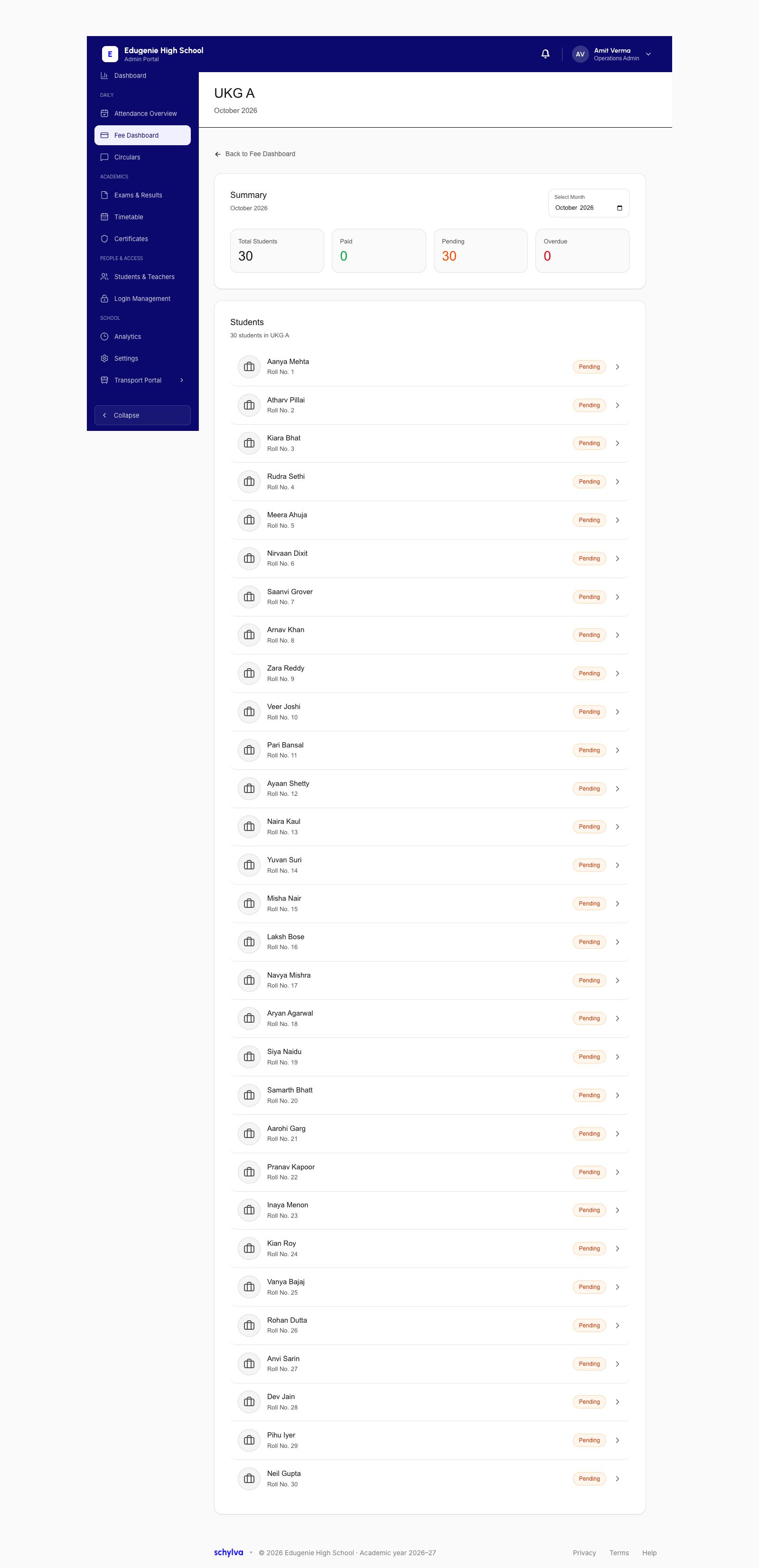
The class fee ledger identifies both the class and billing month. The example is UKG A in October 2026, showing 30 students: 0 Paid, 30 Pending and 0 Overdue.
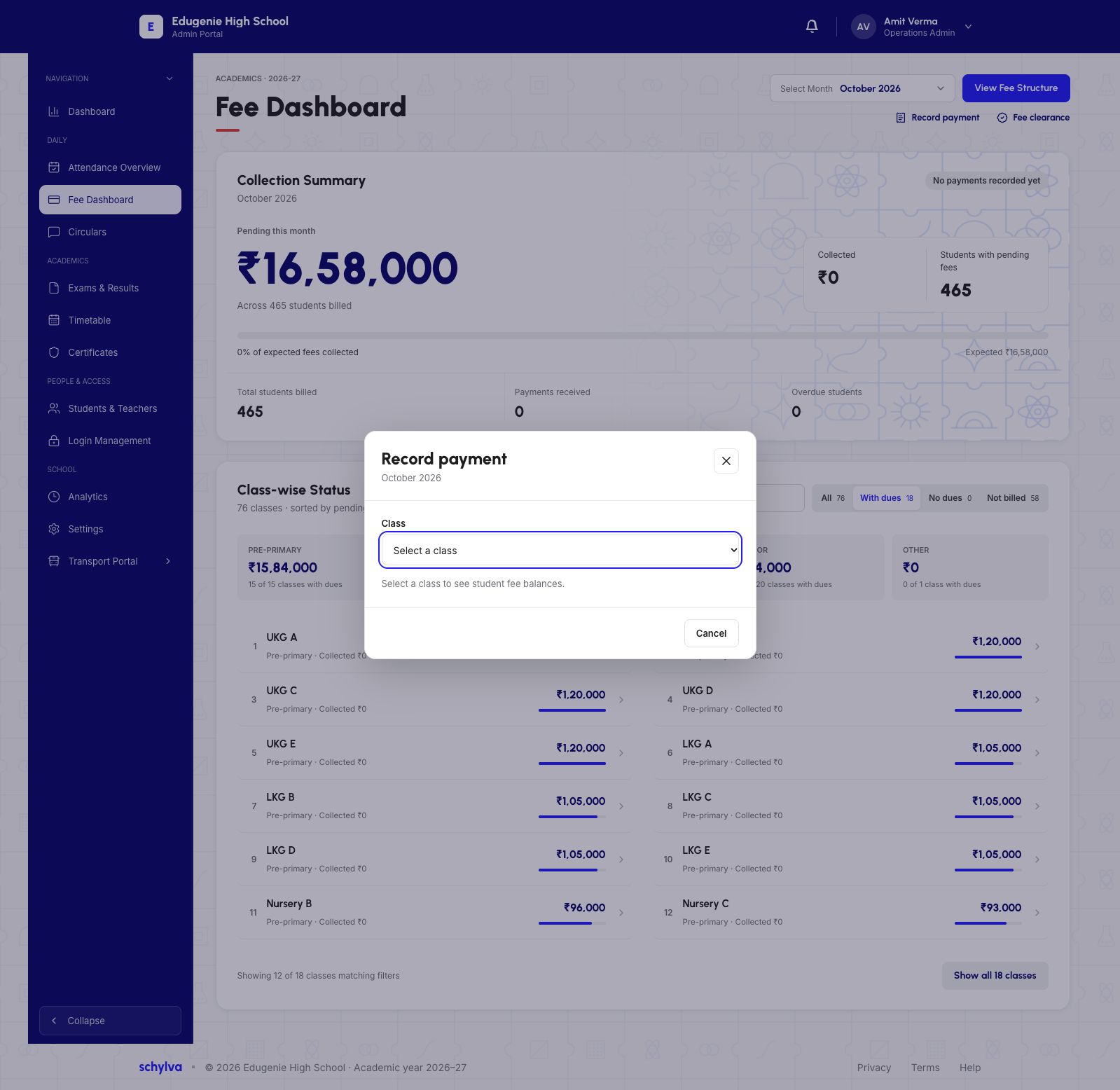
The Record payment dialog also shows October 2026 and a Class selector. Check the month and class together before identifying a student.
 View full screenshot
 Enlarge screenshot
2. Match the student and invoice
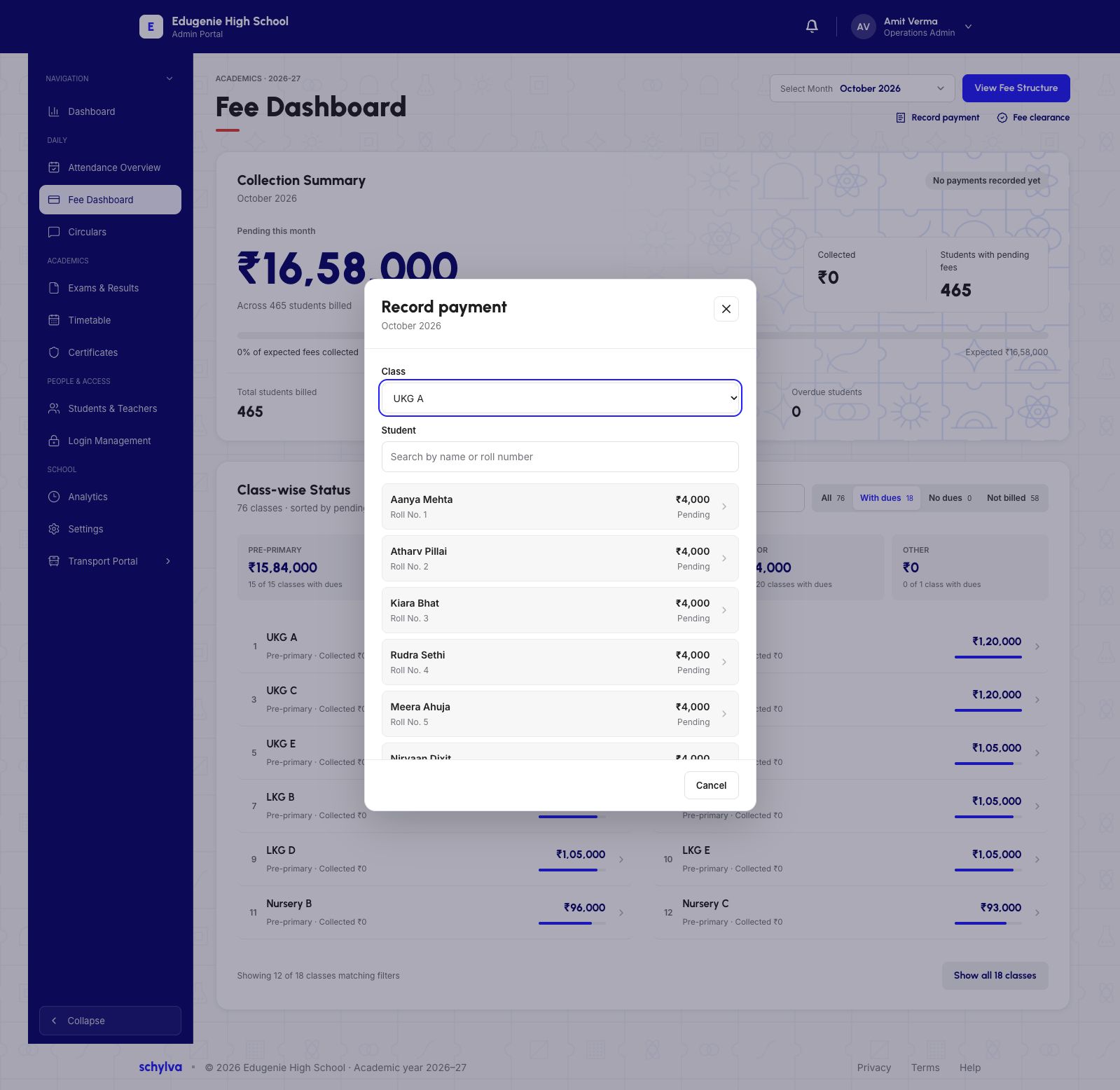
The student picker supports searching by name or roll number. Match the class and student identity rather than relying on a name alone.
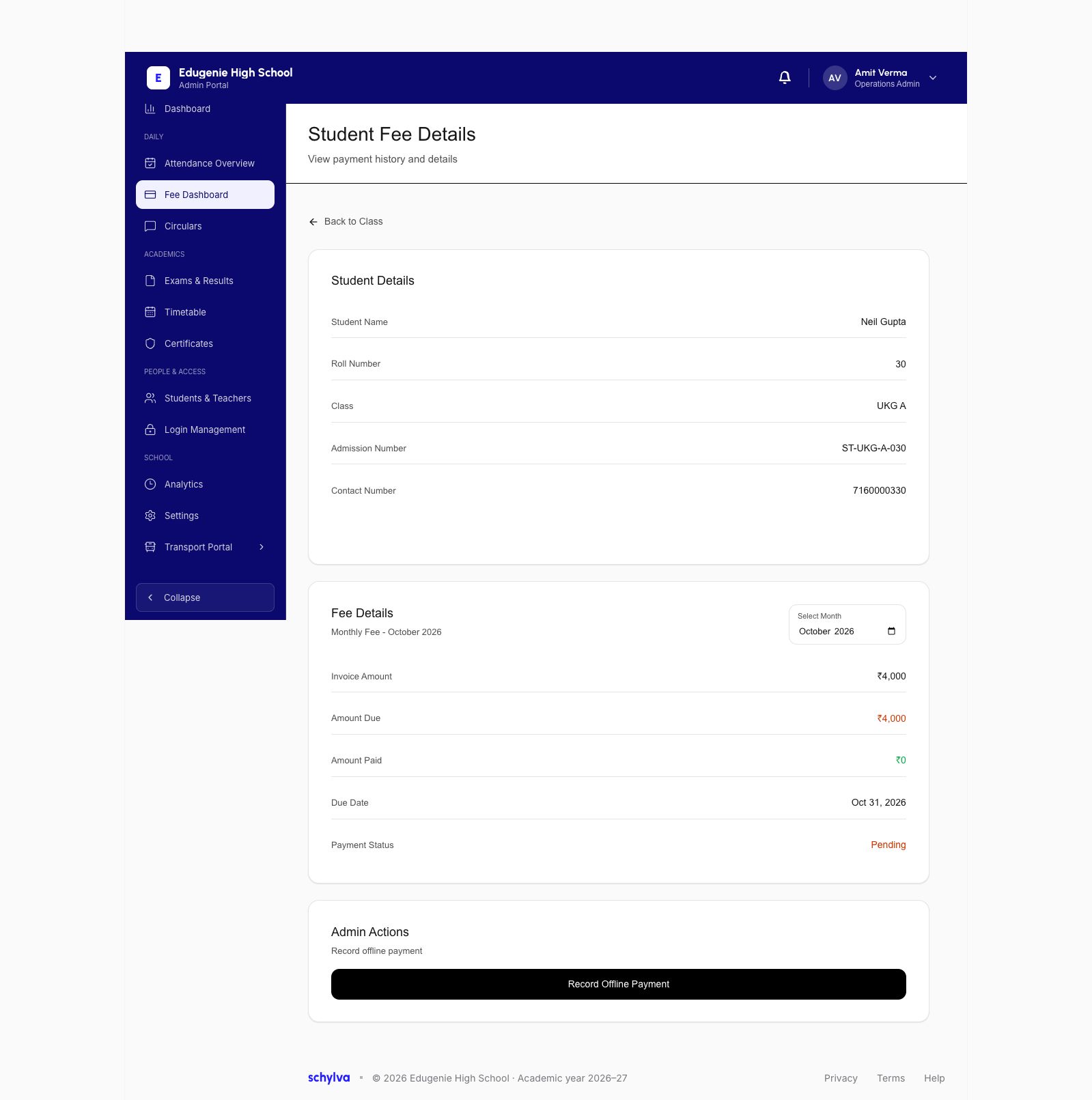
The separate detail example is Neil Gupta, Roll No. 30, UKG A, admission ST-UKG-A-030. For October, it shows an invoice of ₹4,000, amount due ₹4,000, amount paid ₹0 and a due date of 31 October 2026. Status is Pending.
 Enlarge screenshot
 Enlarge screenshot
3. Read the offline-payment form
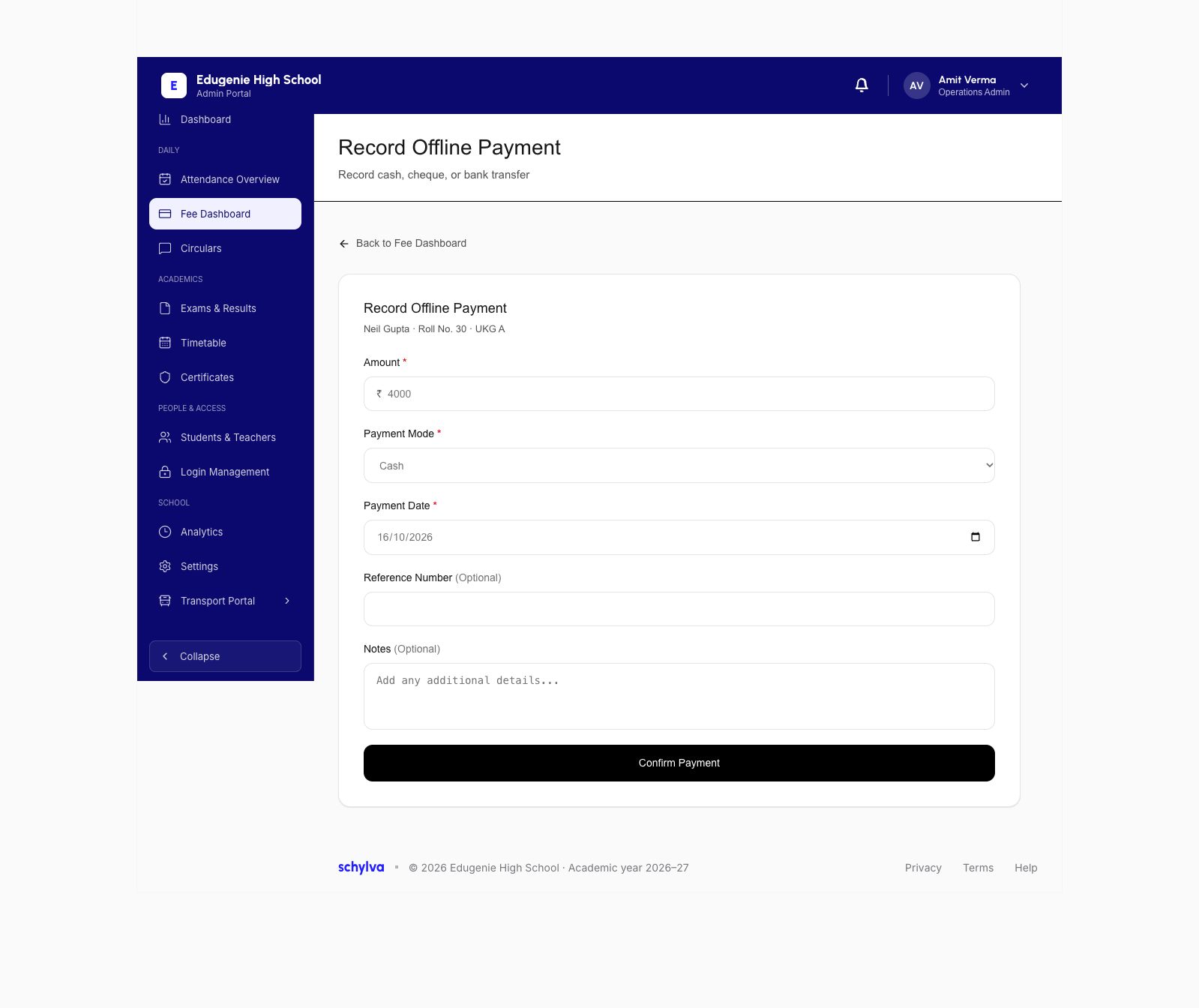
The offline-payment form identifies the selected student above Amount, Payment Mode and Payment Date. The example shows ₹4,000, Cash and 16 October 2026.
Reference Number and Notes are optional. The form is for recording cash, cheque or bank-transfer payments; its appearance does not mean money has been transferred.
Confirm Payment is the final visible control. A filled amount does not confirm that a payment was recorded, a receipt issued or a balance reduced.
 Enlarge screenshot
What to check before recording a payment
Check the intended student, month, received amount, payment mode and date against the school’s authorised payment record.
- A payment may already be recorded
- Check the existing ledger and receipt history with the authorised fee administrator before entering another record.
- The selected student or month is wrong
- Return to the correct selection before proceeding. This guide does not establish how to reverse a payment.
- You need proof that recording worked
- A successful confirmation, receipt and refreshed balance are needed; the open form alone is insufficient.