Find transport routes, vehicles and assigned staff
Read existing route details, student assignments, fleet information and transport-staff records without changing them.
For Administrator
On this page
Before you begin
- An authorised Admin account with permission to view this area of your school portal.
- The relevant academic year and the class, person or record you intend to check. Demo names, amounts, dates and counts are examples, not current school information.
1. Open Transport Portal
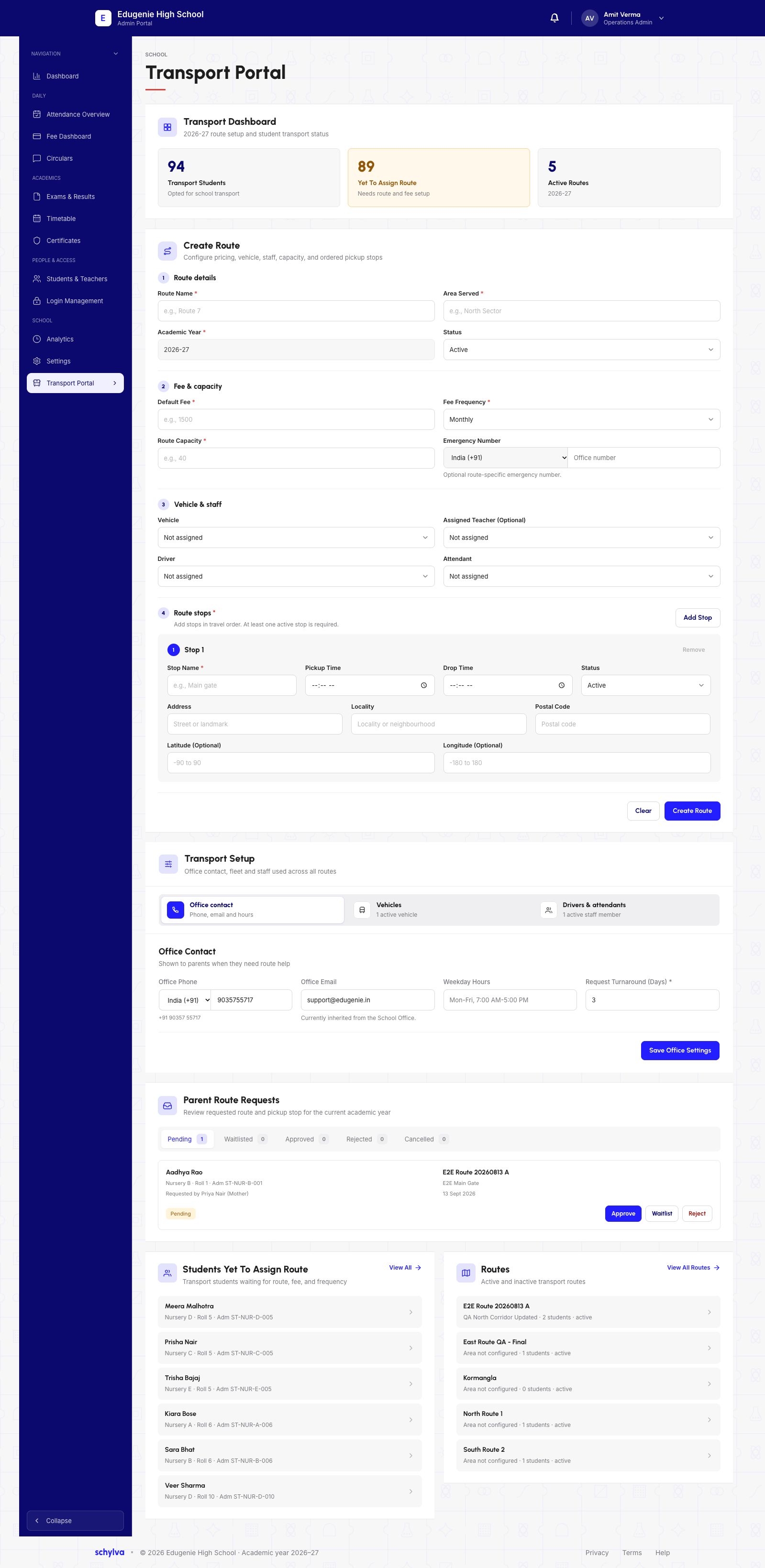
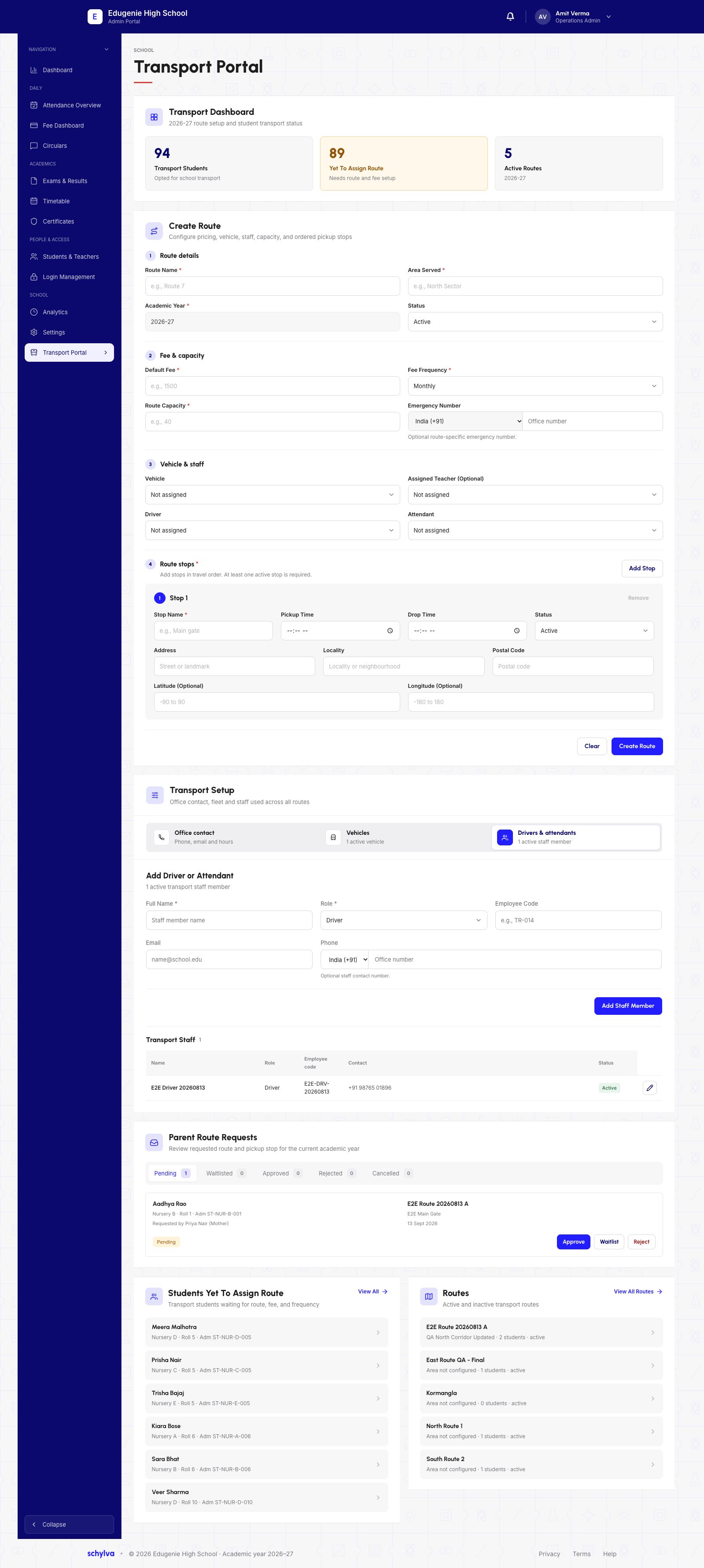
Open Transport Portal and check the academic year. The overview separates Transport Students, Yet To Assign Route and Active Routes; these are different counts.
The page also contains creation forms and Parent Route Requests. To inspect existing setup, continue to Routes or Transport Setup. An approval button is an action, not an existing assignment.
Demo · Admin desktop web
 View full screenshot
2. Find the existing route
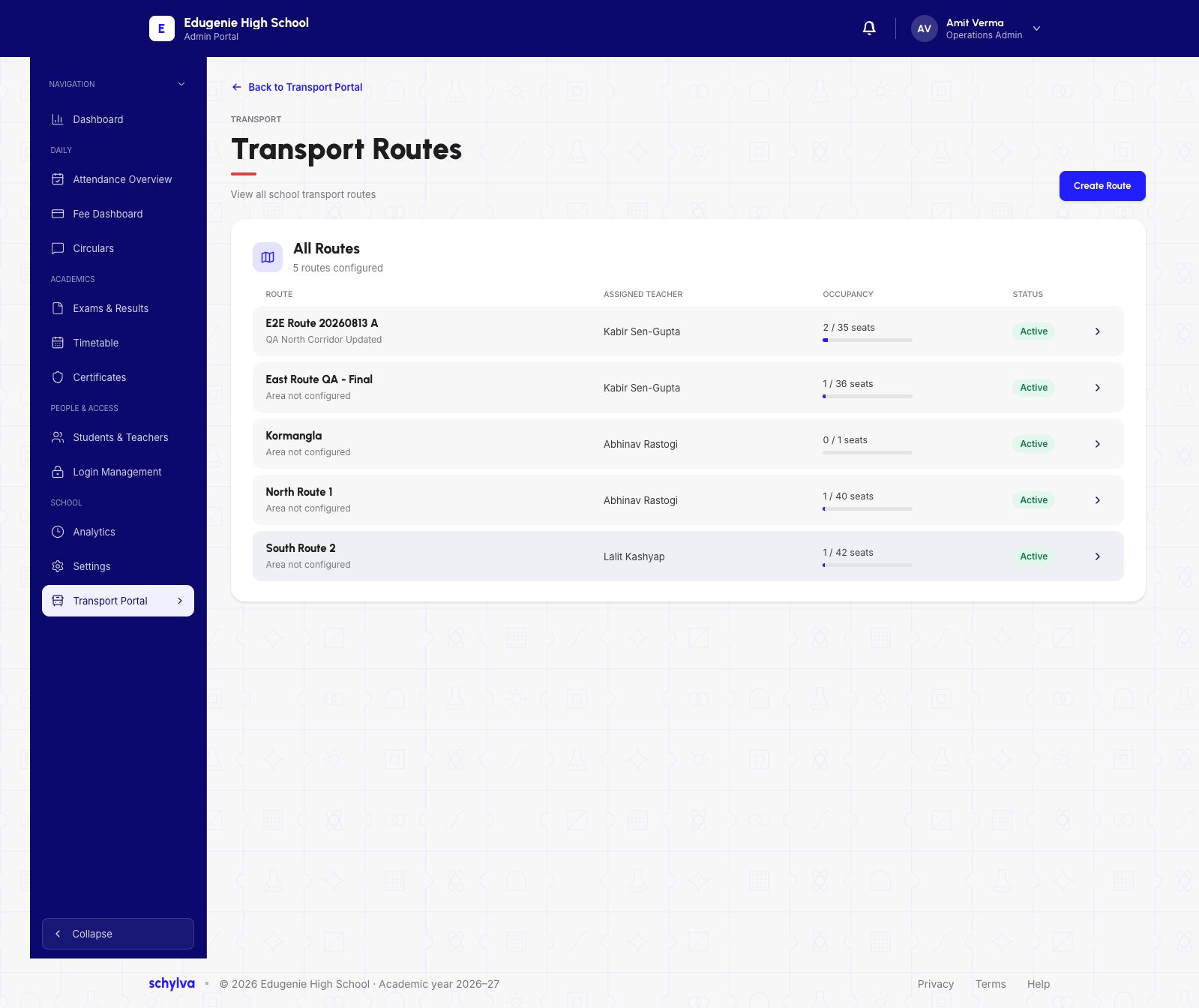
Use View All Routes and match the route name and area. The list shows teacher, occupancy and status. Open the intended route to inspect its saved details.
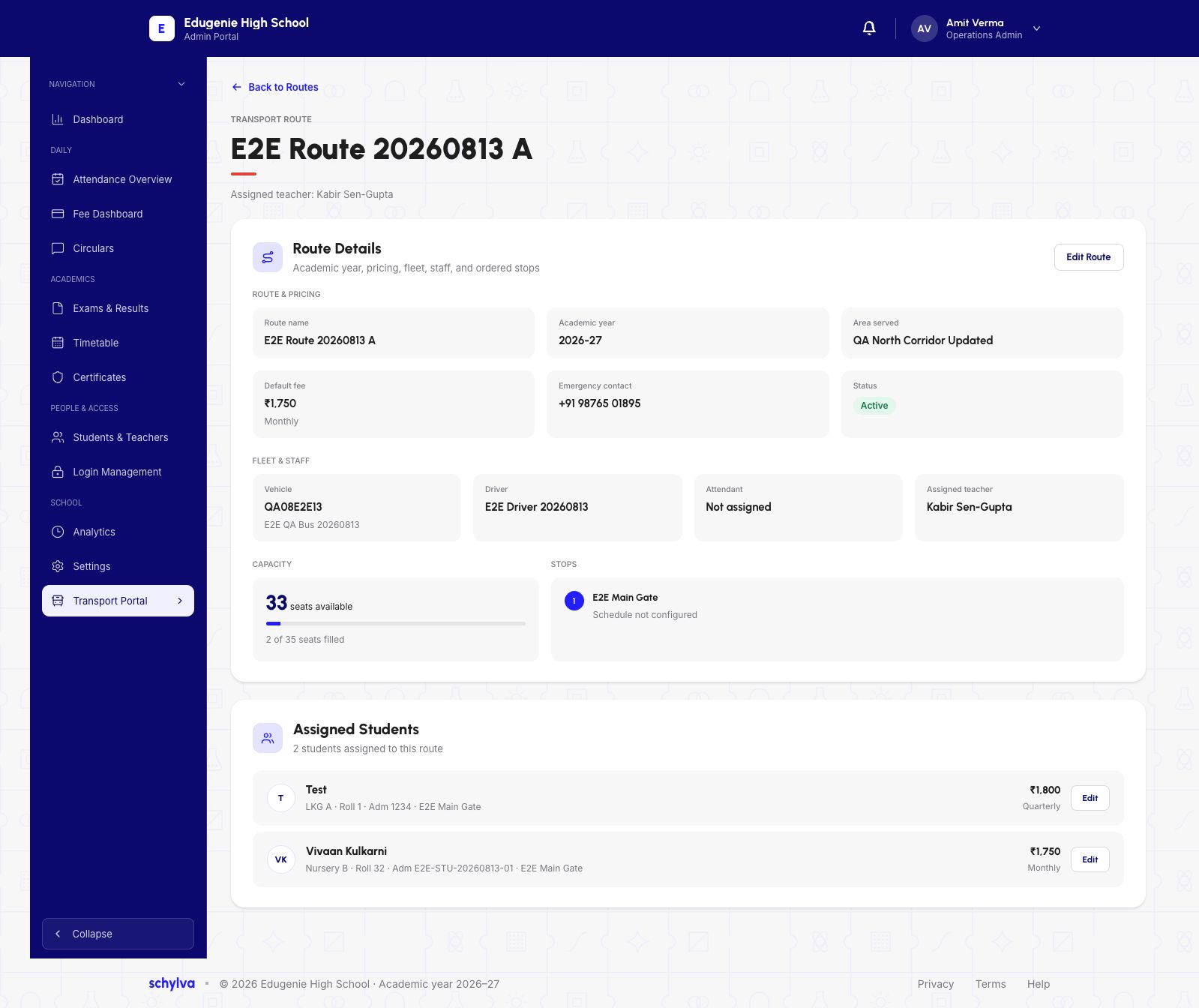
Read the academic year, vehicle, driver, attendant, teacher and available seats. In the demo route, the attendant is Not assigned and a stop says Schedule not configured. Ask the transport office for missing arrangements; do not invent pickup times.
Demo · Admin desktop web
 View full screenshot
Demo · Admin desktop web
 View full screenshot
3. Read assigned students and fees in context
The route detail lists assigned students with class, roll number, admission number and their fee/frequency. Check those fields before identifying a student.
This demo route has a default monthly fee, but one student row shows a different amount and quarterly frequency. Do not assume that the route default equals every student’s billed charge. Ask the fees or transport administrator to explain a discrepancy.
4. Inspect the existing vehicle and staff records
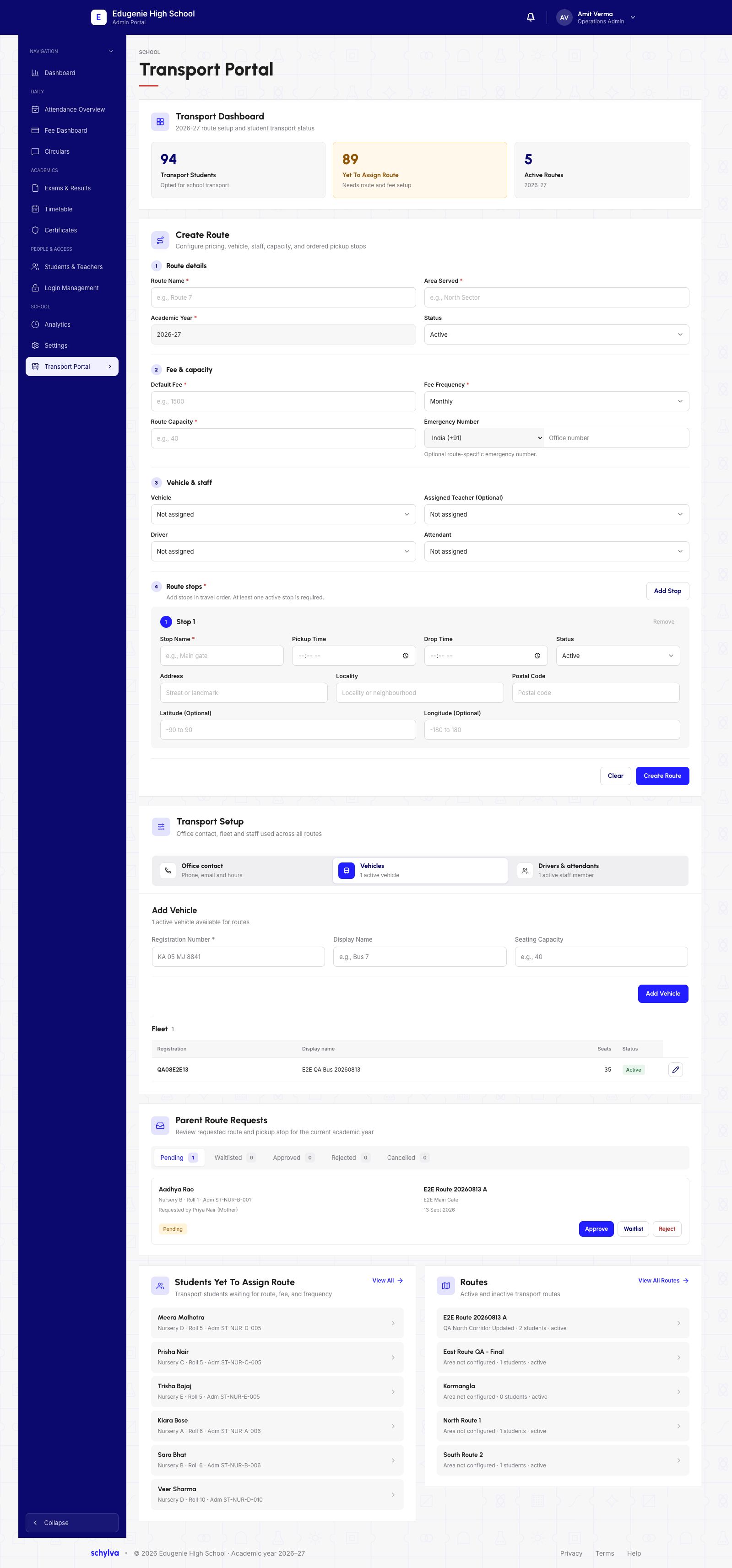
In Transport Setup, select Vehicles to read Fleet. Check registration, display name, seat count and status on the existing row. The Add Vehicle fields above it are a separate form.
Select Drivers & attendants to read Transport Staff, including the role and employee code. The captured staff row is a driver; it does not prove an attendant is assigned to a route.
Demo · Admin desktop web
 View full screenshot
Demo · Admin desktop web
 View full screenshot
5. Keep pending requests separate
Parent Route Requests has separate Pending, Waitlisted, Approved, Rejected and Cancelled states. A pending request is not a completed route assignment.
Do not use Approve, Waitlist, Reject or edit controls simply to inspect a route. This guide covers saved information, not changes or live vehicle tracking.
- The stop has no schedule
- Contact the school transport office for confirmed pickup information.
- The fee differs between students
- Compare the frequency and student record, then ask the fees administrator.
- A parent has requested a route
- Read the request status; wait for the school’s authorised decision process.