Understand certificate types and previews
Find the certificate formats, identify a student, compare type-specific fields and recognise a preview that has not been issued.
For Administrator
On this page
Before you begin
- An authorised Admin account with access to the relevant school settings or records.
- Confirm your school and academic year. Names, dates, amounts and counts in the screenshots are fictional/demo examples.
1. Find the certificate formats
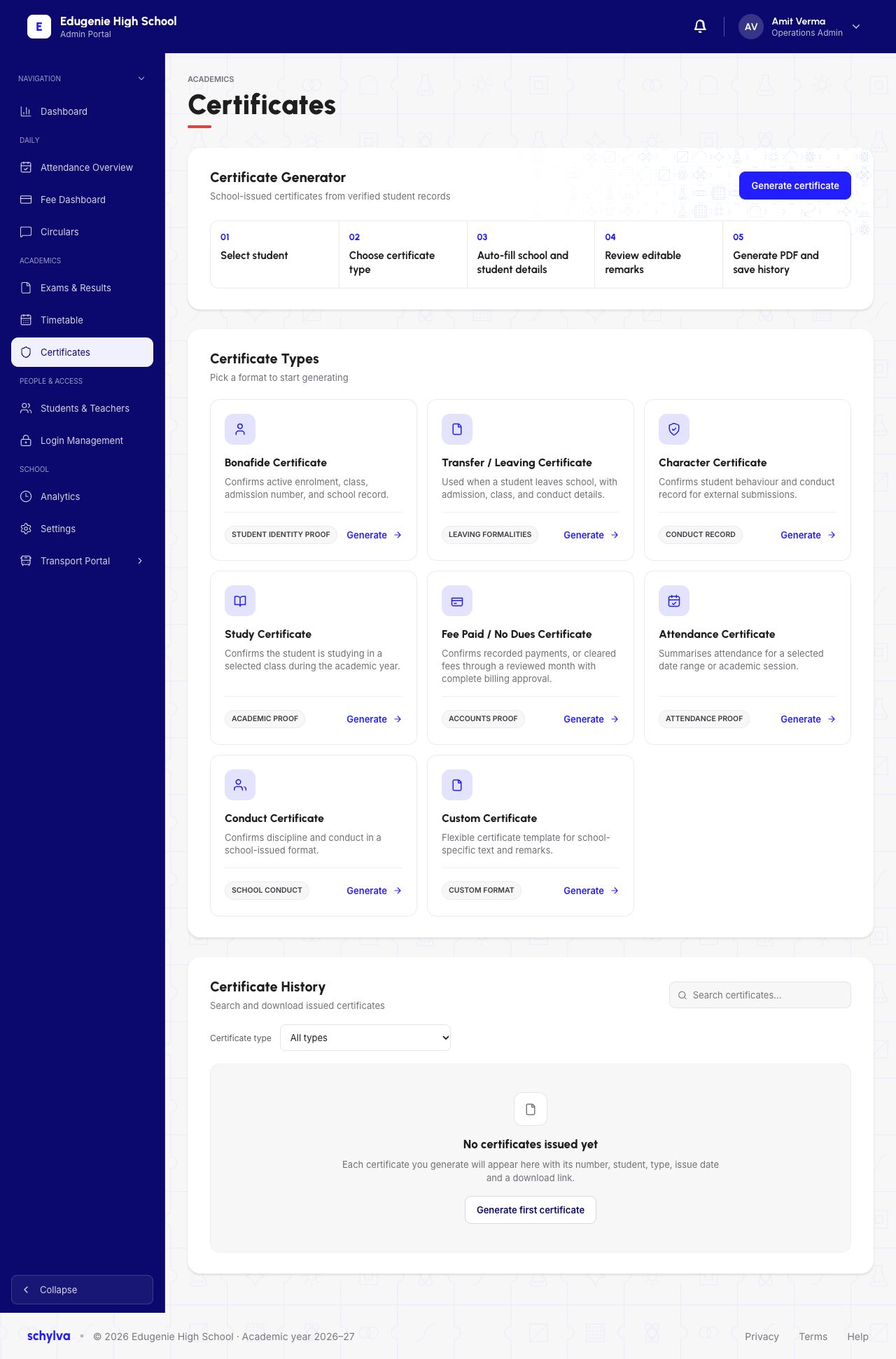
Open Certificates in the Admin navigation. The page lists Bonafide, Transfer / Leaving, Character, Study, Fee Paid / No Dues, Attendance, Conduct and Custom certificates.
Use the type that matches the school’s intended document. The illustrated generator has separate stages for selecting a student, choosing a type, entering details, reviewing and issuing. This guide covers the captured fields and preview, not completed issuance.
Demo · Admin desktop web
 View full screenshot
2. Match the student and type
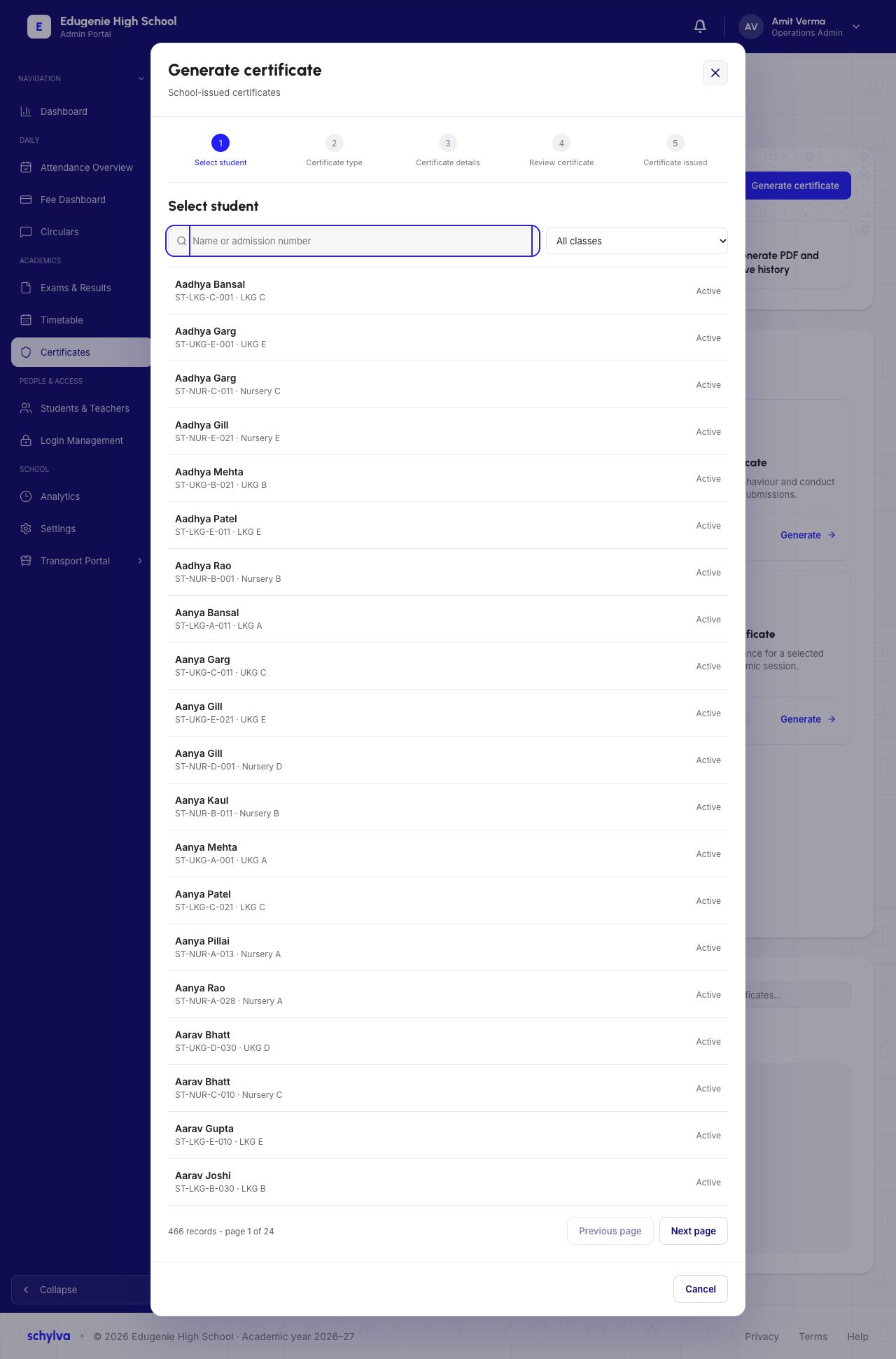
The Select student screen has a name or admission-number search, a class filter and paginated results. Match the admission number and class as well as the name before proceeding.
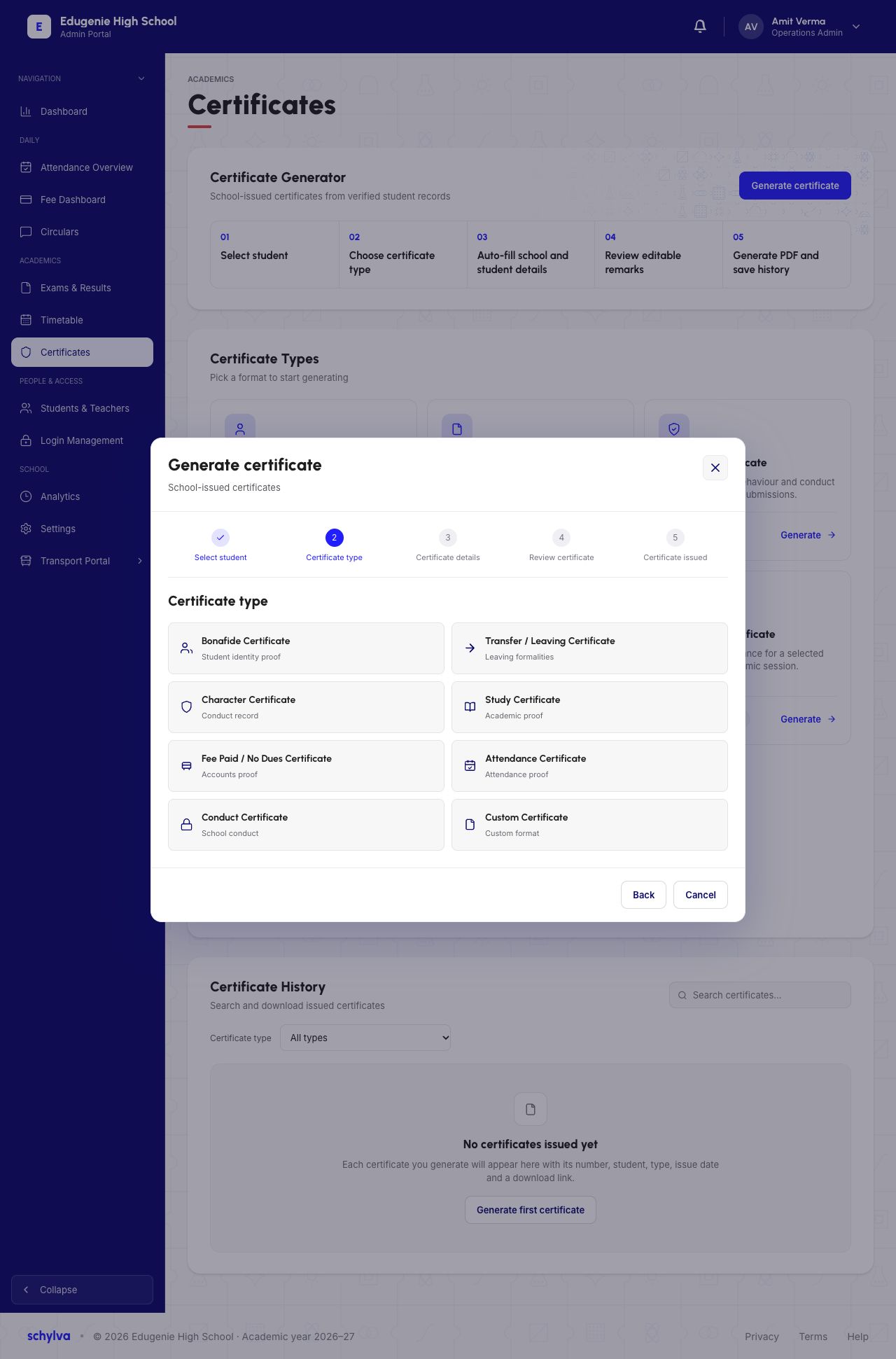
The type-selection screen presents the same certificate families as the overview. Later examples use the demo student Aadhya Bansal, admission number ST-LKG-C-001, LKG C. They are separate type examples, not multiple issued documents.
Demo · Admin desktop web
 Enlarge screenshot
Demo · Admin desktop web
 View full screenshot
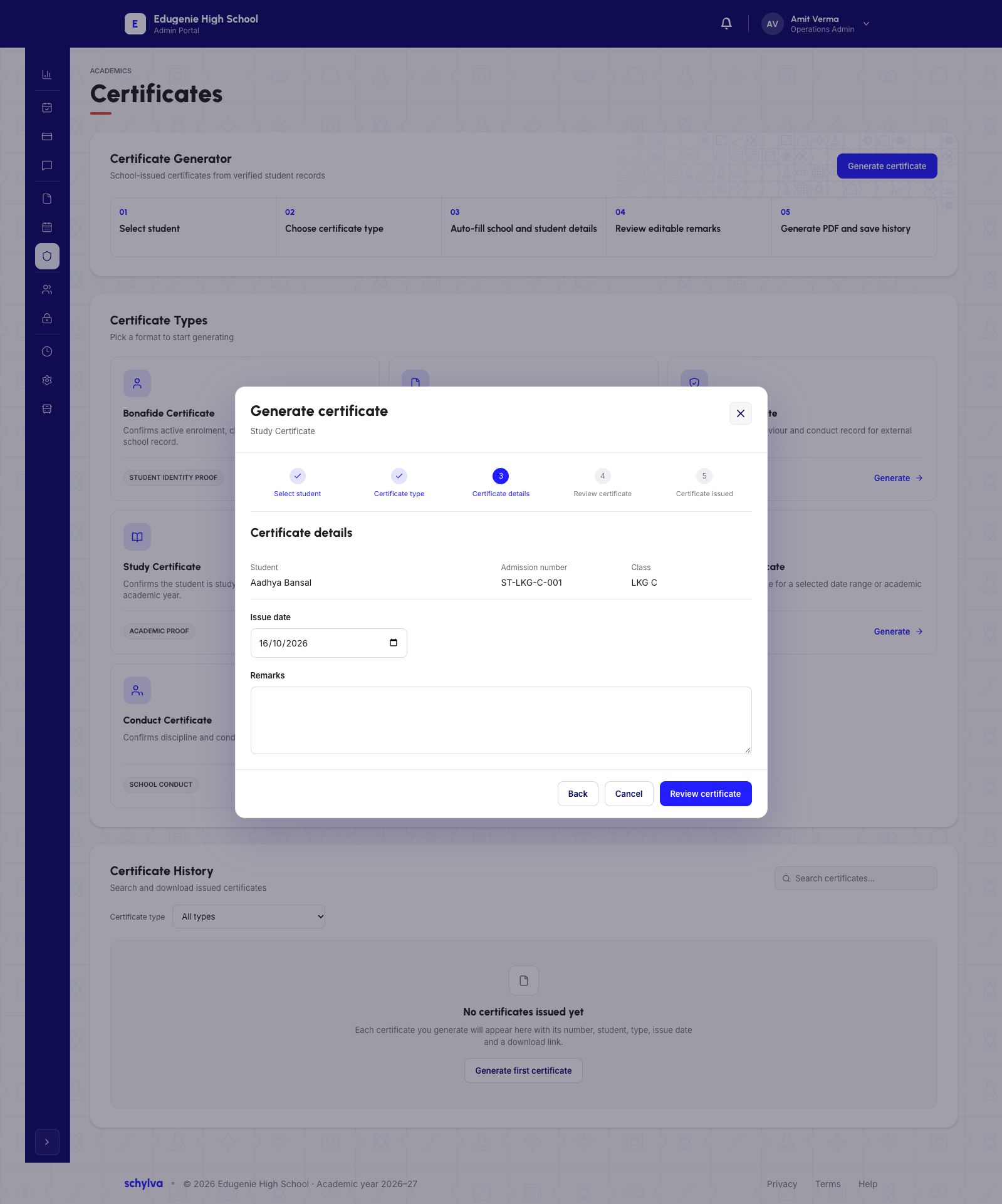
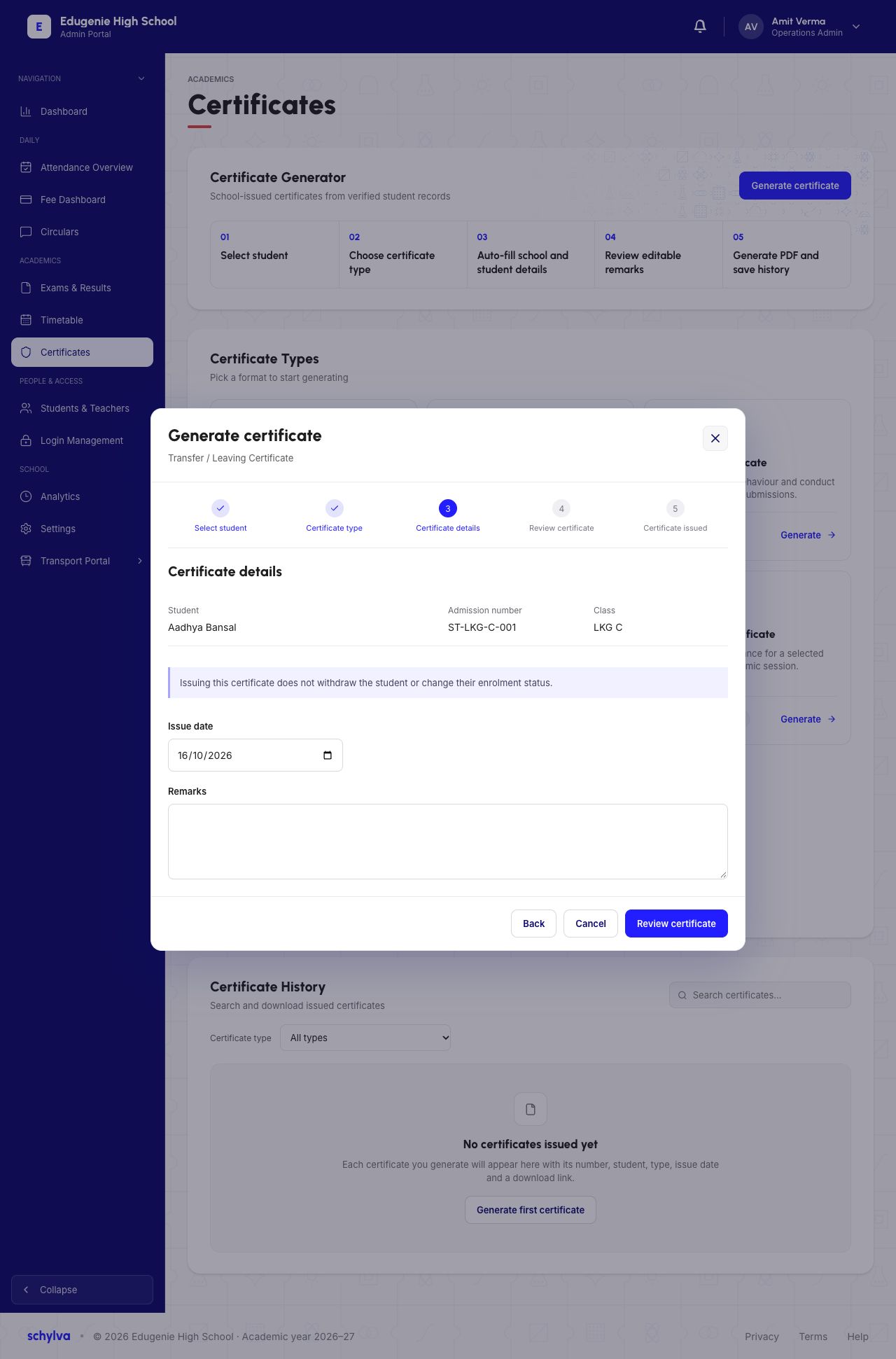
3. Read Bonafide, Study and Transfer details
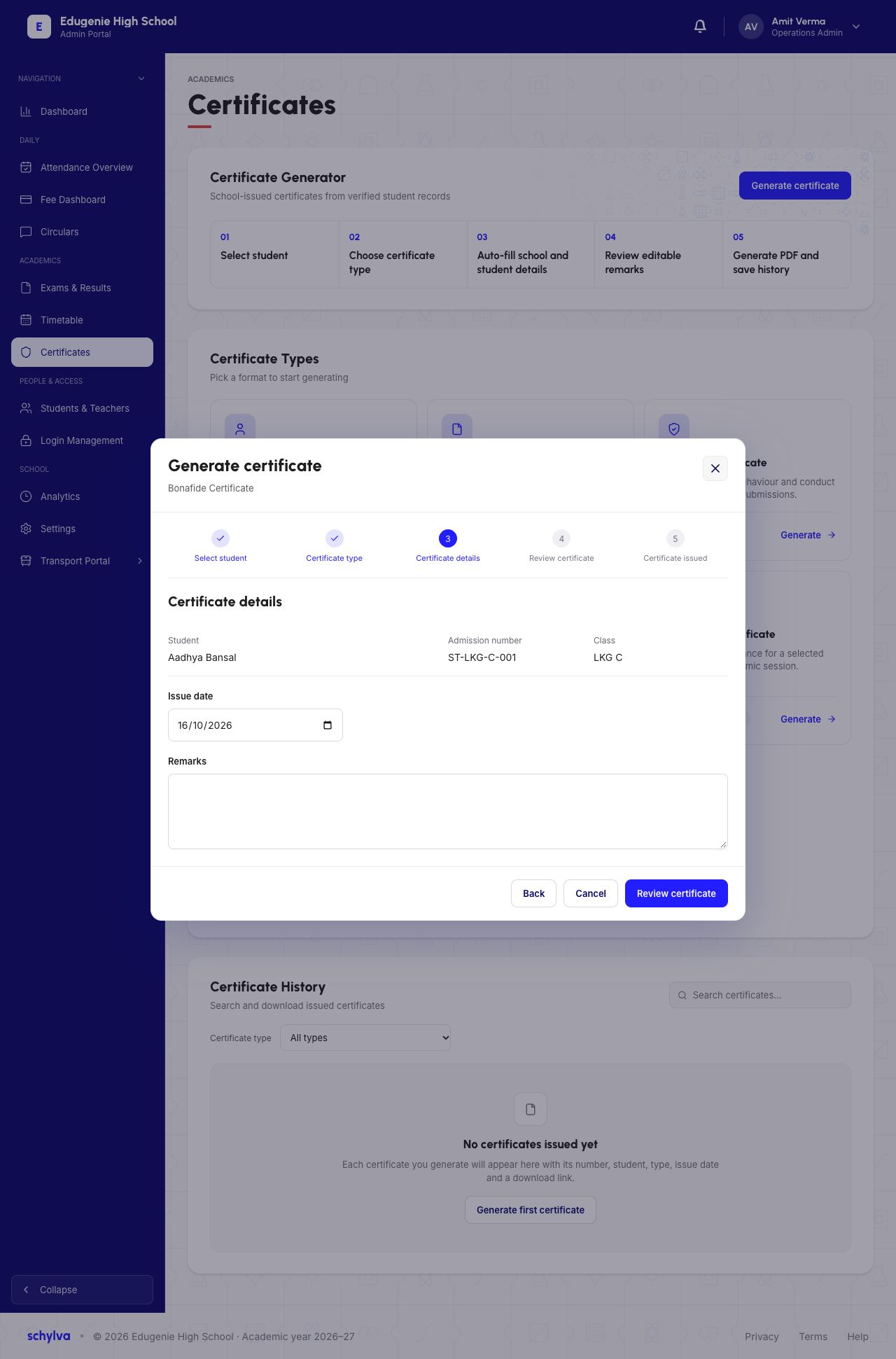
Bonafide details display the student, admission number and class, then Issue date and Remarks. The Study Certificate example also shows Issue date and Remarks.
The Transfer / Leaving form includes an explicit notice that issuing the certificate does not withdraw the student or change enrolment status. Read that distinction before treating a certificate as a school-record change.
Demo · Admin desktop web
 View full screenshot
Demo · Admin desktop web
 View full screenshot
Demo · Admin desktop web
 View full screenshot
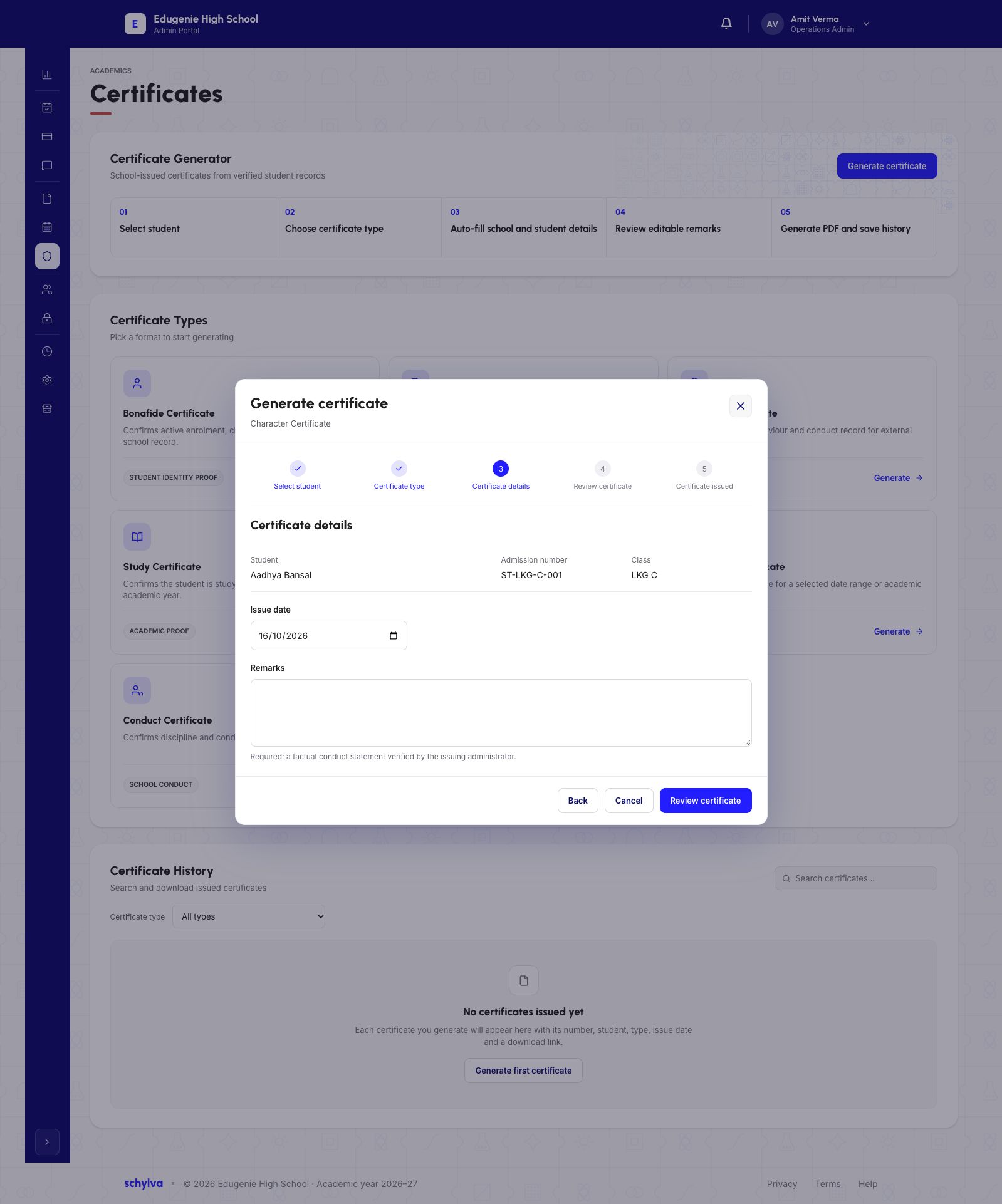
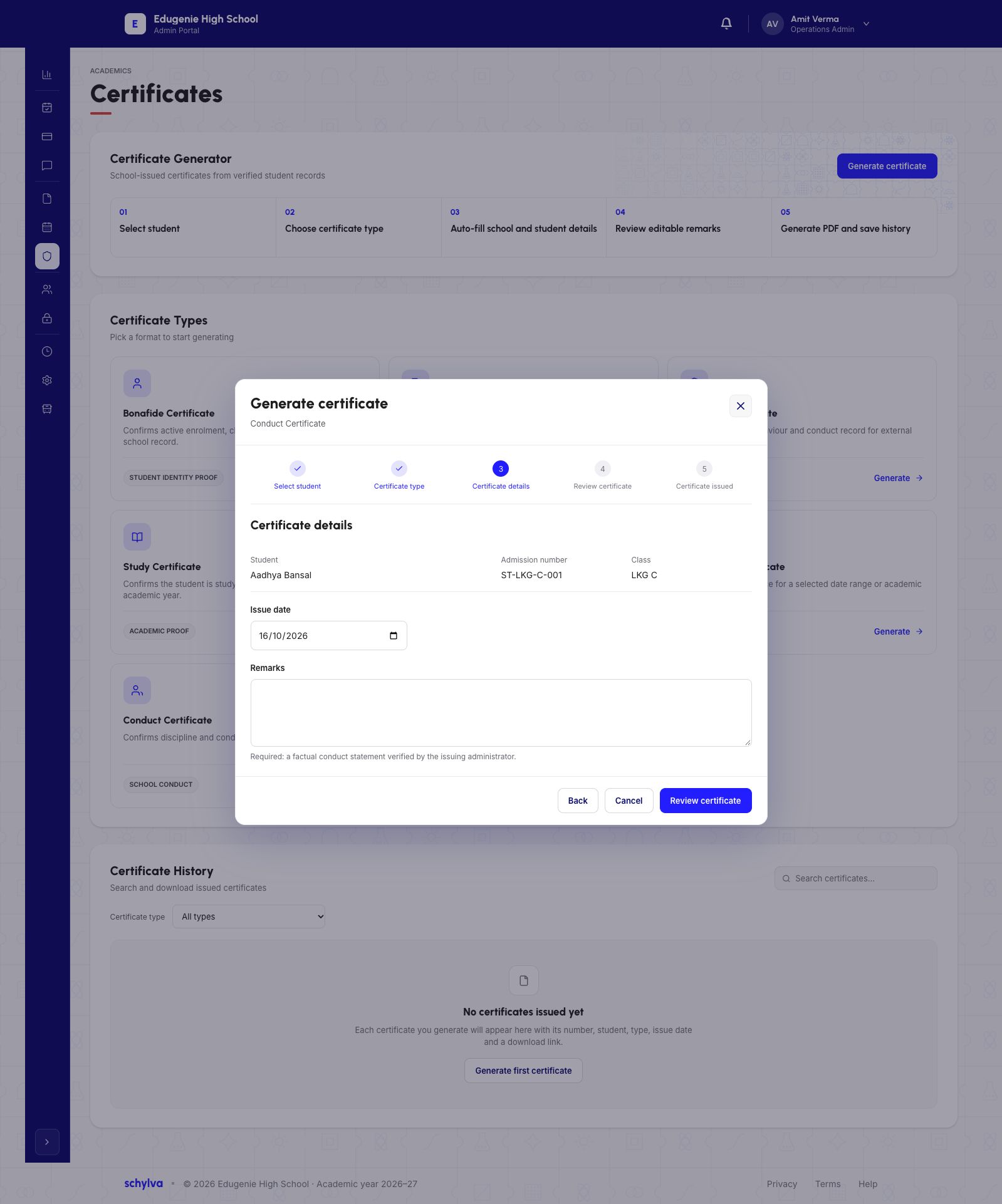
4. Distinguish Character and Conduct
Character and Conduct appear as separate formats. Both captured detail forms show the student, Issue date and Remarks.
The visible guidance requires a factual conduct statement verified by the issuing administrator. A blank remarks box is not a verified statement or completed certificate.
Demo · Admin desktop web
 View full screenshot
Demo · Admin desktop web
 View full screenshot
5. Separate payment evidence from no-dues clearance
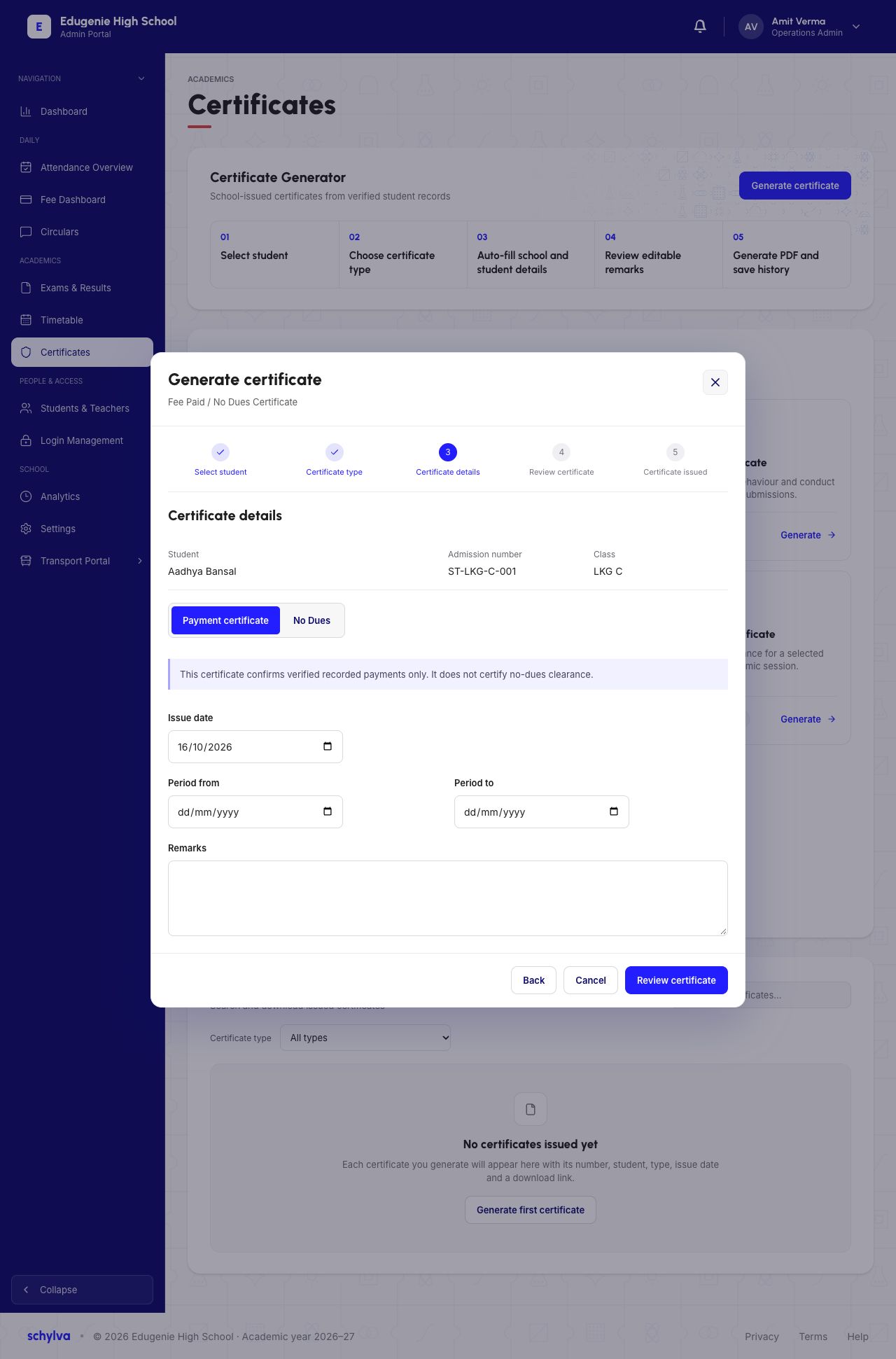
Fee Paid / No Dues contains two choices. Payment certificate describes verified recorded payments only and explicitly says it does not certify no-dues clearance. It has Period from and Period to fields.
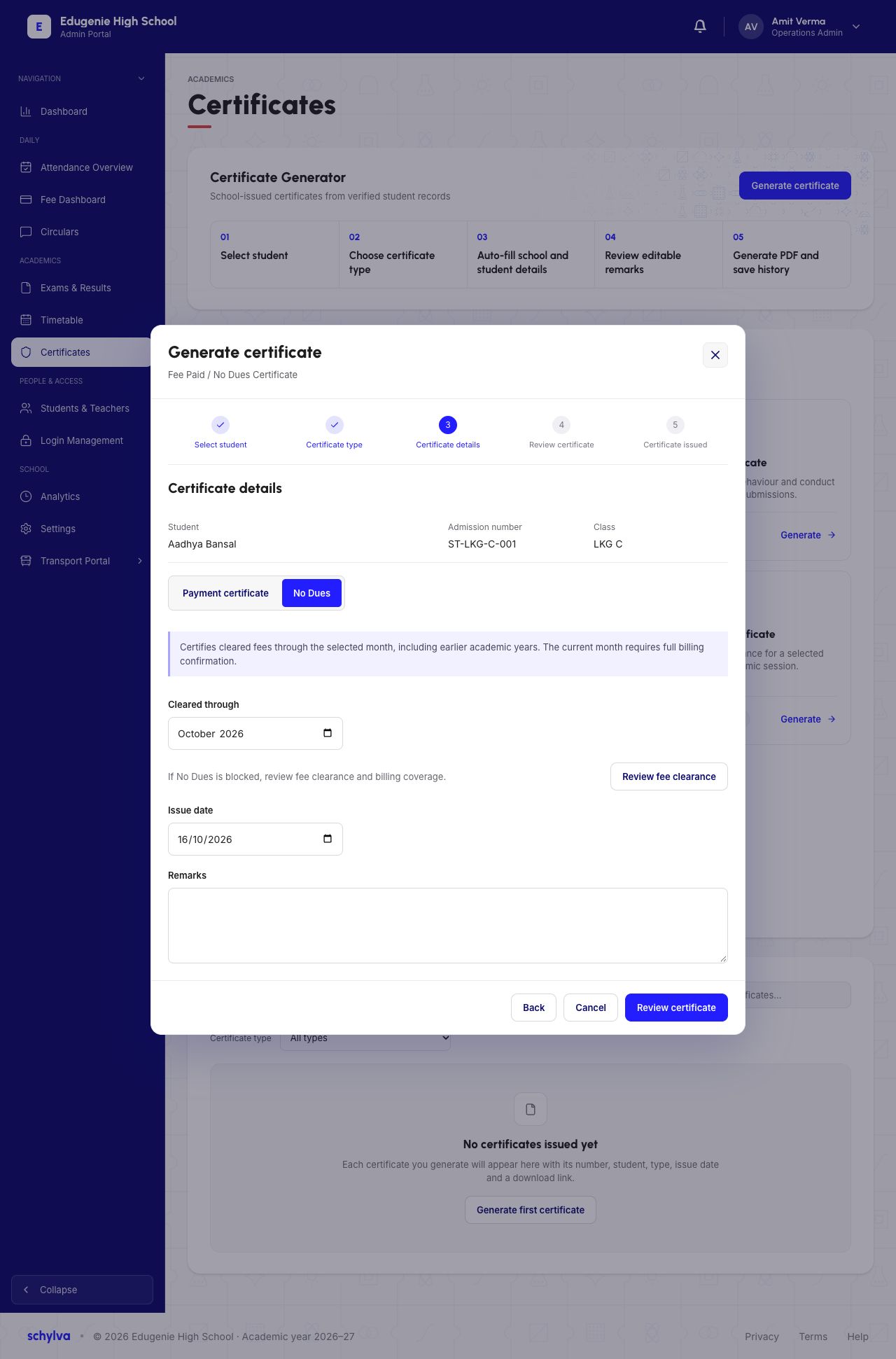
No Dues instead asks for a Cleared through month. Its notice includes earlier academic years and says the current month requires full billing confirmation. Review fee clearance is available if the process is blocked.
Do not interpret selecting No Dues as proof that the student’s account is cleared. The form is not a successful clearance report.
Demo · Admin desktop web
 View full screenshot
Demo · Admin desktop web
 View full screenshot
6. Read Attendance and Custom fields
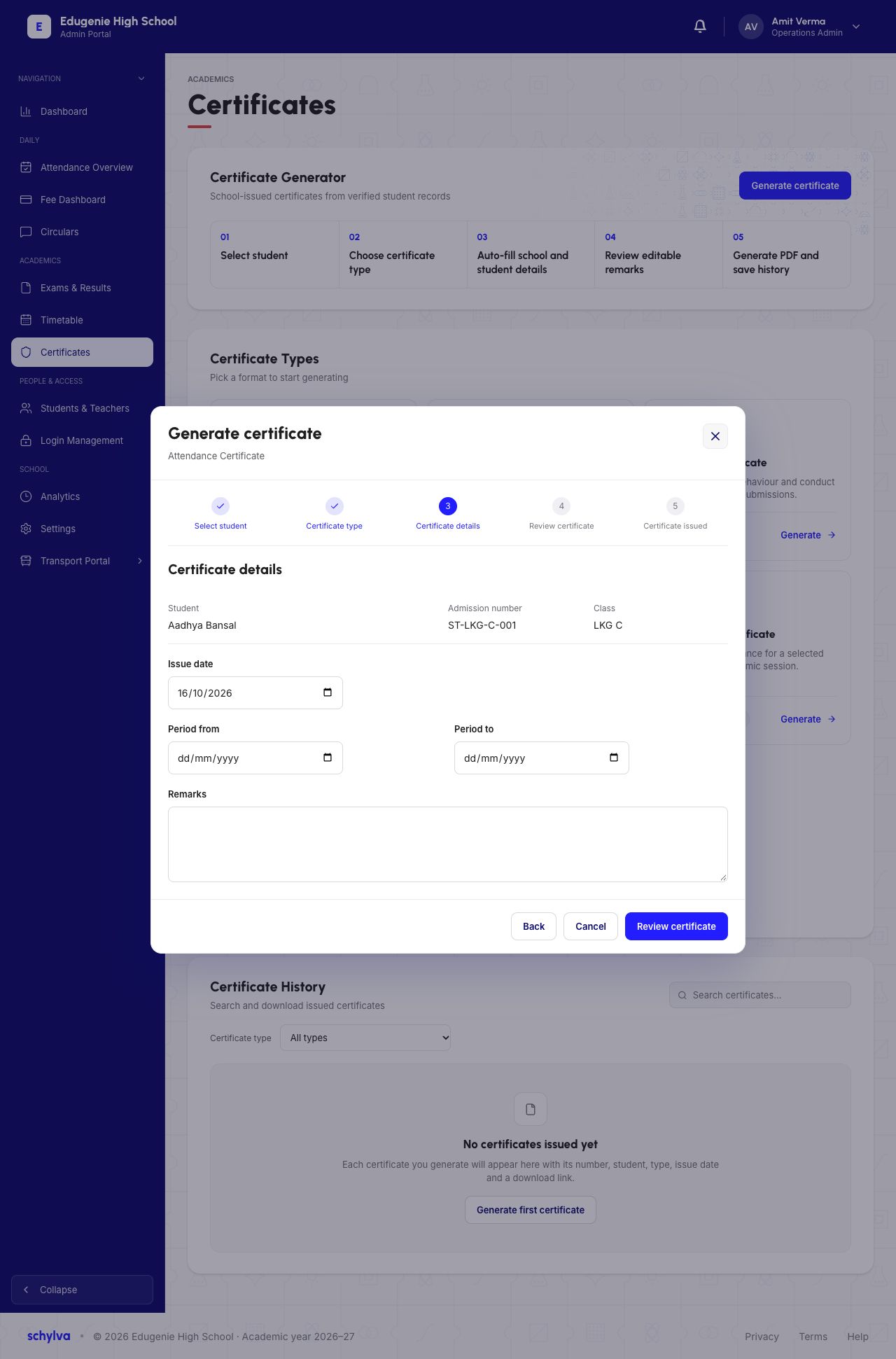
Attendance Certificate has Issue date, Period from, Period to and Remarks. The selected date range matters; this form does not verify an attendance calculation or an issued total.
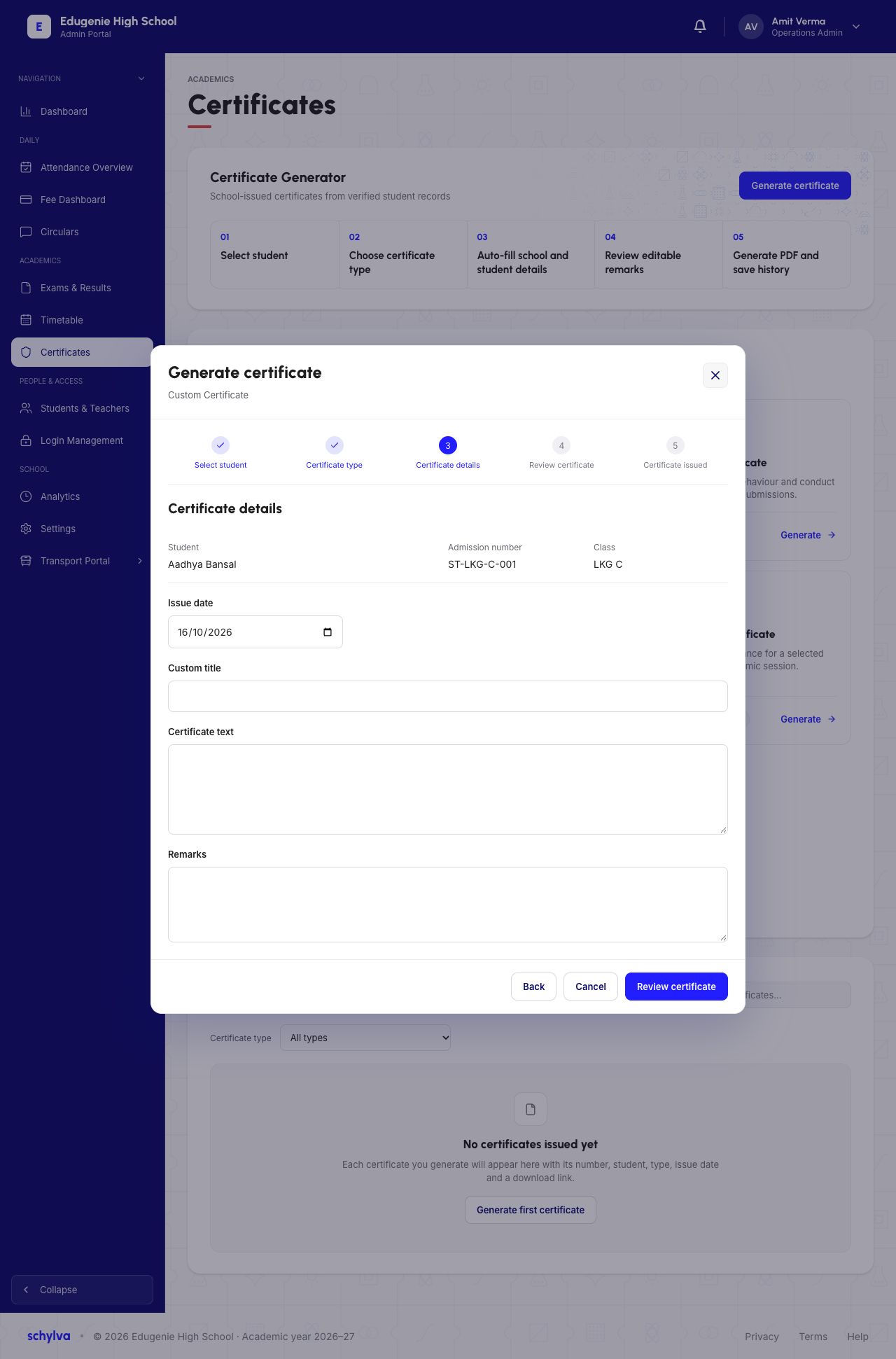
Custom Certificate adds Custom title and Certificate text, alongside the issue date and remarks. The blank fields show where school-specific wording belongs, not approved content for every school.
Demo · Admin desktop web
 View full screenshot
Demo · Admin desktop web
 View full screenshot
7. Recognise the review stage
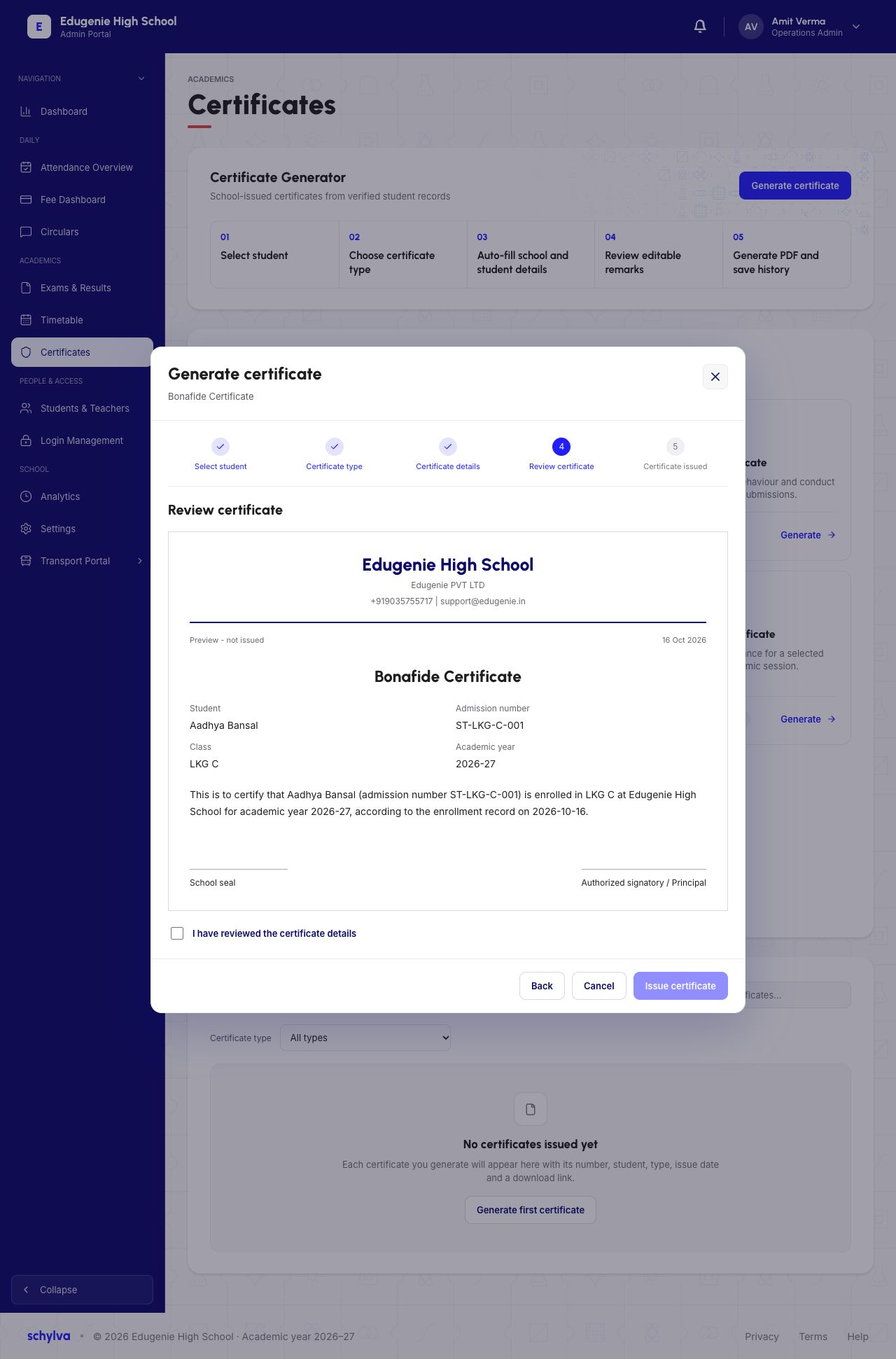
The Bonafide review capture displays the school identity, student details, academic year, certificate wording and spaces for a seal and authorised signature. It is explicitly marked “Preview – not issued”.
The review checkbox is unchecked and Issue certificate is visible below it. Neither the preview nor that button proves a PDF was issued, saved to history or downloaded.
Demo · Admin desktop web
 View full screenshot
8. Understand the history area
Certificate History has a search and type filter. This screenshot says No certificates issued yet.
An empty history is consistent with a preview that has not been issued. The page describes future history and downloads, but this capture does not verify those outcomes.
Demo · Admin desktop web
View full screenshot