Read class attendance as an Admin
Check the selected date, find an existing class register and distinguish missing attendance from recorded absence.
For Administrator
On this page
Before you begin
- An authorised Admin account with permission to view this area of your school portal.
- The relevant academic year and the class, person or record you intend to check. Demo names, amounts, dates and counts are examples, not current school information.
1. Start with the date and submission status
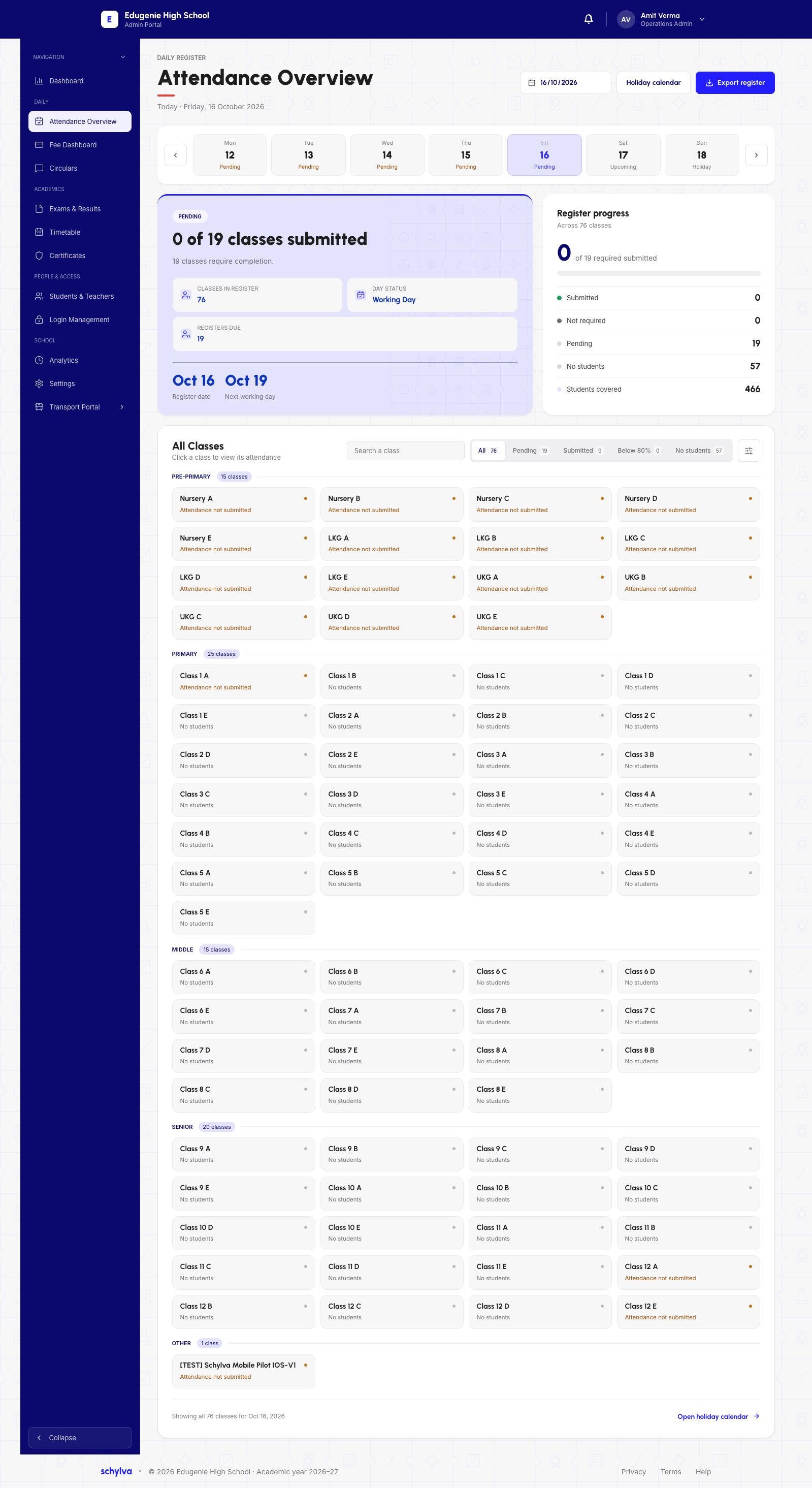
Open Attendance Overview from the Admin navigation. Check the selected calendar date and weekday before reading the summary. The example is Friday, 16 October 2026.
The overview shows 0 of 19 classes submitted, with 19 requiring completion. The larger register contains 76 classes, including 57 with no students. Those figures describe different groups; they are not interchangeable measures of student attendance.
Demo · Admin desktop web
 View full screenshot
2. Find the class and section
In All Classes, use the search field and read the available status filters: All, Pending, Submitted, Below 80% and No Students. Match both the class and section before opening its register.
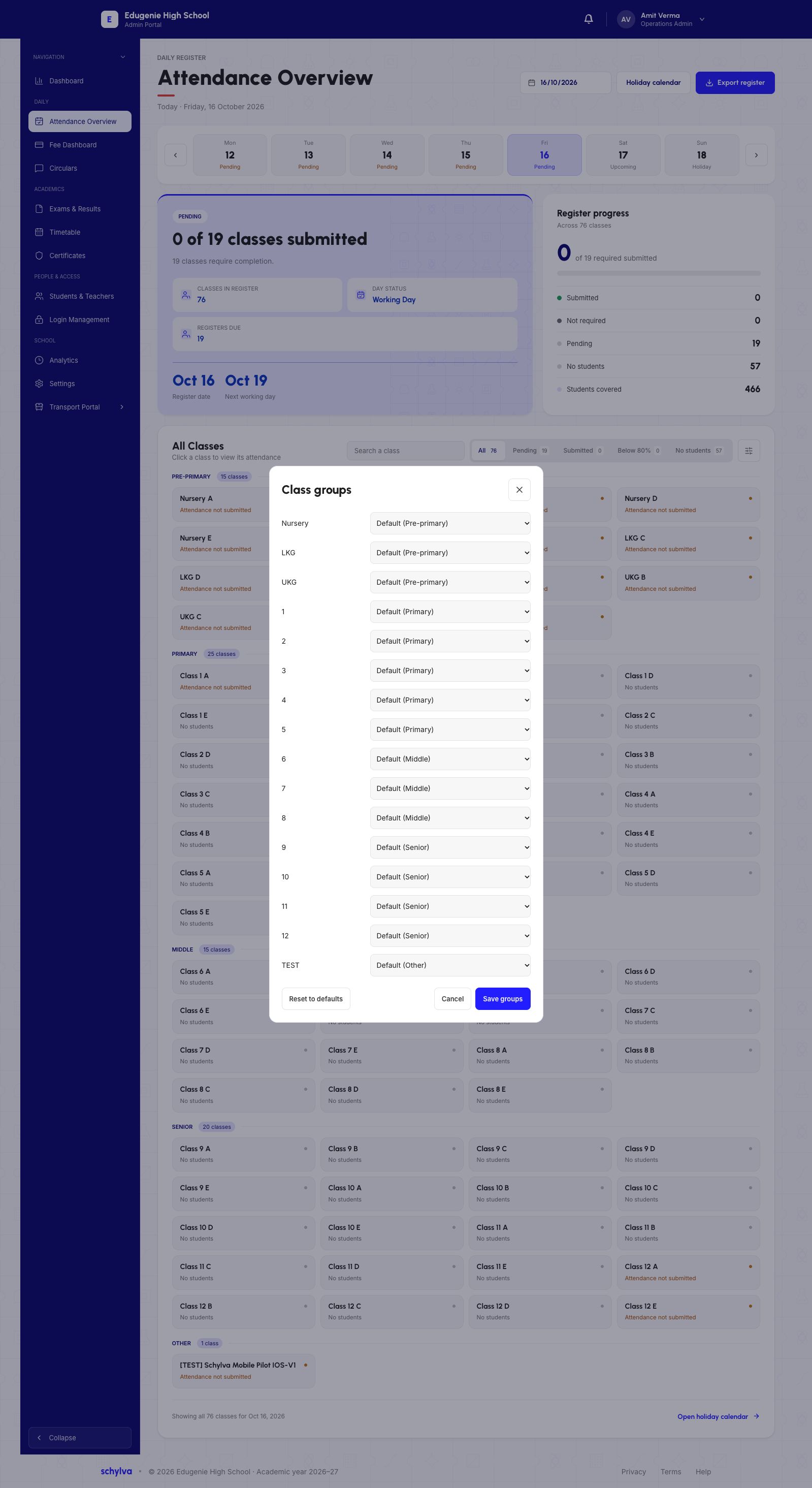
Class groups organise the listing. The reviewed Class groups dialog shows default groups for preprimary, primary, middle and senior classes. It is an unsaved configuration view, not evidence that any grouping was changed.
Demo · Admin desktop web
 View full screenshot
3. Read the register without changing it
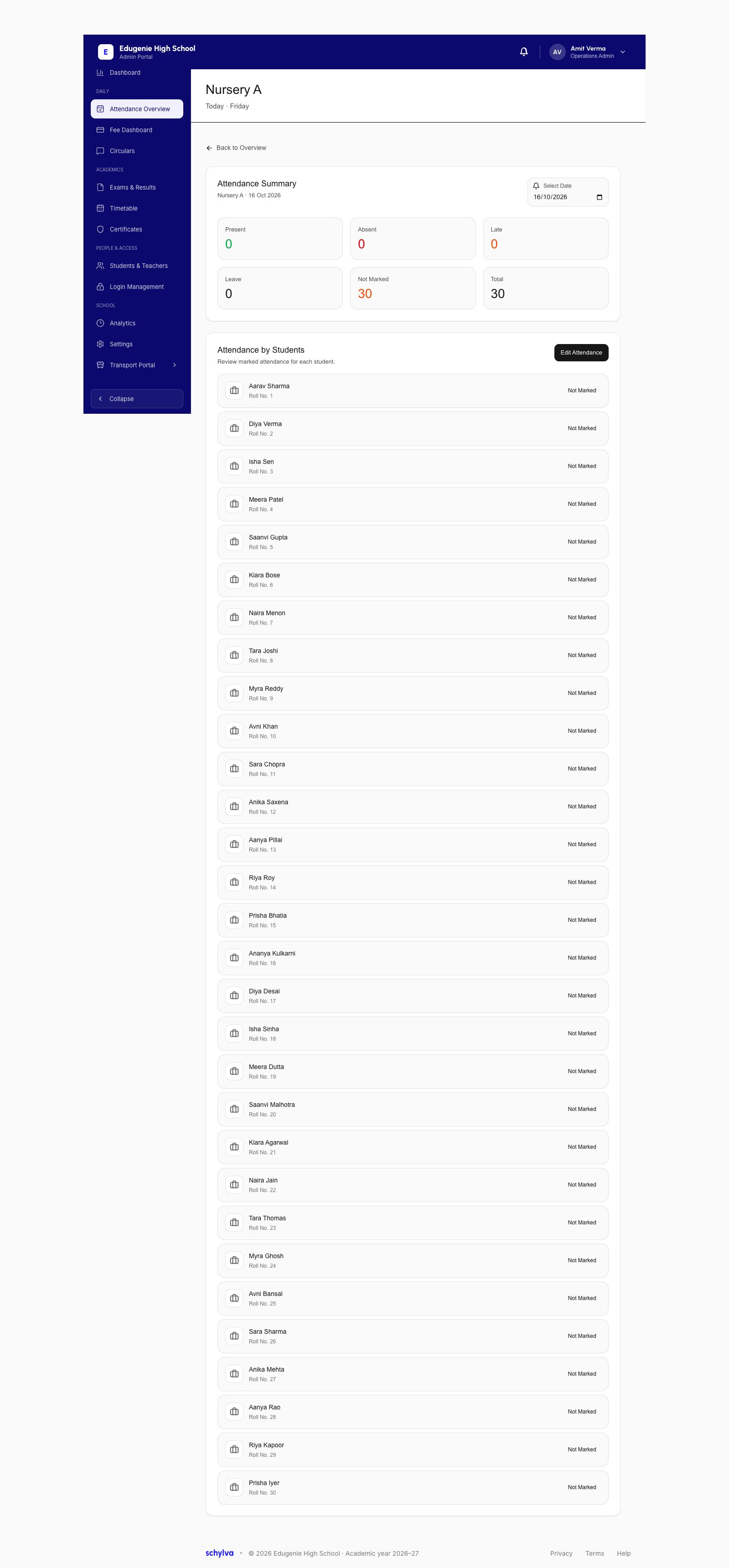
The Nursery A register lists Present, Absent, Late, Leave and Not Marked, plus the total student count. Read the selected date again, then match a student by name and roll number.
In this capture, all 30 students are Not Marked. That means the register has no recorded status for them on this date; it does not mean that all 30 are absent. Likewise, a class labelled No Students does not have a perfect attendance rate.
Demo · Admin desktop web
 View full screenshot
If the figures do not look right
Check scope before asking for a correction.
- A class is missing
- Check the status filter, class-group heading and class/section name. Ask the school admin responsible for the register if it is still absent.
- A student is Not Marked
- Confirm the date and submission state with the class teacher; do not interpret it as an absence.
- The register needs a correction
- Use your school’s agreed correction process. This guide does not verify an Admin edit or save.