Check a sign-in problem and contact your school
Describe where sign-in stopped without guessing its cause. Check the school and role, note the visible message and contact your school through a trusted channel. This guide does not instruct you to request codes or test recovery controls.
For Parent · Teacher · Student · Administrator
On this page
Before you begin
- The portal link your school supplied and the role you are authorised to use.
- Your own registered number; do not try another person’s details.
- The visible message and the step where sign-in stopped. Do not put account details or codes into Help search.
Find the step where you are stuck
Use the matching check below. A disabled button, a missing message and a dashboard showing the wrong person are different problems.
- The portal will not open, or the school looks wrong
- Check the exact link with your school. Do not enter details on an unexpected page or bypass a browser security warning.Check the portal and school
- Send code is disabled
- Compare the selected role and field format with the access details your school confirmed. If the registered number is uncertain, stop and ask the school. A disabled button does not prove that an account was removed.Check the role and number fields
- You reached the code screen but have no code
- Compare the masked destination if visible, then stop repeated attempts and contact the school. The checks below help you describe the problem, not request another code.Check a code that has not arrived
- A code is rejected or an expiry message appears
- Read the exact message. Do not guess codes or assume a waiting period; use the code-error checks below.Read the code-error checks
- Verification or dashboard loading does not finish
- Stop repeated submissions. Check your connection and note the step and any visible message for the school; an unfinished load does not diagnose account access.Check a stalled sign-in
- You signed in but see the wrong person or cannot find a child
- Check account and child identity. A missing linked child is separate from a failed sign-in; use the related Parent guide.Check account and child identity
Check the school, role and number
Compare the school name and address with the link you received from your school. A bookmark for another school will not become the correct portal by selecting a different role. If the browser shows a security warning, stop and ask the school to confirm the address.
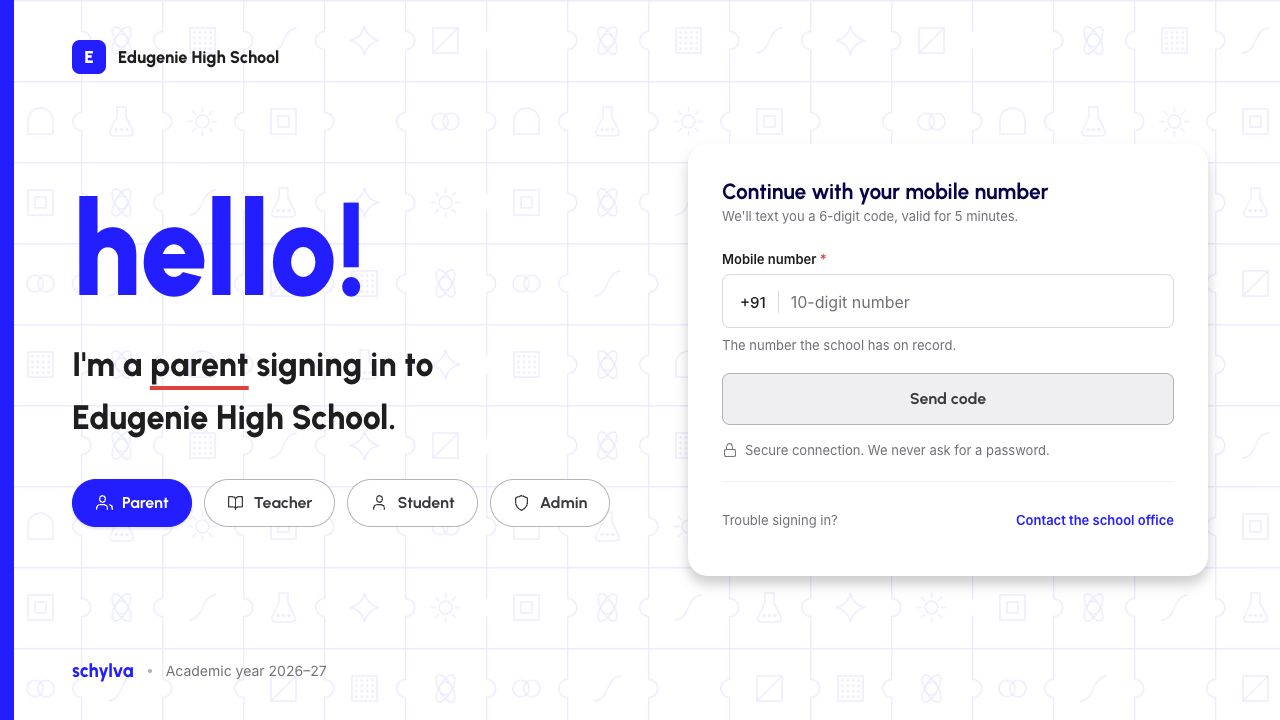
Choose your authorised Parent, Teacher, Student or Admin role. Then check the registered number against the field’s format. The demo shows +91 separately and requires 10 digits; this is an example, not a promise of worldwide phone support.
The blank example keeps Send code disabled. Do not use someone else’s number, cycle through roles to find access, or ask an administrator to create a duplicate account just to get past entry. If the number on record may have changed, ask your school how to correct it.
Demo data · Desktop web · check before requesting a code
 Enlarge screenshot
If a code has not arrived
If you are already on a verification screen, compare the masked destination with the number your school has registered. Do not include that number or a code in a support screenshot.
If the destination is wrong or no message arrives, stop further attempts and contact the school. Note the school, role, approximate time and visible message. A countdown does not prove delivery; this guide does not establish resend, expiry or recovery behaviour.
If the portal shows a verification error
Read the visible message and stop repeated attempts. Do not guess codes, submit a rejected code again or assume a universal expiry or unlock time.
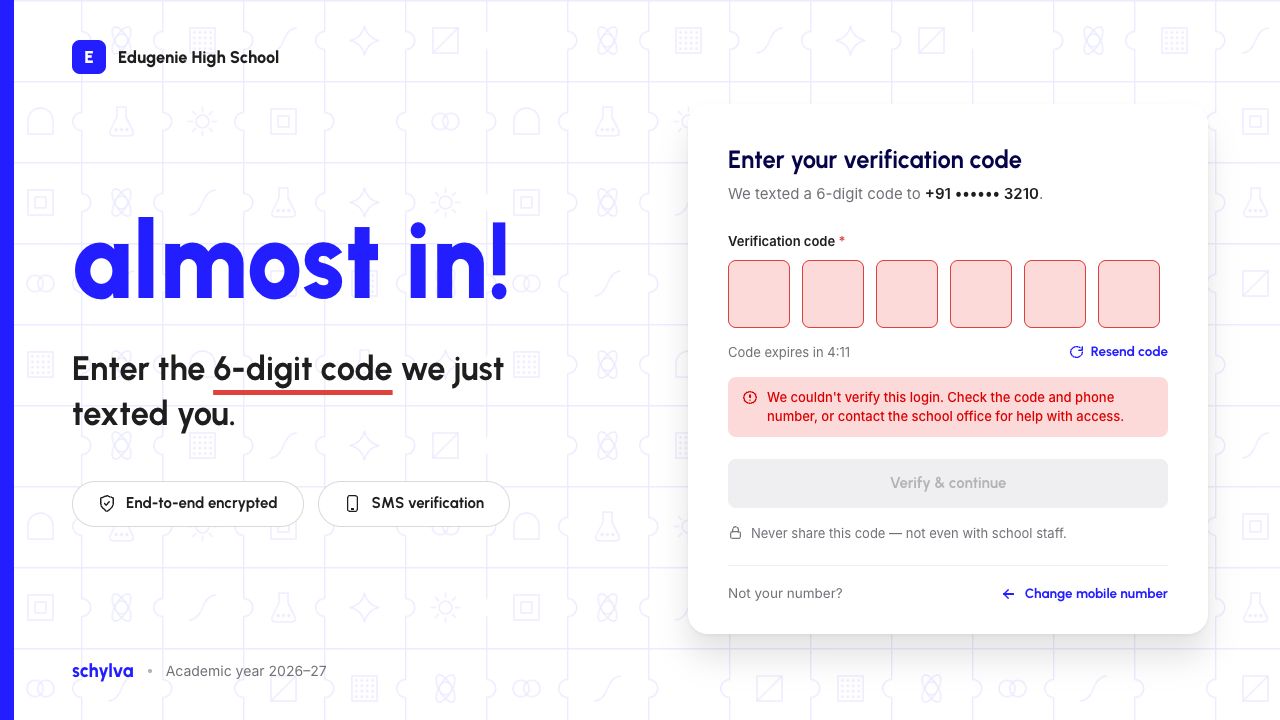
The demo example below says: “We couldn’t verify this login. Check the code and phone number, or contact the school office for help with access.” The fields were cleared by the UI. This generic refusal does not establish whether the cause was the code, account access or another authentication condition.
Contact your school with the message text, intended role and approximate time, without sending a code or full sign-in number. Visible retry controls do not establish recovery or restored access; no recovery procedure is included here.
Demo data · Recorded demo · generic verification error
 Enlarge screenshot
- Read the generic refusal message. The code fields were cleared by the UI; their red outlines do not identify the cause.
- Do not diagnose expiry or lockout from this image, and do not treat visible retry controls as a verified recovery.
If the dashboard does not open
A loading indicator is not a completed sign-in, and a stalled page does not establish that the account is blocked. Stop repeated submissions while the result is unclear.
Check your connection and current page address. If loading continues or the page returns to sign-in, note the step and visible message for the school. Do not request more codes to diagnose it.
If a dashboard is already open, check the school, role and account name before using its controls. The portal and dashboard orientation guide shows the role identities; it does not guarantee module access.
If the account or child looks wrong
For a Parent account, the account name and selected child are different identities. Confirm both. If your own account is correct but a different linked child is selected, use the existing Switch child control and recheck the child’s full dashboard name.
If the child is absent from the profile list, use “A child is missing from the Parent view”. Repeated sign-in attempts do not establish or repair a parent–student relationship.
If the school, role or signed-in account is not yours, stop using the dashboard and choose Log out. Confirm the correct access with your school before signing in again. Do not change a record to make an unexpected profile match.
Check the entry screen on a phone
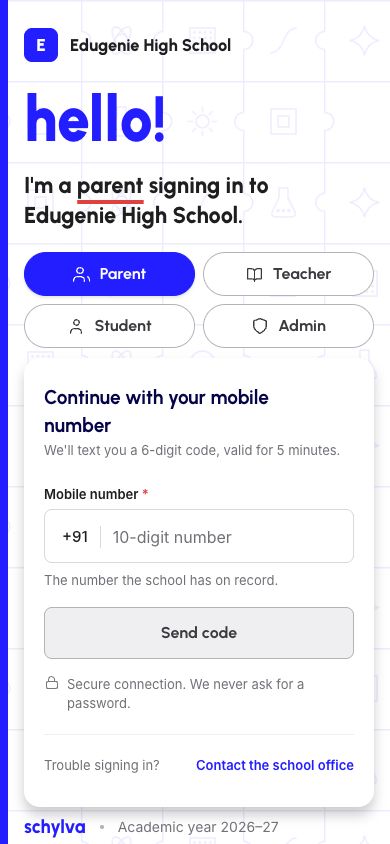
On mobile web, the role choices sit above the mobile-number field. Recheck the highlighted role and the school identity before typing. This is the website in a phone browser, not the native iOS or Android app.
Do not include a full number or a code in a support screenshot. The example below is deliberately blank; a photograph of a filled verification screen is not needed to explain where sign-in stopped.
Demo data · Mobile web · blank entry checks
 Enlarge screenshot
What to tell your school
Use a school contact you already trust. Explain the school, your intended role, the step where you stopped and the exact visible message after removing personal details. Include approximately when it happened and whether you were using desktop or mobile web.
Never send a verification code, password, full sign-in number, student records or a screenshot containing them in an ordinary support message. If the school needs to verify your identity, follow its approved private process.
For technical problems or product setup, use the Schylva support contact in this page’s footer. School-account and school-record questions should still go to your school administrator. Do not use a Book a demo or Quote form for account recovery. This guide does not submit a request, promise a response time or change account access.
- School and intended role
- Step reached: portal, number entry, code screen or dashboard
- Visible message with personal details removed
- Approximate time and desktop or mobile browser
- What you already checked, without including a code
Check the result before continuing
After the school helps you regain access, sign in through the trusted portal and confirm the school, role and account identity. Parent users should also check the selected child.
An open dashboard is not proof that a missing relationship or unavailable module has been fixed. Check the specific issue you reported, and tell the school if it remains. When finished on a shared device, use Log out.