Recognise your school portal and role dashboard
Start with the portal supplied by your school. Use this guide to recognise its entry screen and check the account you already have open. For help obtaining access, contact your school; this is not a code-delivery or sign-in recovery walkthrough.
For Parent · Teacher · Student · Administrator
On this page
Before you begin
- Your school’s trusted portal link.
- The role and registered mobile number confirmed by your school.
- An existing authorised session for the dashboard examples. Never use another person’s account.
1. Check the school and choose your role
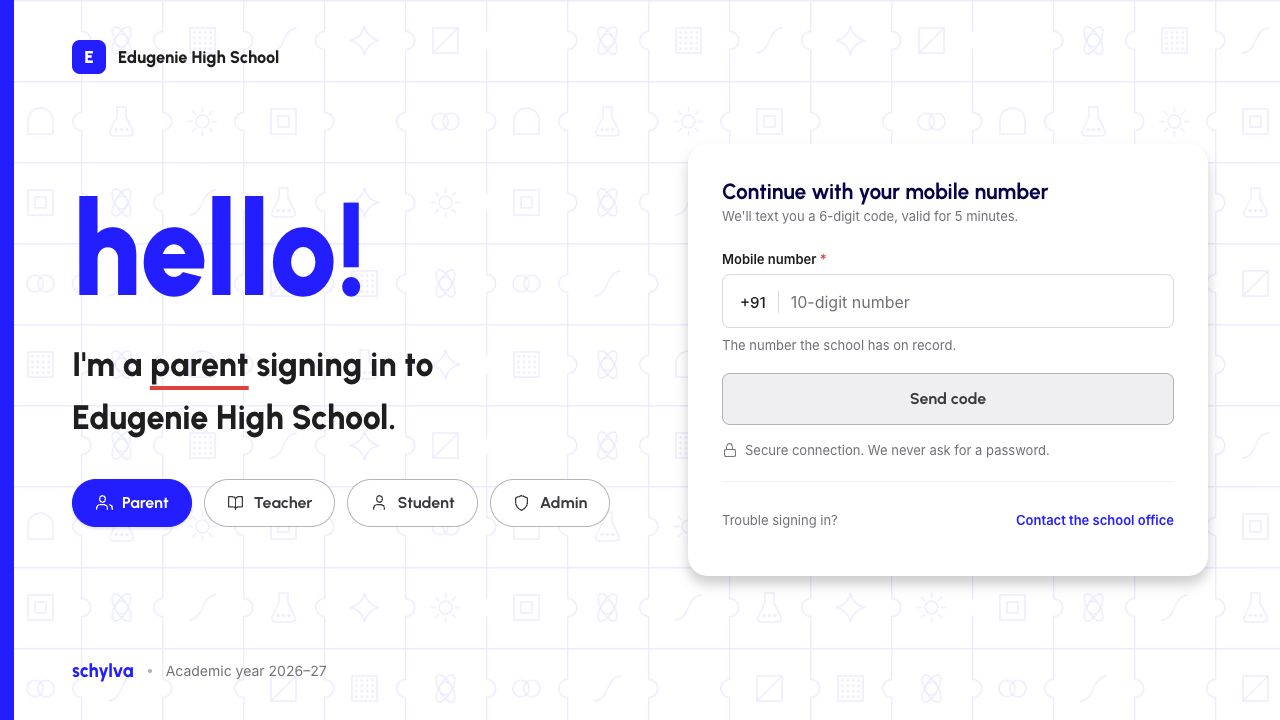
Compare the school name and logo with the portal link your school supplied. The example is Edugenie High School, not a shared sign-in address for every Skyva school. Stop if the school identity or address is unexpected.
Choose Parent, Teacher, Student or Admin according to the access your school has given you. The selected role is highlighted and the introductory sentence changes. Choosing a role does not create an account or grant permission to use it.
Demo data · Desktop web · school and role
 Enlarge screenshot
2. Recognise the registered-number field
The entry screen has a Mobile number field for the number your school has registered for your role. In this demo, +91 is displayed separately and the field asks for ten digits. This example does not establish support for every country or phone format.
The blank form shows a disabled Send code button. If you do not know which number is registered, stop and ask the school through a trusted contact. This guide does not instruct you to request or enter a verification code.
Parent — choose and confirm the child
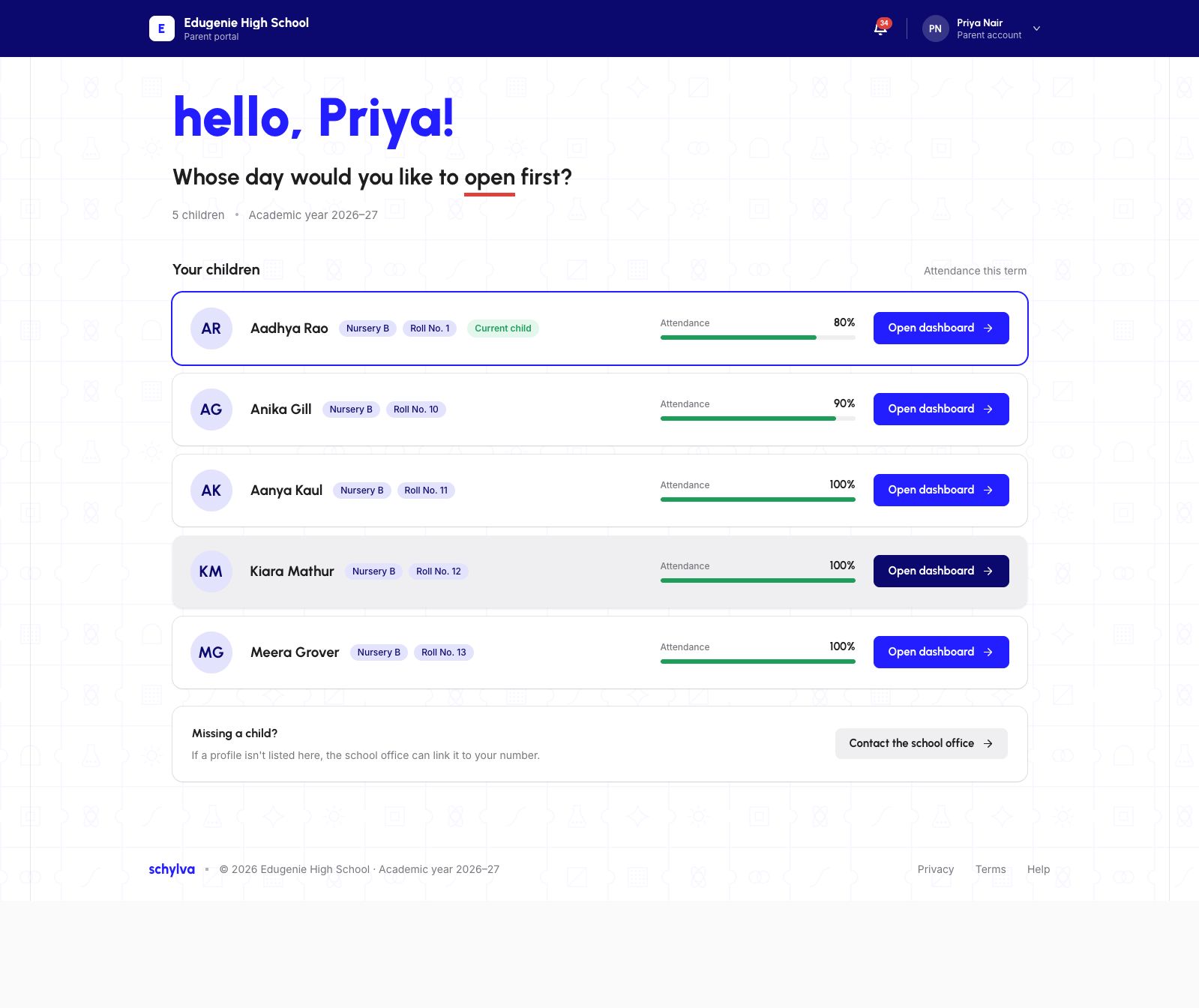
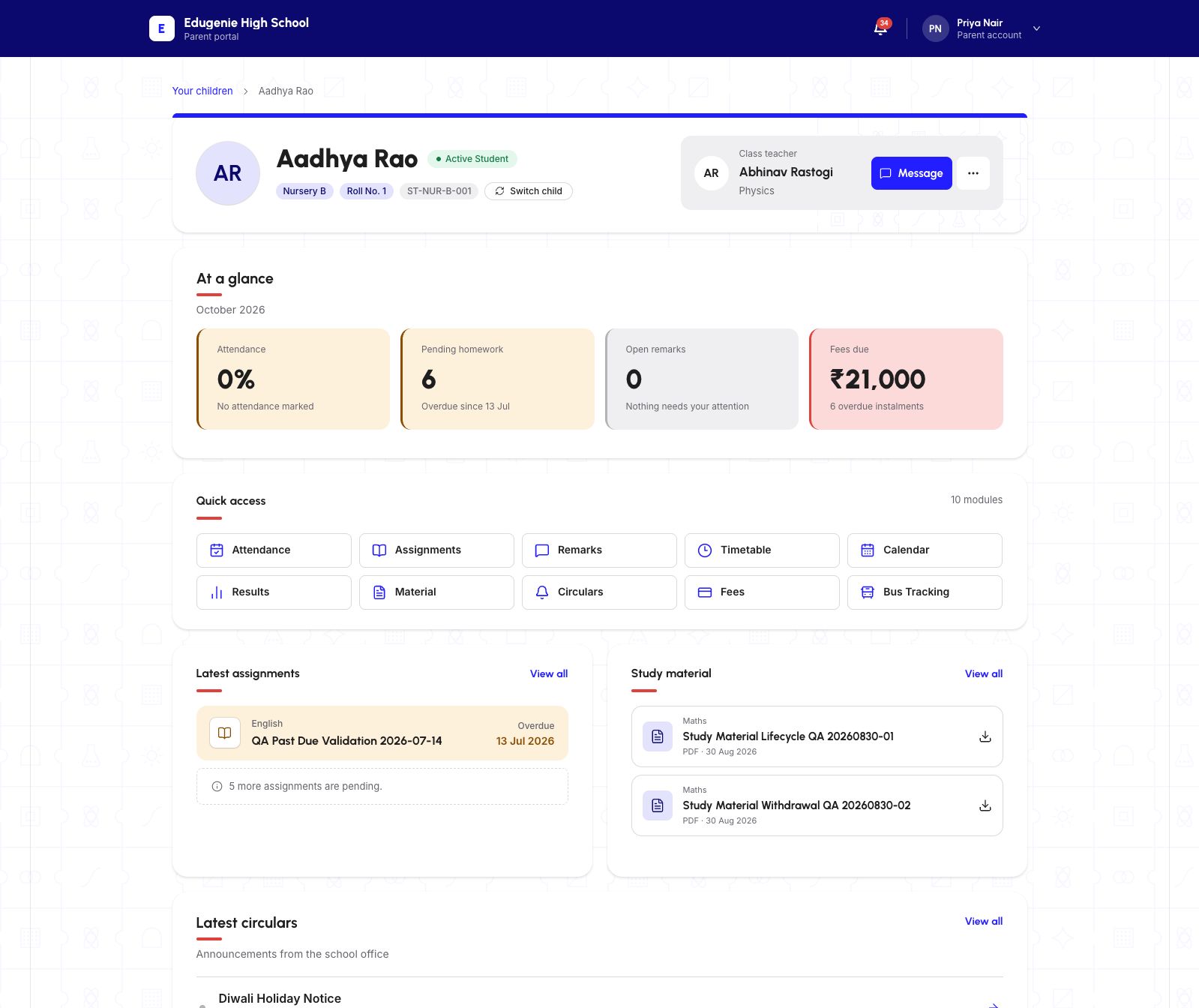
A Parent account with multiple linked children can arrive at “Your children”. Choose the intended profile by name, class and roll number. On the dashboard, confirm the child’s full name before reading the summary.
The Parent account name stays in the header while the selected child appears in the profile panel. They represent different people. The related child-switching guide explains the list and account-menu controls; switching does not create a missing relationship.
Demo data · Parent web · linked-child selection
 Enlarge screenshot
Demo data · Parent web · parent and child identities
 Enlarge screenshot
Teacher — check your teaching context
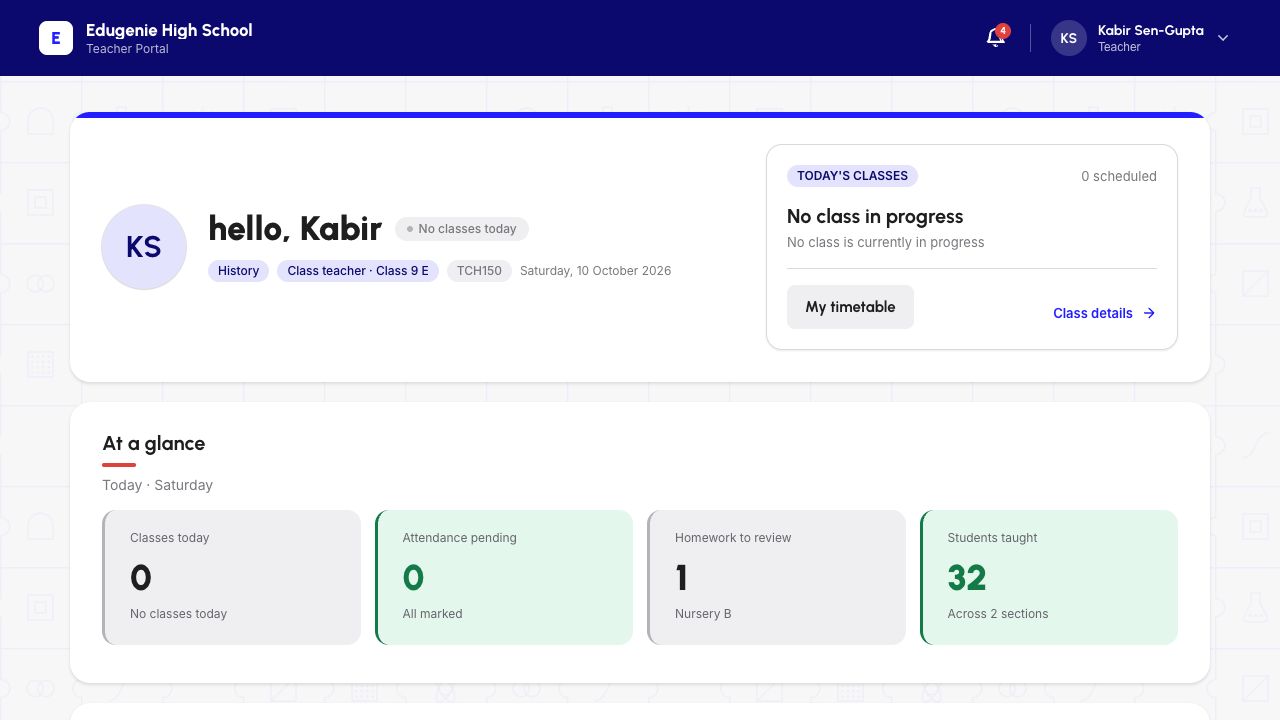
The checked Teacher landing page identifies “Teacher Portal” in the school header and “Teacher” below the account name. Its welcome panel shows the teacher’s name and, for this account, a subject and class-teacher assignment.
Use that identity and the school’s assignment context, not the screenshot’s example totals, to orient yourself. Your timetable and responsibilities can differ from this demonstration account.
Quick access includes teaching controls, but some are labelled unavailable. In this walkthrough Enter marks and Reports were disabled. A visible control or dashboard count does not establish permission or verify the operation behind it. No teaching action is performed in this orientation guide.
Demo data · Teacher web · landing identity
 Enlarge screenshot
Student — confirm your own profile
The checked Student landing page identifies “Student portal” and “Student account”. It opens the student’s own name, class and roll number, rather than the Parent linked-child list.
The Student example does not have the Parent Switch child control. Fees is visibly unavailable for Student accounts in this walkthrough; do not use a Parent screenshot as evidence that the same actions are available to a Student.
Demo data · Student web · own profile
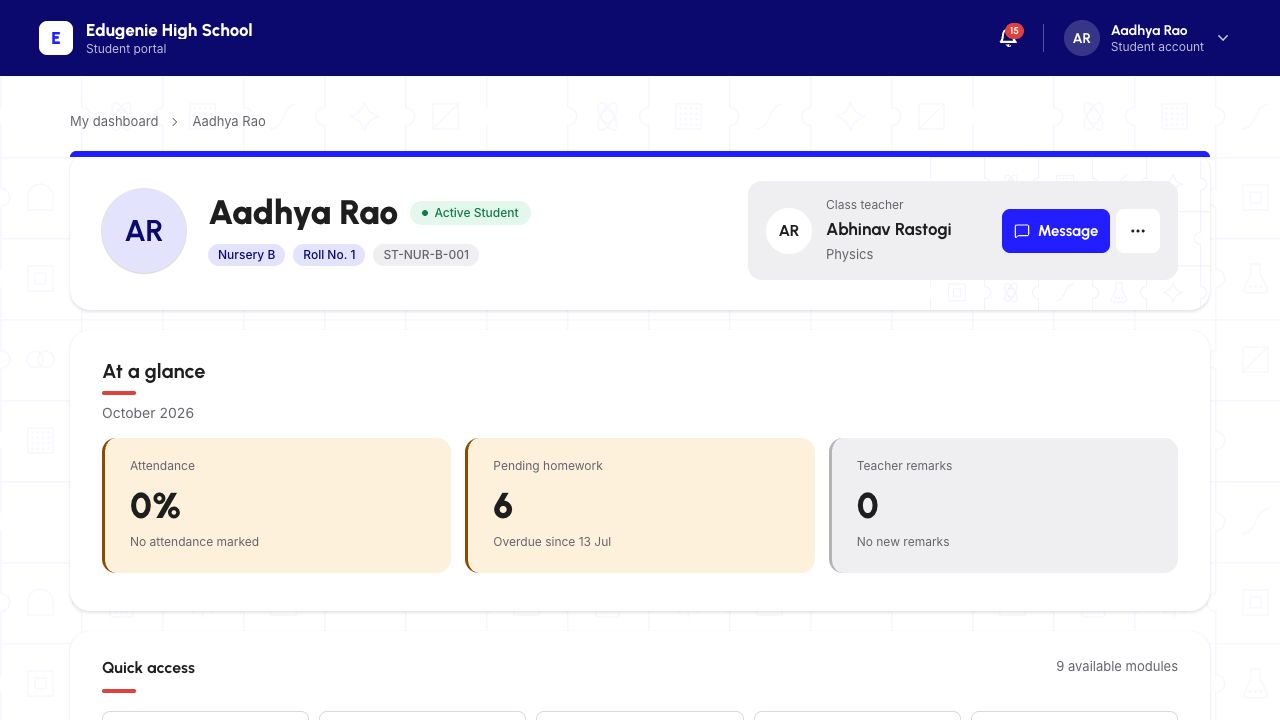 Enlarge screenshot
Admin — check school and account identity
The checked Admin entry opens “Admin Portal” with a Dashboard heading and a left navigation panel. Read the school name and signed-in account before opening setup or management tools.
The example account is labelled Finance Coordinator. That title and the visible navigation do not prove that every administrator has the same permissions or that every listed action is authorised. Opening this guide does not authorise changes to school records.
Demo data · Admin web · school and management navigation
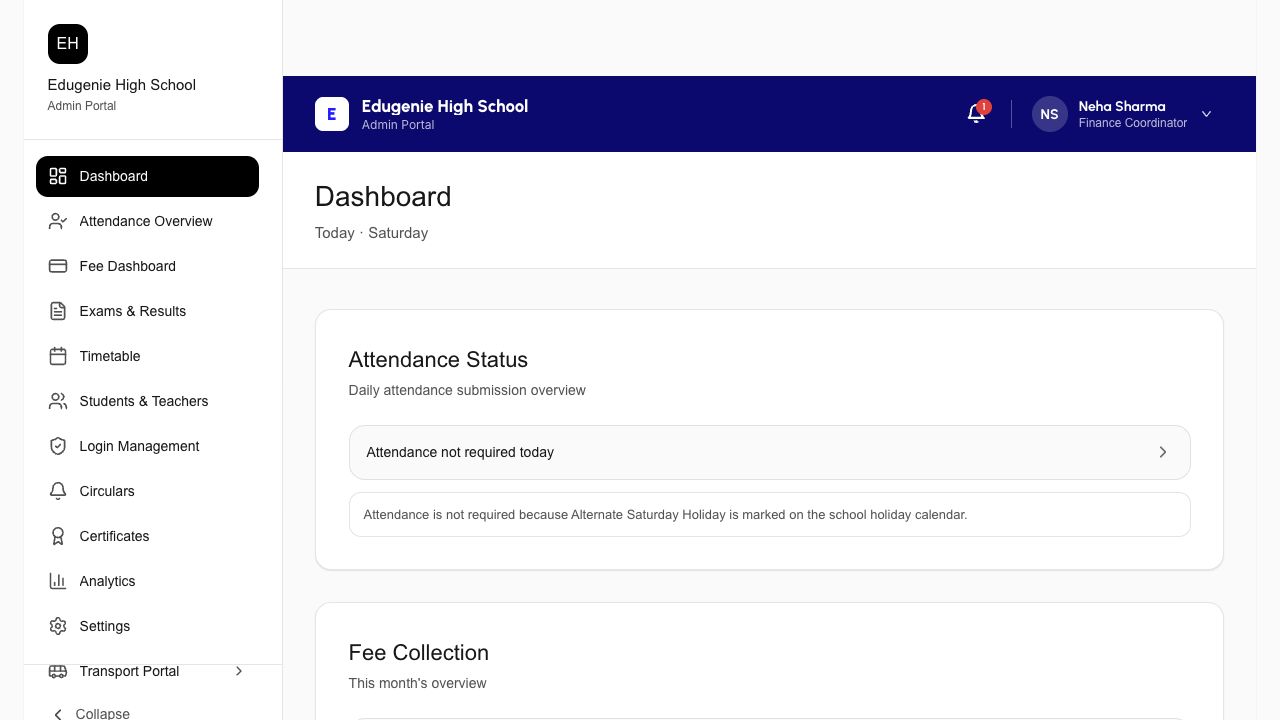 Enlarge screenshot
Recognise the entry screen on a phone
The mobile website presents the same four role choices above the mobile-number field. Compare the highlighted role and school identity with the access your school has given you.
This blank entry example is responsive web at 390 × 844. It does not demonstrate native iOS or Android sign-in, code delivery or a mobile dashboard.
Demo data · Mobile web · blank entry
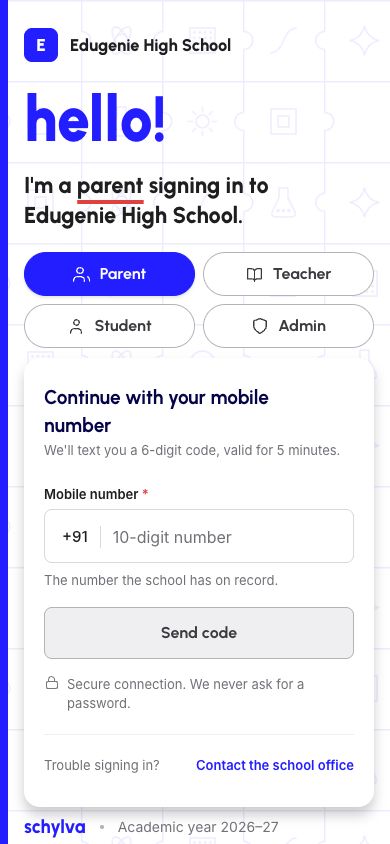 Enlarge screenshot
Finish safely or stop at a mismatch
When finished, open the account menu and choose “Log out”. The checked demo Parent, Teacher, Student and Admin journeys returned to role-entry screens. On a shared device, do not leave the dashboard open for another person.
If the school, role or account name is wrong, stop before making any change. Log out and confirm the correct access with your school. Do not switch roles to get around an unavailable control.
If you cannot reach the expected dashboard, contact your school with the role and visible message, without sending a verification code. Use the sign-in problem guide to prepare that information safely.