Review results before publishing and check the Parent report
Use this checklist to review an assessment before publishing and understand what to compare in a Parent report once it is available.
For Administrator
On this page
Before you begin
- Administrator access to Exams & Results.
- The intended academic year, assessment, class and section, and the list of required papers or components.
1. Identify the result set
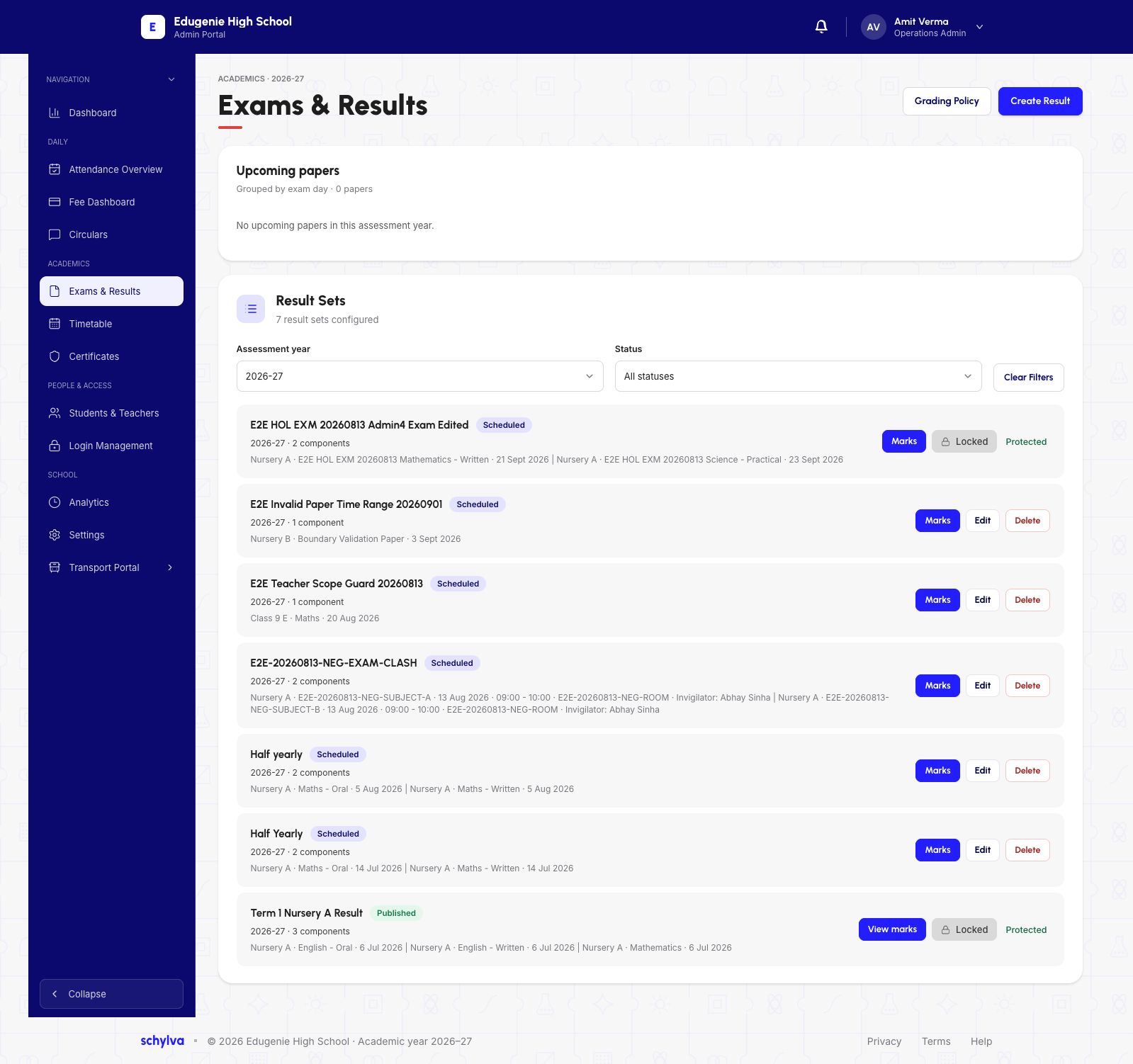
Open Exams & Results. Match the academic year, assessment title and class or section before opening the result. The status filter helps distinguish Scheduled and Published sets.
Check that you are reviewing the intended result. The screenshots use Half yearly for the draft marks-entry example and Term 1 Nursery A Result for the existing published example.
Demo · Admin desktop web
 View full screenshot
2. Compare marks entered and ready-to-publish counts
Check the selected paper or component before interpreting the marks count. The Maths – Oral example shows 0 of 30 entries for that component.
Below the marks table, Result Processing Summary covers the wider result. The draft example shows 0 of 60 under Marks entered and Ready to publish. Review remaining marks and the applicable absent or withheld statuses against the school’s records.
Save Marks Changes and Publish Results are separate controls. Use the processing counts and report preview to review completeness before publication.
Demo · Admin desktop web
 View full screenshot
3. Check report-card completeness
In Report Card Preview, match the student name and roll number, then compare the expected and completed components. The draft example shows 0 of 2 components and Incomplete. Read the completeness label before interpreting a displayed total.
In the separate published example, the Admin view shows Published rows and Results Locked. An existing published result can still show a withheld row. Check the row status and the component counts when reviewing an individual report.
Demo · Admin desktop web
View full screenshot4. Recognise an existing published result
In the Term 1 Nursery A Result example, View Marks opens an already published result. Check its selected component and row statuses before comparing with a report card.
The draft and published Admin screenshots show different assessments. The Parent example below was verified separately against its own downloaded report.
Demo · Admin desktop web
 View full screenshot
5. Confirm which assessment the Parent is viewing
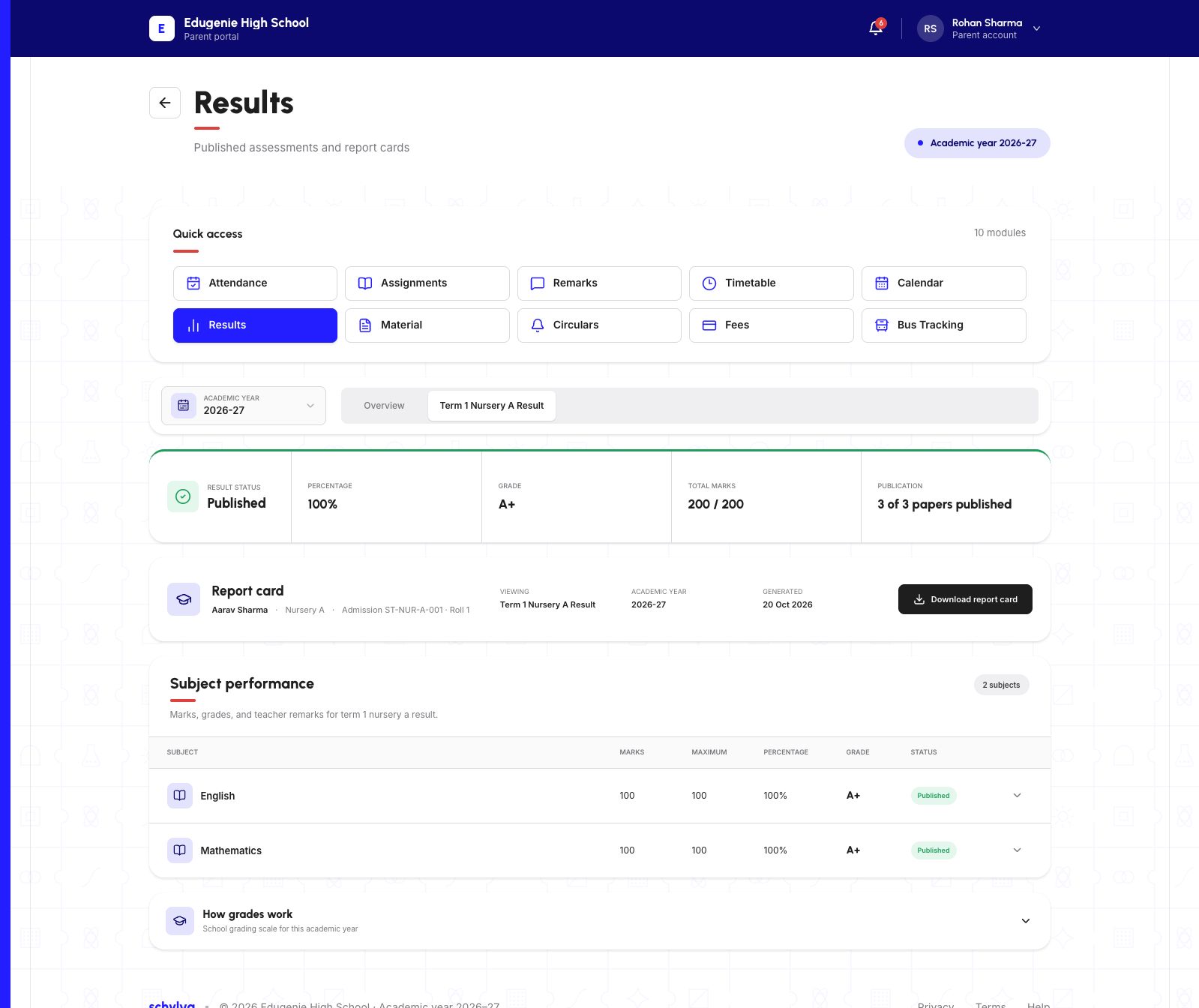
In the Parent portal, open Results and confirm the selected child and displayed academic year. Select the assessment tab and read the Viewing label. Overview shows a summary.
The existing demo example shows Term 1 Nursery A Result, marked Published, with three of three papers published. Use the selected assessment to identify the report before downloading.
Demo data · verified Parent web · selected assessment
 Enlarge screenshot
6. Compare the downloaded Parent report with the portal
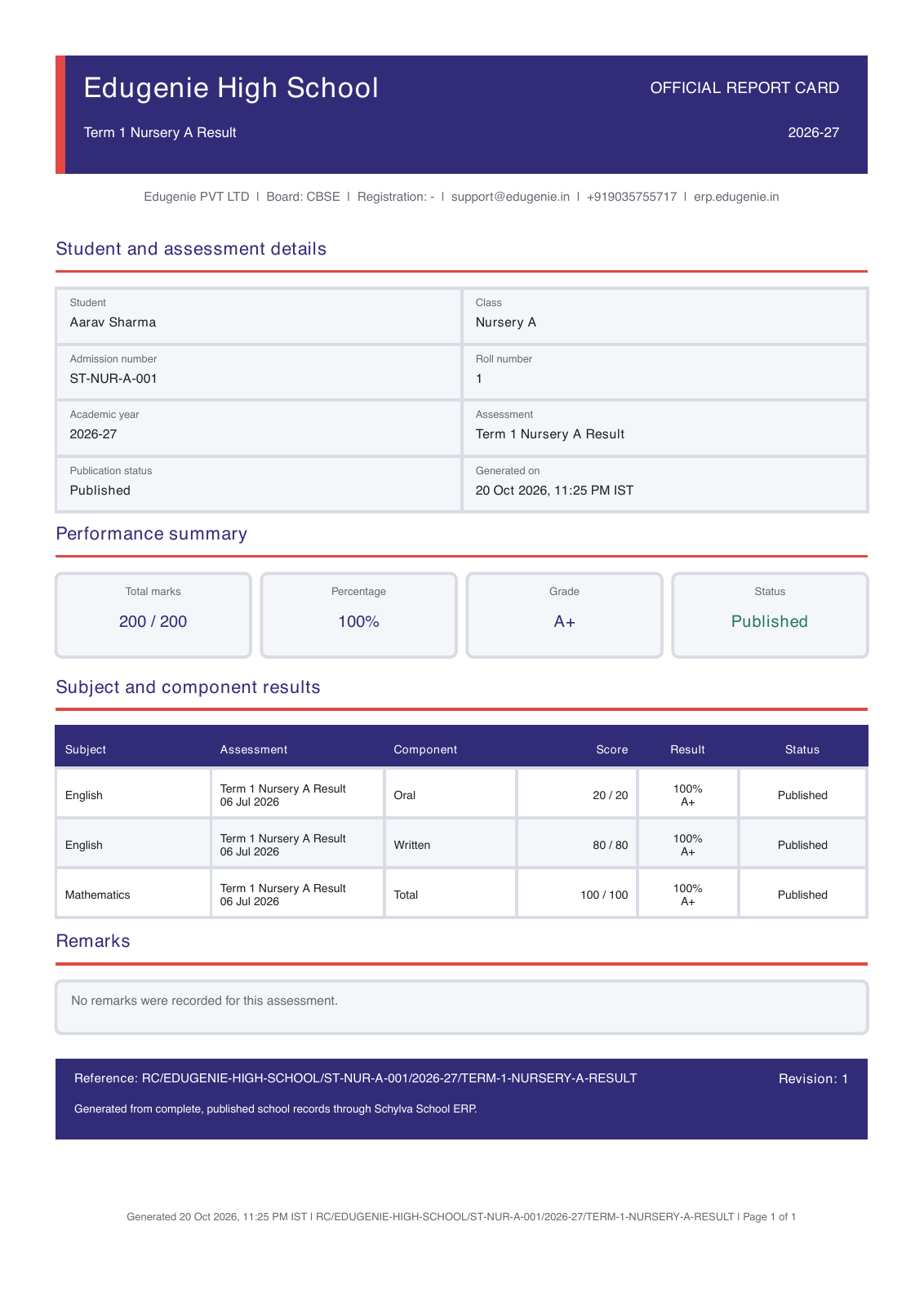
With the intended assessment selected, choose Download report card. Compare the PDF’s child, class, academic year, assessment name and published scores with the portal.
In the verified demo, the PDF and Parent view match for Aarav, Nursery A, 2026–27, Term 1 Nursery A Result. English Oral is 20/20, English Written is 80/80, and Mathematics is 100/100. The total is 200/200, 100%, grade A+. The PDF records no remarks.
The image shows the complete rendered page of that desktop download. The text above includes the same result details for readers who cannot use the image.
Demo data · verified report PDF · complete page
 Enlarge screenshot
What still needs a verified example
A full walkthrough needs one demo assessment followed from final review through a successful publication response and the same published record after refresh.
Matching Parent and Student views after that publication, report availability for the intended accounts, and device and accessibility checks remain pending.