Understand assessment setup and grading
Read result-set fields, subject components and the academic-year grading policy without confusing setup with published marks.
For Administrator
On this page
Before you begin
- Use an authorised Admin account for the correct school.
- Confirm the academic year and the class, student, invoice or result set relevant to your task.
1. Identify the result set and year
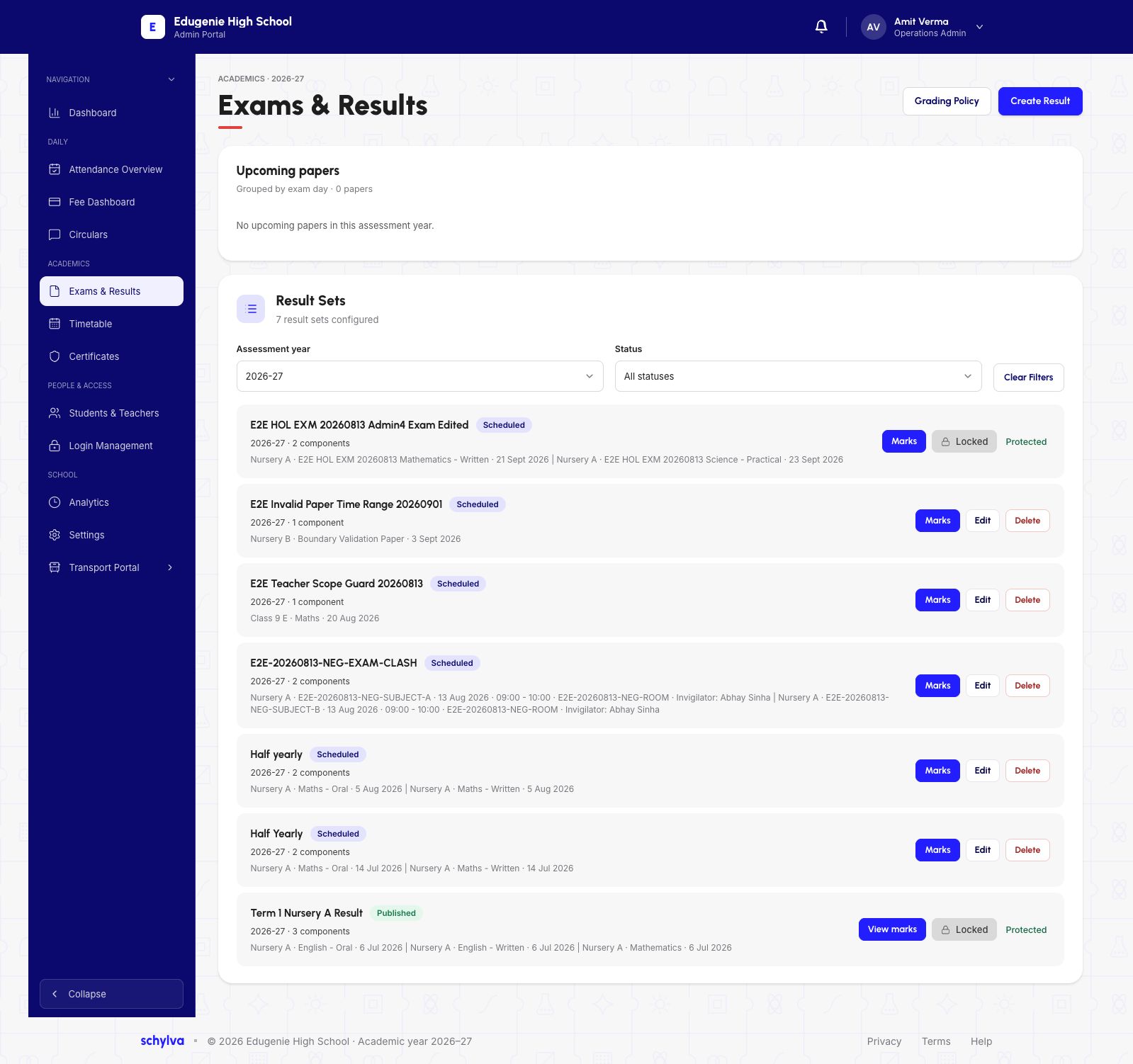
Open Exams & Results. The page separates Upcoming papers from Result Sets and offers assessment-year and status filters.
The example shows seven result sets and zero upcoming papers. These counts describe different things. Check the result name, class, year and status together; the list includes Scheduled and Published sets.
 Enlarge screenshot
2. Read the result and subject fields
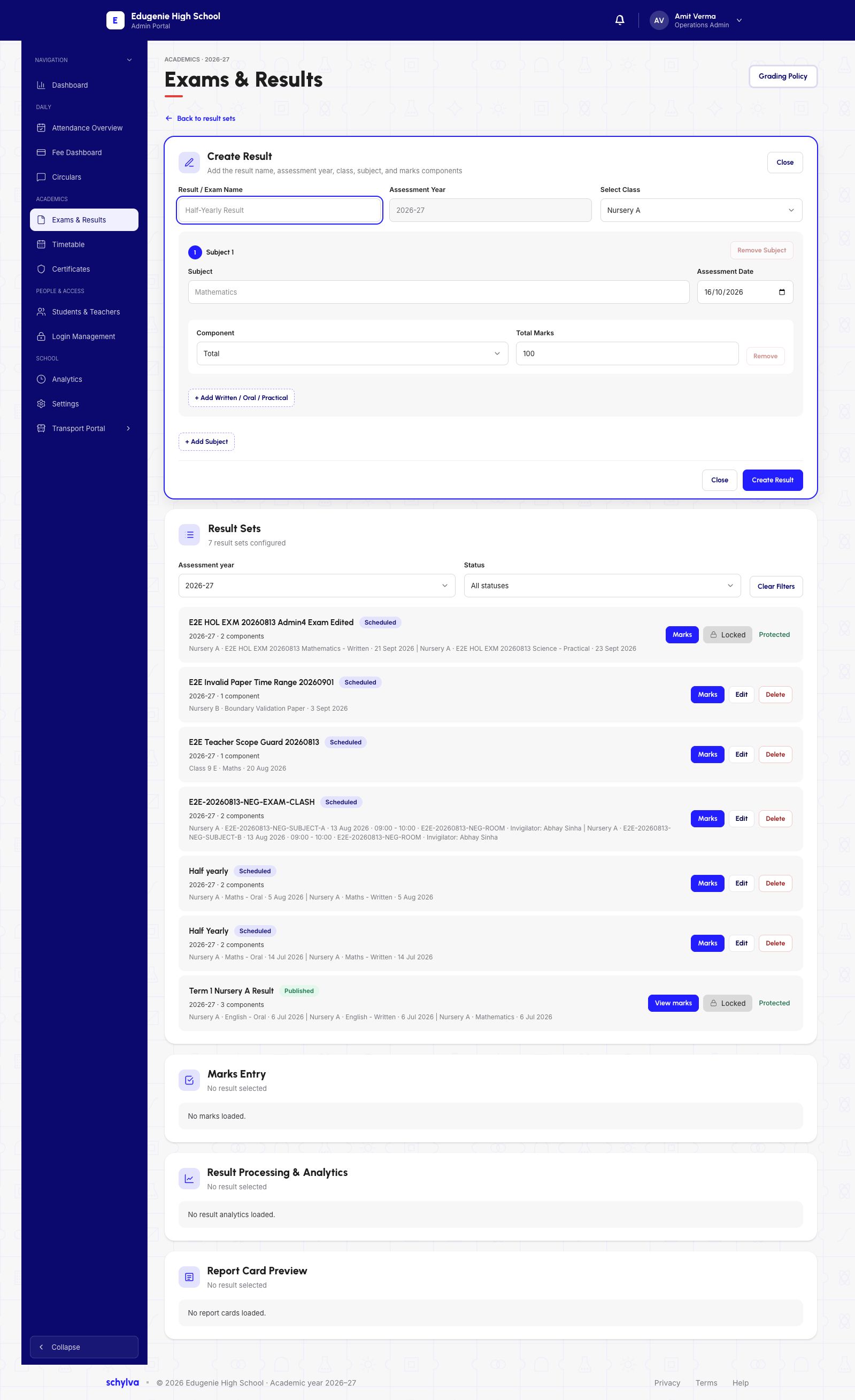
Create Result contains Result / Exam Name, Assessment Year and Select Class. Subject rows include Subject, Assessment Date, Component and Total Marks.
The form has controls for adding a subject or Written / Oral / Practical components. The example has a Total component worth 100 marks. Placeholder text in an empty field is not a saved assessment name or subject.
 View full screenshot
3. Compare a result with separate components
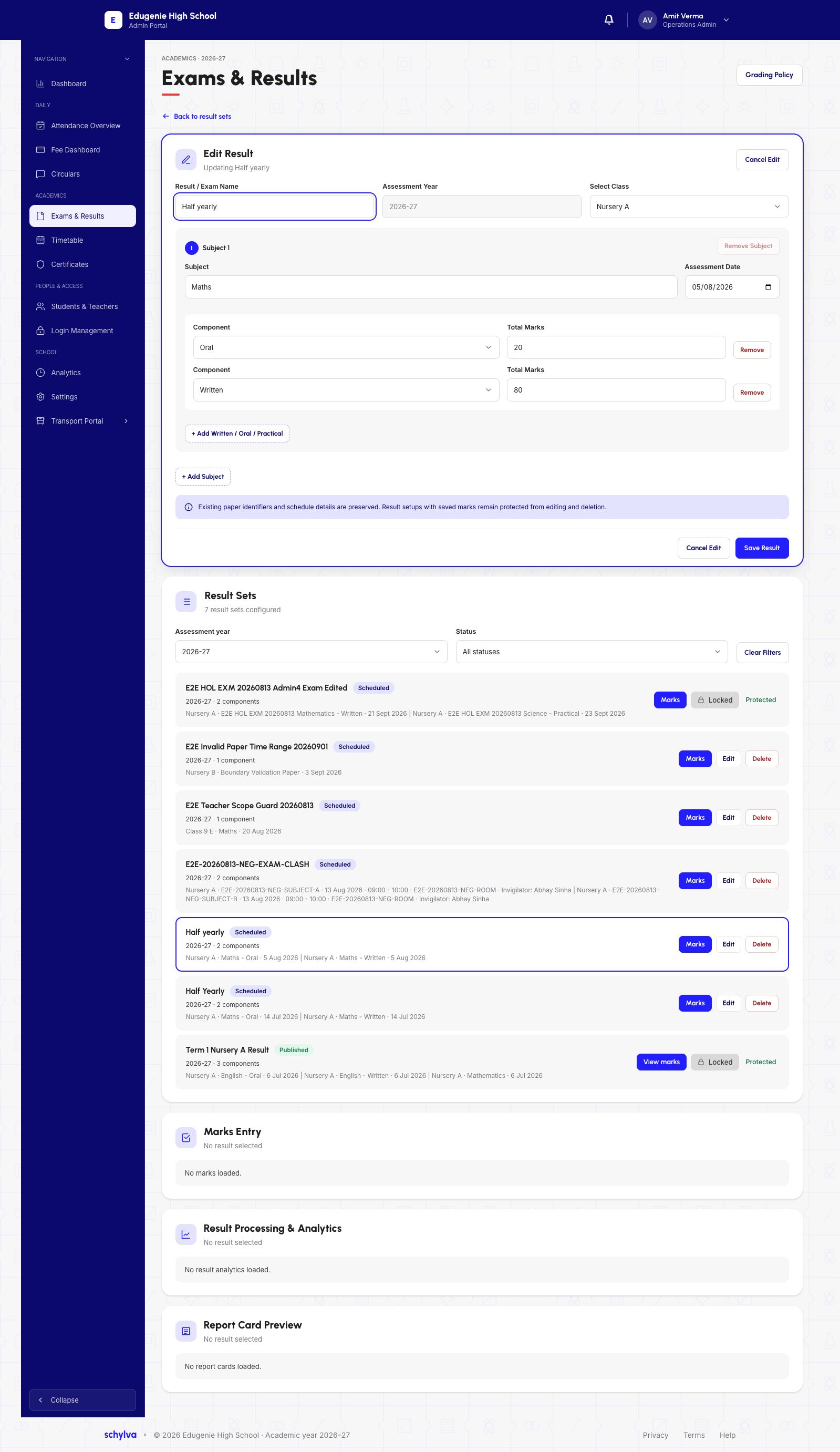
The Edit Result example is Half yearly for Nursery A in 2026–27. Maths has an assessment date of 5 August 2026, with Oral worth 20 and Written worth 80.
Keep each component’s maximum separate from the combined subject total. Marks Entry selects a specific Subject / Component, so an Oral mark belongs against its 20-mark maximum.
The edit-form notice says result setups with saved marks are protected from editing and deletion. The visible Save Result control does not confirm that an edit has been saved.
 View full screenshot
4. Read the grading policy and lock state
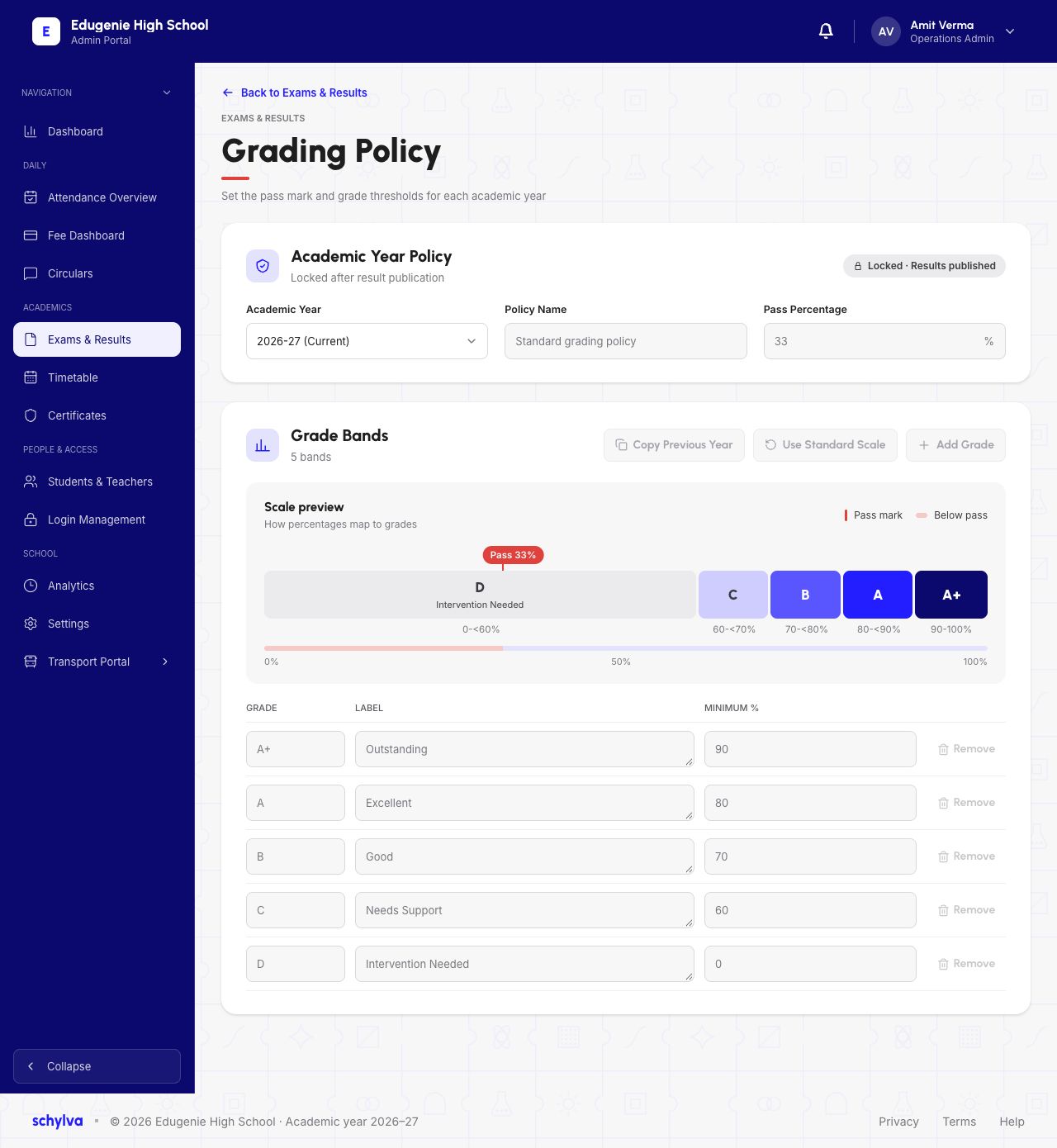
Grading Policy is tied to the academic year. The example for 2026–27 is labelled Locked · Results published, with a pass percentage of 33.
Grade bands are separate: D below 60, C from 60 to below 70, B from 70 to below 80, A from 80 to below 90 and A+ from 90 to 100. Check the policy for your school’s selected year.
The pass percentage and a letter band are different settings. Here, the D band includes values both below and above 33, so the letter alone does not determine pass or fail.
 Enlarge screenshot