Read published marks and the grading policy
Find a published result set, inspect saved marks and report previews, and understand the grading policy shown for the selected year.
For Administrator
On this page
Before you begin
- An authorised Admin account with permission to view this area of your school portal.
- The relevant academic year and the class, person or record you intend to check. Demo names, amounts, dates and counts are examples, not current school information.
1. Find the published result set
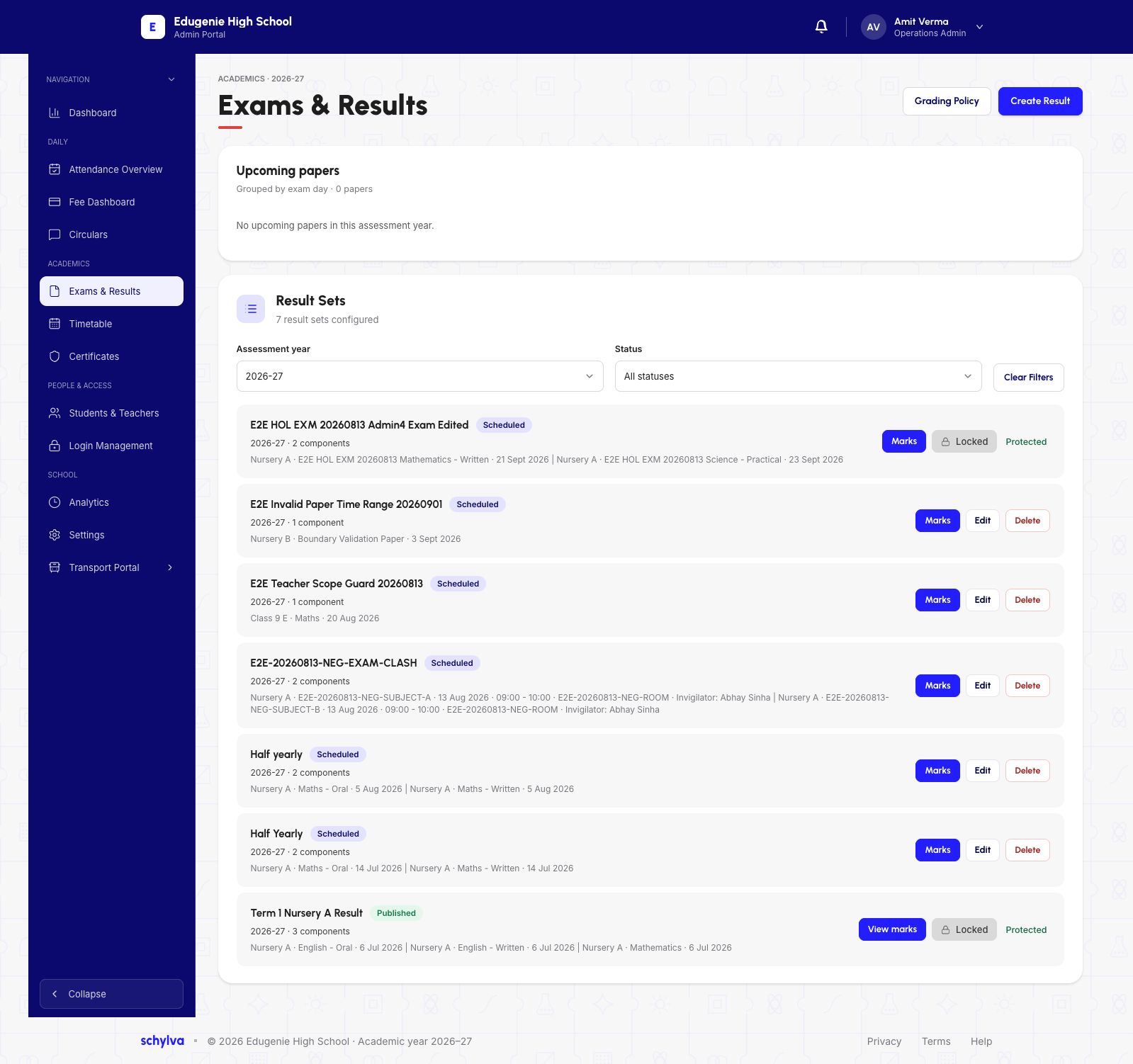
Open Exams & Results. Match the assessment year, result-set title and class. The status filter helps separate Scheduled sets from Published results.
The demo contains a Published Term 1 Nursery A Result with three components. Use its View marks control to inspect the saved result. A Scheduled set is not evidence of published results, and zero upcoming papers does not mean that no historical results exist.
Demo · Admin desktop web
 View full screenshot
2. Read the saved marks and completion labels
On the selected result, check the component and its maximum marks before reading student rows. A Withheld or Absent / Withheld entry is not a numeric zero.
The result-processing summary counts paper-wise entries. In this example it shows 87/90 marks entered, alongside 90/90 rows ready to publish. Those labels describe different conditions; do not treat every expected row as a numeric mark.
Demo · Admin desktop web
 View full screenshot
3. Check the report-card preview
Scroll to Report Card Preview. Match the student name and roll number, then read the number of components and Complete or Incomplete label.
The excerpt shows one report with all three components and another with two of three marked Incomplete. Read the completeness label before interpreting a total or grade. An incomplete total is not a final comparison with a completed report.
Demo · Admin desktop web
View full screenshot4. Read the policy for that year
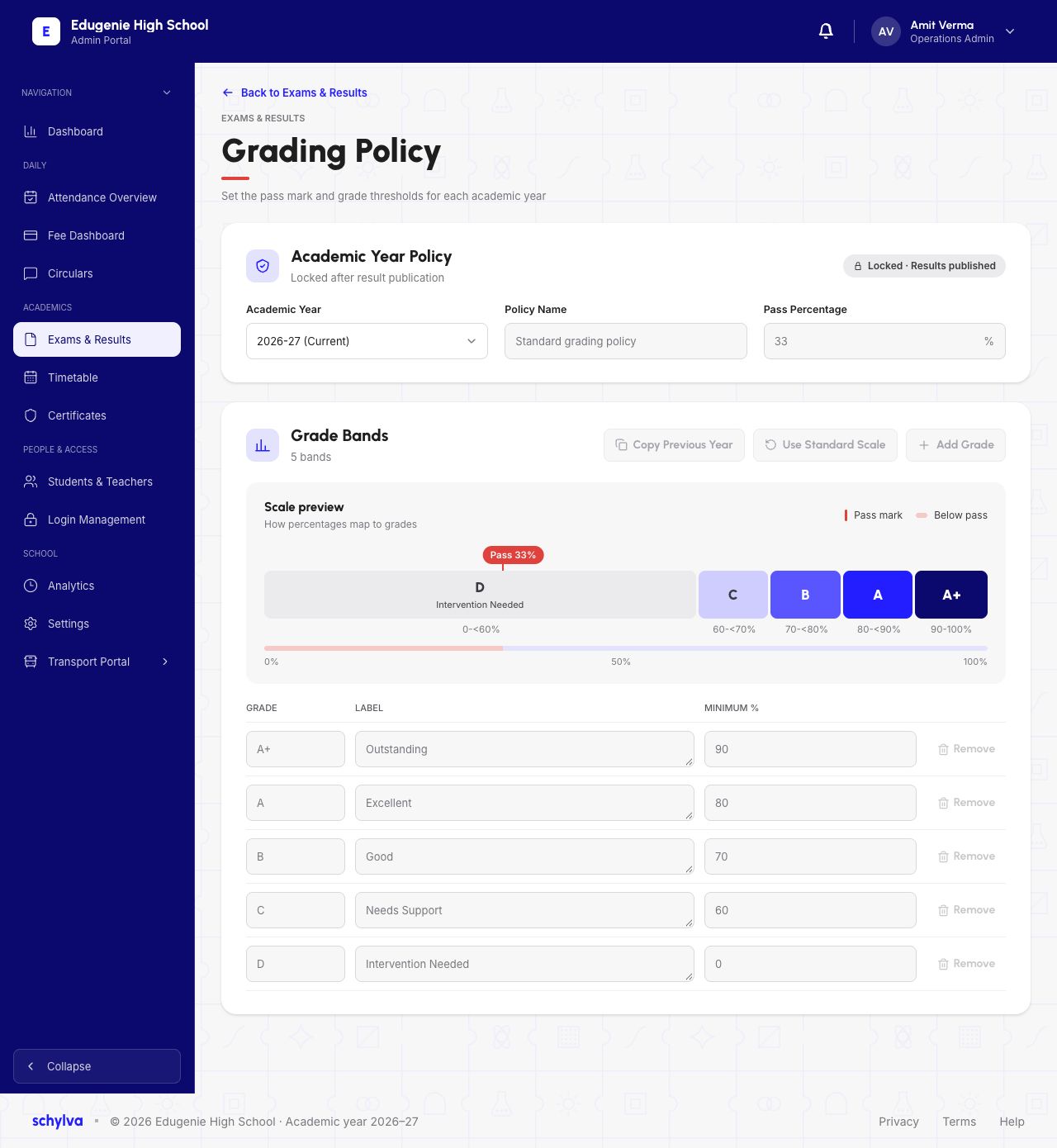
Open Grading Policy and check the academic year. The example displays Standard grading policy, a pass percentage of 33 and five grade bands.
The policy is locked because results have been published. Grade bands and the pass threshold are separate: the displayed D band begins at 0 and extends below 60, while the pass threshold is 33. A letter grade alone therefore does not identify pass or fail in this example.
Demo · Admin desktop web
 View full screenshot
If a result looks incomplete
Check the assessment and component before escalating.
- A student has an incomplete report
- Ask the examination administrator which components or statuses remain unresolved.
- Published and entered counts differ
- Read each card’s unit and label. Paper-wise entries, students and report cards are different totals.
- A locked result needs a correction
- Follow the school’s examination process; this guide does not verify editing or republishing a locked result.