Review attendance correction controls as an Admin
Use the register and its edit view to check which student, date and status a proposed attendance correction would affect.
For Administrator
On this page
Before you begin
- Administrator access to Attendance Overview and the relevant class register.
- The class, section, date, student name and roll number, and the status confirmed by your school.
1. Check the date and class
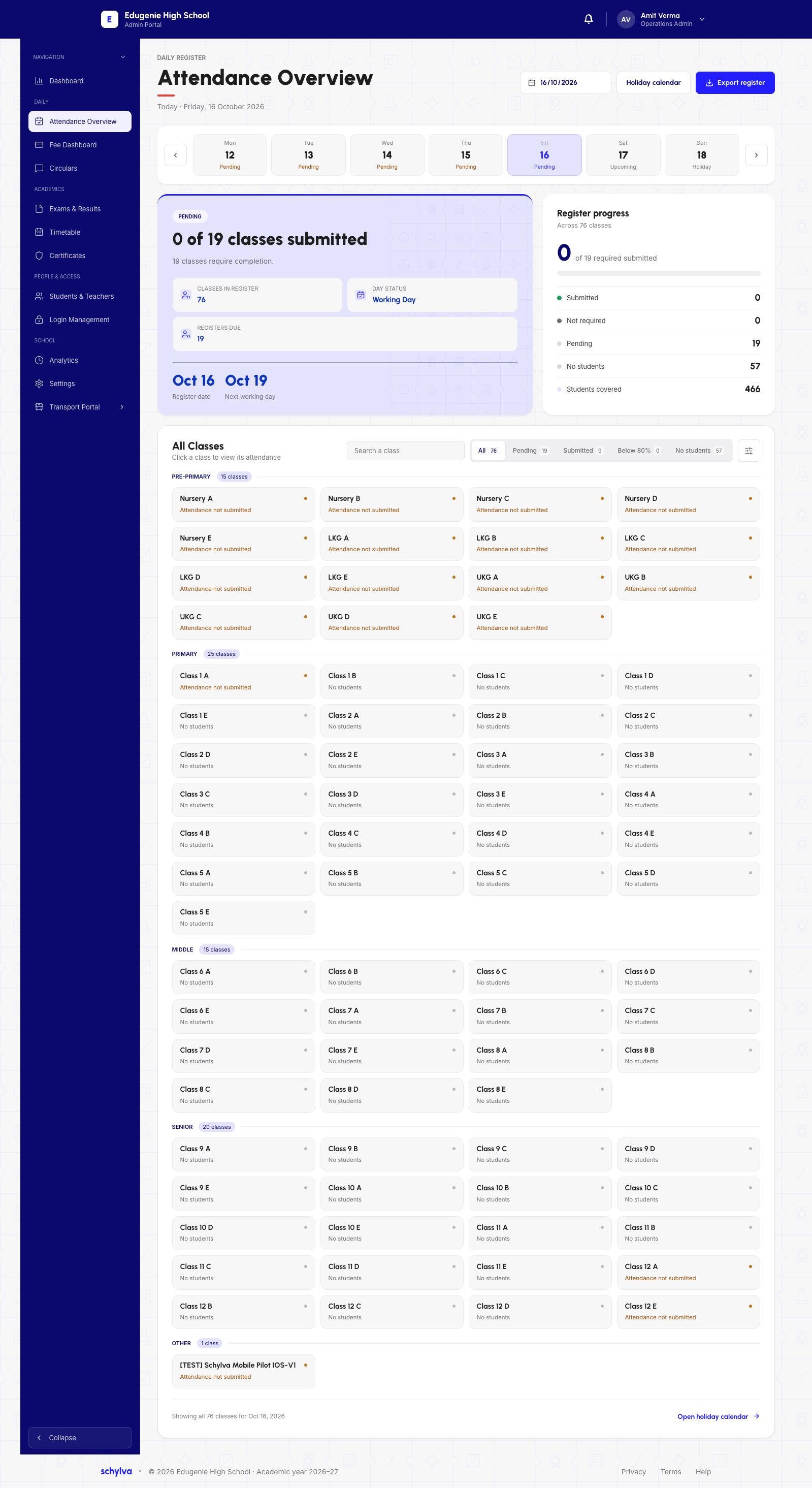
Open Attendance Overview and confirm the date. In All Classes, find the exact class and section before opening its register.
Use the submission status to understand the register you are opening. The demo screenshots show an unmarked register for Nursery A on 16 October 2026.
Demo · Admin desktop web
 View full screenshot
2. Read the current register
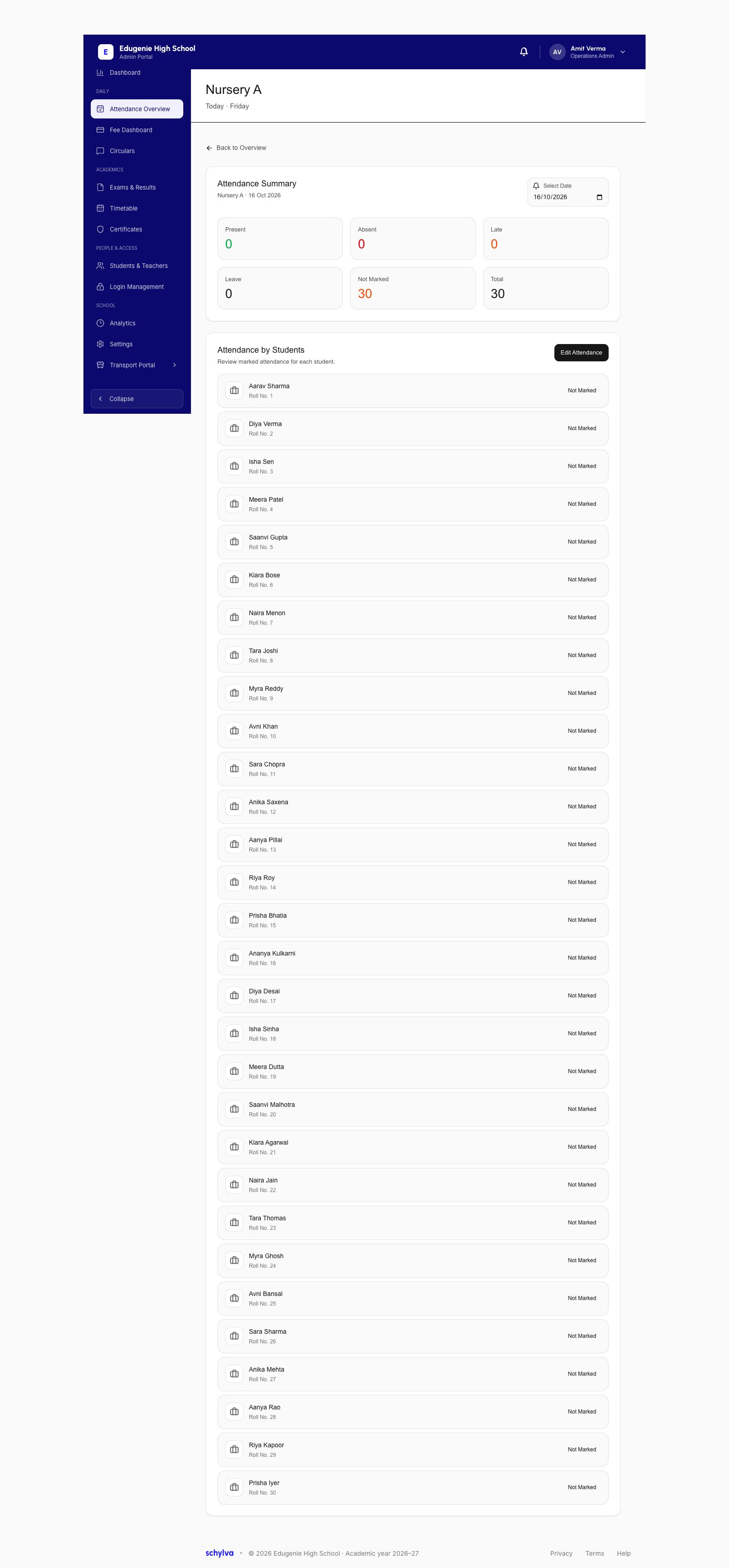
Check the class and date again in Attendance Summary. In Attendance by Students, match the student by both name and roll number.
Not Marked means no attendance status is recorded for that student on the selected date. Review the saved status before opening Edit Attendance.
Demo · Admin desktop web
 View full screenshot
3. Review the unsaved status controls
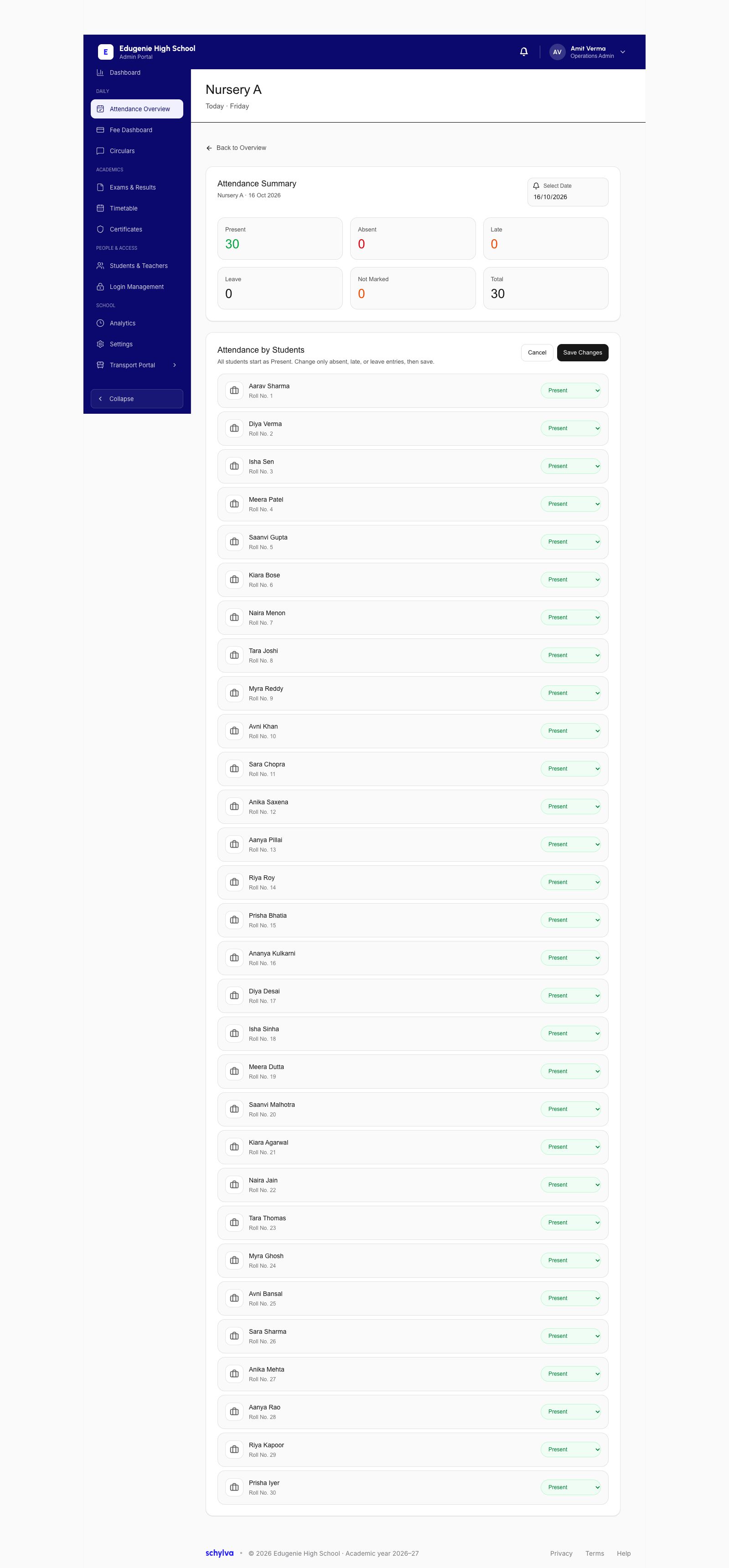
Edit Attendance opens a status control beside each student row. Check the exact row and review the other displayed statuses before considering a save.
In this demo, the reading view shows 30 students as Not Marked. The unsaved editor shows 30 as Present and says all students start as Present. Those are the editor’s starting values for this unmarked register. If you are only checking the controls, choose Cancel.
Demo · Admin desktop web
 View full screenshot
- Check the editor summary against the register before relying on the displayed statuses.
What still needs a verified example
A complete correction walkthrough needs a previously recorded status, an authorised correction, the save response, and the matching student status after refresh.
The permission and validation responses, audit entry and matching Teacher or Parent history still need to be checked.