Mark and submit class attendance
Check the class and date, review the roster, submit attendance and confirm the saved register after refresh.
For Teacher
On this page
Before you begin
- An authorised Teacher account assigned to the class you will mark.
- A working day that is still editable, with the correct active-student roster. Follow your school’s attendance policy; the all-Present demo is not a suggestion for a real class.
1. Confirm your Teacher account and class
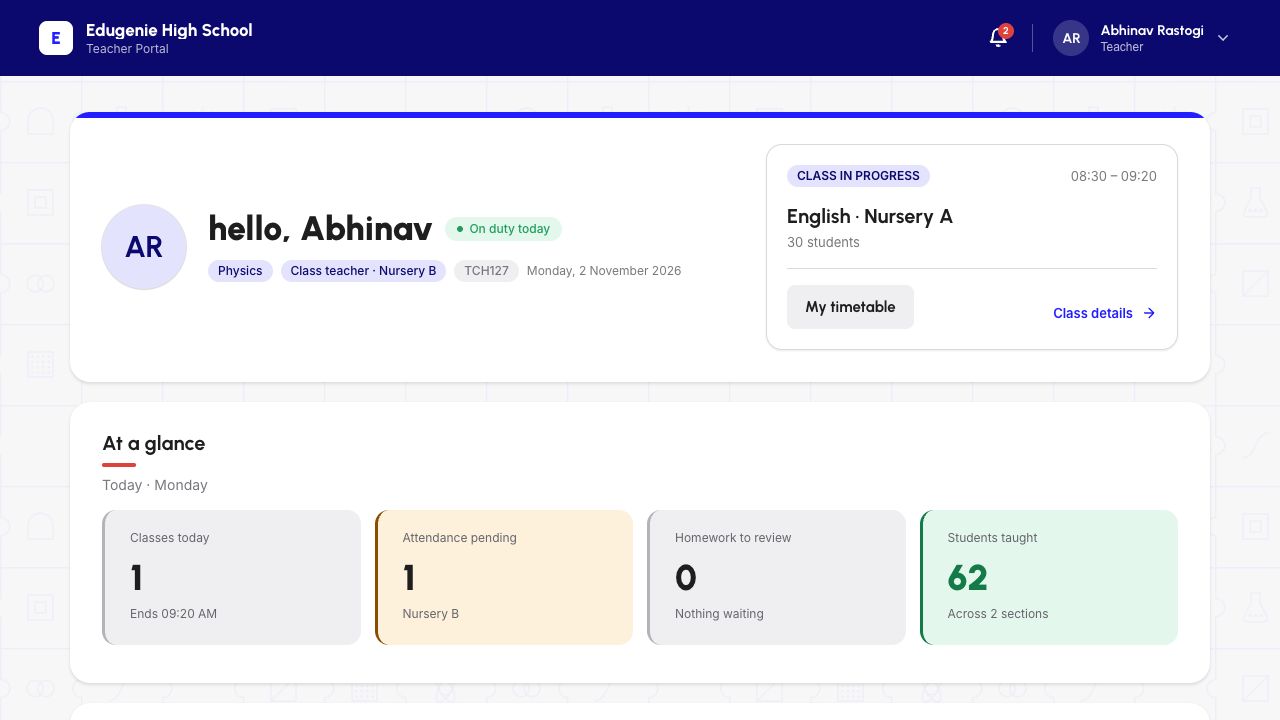
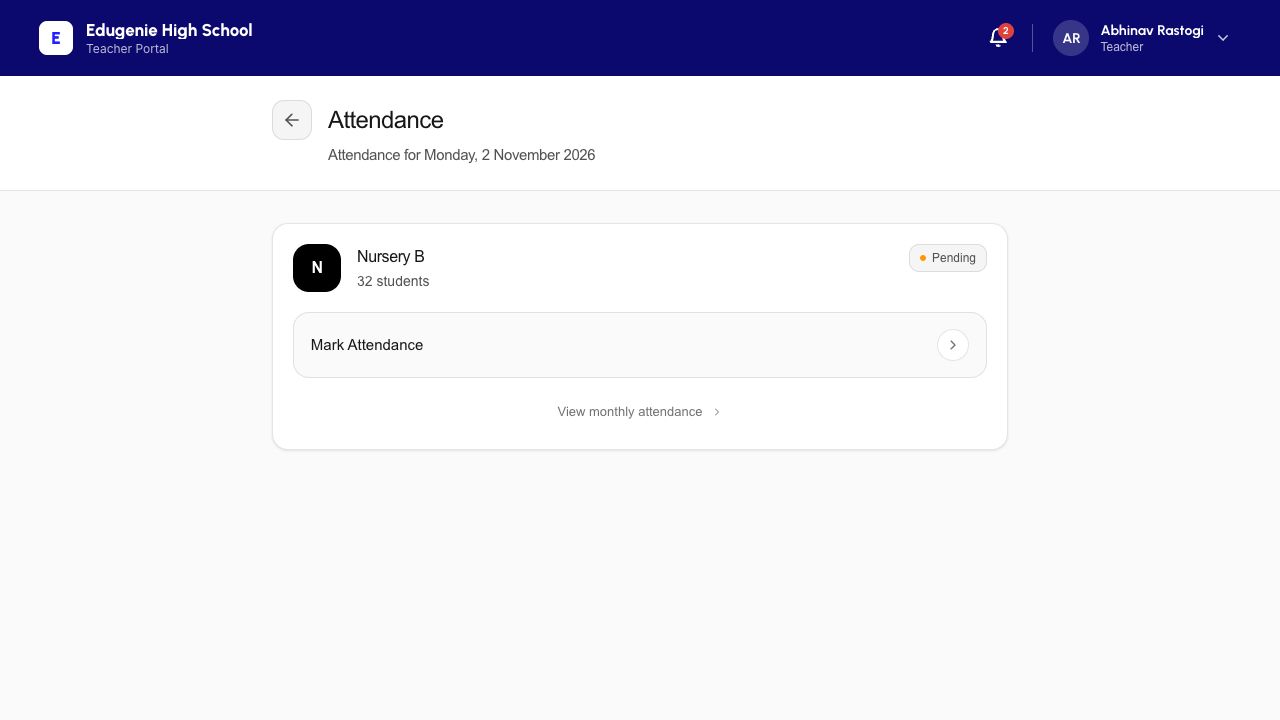
Check your school, Teacher name and assigned class on the dashboard. Open Attendance.
In the example, Abhinav Rastogi is the Teacher and Nursery B has 32 students. The class starts as Pending.
Demo school · Desktop web · 2 November 2026
 Enlarge screenshot
Demo school · Desktop web · 2 November 2026
 Enlarge screenshot
2. Check the school date and editing window
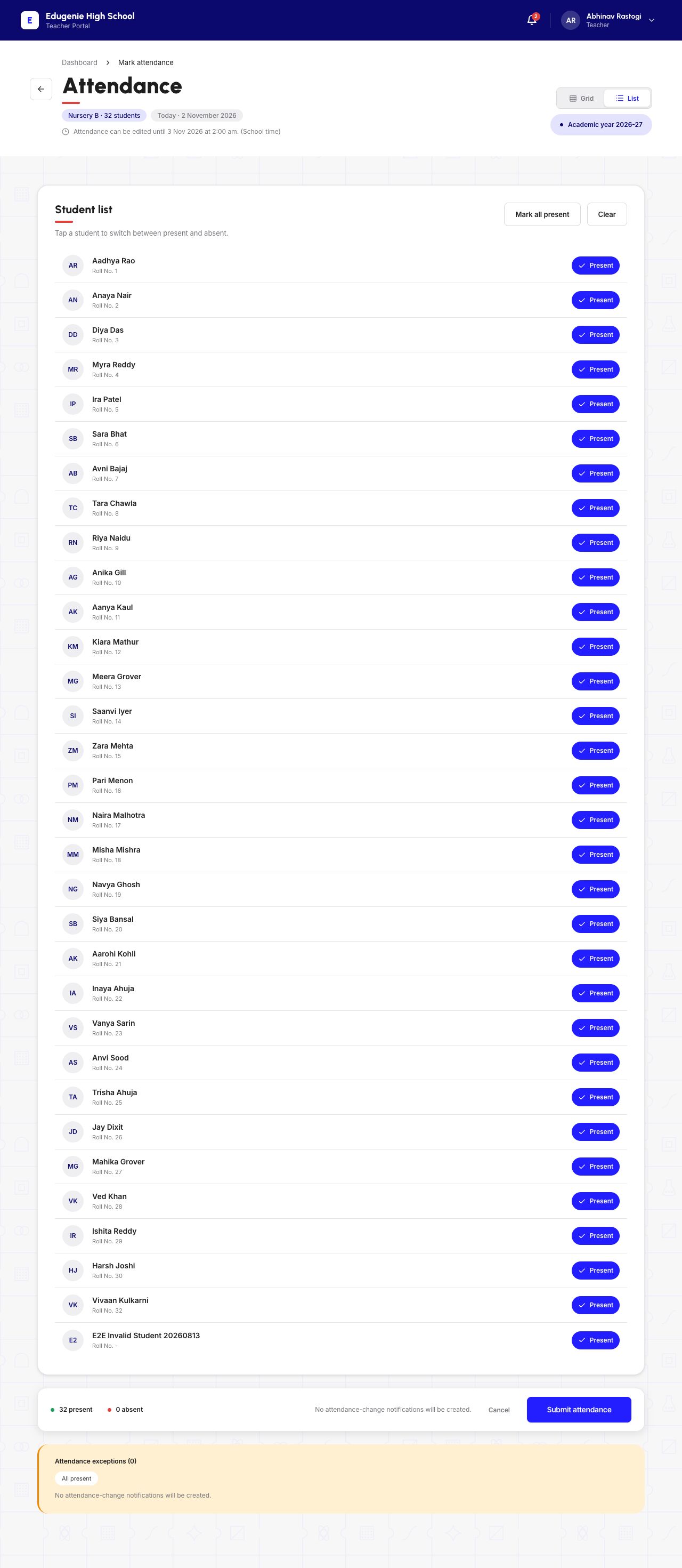
Open the class roster and read the date and editing-window message before touching a status. This capture is Monday, 2 November 2026; its window closes at 2:00 am on 3 November. Use the date and window your own portal shows.
Match names and roll numbers. A preselected Present control is an unsaved default, not proof that attendance has already been recorded.
Demo school · Desktop web · 2 November 2026
 View full screenshot
3. Set each status and review the totals
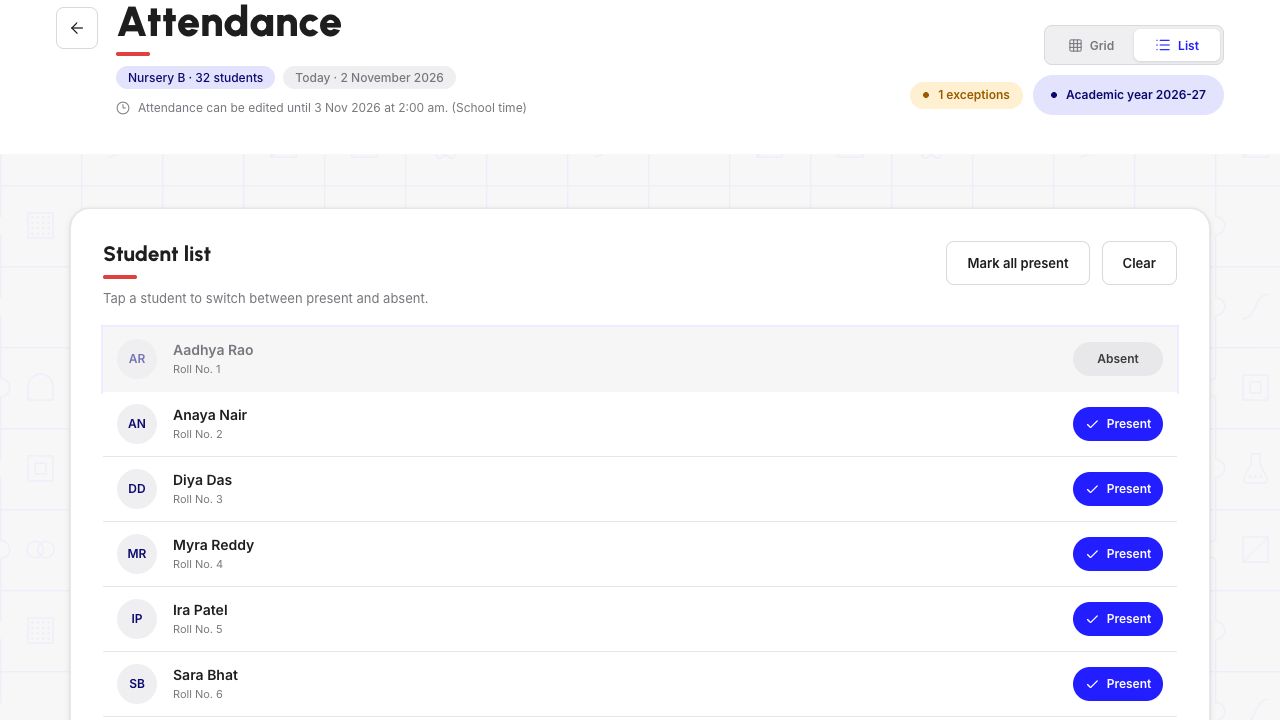
Choose the status that matches each student’s actual attendance. The screenshot below briefly selects Absent for one demo student; that selection has not been saved.
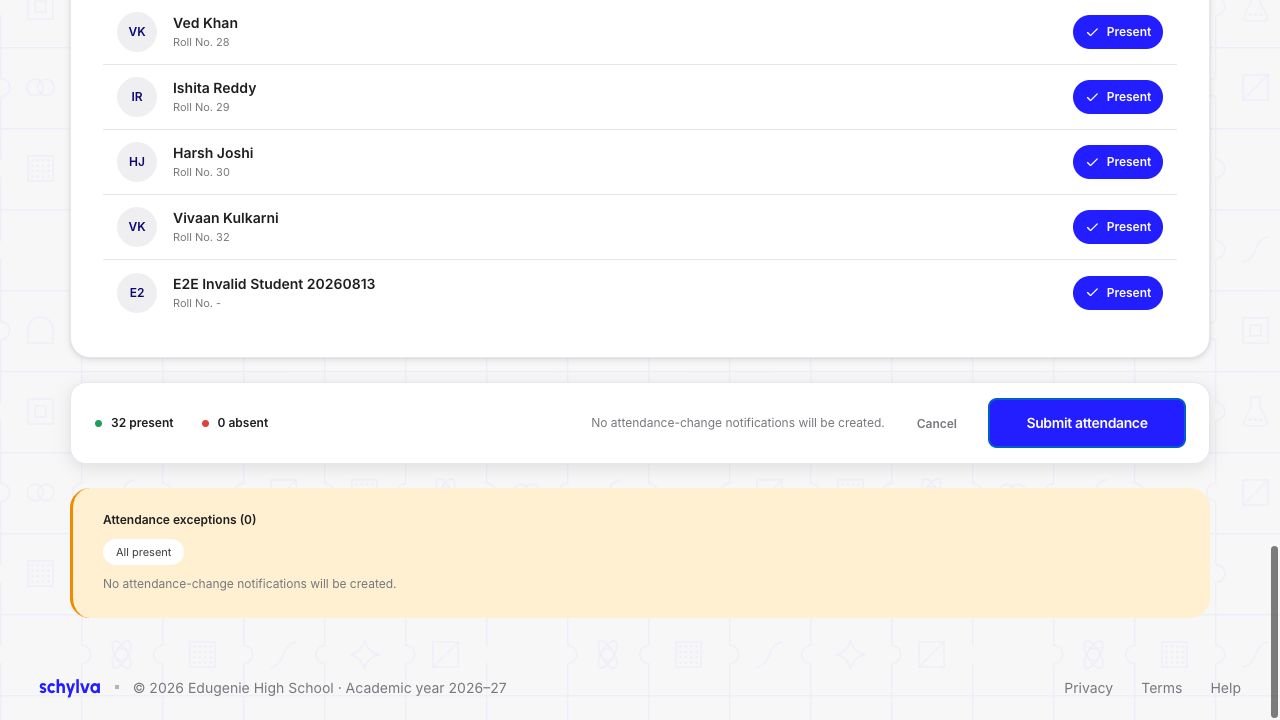
For this controlled example, the row is restored to Present. The final review is 32 Present, 0 Absent. Read the notification explanation shown before submitting; this all-Present submission reports no attendance-change notifications.
- Right school, class and date.
- Every student’s status agrees with the register you intend to save.
- Summary counts and any notification explanation are understood.
Demo school · Desktop web · 2 November 2026
 Enlarge screenshot
Demo school · Desktop web · 2 November 2026
 Enlarge screenshot
4. Submit and wait for the saved result
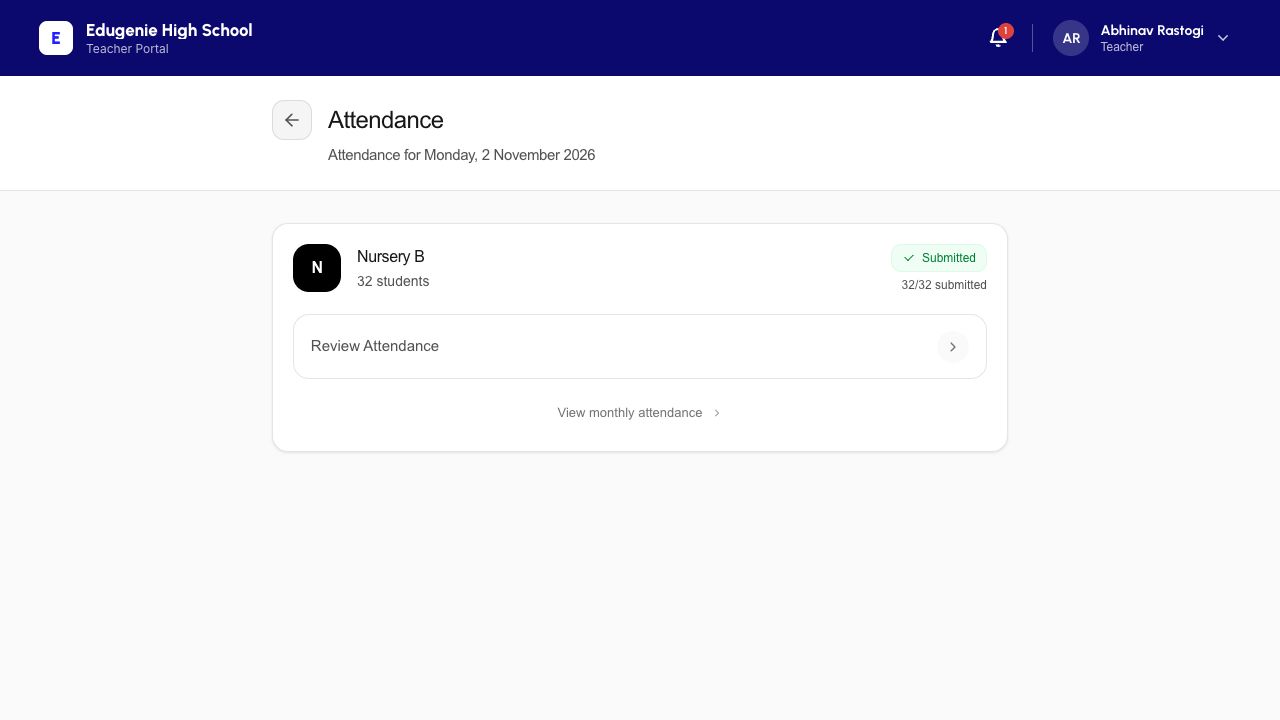
Select Submit Attendance (All present) for the reviewed example. Wait for the class to show Submitted · 32/32. This path saves directly; a confirmation dialog is not shown in this example.
Do not keep submitting because the page is slow. Check the resulting class status first.
Demo school · Desktop web · 2 November 2026
 Enlarge screenshot
5. Refresh and reopen the saved register
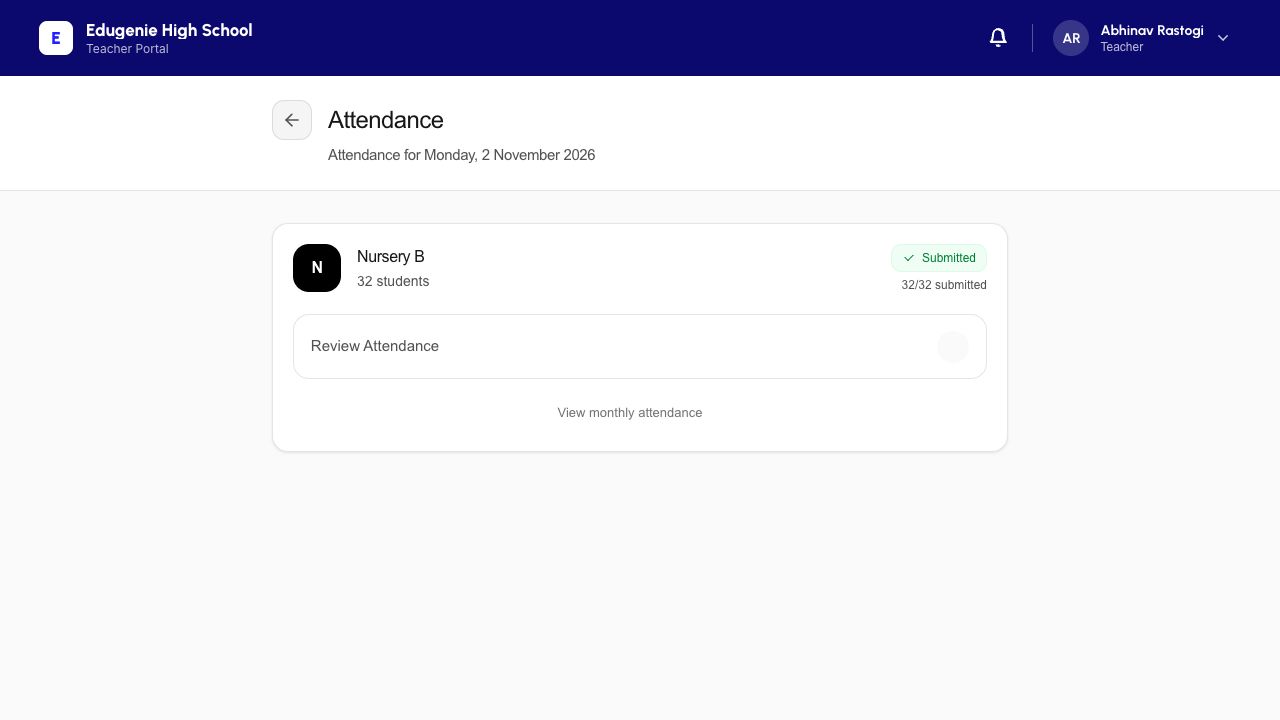
Refresh the page. The class should still show Submitted, not return to Pending. Reopen it and check the same date and student statuses.
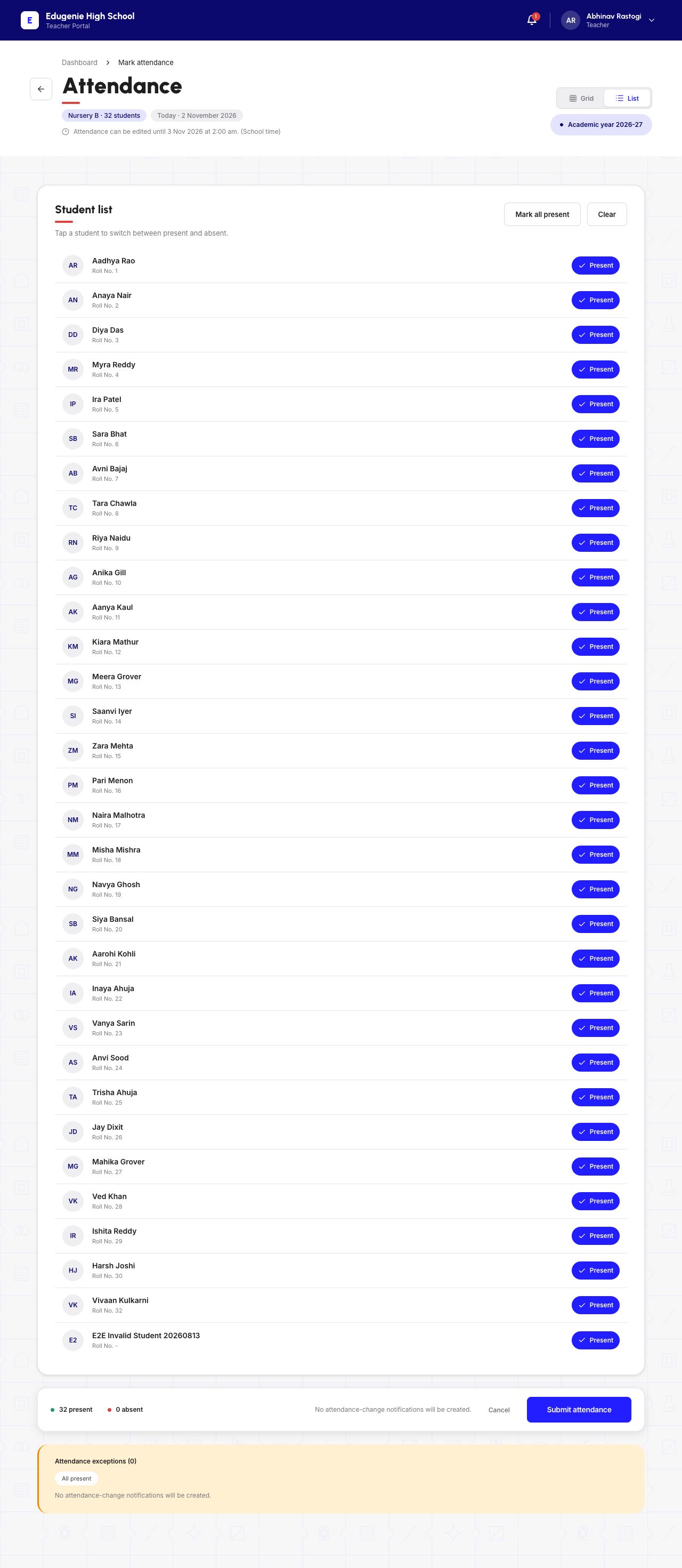
Here, Submitted 32/32 remains after refresh and the reopened roster contains the 32 saved Present records. No second submission is made.
Demo school · Desktop web · 2 November 2026
 Enlarge screenshot
Demo school · Desktop web · 2 November 2026
 View full screenshot
6. Check recorded coverage without confusing it with the month
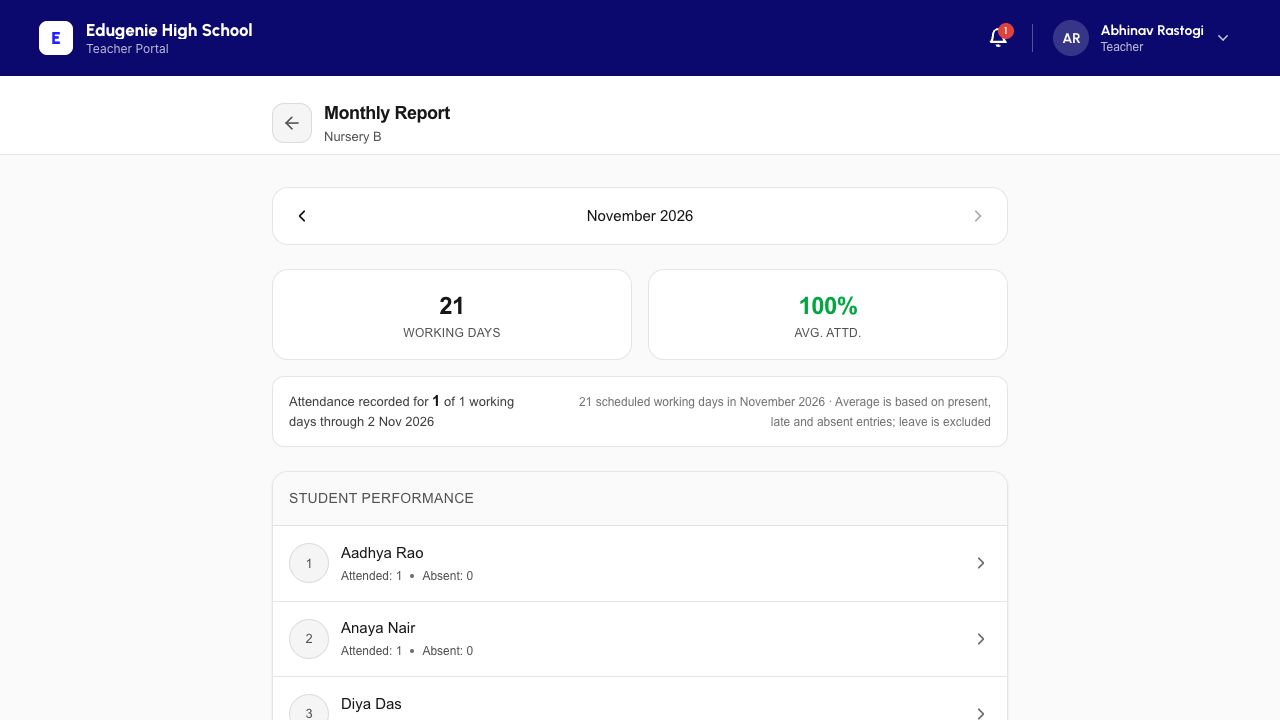
The monthly report provides a second view of the saved day. In the November example, there are 21 scheduled working days but only one elapsed recorded day at this point.
Read the coverage period alongside percentages. Aadhya has one attended day and zero absent days here; this is not a claim that all future November attendance has been recorded.
Demo school · Desktop web · 2 November 2026
 Enlarge screenshot
If you cannot submit or the state is unclear
Stop before making a replacement or correction you do not understand.
- The roster is empty or the wrong class appears
- Confirm your assigned class and the active-student list with the school admin.
- The day is locked or not a working day
- Follow the school’s correction process. This guide does not bypass a closed day or change its calendar.
- Saved status does not remain after refresh
- Record the class/date and the message shown, then contact the school. Do not assume an unsaved status is attendance.