View your class’s attendance history
Read your class’s existing attendance, starting with the class, date and availability message. This guide covers monthly reports, student history and view-only roster filters—not marking, submission or corrections.
For Teacher
On this page
Before you begin
- Your school’s trusted portal and an authorised Teacher account.
- The class and date for which you are responsible. Teaching a subject does not by itself establish attendance access.
- Your school’s attendance policy. Do not change records, student membership or school dates to imitate these examples.
1. Open attendance from your Teacher dashboard
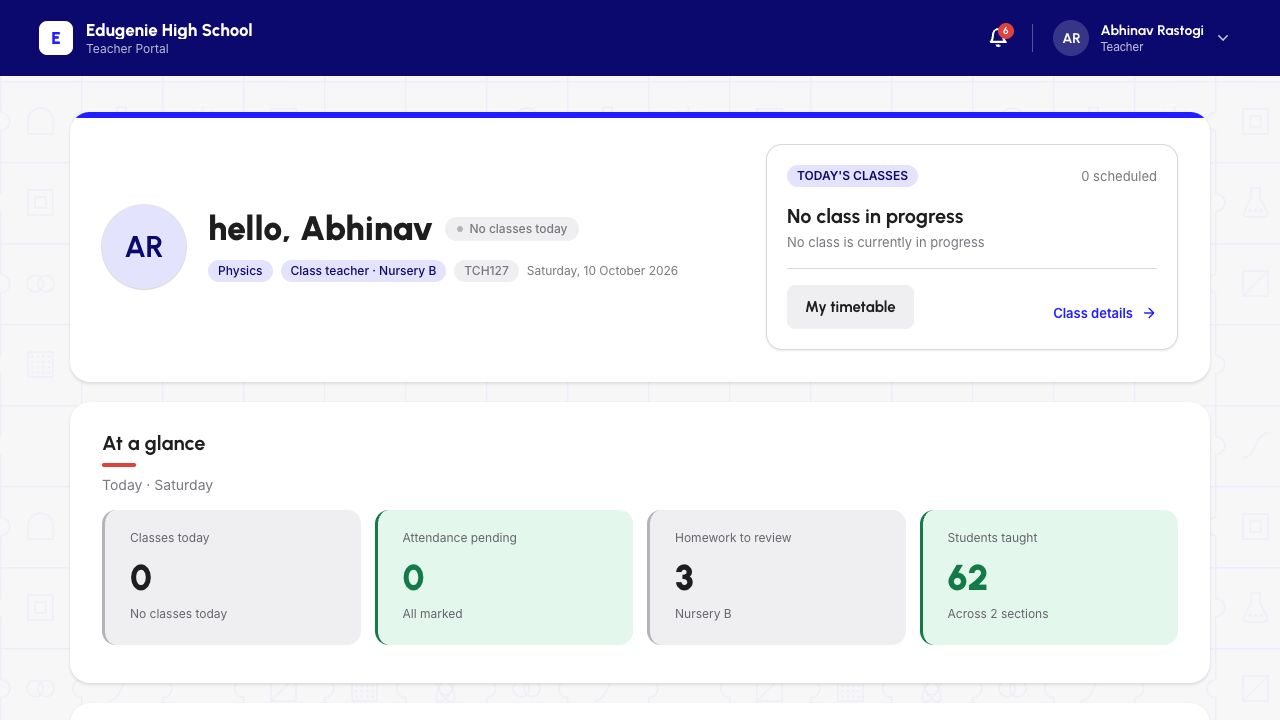
Confirm the school and your Teacher identity, then choose “Mark attendance” under Quick access. The example dashboard identifies Abhinav as the class teacher for Nursery B.
Do not treat the dashboard’s “All marked” summary as proof that attendance was submitted. In this walkthrough it appeared on a school holiday, when marking was unavailable. Check the Attendance page itself.
Demo data · Teacher desktop · confirm your context
 Enlarge screenshot
- Check the Teacher identity and assigned class before interpreting the dashboard summary.
- All marked is a dashboard label, not a receipt for a submission made during this walkthrough.
2. Check the class, date and availability
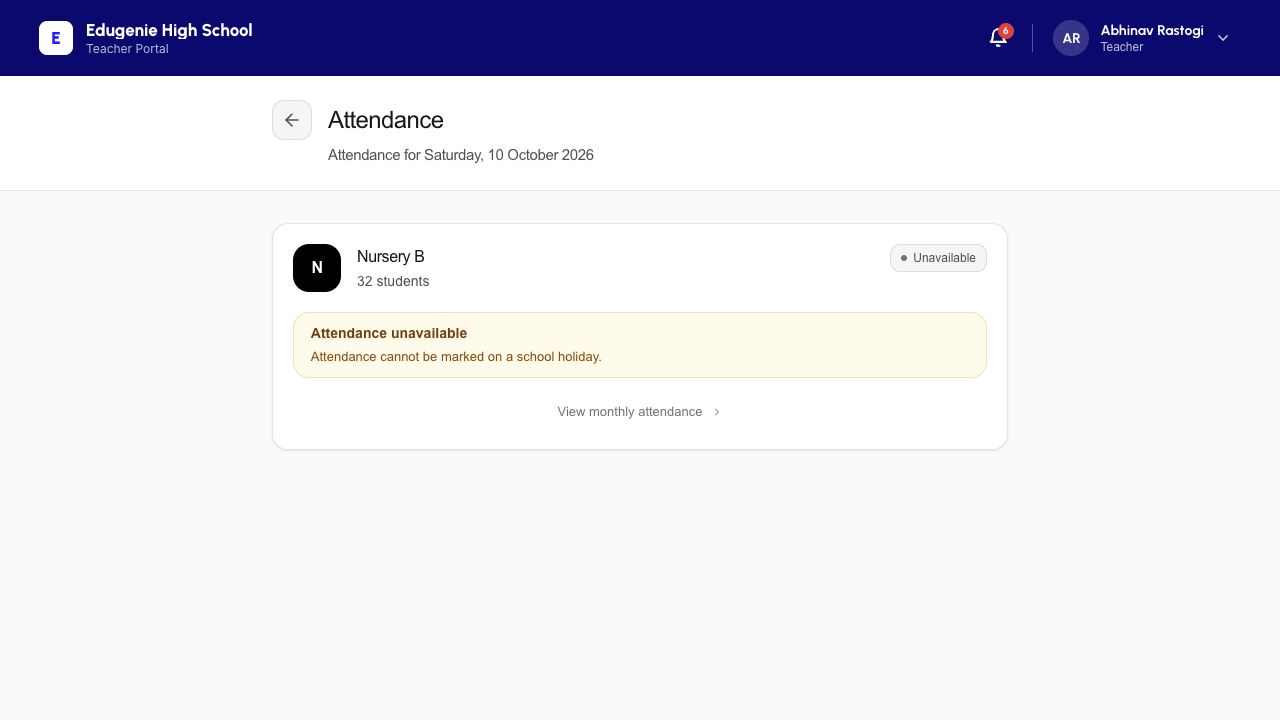
On Attendance, read the displayed date, class-and-section name, student count and availability message before continuing. Use only the class and date you are authorised to handle.
The current example shows Nursery B with 32 students, but marking is unavailable because the selected day is a school holiday. “View monthly attendance” remains available. Do not change the school calendar or pick a different date merely to bypass the block.
Demo data · Teacher desktop · school holiday
 Enlarge screenshot
- Nursery B has students, but the displayed school-holiday message makes marking unavailable.
- View monthly attendance is a viewing route, not permission to mark this date.
If the class has no active students
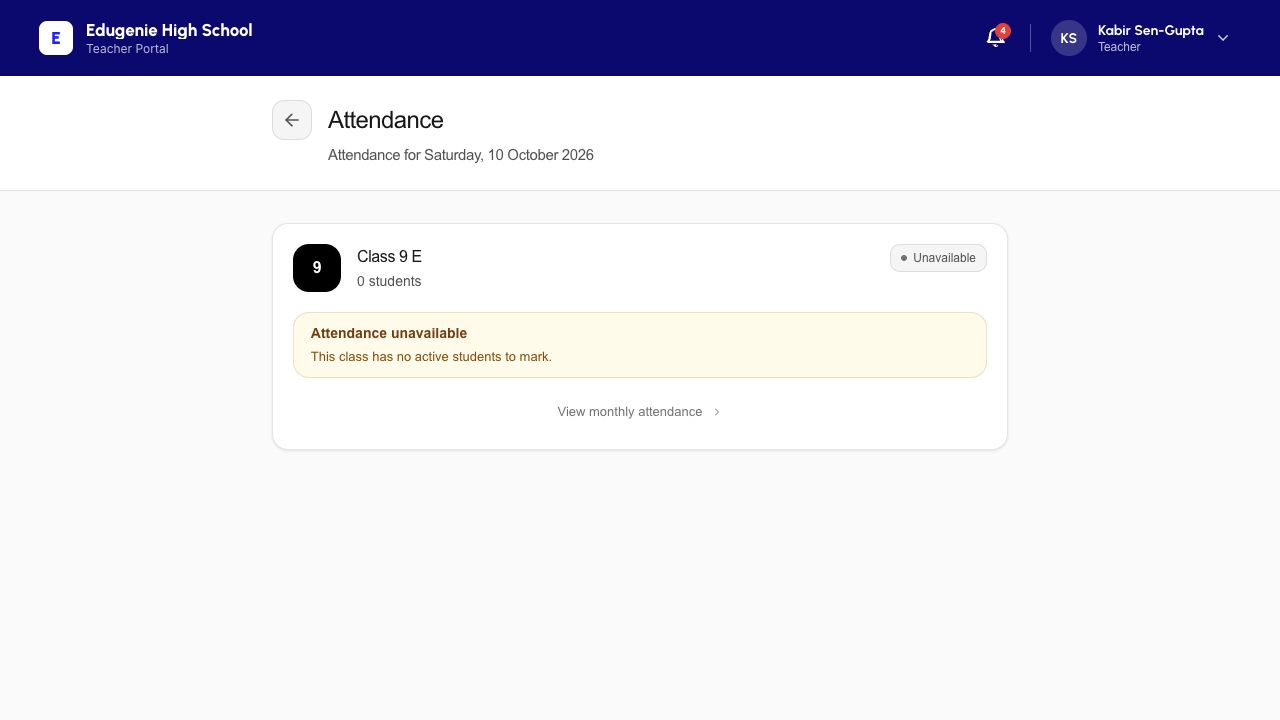
A different Teacher account showed Class 9 E with 0 students and “This class has no active students to mark.” That is different from the holiday message.
Check the class name and ask the authorised school administrator to verify the roster if it is unexpected. Do not add, move or deactivate students simply to make attendance available. A failed load is also not evidence that a class is empty.
Demo data · Teacher desktop · empty assigned class
 Enlarge screenshot
- This separate Teacher example is Class 9 E with zero active students, not the Nursery B roster.
- An explicit empty-class message is different from no matches after filtering or a page that failed to load.
3. Read the monthly report with its coverage
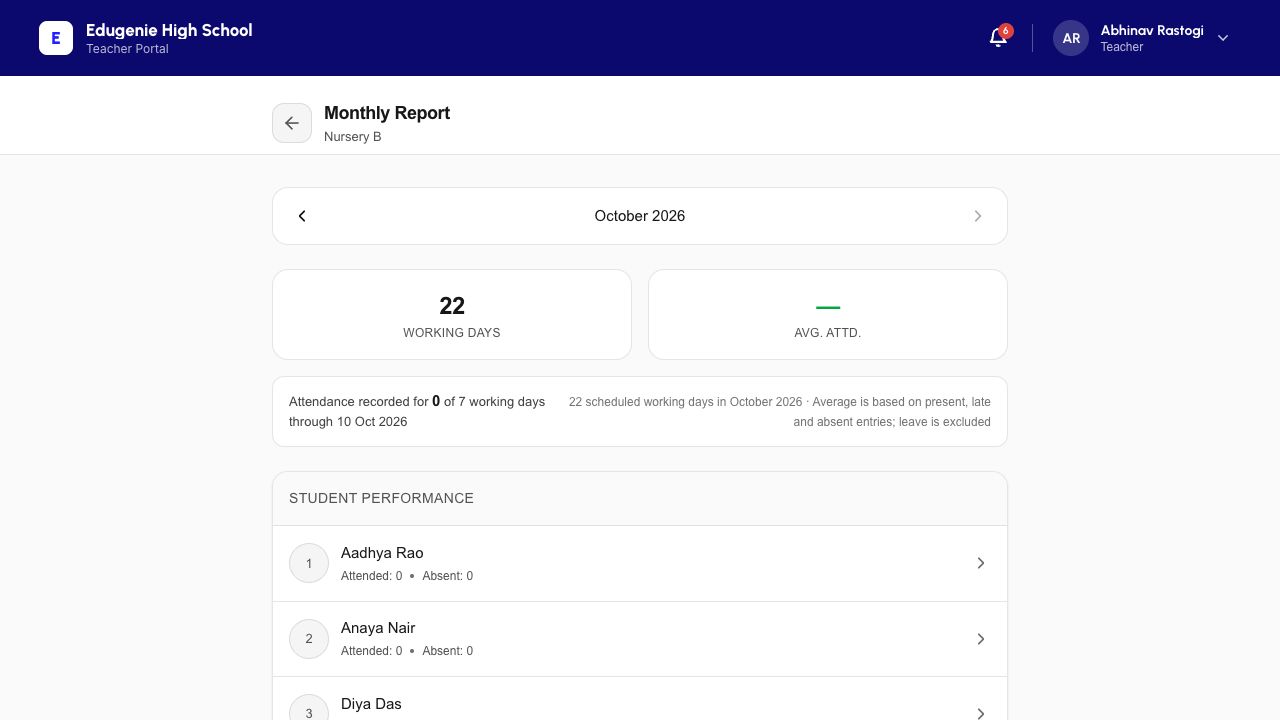
Choose “View monthly attendance” on the class card. Confirm the class under “Monthly Report”, then use Previous month or Next month when that control is enabled. In this walkthrough, Next month was disabled for the current month.
Read the recorded-day sentence alongside Working Days and Avg. Attd. October showed 0 of 7 working days recorded through 10 October, 22 scheduled working days and a dash for the average. Do not interpret missing records as every student being absent.
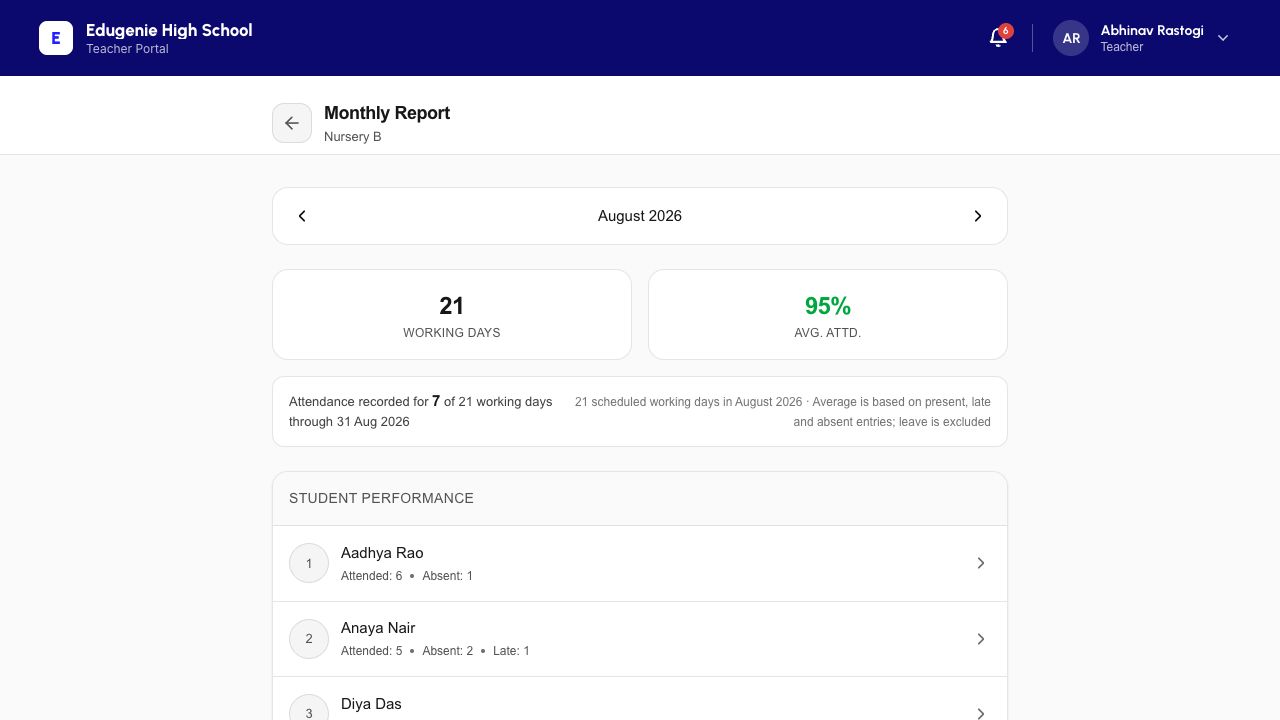
The August example showed 7 of 21 working days recorded and a 95% average. That percentage does not mean the whole month has been recorded. The page explains that its average uses present, late and absent entries, while leave is excluded.
Demo data · Teacher desktop · current month without records
 Enlarge screenshot
- Read the month and recorded-day coverage together: zero recorded days is not proof of zero attendance.
- The dash average is an unavailable calculation, not a zero-percent score.
Demo data · Teacher desktop · historical month
 Enlarge screenshot
- August has existing recorded days; distinguish the seven recorded days from the 21 working days.
- The displayed average describes the available records, not a new submission or complete monthly coverage.
4. Open a student’s attendance history
Choose the intended student row in the monthly report. Confirm the student name, roll number, class and month before reading the summary and Attendance Exceptions.
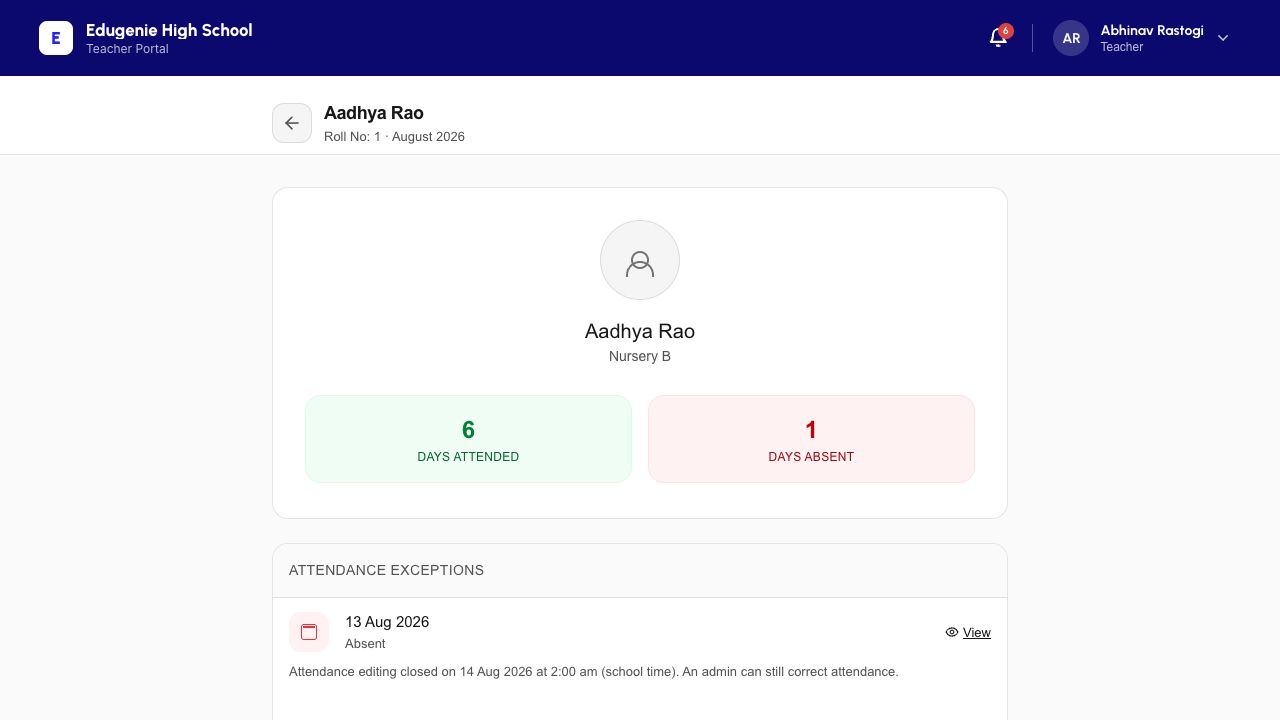
The example shows Aadhya’s August history and an Absent entry for 13 August. Its action is “View”, accompanied by an editing-closed message. Opening View shows the historical roster; it does not grant permission to edit it.
Demo data · Teacher desktop · existing student history
 Enlarge screenshot
- Check Aadhya’s name, Nursery B and August before reading the attended and absent totals.
- View opens an existing dated record. The editing deadline is not a promise that you can correct it now.
5. Review the roster without changing it
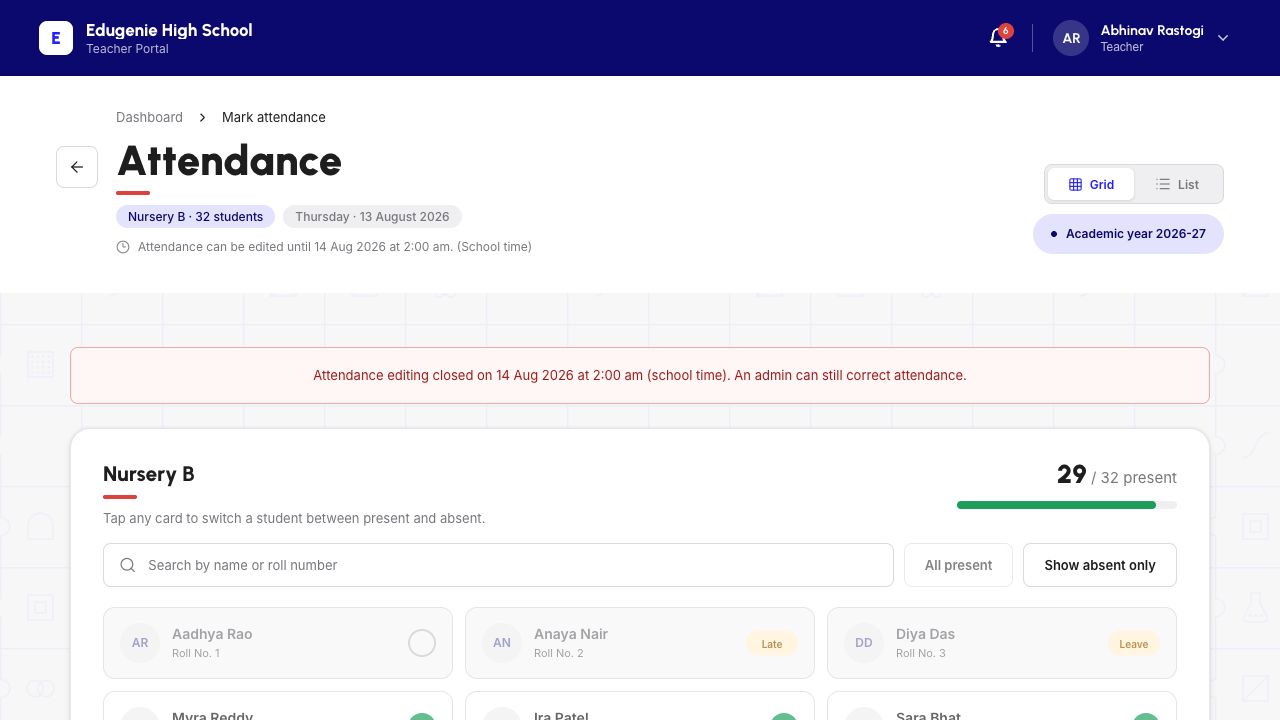
Check the class, student count, attendance date and school-time editing notice at the top. The current example is a historical, locked roster—not today’s editable attendance.
Grid and List change the presentation. In Grid, Search students can narrow the visible cards by name or roll number. “Show absent only” displays absent students; it is not the complete list of exceptions. Turn the filter off and clear search before reviewing the whole roster.
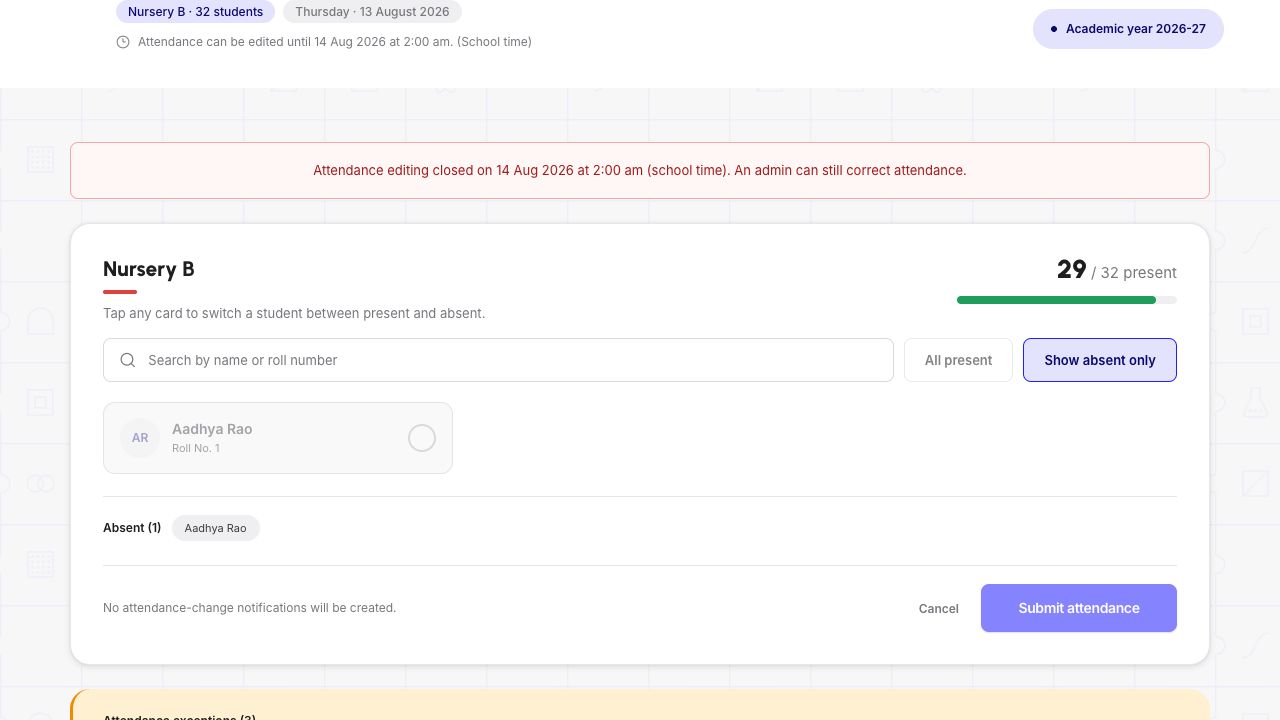
In the verified example, Show absent only displayed one student, while Attendance exceptions still listed three: Absent, Late and Leave. Do not silently turn an existing Late or Leave record into Present or Absent. The guide has not yet verified how an enabled Teacher form handles those changes.
Marking and corrections must follow your school’s permitted process. The steps here only explain viewing existing records.
Demo data · Teacher desktop · locked historical roster
 Enlarge screenshot
- Read the class, date and editing-closed banner before the student cards.
- Grid/List and search help inspect the roster; visible status controls do not prove that changes are allowed.
Demo data · Teacher desktop · absent filter, not all exceptions
 Enlarge screenshot
- Show absent only is selected and one absent student is visible; Late and Leave are different statuses.
- Submit attendance is disabled despite its purple fill. This is a filter result, not a completed submission.
Read the roster controls without changing attendance
Grid and List are two ways to inspect the same roster. Check the class and date after changing the layout; switching the view does not unlock a closed record or save attendance.
Read the status words, not just their colours. Absent, Late and Leave are separate entries. In the demonstrated locked record, three exceptions did not mean three absent students: Show absent only displayed one student.
If search or a filter shows no matches, clear the search and turn off Show absent only before concluding that the class has no students. Compare the class-wide count with the explicit empty-class message described earlier in this guide.
- Viewing controls
- Grid/List, Search students and Show absent only were used to inspect the existing record without changing attendance.
- Controls that can change attendance
- Student status, All present, Clear/Reset changes and Submit attendance are not viewing filters. Do not use them to explore the screen. Marking, submission and corrections are outside this guide.
Returning from a historical roster
In the 10 October walkthrough, “Back to attendance” returned to the current-day class card, not to the previous student-history screen. Read the class, date and availability message again before continuing.
To revisit a historical record, use View monthly attendance, choose the intended month when available, then open the student’s history again. Do not assume the date or student from the historical roster remains selected after returning.
Using the mobile website
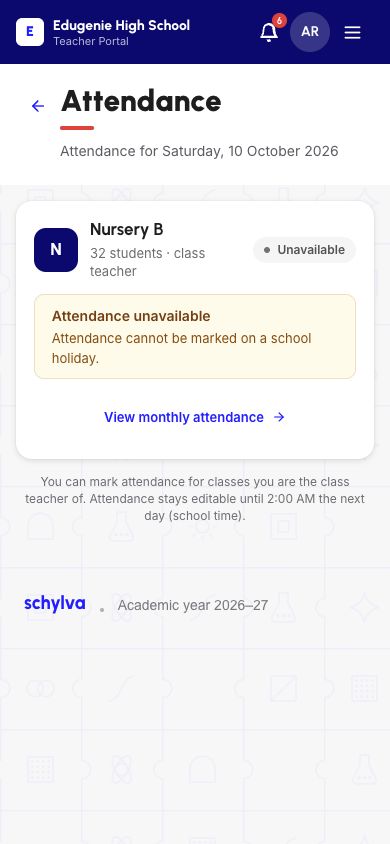
On a phone, the same school portal presents a stacked class card and “View monthly attendance” link. The monthly report, student row and View action lead to the same historical record. Always recheck the class and date.
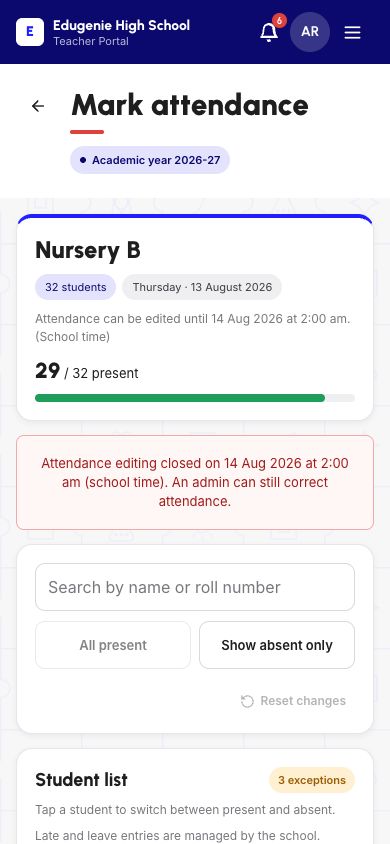
The reviewed 390px roster has a class summary, school-time notice, search and filter panel, then a Student list. It does not show the desktop Grid/List selector. Search and Show absent only worked for viewing; All present, Reset changes and student status controls stayed disabled on the locked record.
The mobile list states that Late and Leave entries are managed by the school. Turning off an absent-only filter restores the other status entries; the filter does not change attendance. Use the account-menu control for Log out when finished. These are responsive-web screenshots, not native iOS or Android screens.
Demo data · Teacher mobile web · class and availability
 Enlarge screenshot
- The mobile-web class card still displays the school-holiday restriction.
- A phone does not change marking permissions; the monthly link is for viewing.
Demo data · Teacher mobile web · stacked roster controls
 Enlarge screenshot
- Check the class, date and editing-closed message above the stacked search and filter controls.
- Only the start of the Student list fits here; scroll in the product to inspect the rest without changing statuses.
If attendance is unavailable or looks wrong
Stop at the specific message rather than changing another school setting to get past it. A loading failure, a loaded empty class and an editing restriction are different states.
- Your expected class is missing
- Ask the authorised administrator to check your current class responsibility. Another subject or class on your dashboard does not prove attendance permission.Recheck your class and access context
- The class has no active students
- Check the class name and the explicit no-active-students message. Ask the school to verify an unexpected roster; do not add or move students to make marking available.Read the no-active-students example
- The day is a school holiday
- Read the displayed date and school message. Review existing history if needed; do not alter the calendar to force marking.Check the holiday and date message
- Attendance editing has closed
- Use the view-only history and contact the authorised school administrator about a correction. Do not change browser time or overwrite another date.Review the view-only student history
- Numbers appear inconsistent
- Compare the month, recorded-day coverage and individual statuses. An absent-only filter excludes Late and Leave; an unrecorded day is not an absent day.Compare recorded days with monthly totals
- Loading fails or a save result is uncertain
- Keep the class, date and visible error for the authorised school administrator, without sharing a code or student records. A failed load does not establish an empty roster or missing attendance. If a save result is uncertain, stop further write attempts and ask the administrator to investigate.Review the class and visible availability message