Read your child’s or your own attendance
Open Attendance, confirm whose record you are viewing, then read the selected month and date. The tracker shows records entered by the school; Parent and Student attendance is read-only.
For Parent · Student
On this page
Before you begin
- An authorised Parent or Student account in the portal your school supplied.
- Parents: select the correct linked child first. Students: confirm your own name.
- The month or date you want to check.
1. Open the right attendance record
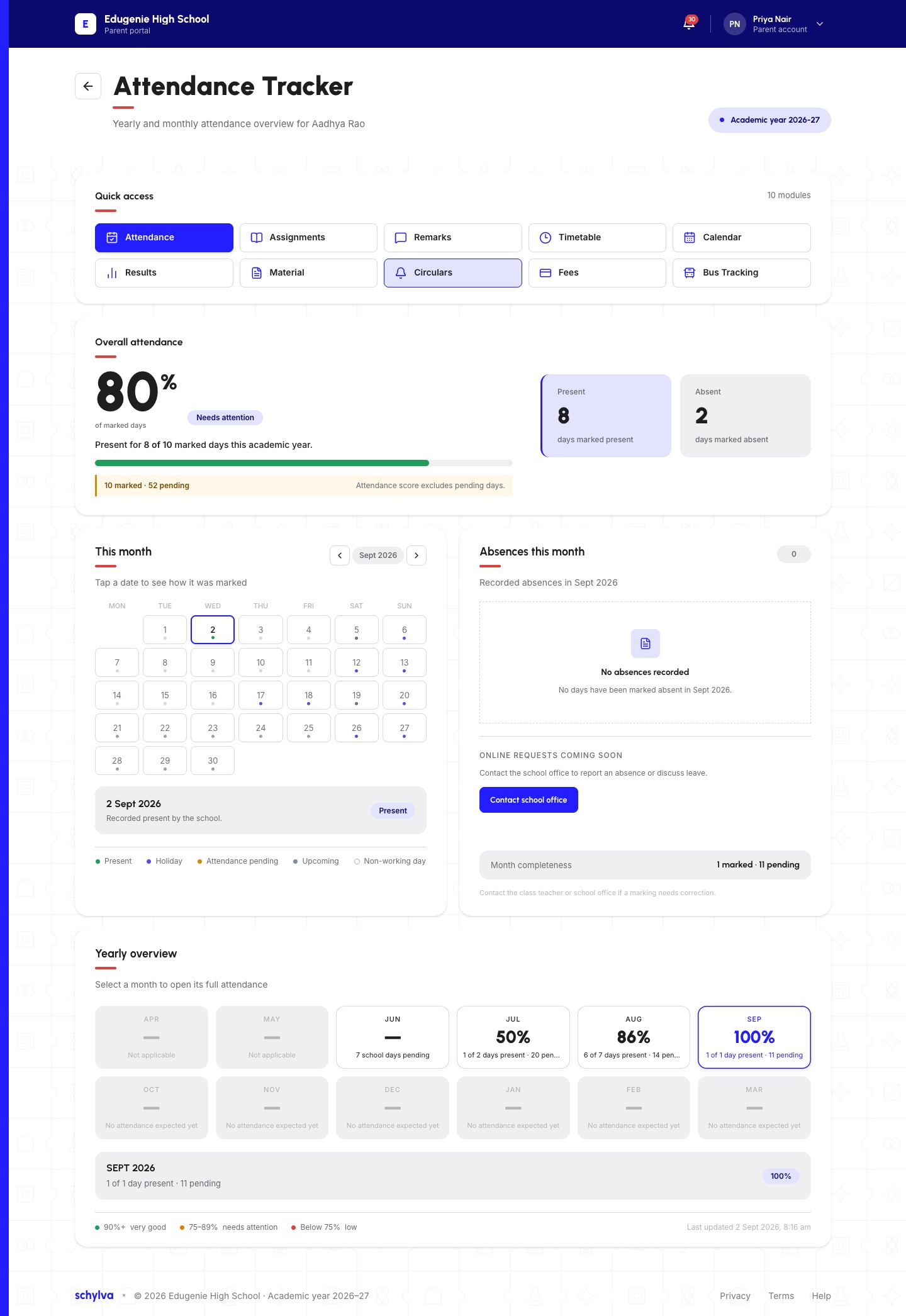
Choose Attendance in Quick access. Read the name below Attendance Tracker and the academic-year label. In the Parent example, the account belongs to Priya while the record belongs to Aadhya.
If the child is wrong, return to the child selector before reading the figures. Student accounts show their own attendance; they do not switch between children.
Demo · Parent desktop web
 View full screenshot
2. Read the percentage with the record coverage
The example shows 80%: present for 8 of 10 marked days. Its pending-day count is shown separately. The percentage is not proof that the school has marked every school day.
Look at Present, Absent and the recorded/pending sentence together. A pending or unmarked date must not be counted as an absence. Different months can have different amounts of recorded data.
- Confirm the academic year.
- Read the marked-day count beside the percentage.
- Check pending records before drawing conclusions.
3. Select a date and compare months
Select a date in the calendar and read the date and status underneath it. In the September example, 2 September is labelled Present. Use the legend to distinguish Present, Holiday, Attendance pending, Upcoming and Non-working day.
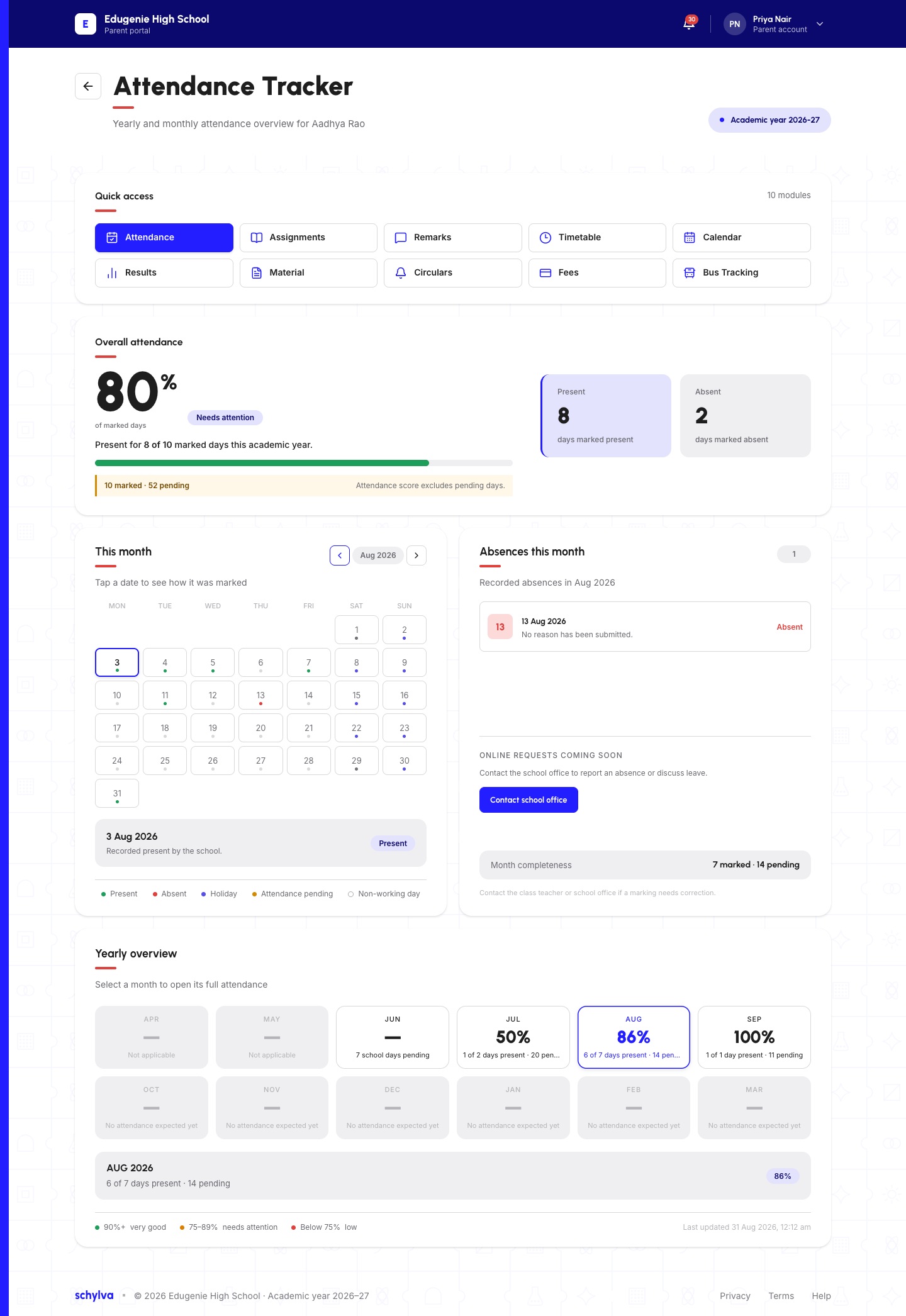
Use the month arrows to view an earlier month. The August screenshot shows a separate absence entry for 13 August and a different month-completeness count. The selected calendar date and the absence entry can be different dates.
The Yearly overview offers month tiles. Read the selected month and its coverage, rather than assuming a percentage describes the entire academic year.
Demo · Parent desktop web
 View full screenshot
4. Read the Student version
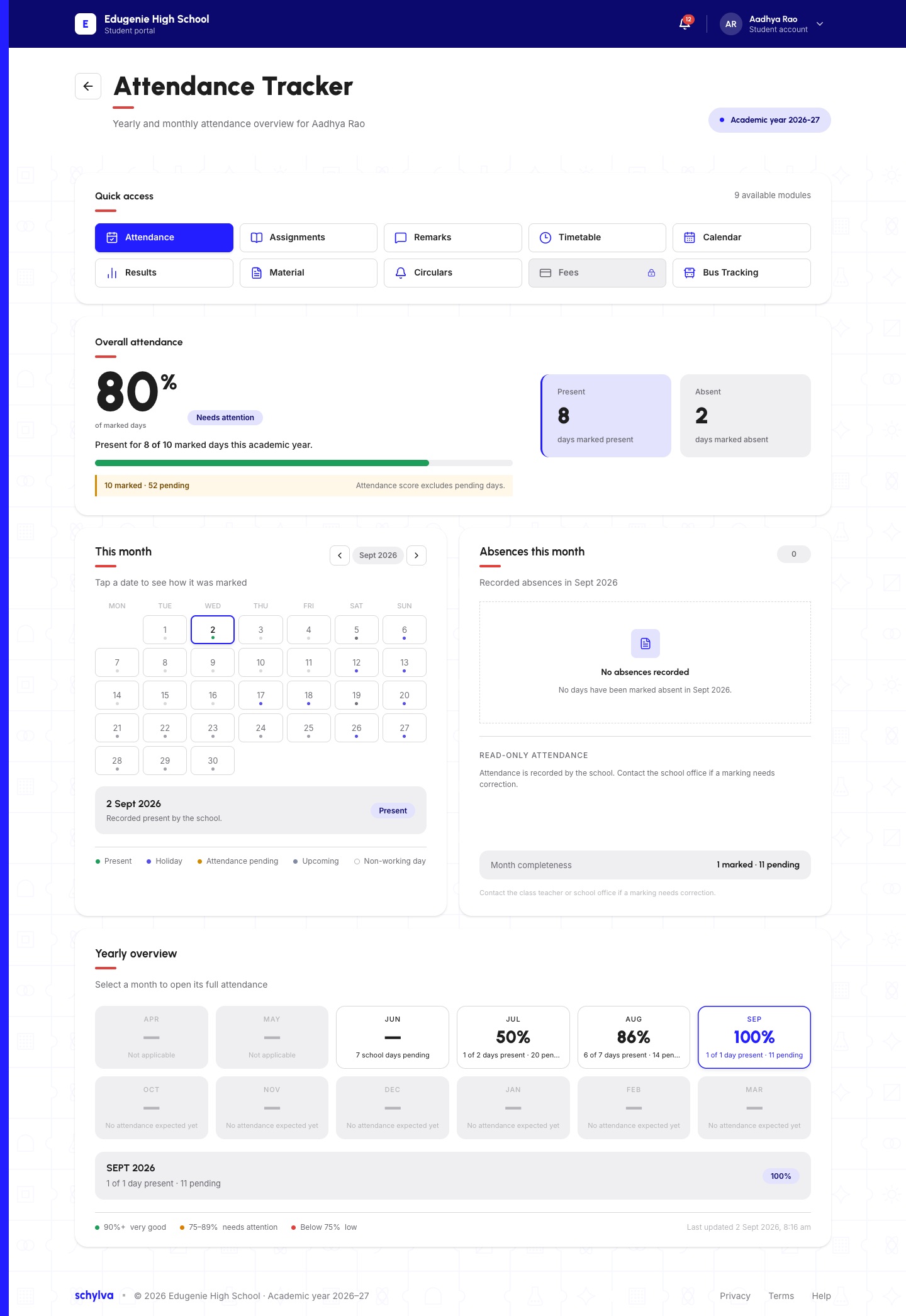
The Student view uses the same Attendance Tracker, month calendar and recorded-day summary. Confirm the Student account and name before reading.
The page explicitly describes attendance as read-only. If a marking looks wrong, contact the school office; the screenshot does not establish a self-service correction or leave-request workflow.
Demo · Student desktop web
 View full screenshot
Using the mobile website
On a narrow screen, the summary, calendar, selected-day detail, absences and yearly overview are stacked. Scroll to read the complete record.
Use the month arrows beside the displayed month and read the selected-date detail below the grid. The Parent example is September; the Student example is August, so their monthly counts differ.
Use these steps in your mobile browser.
Demo · Parent mobile web
 View full screenshot
Demo · Student mobile web
 View full screenshot
If something does not look right
Record the child, class, month and affected date when contacting your school. Do not send verification codes or unrelated student records.
- A date is pending or has no recorded status
- Ask the school whether attendance has been entered. Pending is not the same as Absent.
- A recorded status looks incorrect
- Ask your school administrator to check it. This guide does not verify corrections or their processing time.
- You cannot find the child
- Use the linked-child troubleshooting guide; do not use another person’s account.