Prepare a Student login and inspect its linked profile
Use the Add Student Login form, an existing editor, the class roster and student profile to understand the visible fields. Check the person, admission details and intended access before any future save.
For Administrator
On this page
Before you begin
- An authorised Administrator account with the school’s permission to manage Student records and access.
- The correct student identity, school-approved contact details, admission number, academic year and intended class. Confirm existing records before preparing a new account.
- Follow the school’s process for Student access and Guardian relationships. Use Cancel if you opened a form only to inspect it.
1. Recognise the Student login form
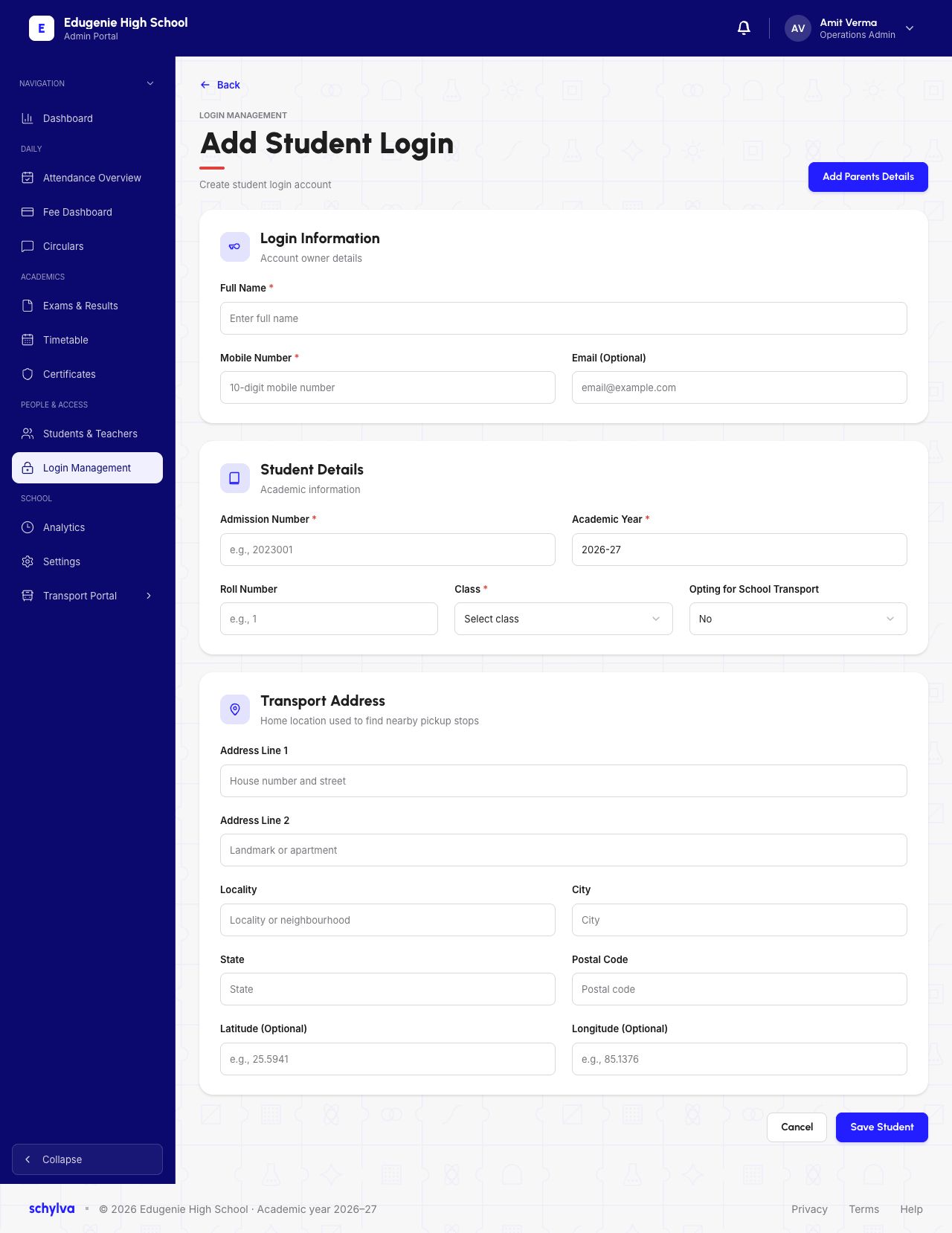
The capture is Add Student Login under Login Management. It separates Login Information, Student Details and Transport Address, and shows an Add Parents Details control.
Login and student fields appear in the same form. The screenshot does not demonstrate which student or login records a successful save creates, or whether it can attach an existing student. Creation behaviour, imports and bulk onboarding are outside this guide’s illustrated scope.
The form is unfilled: Full Name, Mobile Number, Admission Number and Class are missing. Academic Year shows 2026-27, and the transport option shows No. A visible Save Student button is not a successful save.
Demo · Administrator desktop web · reference screenshot
 View full screenshot
- Required identity, contact, admission and class fields are incomplete.
- Academic Year and the transport choice are displayed examples.
- Add Parents Details is a separate control; no Parent flow is shown.
2. Check identity and academic details
Under Login Information, the screenshot marks Full Name and Mobile Number as required and Email as optional. The mobile placeholder asks for a ten-digit number. That hint does not demonstrate number validation, duplicate handling or OTP delivery.
Under Student Details, Admission Number, Academic Year and Class carry required markers. Roll Number is shown separately. Use the school’s assigned identifiers; do not generate a new admission number merely because a name appears similar to an existing record.
The captured academic year is an example. Check the intended year and class in the actual school process. This form does not show a separate section picker or its available class options, so do not infer an extra selection step.
- Match the intended person using more than the name.
- Confirm the school’s admission number and academic year.
- Check the intended class and roll number where used.
- Use the correct approved contact details; do not copy demo numbers from the screenshots.
3. Read transport and Parent controls separately
The Add form shows Opting for School Transport: No, while the Transport Address section is still visible. Address lines, locality, city, state and postal code are shown, with optional latitude and longitude fields.
The visible address fields do not demonstrate transport enrolment, route or stop assignment, GPS tracking, fee creation, or conditional requirements for another transport choice.
Add Parents Details is a separate control. Its destination and a completed Parent-details flow are not shown in these captures. Do not treat Save Student as proof that a Guardian was created, linked, designated primary or granted Parent access. Use the separate Guardian guide for its documented scope.
4. Inspect an existing Student login
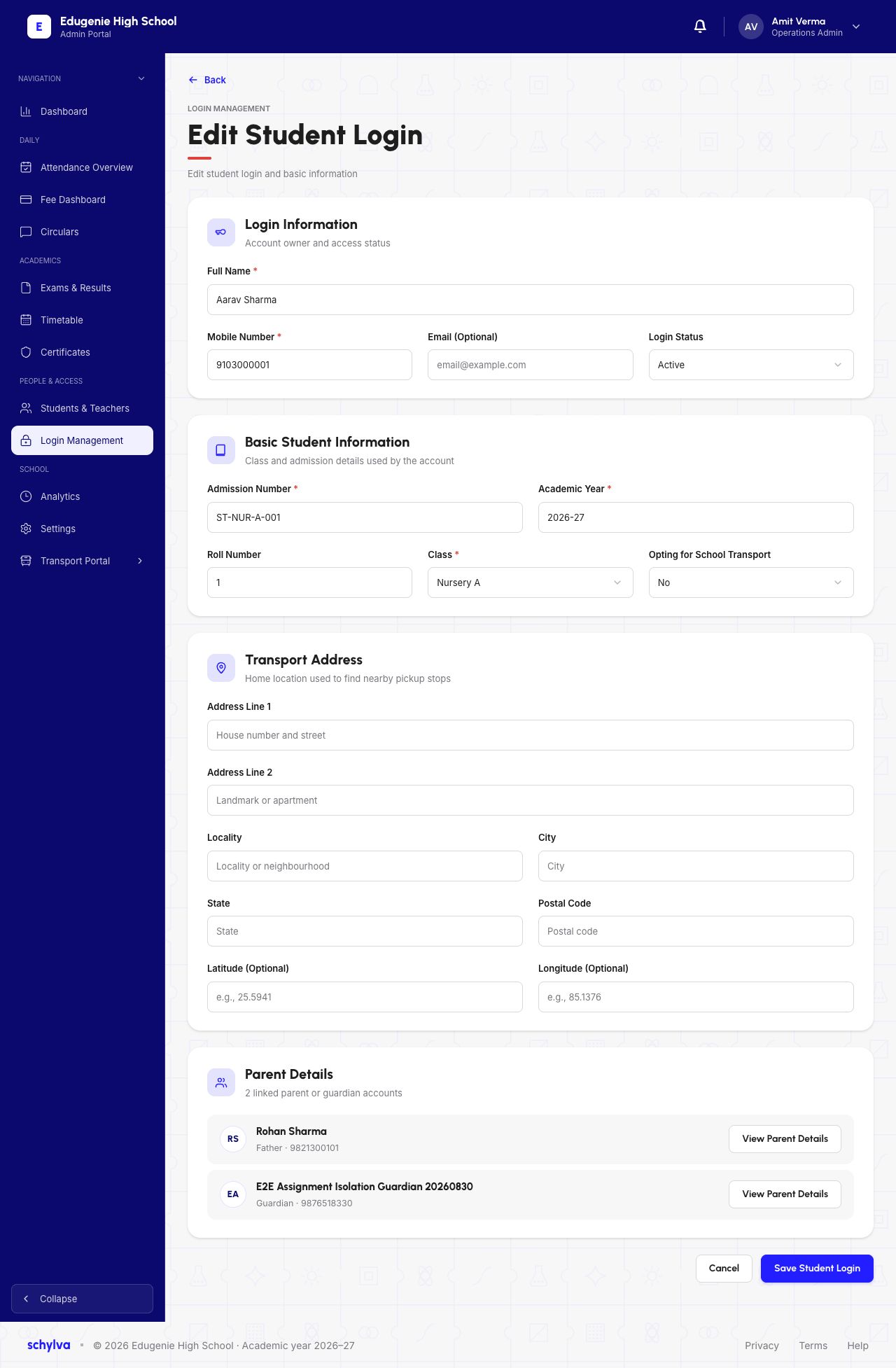
The Edit Student Login example is for Aarav Sharma, with admission number ST-NUR-A-001, Nursery A, Roll Number 1 and academic year 2026-27. Check these details together before interpreting the displayed account.
The editor includes Login Status, displaying Active in this example. The screenshot does not show the other choices, an actual status change, a permission audit or a successful Student sign-in. Do not use an Active label as an OTP or access test.
The Parent Details section lists two existing linked Parent or Guardian accounts with View Parent Details controls. This is an existing relationship view; it does not demonstrate a new link, a primary-contact change or new Parent access.
The footer offers Cancel and Save Student Login. Inspecting populated fields is not evidence of a saved edit, retained values after refresh or the effects of changing contact, class or status. Use Cancel if you opened the editor only to inspect it.
Demo · Administrator desktop web · reference screenshot
 View full screenshot
- Aarav’s existing identifiers are populated; no edit was saved.
- Login Status shows Active; it is not a sign-in test.
- Two linked contacts are existing relationships.
5. Compare the class roster
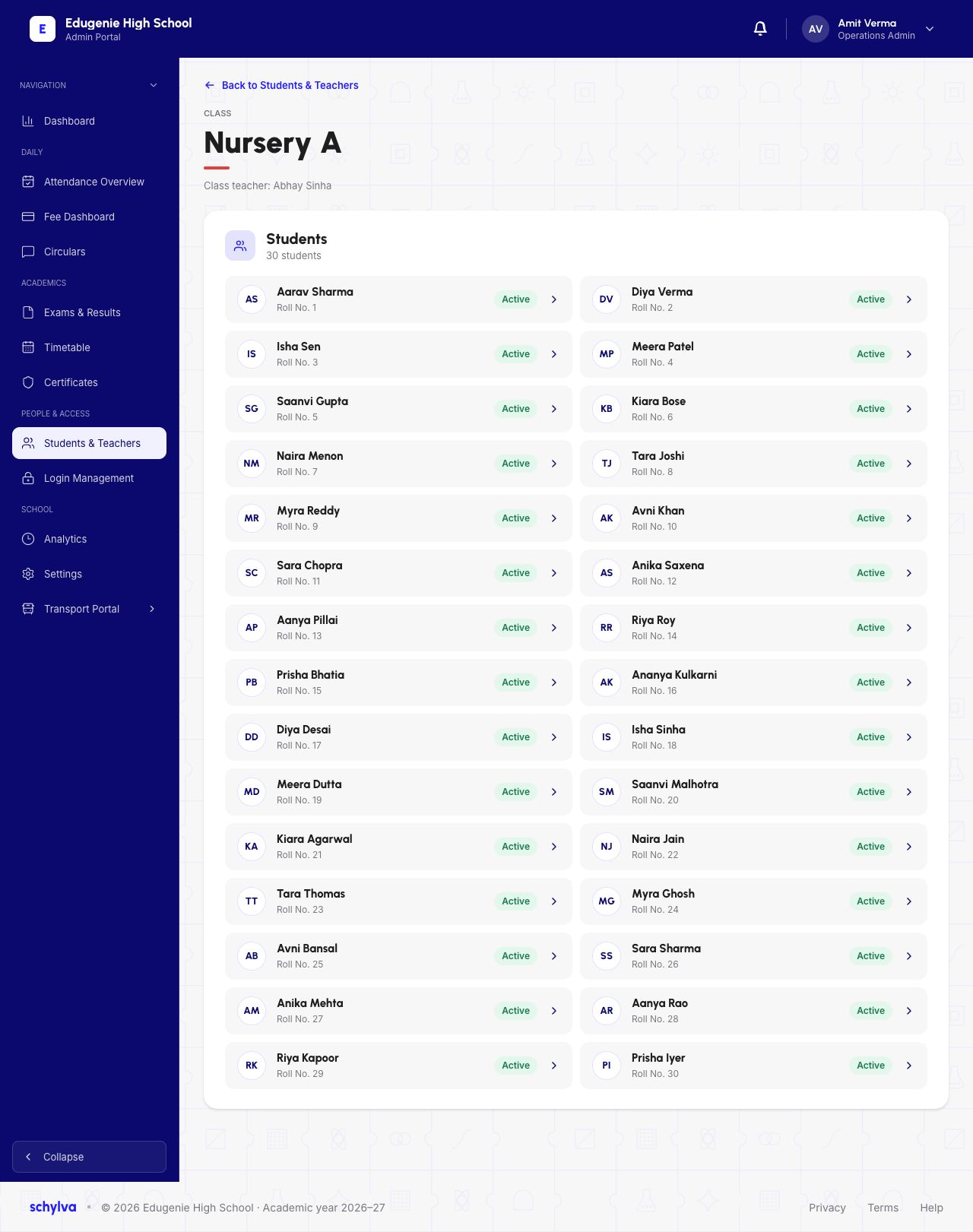
The Students & Teachers roster example is for Nursery A, with a named class teacher and student rows. Aarav is shown with Roll No. 1. Match the class and roll number before opening a similarly named student.
The displayed count and Active row labels describe this captured roster. They do not show a newly added student, a refreshed result or a successful login. The roster and login editor are different views even where the student details agree.
Demo · Administrator desktop web · reference screenshot
 View full screenshot
- Nursery A and Roll No. 1 identify Aarav in this existing roster.
- A row’s Active label does not establish new account access.
6. Compare the linked student profile
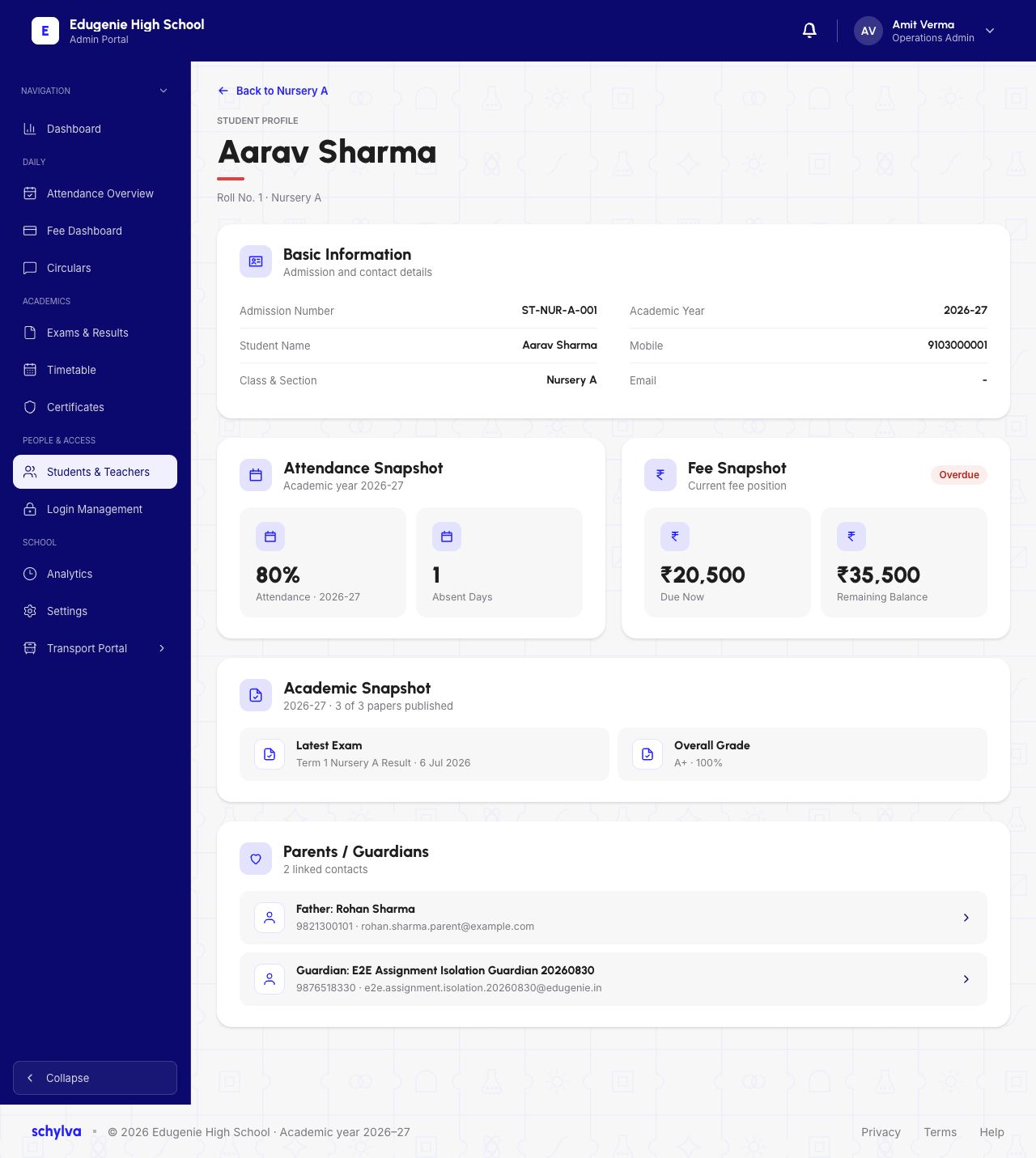
The Admin profile shows Aarav’s name, ST-NUR-A-001, Nursery A and 2026-27 in Basic Information. The heading includes Roll No. 1. These identifiers agree with the existing editor and roster examples.
Contact, attendance, fee and academic summaries describe different parts of an existing record. A dash is shown for email. Do not treat a summary amount, attendance percentage or published-paper count as an action performed during account setup.
Parents / Guardians lists two existing contacts. The list is evidence of the pictured relationships, not a new access grant or matching Parent sign-in. The dedicated profile guide explains these summaries in more detail.
Matching identifiers across these existing captures do not demonstrate that a newly submitted Student form created this profile, survived refresh or enabled the intended Student account. Those outcomes still need a recorded save-and-check sequence.
Demo · Administrator desktop web · reference screenshot
 View full screenshot
- Read admission number, class, academic year and roll number together.
- The profile is existing data, not the result of saving the empty Add form.
What these examples do not demonstrate
These examples illustrate visible fields and existing records. The following outcomes are outside this guide’s illustrated scope.
- The supported creation entry and whether a save creates or attaches student and login records.
- A completed valid form, validation response and successful save.
- The new student and login in the correct lists, roster and profile after refresh and reopening.
- The intended Student signing in with the correct school, role and student context.
- A saved edit and the effects of changing contact, class or access status.
- The Parent-details flow, intended Guardian relationship and separately verified Parent access.
- Transport choices, conditional fields and any route, stop or fee effects.
- Duplicate handling, OTP delivery, account lifecycle and validation errors.
If the person, class or account looks wrong
- A similar name already exists
- Confirm admission number, class, roll number and academic year before preparing another account. Use the authorised school process to avoid duplicate records.
- The editor belongs to another student
- Cancel and return to the correct account. Do not change identity or class fields to turn an existing account into a different student.
- An Active account cannot sign in
- Follow the sign-in troubleshooting guide and the school’s process. The captured status does not diagnose OTP, session or role problems.
- A linked Parent is missing or unexpected
- Ask the authorised school administrator to review the intended relationship. Check the account and child identifiers before making a relationship or access change.
- You need proof that the form saved correctly
- Follow the school’s process for checking the saved record and intended account. Successful saving, refreshed records and role/access results are outside this guide’s illustrated scope.