Add a guardian and link the right student
Use the Admin portal to add one authorised guardian for one student. Review the adult, child and primary contact before saving, then check the saved relationship and the guardian’s Parent view.
For Administrator
On this page
Before you begin
- Confirm the correct school and permission to manage Parent accounts.
- Have the student’s admission number, name and class, plus the adult’s confirmed name, mobile number and relationship.
- Obtain the school’s authorisation for the adult to access the child’s information, and confirm who should be the primary contact.
1 Check whether the adult already has an account
Open Login Management, then Parents & Guardians, and check for the adult’s existing account. If it already exists, stop this new-account walkthrough and ask the school to review its links. Do not create a duplicate or change a phone number to bypass a warning.
For an authorised new account, choose Add Parents.
2 Find and select the intended child
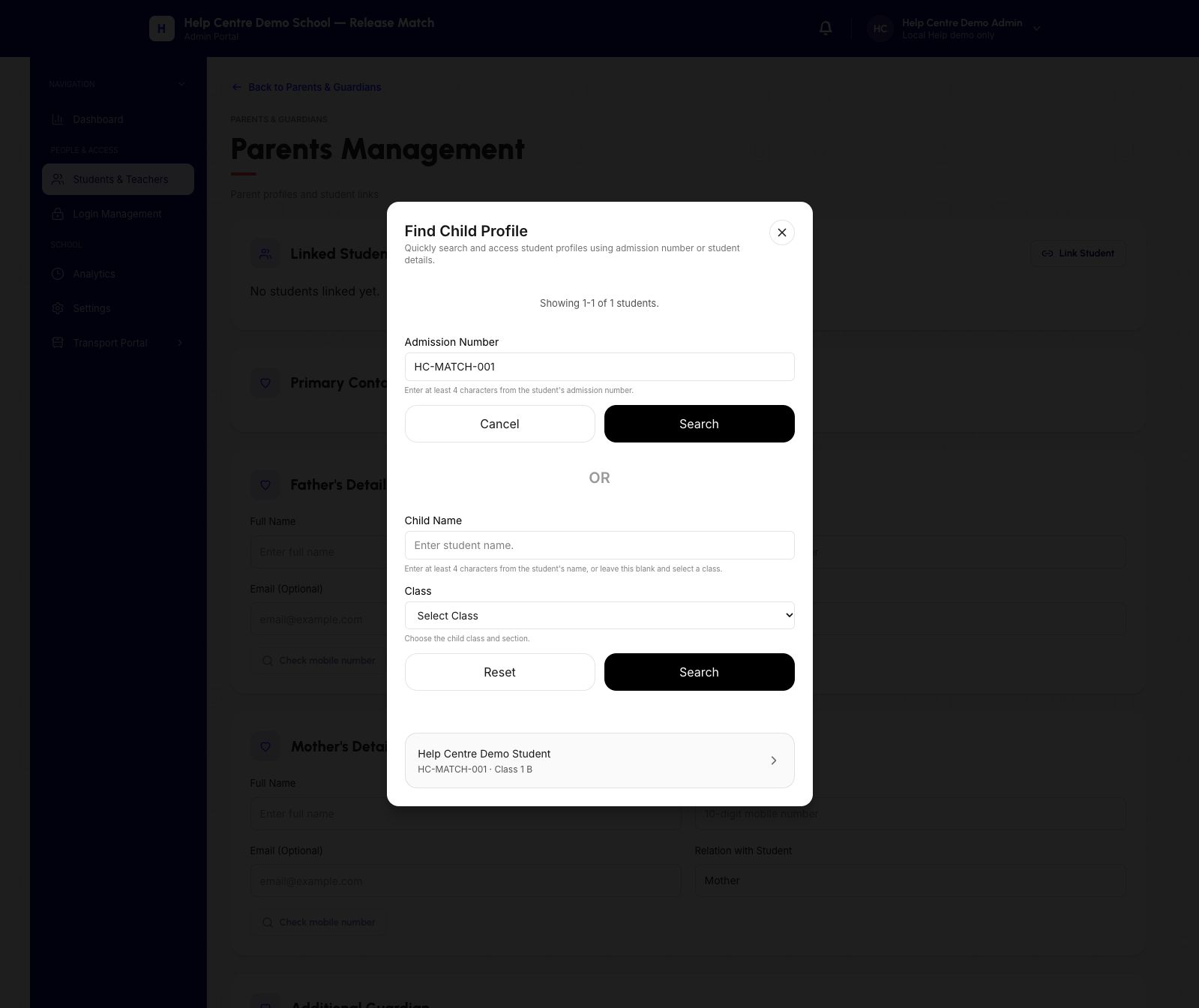
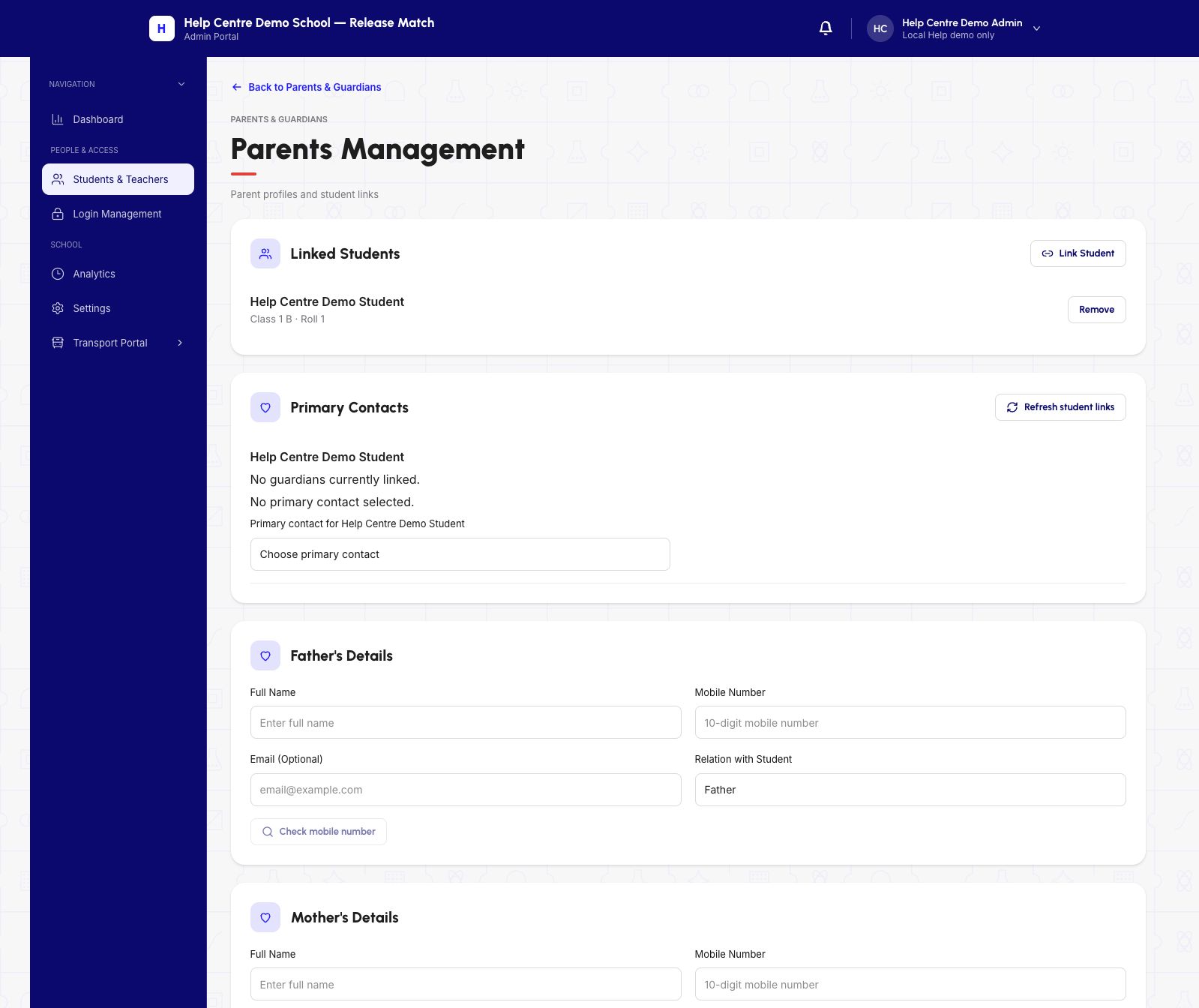
Choose Link Student. Search using the student’s admission number, then compare the result’s name, admission number and class with the school’s records. Select the intended child and choose Done.
Check the child under Linked Students. At this point it is an unsaved form selection. A selected or “Linked” label alone does not mean an account has been created or access granted.
Demo data · isolated local ERP · desktop web
 Enlarge screenshot
Demo data · isolated local ERP · desktop web
 Enlarge screenshot
3 Enter the Guardian details and check the mobile number
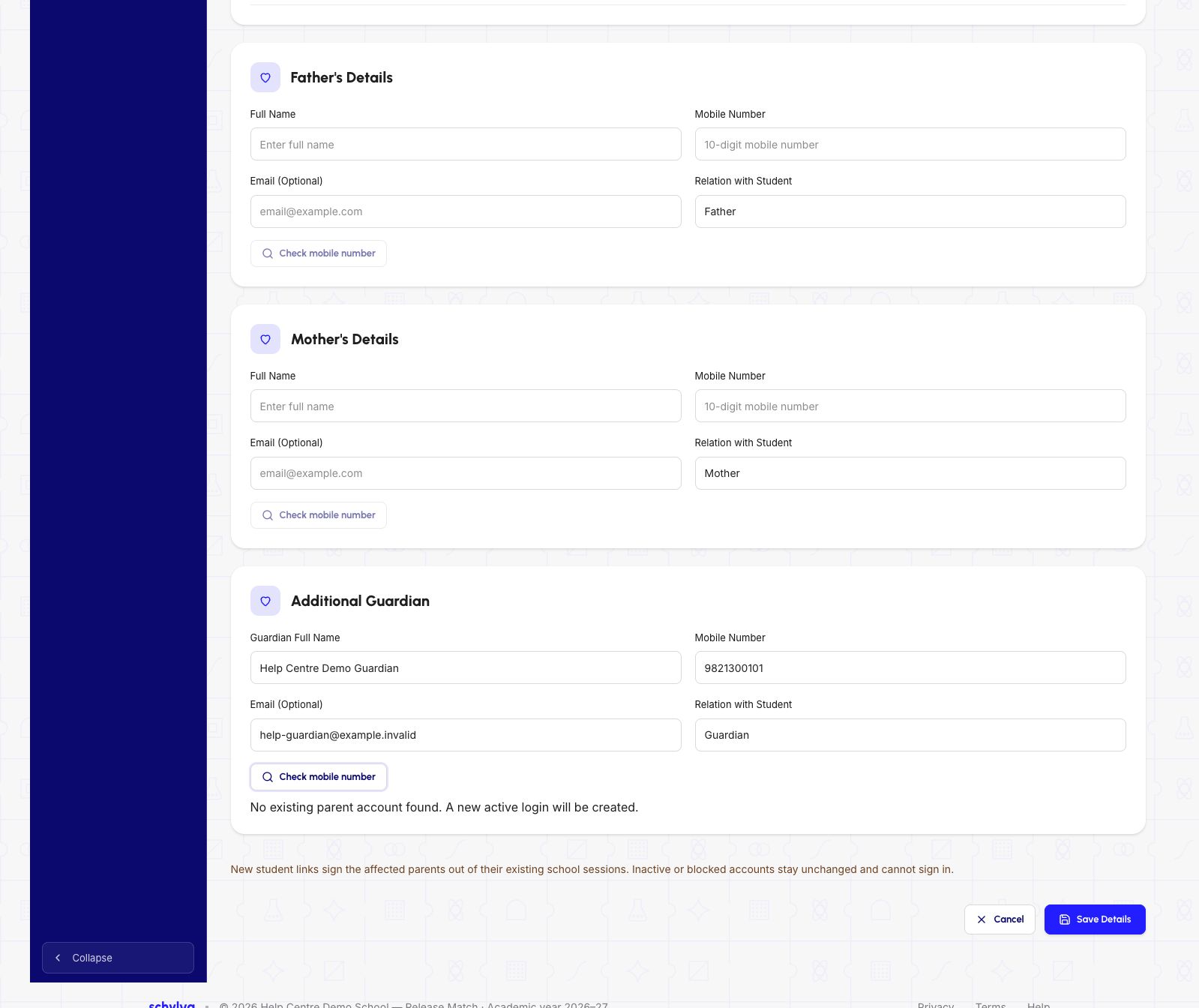
For the example shown, complete only Additional Guardian and leave the Father and Mother sections empty. Enter the confirmed name, mobile number and relationship; email is optional.
Choose Check mobile number. The example returns No existing parent account found. A new active login will be created. This checks for an existing account; it does not verify phone ownership or school authorisation.
If the result identifies an existing account, stop and have the school review that identity and its existing links before proceeding.
Demo data · isolated local ERP · desktop web
 Enlarge screenshot
4 Choose the child’s primary contact
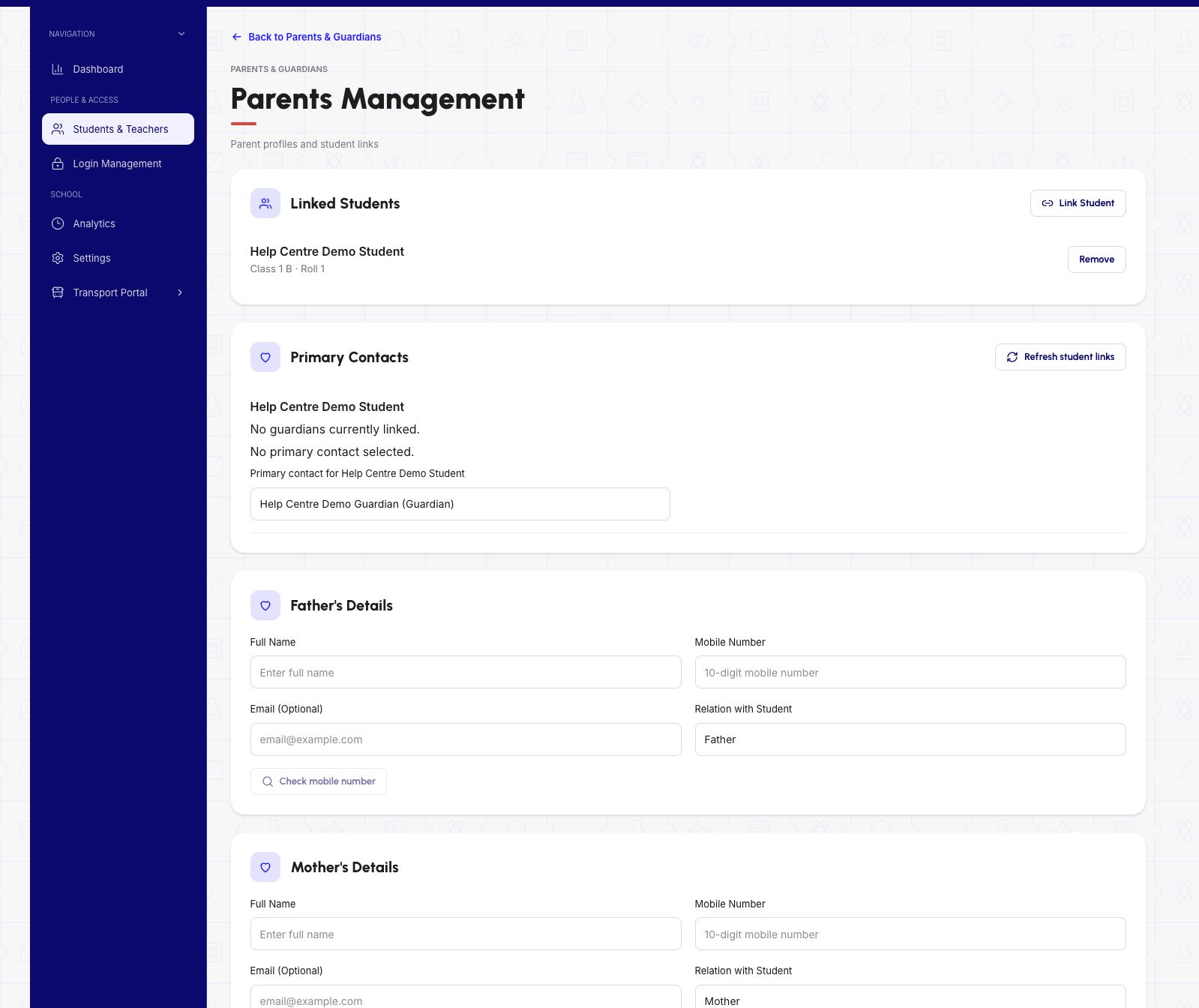
Under Primary Contacts, choose the school-approved adult for the selected child. This choice applies to that child’s relationship.
The example still says No primary contact selected above the dropdown because that line describes the existing saved state. The dropdown contains the proposed new choice. Review the child and the proposed contact together.
Demo data · isolated local ERP · desktop web
 Enlarge screenshot
5 Review and confirm the save
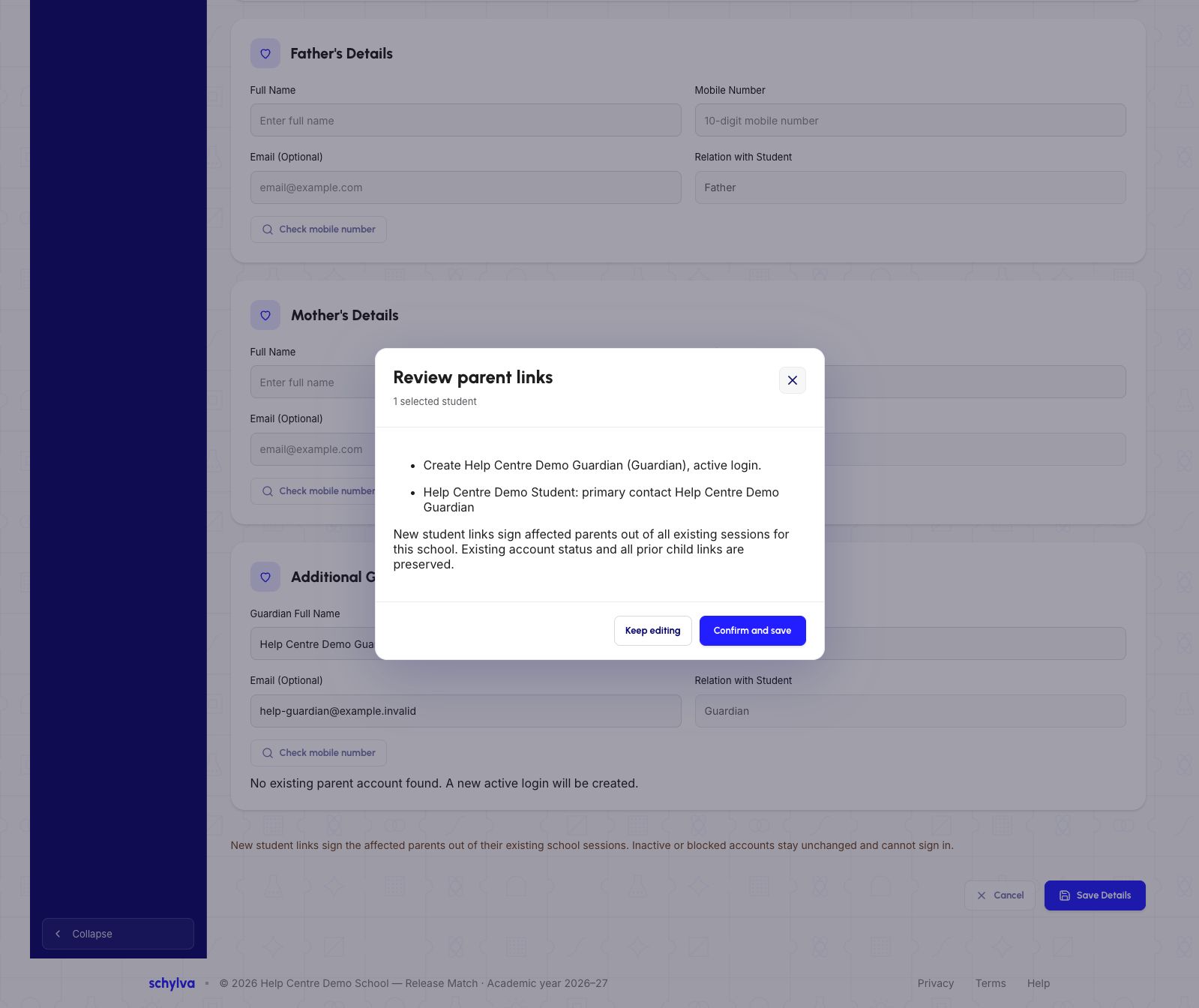
Choose Save Details to open Review parent links. Check the selected student, the new account being created and the proposed primary contact. Choose Keep editing if anything is wrong.
The dialog warns that new links sign affected parents out of existing school sessions. Tell the adult they may need to sign in again.
Choose Confirm and save only after reviewing the school-authorised adult and child. Wait for the outcome before doing anything else.
Demo data · isolated local ERP · desktop web
 Enlarge screenshot
6 Find the saved account
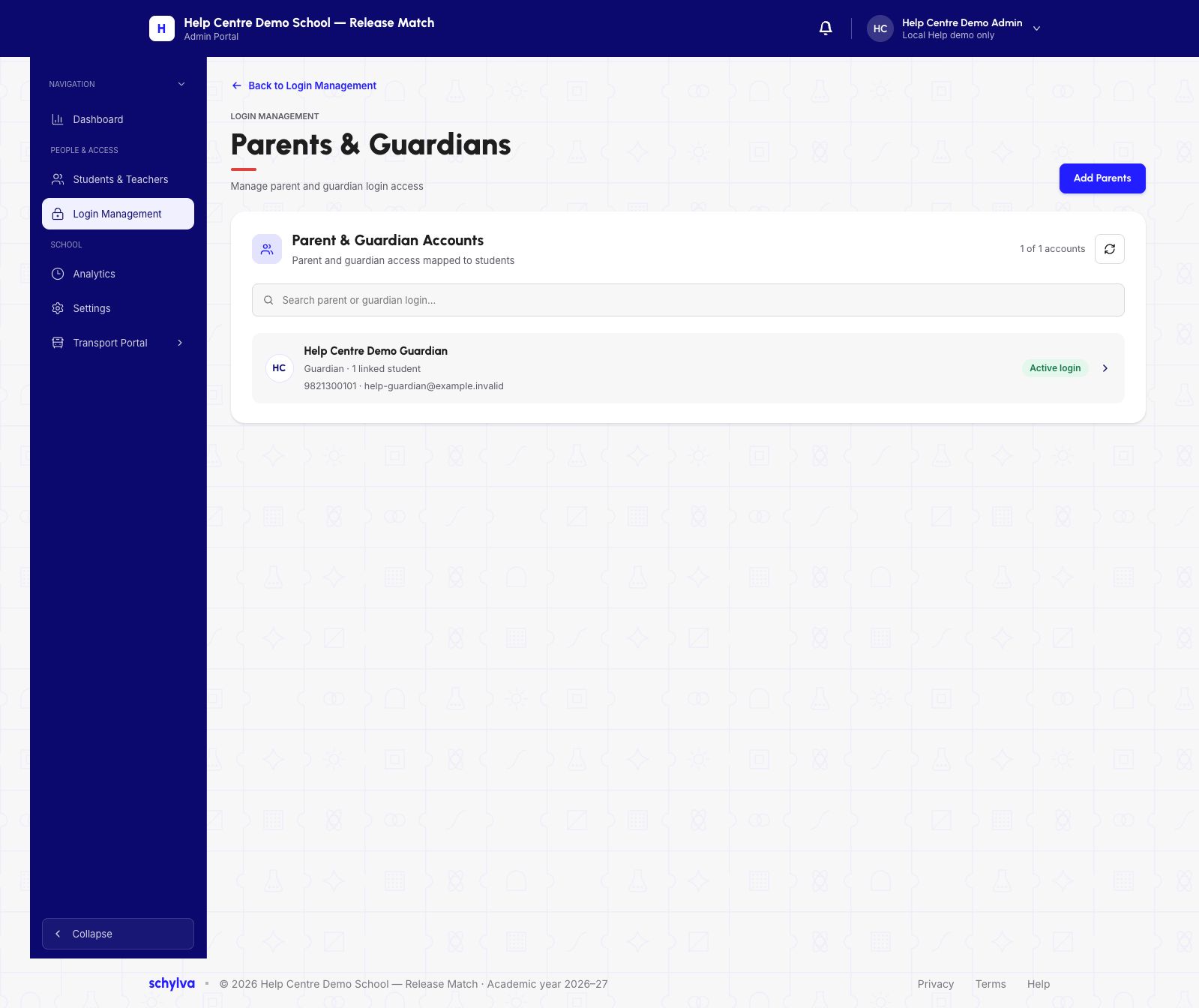
After a successful confirmation, locate the Guardian in Parents & Guardians. Check the adult’s identity and login status, then open the matching account.
Active login means the account is enabled for sign-in; it does not mean the person is currently online. An account count alone does not establish which child is linked.
Demo data · isolated local ERP · desktop web
 Enlarge screenshot
7 Check the linked child after refresh
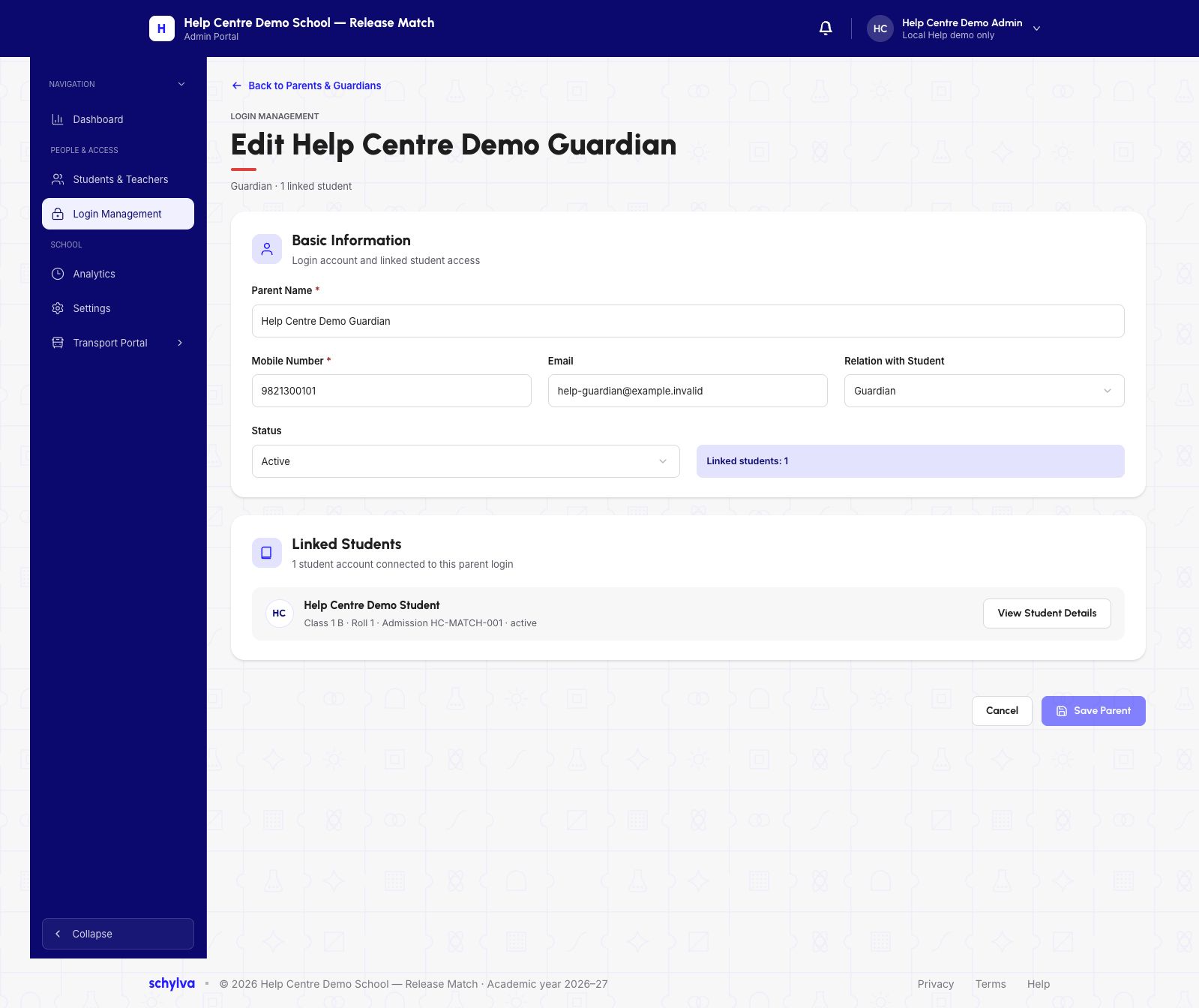
In the reopened account, compare the child’s name, admission number, class and roll number. Refresh and confirm the same relationship remains.
The example retains one linked child after refresh. Save Parent is disabled because no fields were changed. The account editor shows the child link; it does not display the per-child primary-contact flag.
Demo data · isolated local ERP · desktop web
 Enlarge screenshot
8 Ask the guardian to check their view
Ask the guardian to use their own registered number and the school’s normal Parent sign-in process. Never ask them to share a verification code.
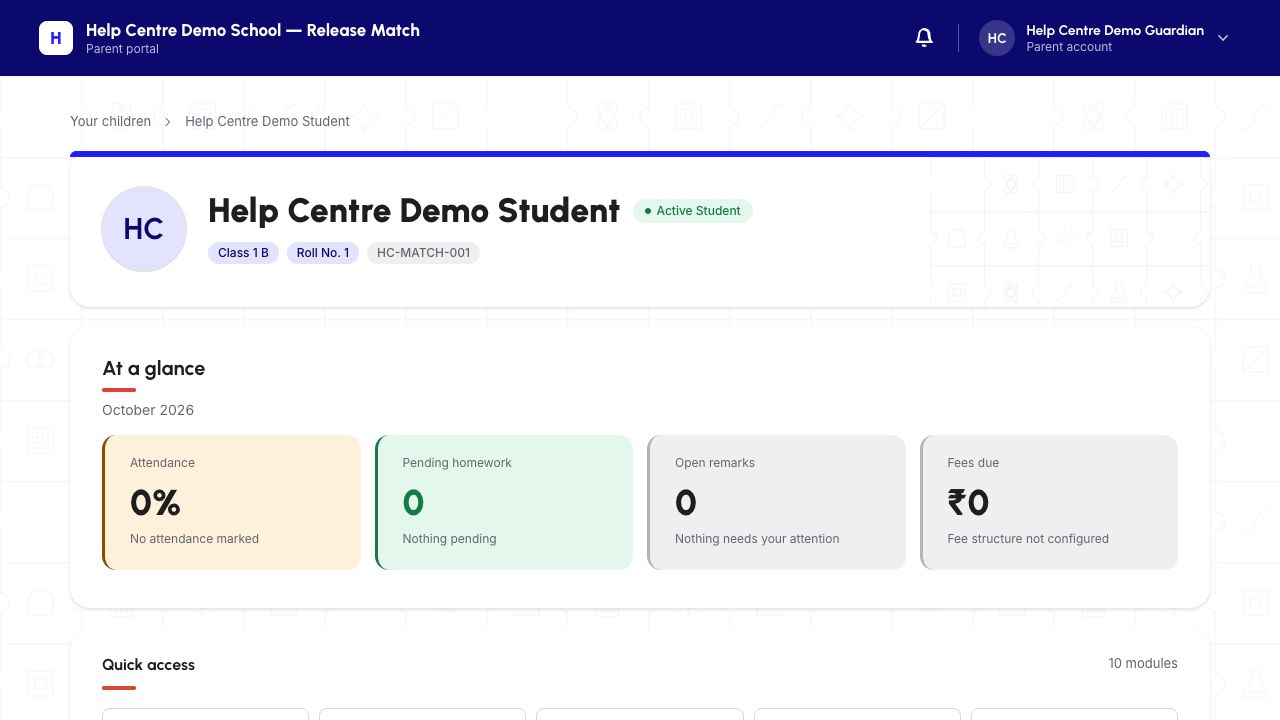
They should check the school and the child’s name, class and admission number. In the one-child demo shown here, the dashboard opens directly without a child-selection screen, and the same child remains after refresh.
If the child is missing or the wrong child appears, stop and ask the school administrator to review the account. Do not link another student or create a second account as a workaround.
Demo data · isolated local ERP · desktop web
 Enlarge screenshot
If a save or review fails
Read the message before retrying. Inspect the existing account list when the outcome is unclear; an error alone does not prove that nothing was saved.
Unexpected contact details, an existing account, a different child or changed relationship information need school review. This guide does not provide a procedure for merging, removing or repairing existing family links.