Prepare a class timetable as an Admin
Use the class timetable editor to check which schedule you are working on and prepare the subject, teacher and room for each period.
For Administrator
On this page
Before you begin
- Administrator access to Timetable.
- The intended class and section, timetable template, and the school’s agreed weekday, subject, teacher and room details.
1. Find the class and section
Open Timetable, then Class Timetables. The directory is titled Student Timetables in this example. Use Find Class and the Grade filter to locate the class and section.
The row shows how many periods have been set up and whether the schedule is incomplete or has yet to start. Choose the matching row’s Edit control to inspect an existing schedule. The example opens Nursery A.
Demo · Admin desktop web
 View full screenshot
- Match the class and section in the directory before using its row controls.
2. Check the template and schedule version
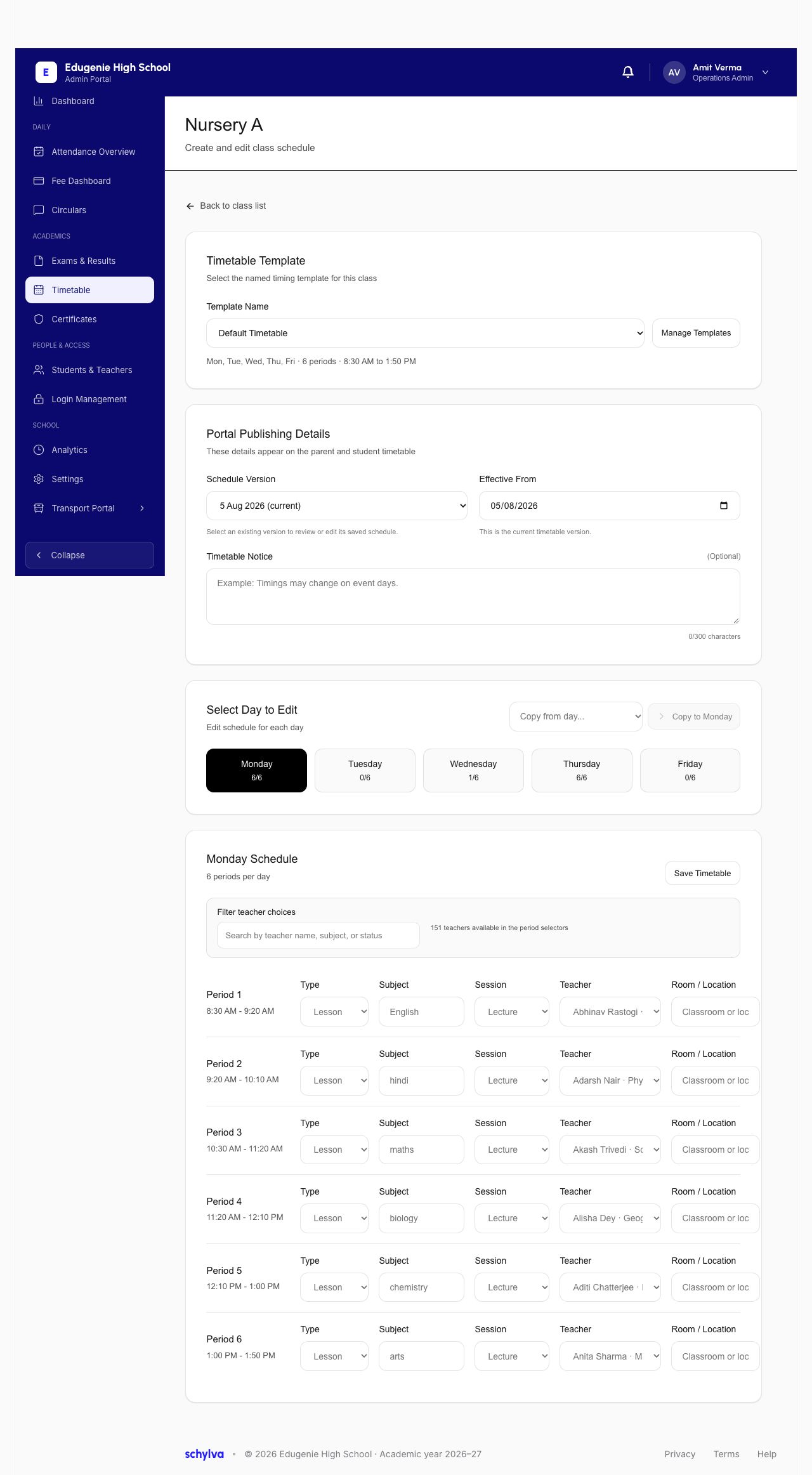
Check the class name at the top of the editor. Timetable Template shows the template name, working days, number of periods and daily hours. Use that information to confirm the timing pattern before checking lesson assignments.
Under Portal Publishing Details, read Schedule Version and Effective From together. The example shows the existing version dated 5 August 2026, marked current. Timetable Notice is optional and appears alongside the version details.
Demo · Admin desktop web
 View full screenshot
3. Review the day and its periods
Under Select Day to Edit, check the selected weekday before reading the schedule. Monday shows 6 of 6 periods in this example, while other days have different counts.
Check the time, Type, Subject, Session, Teacher and Room / Location for each period. The Filter teacher choices field searches by teacher name, subject or status. Review every period against the school’s plan for that day.
Demo · Admin desktop web
View full screenshotWhat still needs a verified example
A full walkthrough needs a successful save and the same version and lesson assignments after reopening. Copying a day, resolving conflicts and handling invalid entries require separate checks.
Verify when an updated timetable takes effect and compare the matching Teacher, Parent and Student schedules before documenting what those roles see.