Find class and teacher timetables as an Admin
Locate class schedule status and a teacher’s existing timetable, including visible conflicts and substitution history.
For Administrator
On this page
Before you begin
- An authorised Admin account with permission to view this area of your school portal.
- The relevant academic year and the class, person or record you intend to check. Demo names, amounts, dates and counts are examples, not current school information.
1. Choose the timetable view
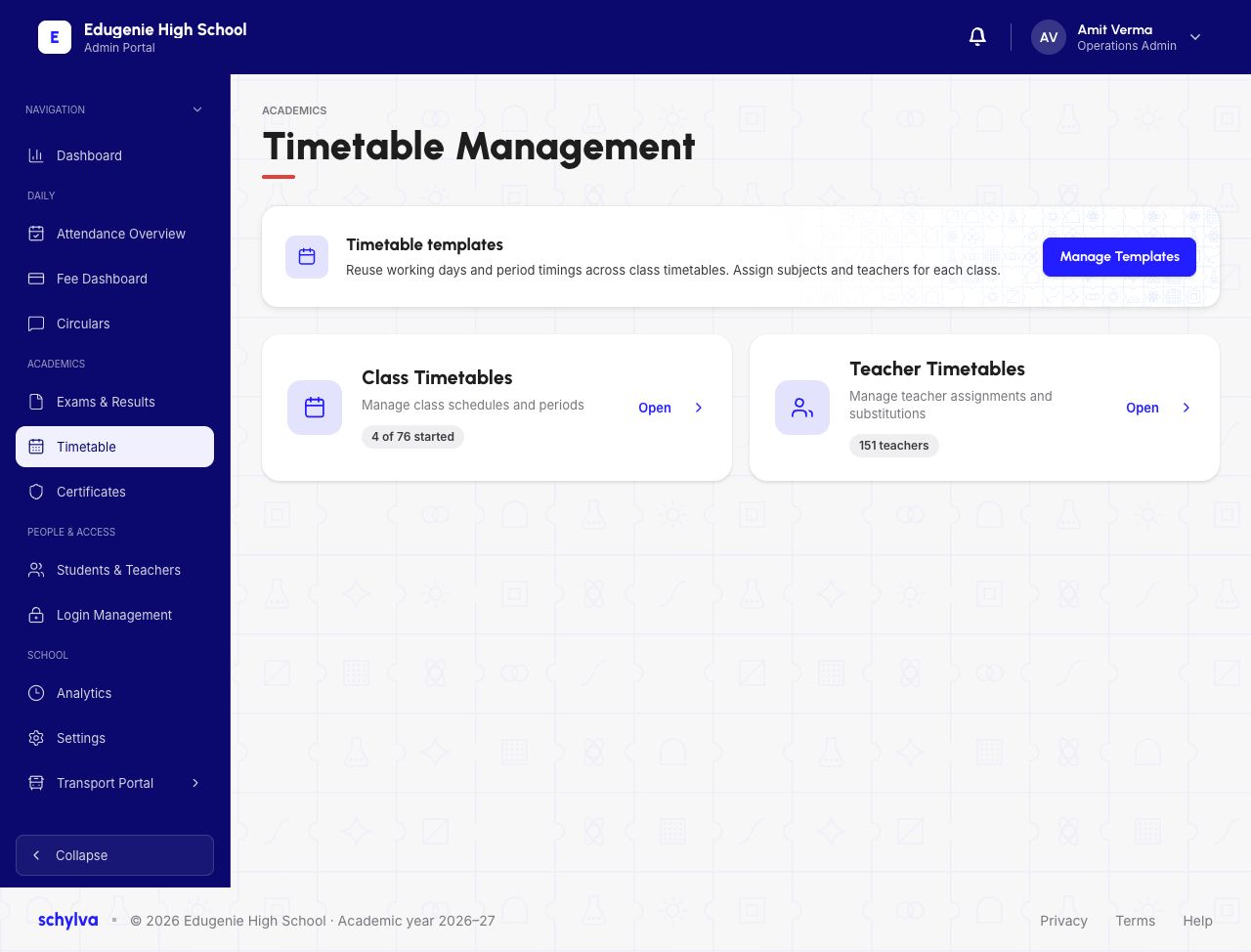
Open Timetable from the Admin navigation. The hub separates Timetable Templates, Class Timetables and Teacher Timetables.
For an existing schedule, choose the class or teacher area. The demo’s 4 of 76 class timetables started is a setup-progress count, not proof that four timetables are complete.
Demo · Admin desktop web
 View full screenshot
2. Find a class and read its setup status
Class Timetables opens a page titled Student Timetables. Use Find Class, the search field and Grade filter to locate the intended class and section.
A row shows student count, periods set up and a status. Nursery A has 13/30 periods and is Incomplete; Nursery E has 0/30 and is Not Started. These are schedule-setup states, not student attendance.
The visible Create and Edit controls lead to timetable management. This guide stops at locating and reading existing status; it does not verify creating or saving a timetable.
Demo · Admin desktop web
 View full screenshot
3. Find the teacher and inspect the schedule
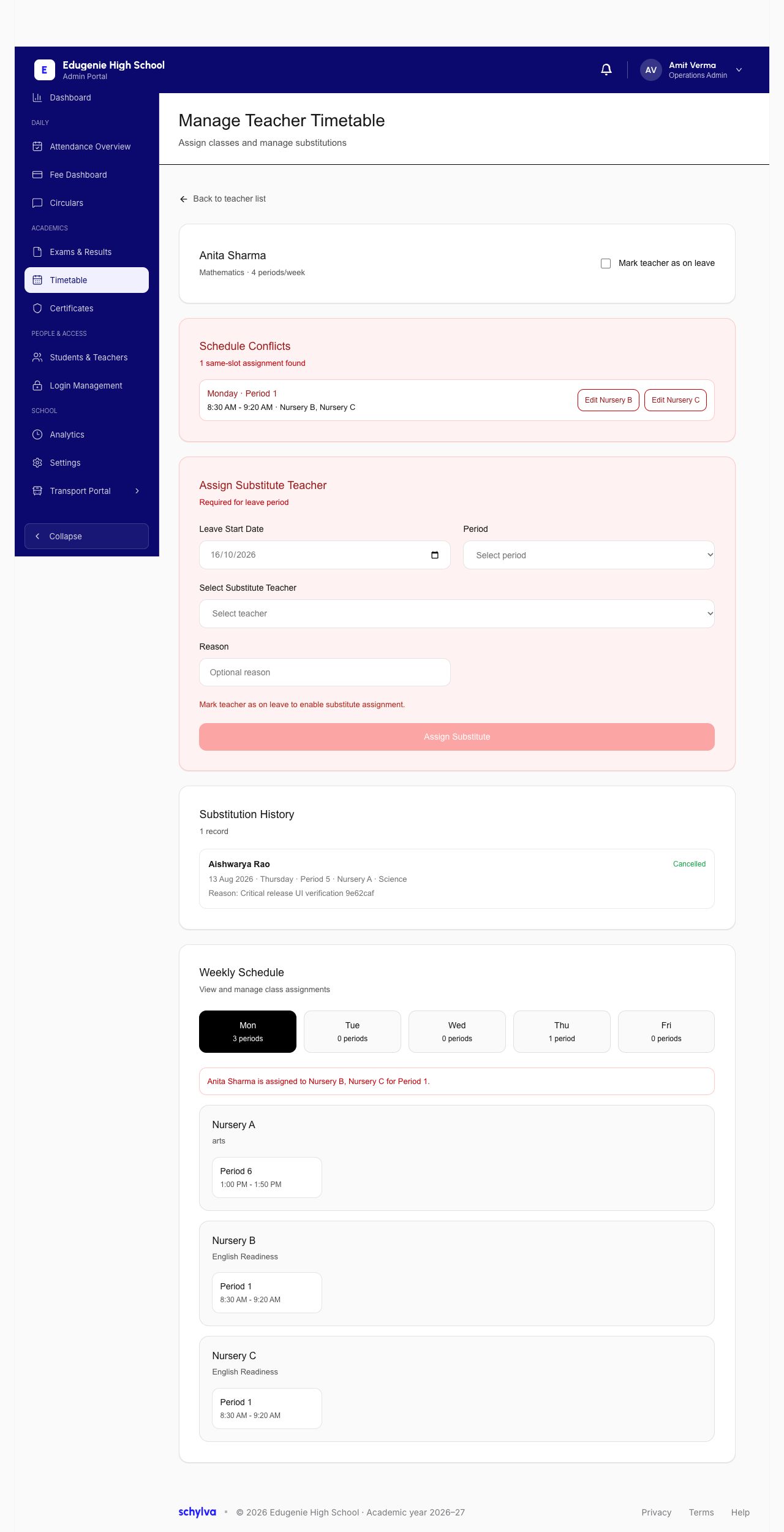
Teacher Timetables has a name search and Subject filter. Read Needs Attention separately from the All Teachers list. The demo highlights Anita Sharma with one timetable conflict.
Open the intended teacher’s Manage or Review view and confirm the name. Read the day, period, time, class and subject together in Weekly Schedule. A day with no listed periods is not proof that the teacher is on leave.
Demo · Admin desktop web
 View full screenshot
Demo · Admin desktop web
 View full screenshot
4. Distinguish history from a current assignment
The teacher detail also contains Substitution History. The captured entry is Cancelled; it must not be treated as an active substitute assignment.
Read the weekly schedule below the history. Keep the date-specific substitution record separate from the recurring timetable. Ask the timetable coordinator to resolve a displayed conflict before relying on the affected slot.
Demo · Admin desktop web
View full screenshotIf the schedule is unclear
Share the exact class, weekday, period and time with the timetable coordinator.
- A class is Not Started
- Ask the coordinator whether the timetable has been configured; do not infer a school holiday.
- Two classes occupy the same teacher slot
- Report the displayed conflict. This guide does not verify its resolution.
- A substitution appears only in history
- Read its status and date; a cancelled historical entry is not a current assignment.