Check your teaching schedule and class allocation
Open Schedule & academics to read your timetable and class/subject allocation. Check the selected day before comparing periods, and treat class-teacher responsibility separately from subject teaching.
For Teacher
On this page
Before you begin
- An authorised Teacher account in your school portal.
- The academic year and day you want to check.
- Your school’s timetable contact if an assignment looks incorrect.
1. Open Schedule & academics
Open Schedule & academics from the Teacher portal and confirm your account and the academic year. The page describes your teaching schedule and academic responsibilities.
Check the page heading is Schedule & academics before following the steps below.
Demo · Teacher desktop web
 Enlarge screenshot
2. Read the selected day
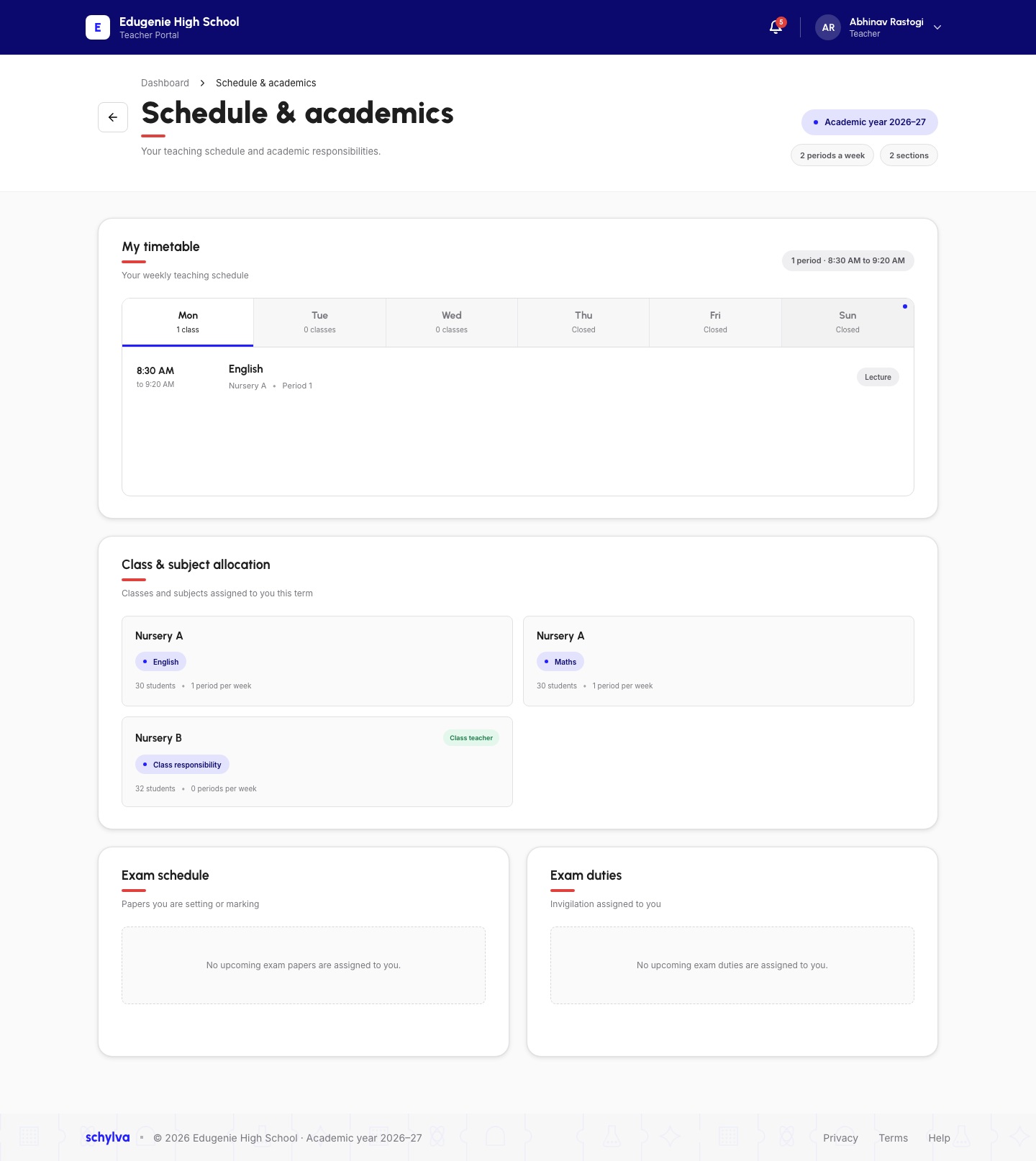
Under My timetable, choose the day you need. Read each period’s start/end time, subject, class/section and lesson label.
In the Monday example, English for Nursery A appears from 8:30 AM to 9:20 AM. These are demo values, not your current teaching schedule.
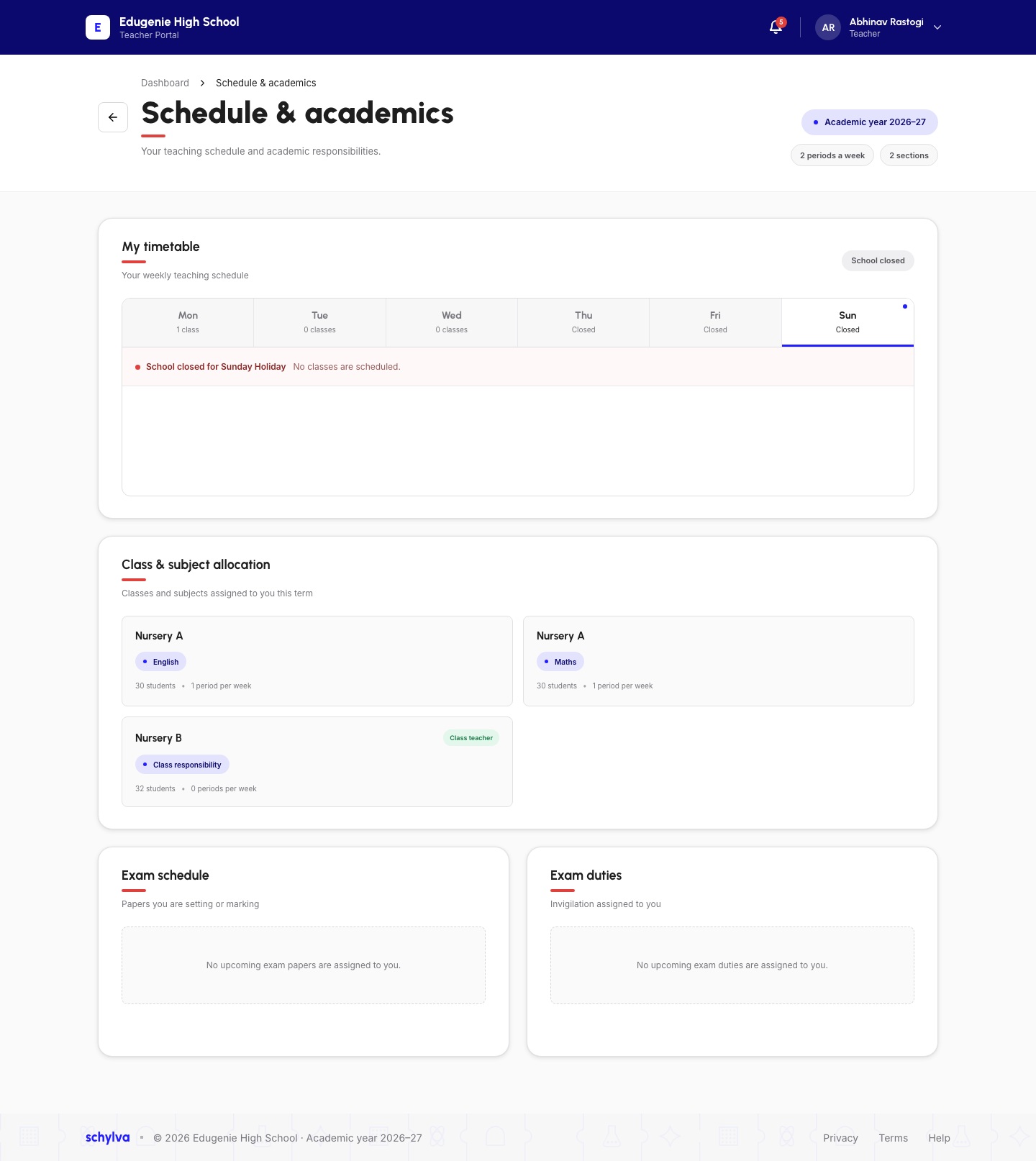
The separate Sunday screenshot says School closed for Sunday Holiday and no classes scheduled. A school-closed day is different from an open day with no assigned periods.
Demo · Teacher desktop web
 Enlarge screenshot
3. Read class and subject allocation
Scroll to Class & subject allocation. The example has English and Maths cards for Nursery A, plus a Nursery B card labelled Class teacher and Class responsibility.
Read the class/section, subject, student count and periods-per-week information on each card. A class-teacher card can have zero teaching periods while still showing a responsibility.
A subject assignment does not by itself establish permission to submit class attendance. Use the attendance guide and check the class/date availability there.
- Correct Teacher account and academic year
- Selected day and period times read
- Subject teaching distinguished from class-teacher responsibility
4. Read exam schedule and duties
The captured Exam schedule and Exam duties panels both state that no upcoming items are assigned to this account.
That only describes this account’s visible assignments at capture time. It does not establish that the school has no exams, or that this screen supports creating exams, entering marks or changing invigilation.
Using the mobile website
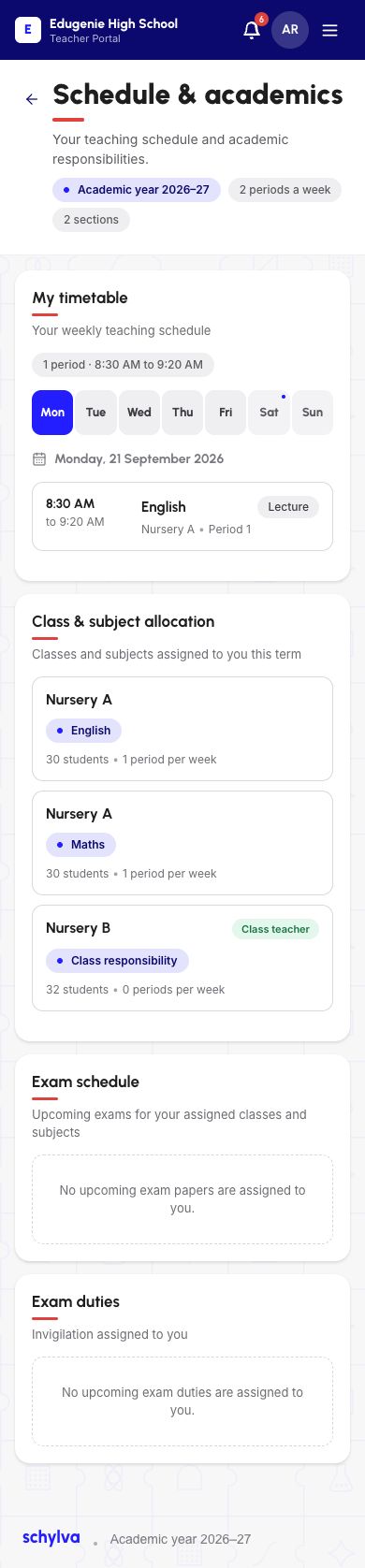
On mobile web, the weekday tabs sit above the selected day and period card. Class & subject allocation, Exam schedule and Exam duties continue below.
Scroll through the entire page to see the responsibility cards. In the reviewed mobile example, Monday remains selected and the same Nursery A teaching and Nursery B class responsibility are visible.
Demo · Teacher mobile web
 View full screenshot
If an allocation looks wrong
- A day appears empty
- Confirm the day and whether the school is closed. An empty day is not proof that the entire weekly timetable is missing.
- A subject or class is missing
- Ask the authorised school administrator or timetable coordinator to verify your assignment. This guide does not change allocations.
- Attendance is unavailable despite an allocation
- Check class-teacher responsibility and the date-specific attendance message. Subject allocation does not override attendance restrictions.