Understand timetable template fields
Read working days, period timings and gaps in a timetable template, separately from class and teacher assignments.
For Administrator
On this page
Before you begin
- An authorised Admin account with access to the relevant school settings or records.
- Confirm your school and academic year. Names, dates, amounts and counts in the screenshots are fictional/demo examples.
1. Separate templates from assigned timetables
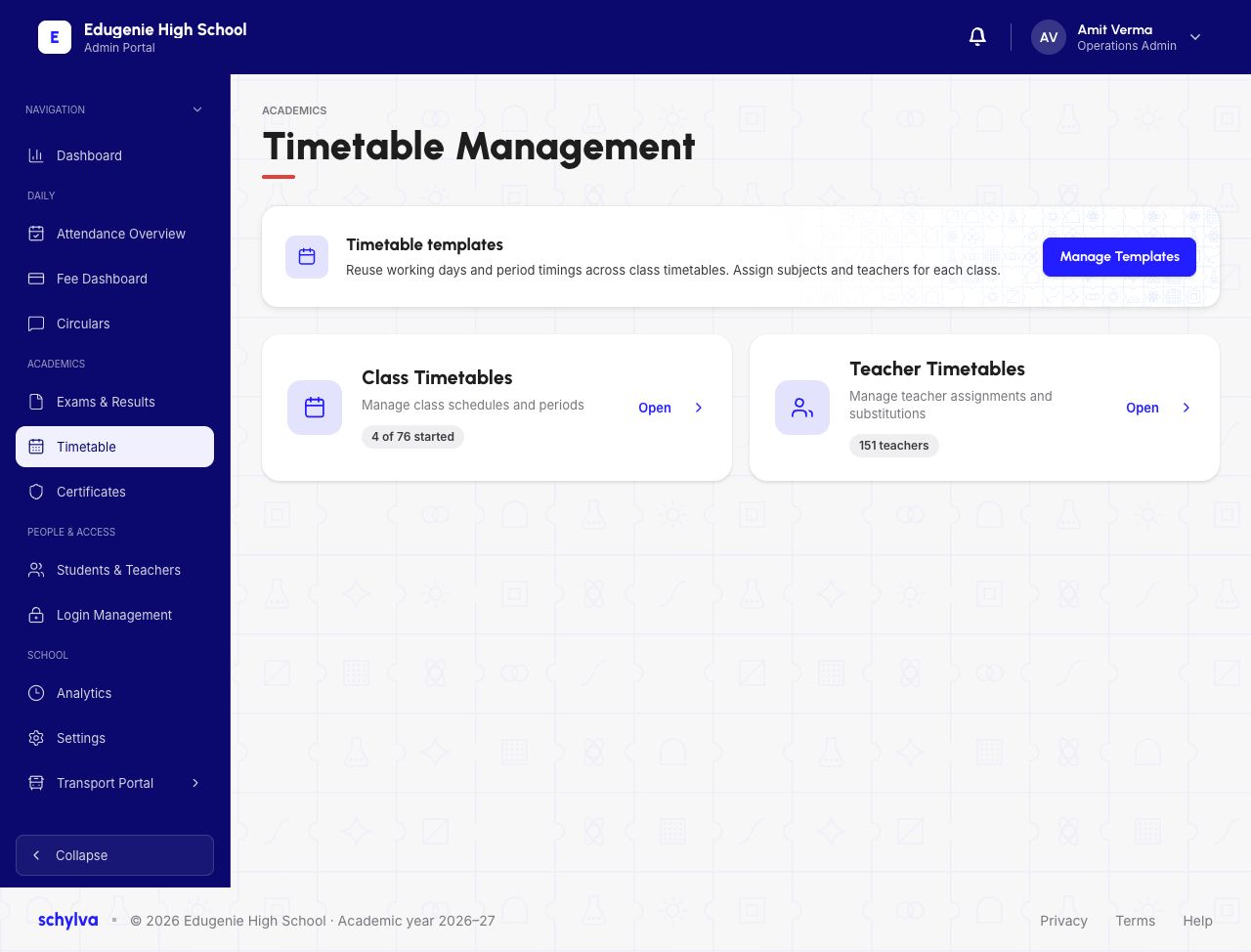
Open Timetable in the Admin navigation. The hub separates Timetable Templates, Class Timetables and Teacher Timetables.
Manage Templates concerns reusable working days and period times. Class and teacher timetables concern who teaches which subject and class.
Demo · Admin desktop web
 Enlarge screenshot
2. Read working days and period times
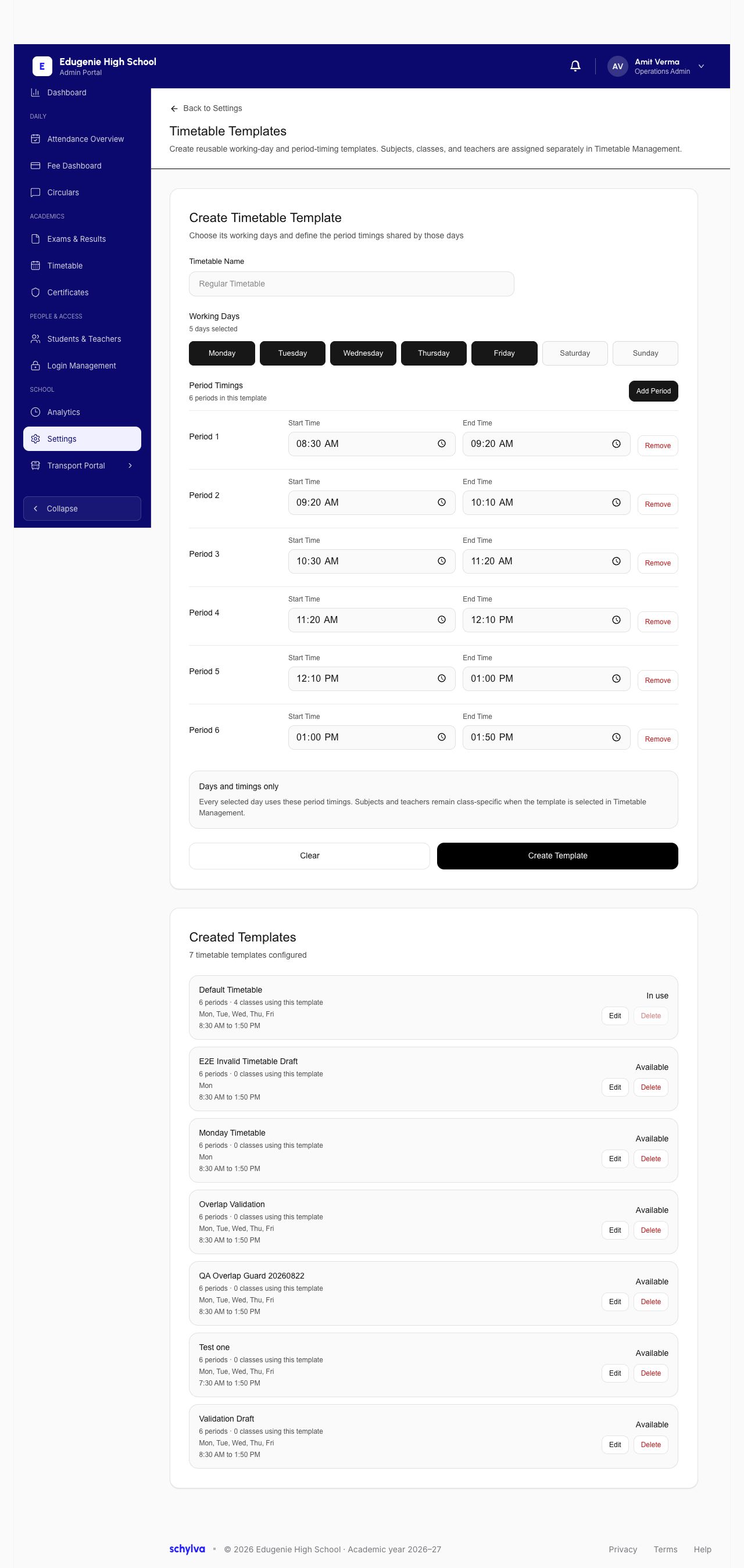
The create form has a Template Name, selectable Working Days and numbered periods with Start and End fields. The example selects Monday to Friday and shows six periods.
Read each start and end time in sequence. In this example, period 2 ends at 10:10 AM and period 3 starts at 10:30 AM, leaving a 20-minute gap. No separate break-row control is shown in these captures.
The form explains that selected days use the period timings while subjects and teachers remain class-specific. Add Period and Remove are visible editing controls; this reference does not verify their saved effects.
Demo · Admin desktop web
 View full screenshot
3. Check whether an existing template is in use
The Created Templates list includes template names, working days, period counts and class usage. The Default Timetable example is In Use by four classes; other examples are Available with no classes using them.
An In Use label describes the existing template’s usage. It does not prove that a new edit has reached each class schedule.
Demo · Admin desktop web
View full screenshot4. Recognise the edit view
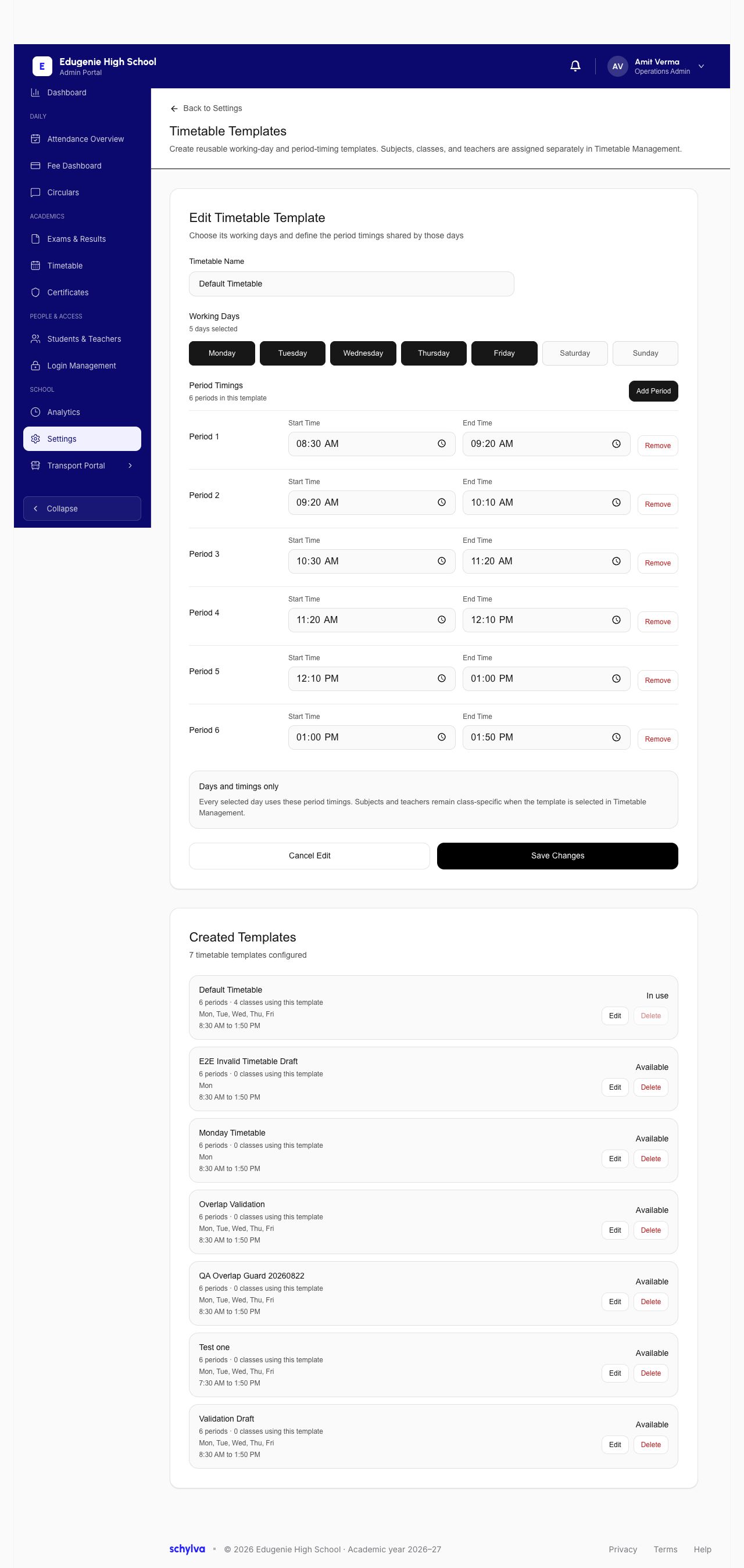
The Edit Timetable Template form shows the selected template name, days and period times with Cancel Edit and Save Changes.
Review the intended template and its class usage before asking the timetable coordinator to change timings. The capture ends at the edit form; save, persistence and effects on class schedules remain unverified.
Demo · Admin desktop web
 View full screenshot