Add a class and section
Add a class and section in your school’s Admin portal, then check that the intended entry has been saved. Use your school’s agreed structure rather than copying the example values.
For Administrator
On this page
Before you begin
- Confirm the school name and your permission to manage Classes & Sections.
- Have the intended grade, section and display label agreed with the school.
- Check existing and archived entries before creating another class section.
1 Check the class list
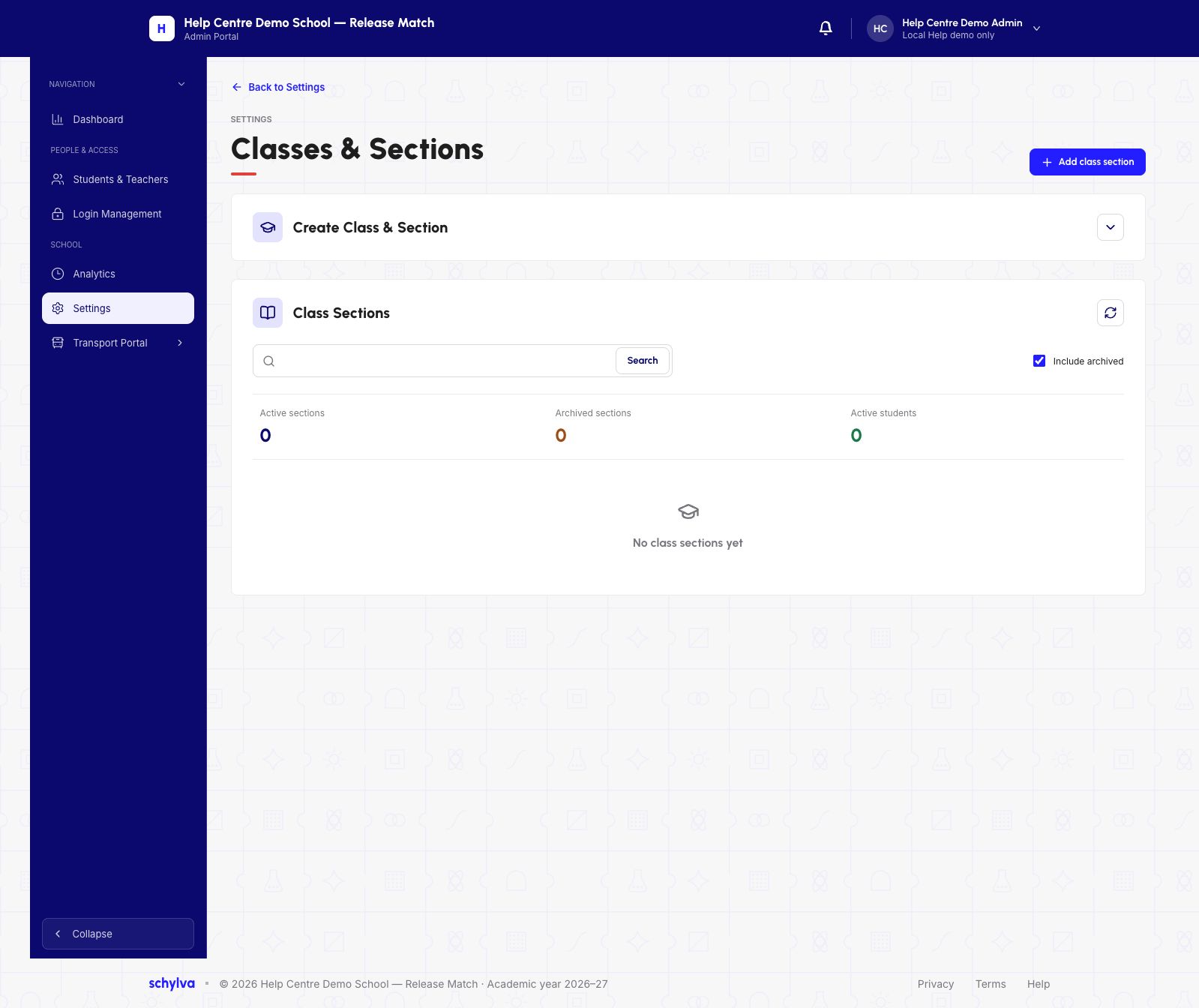
Open Settings, then Classes & Sections. Search for the intended grade and section. Use Include archived when checking whether the entry already exists.
Read the grade and section together, alongside the teacher and student counts. If the list fails to load, do not assume it is empty. The screenshot below shows a successfully loaded empty demo list.
Demo data · isolated local ERP · desktop web
 Enlarge screenshot
2 Complete the new entry
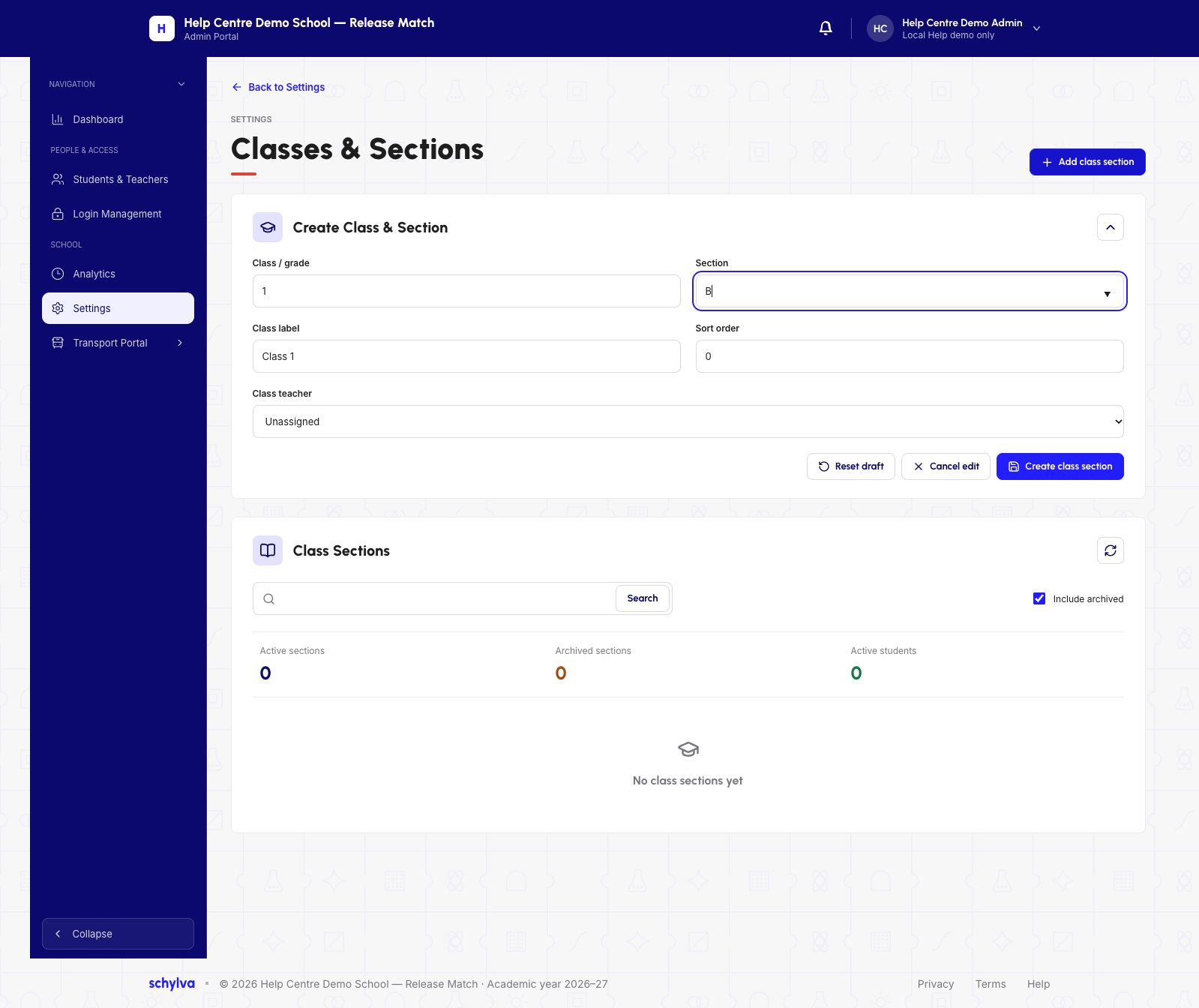
Choose Add class section. Opening and filling the form does not create a record.
The example uses grade 1, Section B, Class label Class 1, Sort order 0 and Class teacher Unassigned. Leave the teacher unassigned if that is the school’s intended setup; assigning a teacher is outside this example.
- Class / grade and Section: enter the school’s intended combination.
- Class label: review how the class should be displayed.
- Sort order: review the value and check the saved result afterwards.
- Class teacher: leave Unassigned for the workflow shown here.
Demo data · isolated local ERP · desktop web
 Enlarge screenshot
3 Create the class section
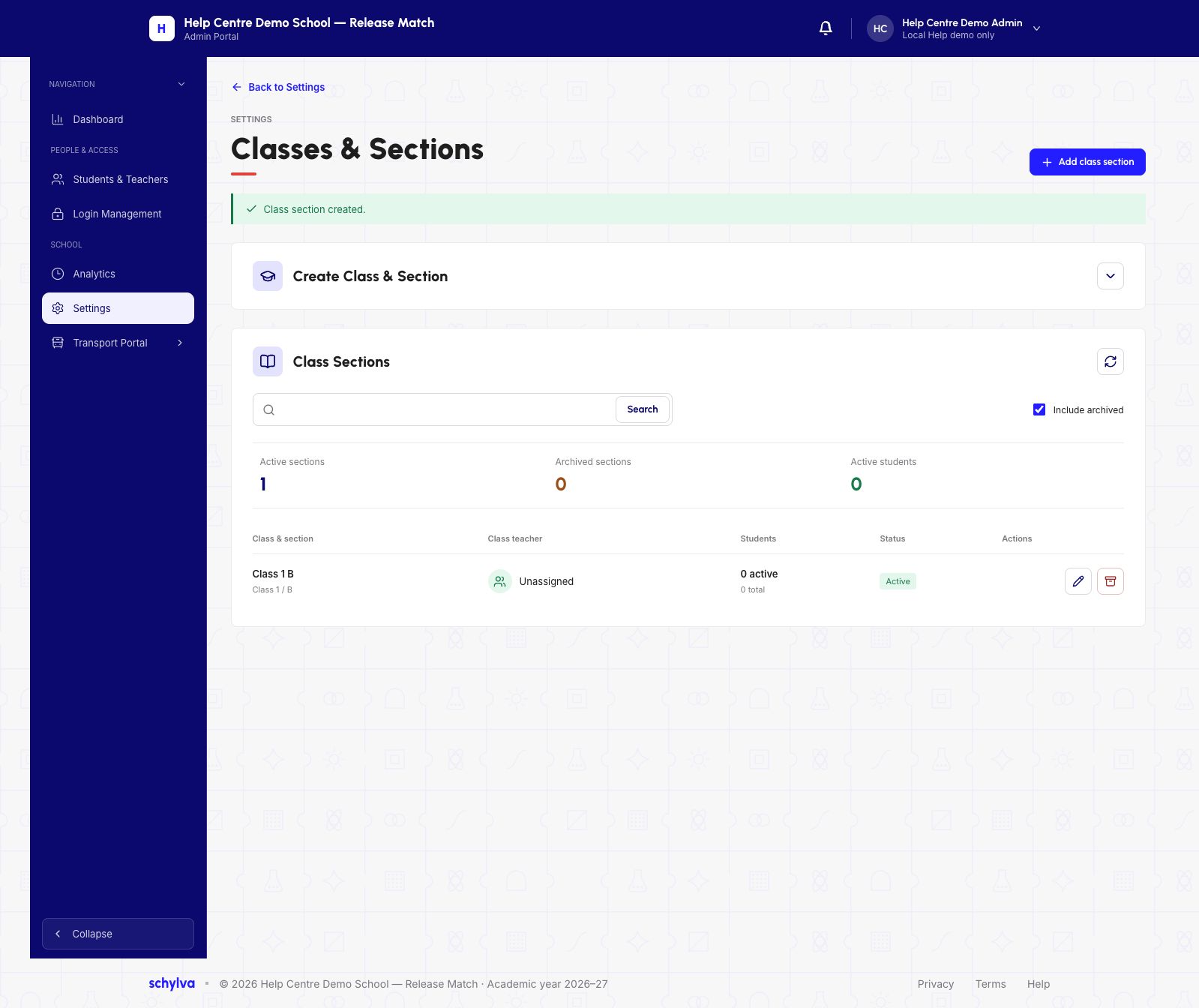
Check the school and all entered values, then choose Create class section once. Wait for the result.
After a successful save, look for Class section created. and the matching row. In the demo, one active Class 1 B row appears with no teacher and no students.
Demo data · isolated local ERP · desktop web
 Enlarge screenshot
4 Check the row after refresh
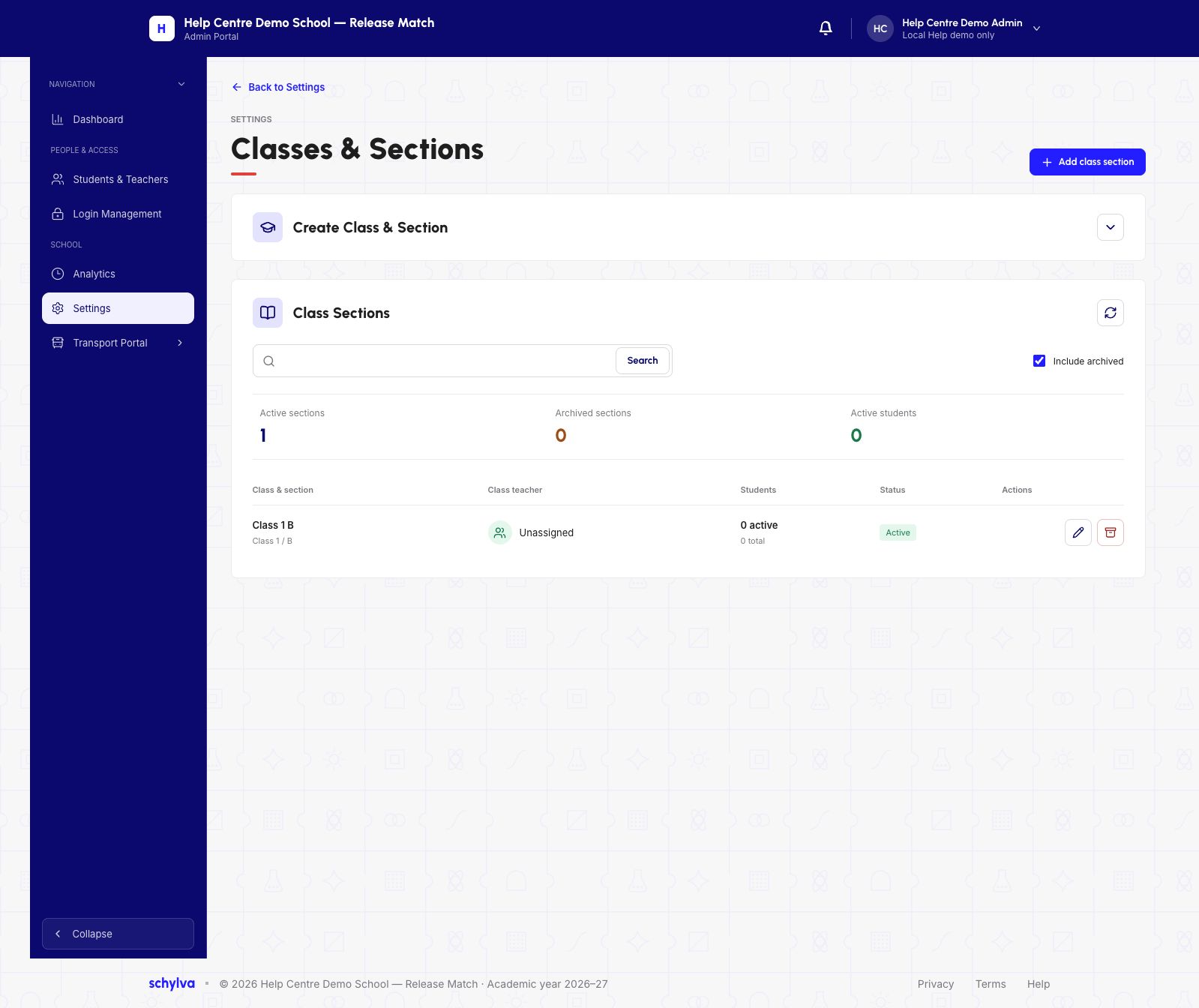
Reload the page and find the same class and section. Check the row itself; the temporary success message may no longer be visible.
Creating a class section does not enrol students. The zero-student counts in these screenshots describe the class immediately after creation.
Demo data · isolated local ERP · desktop web
 Enlarge screenshot
5 Inspect the saved values
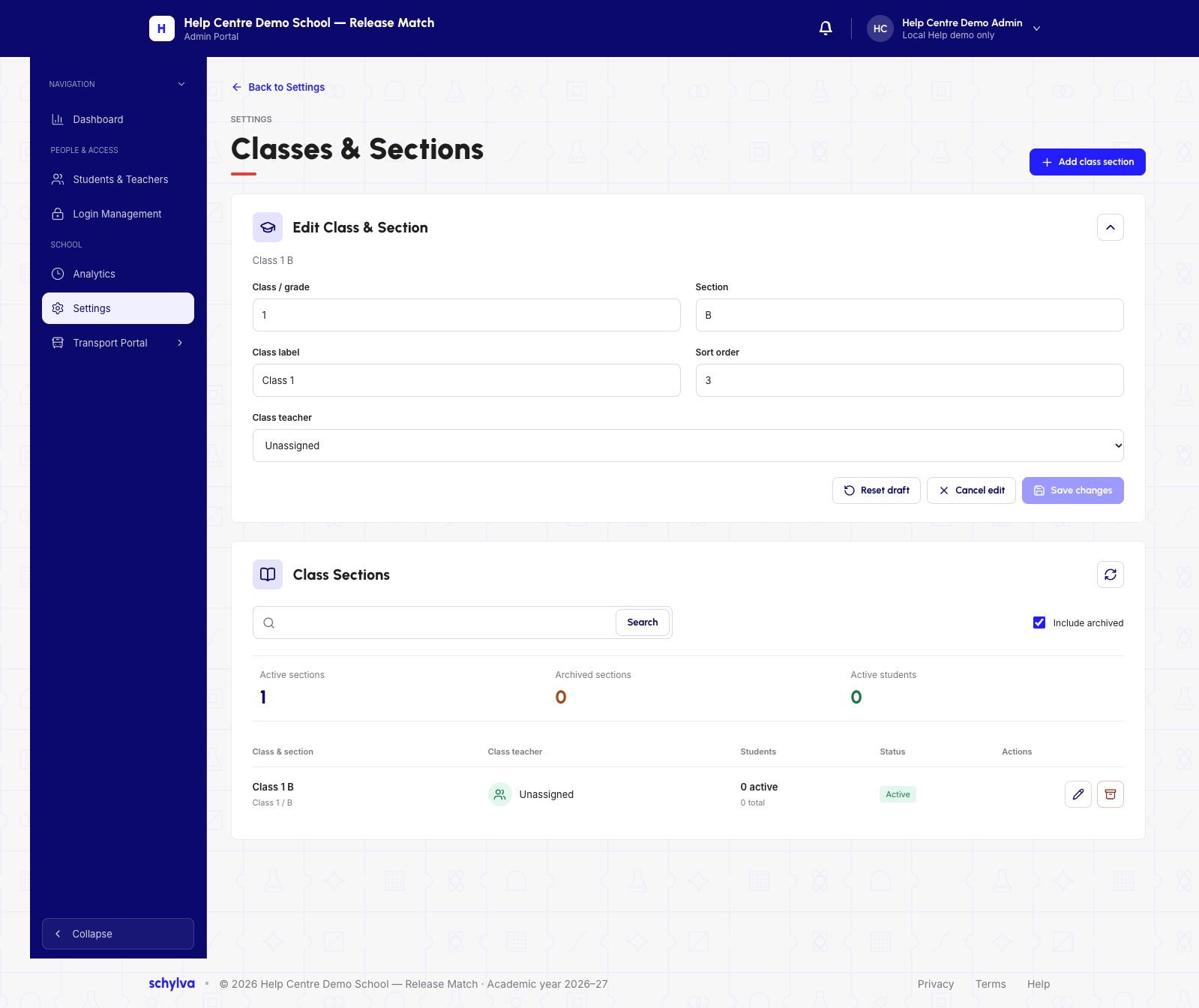
Open Edit on the matching row to inspect the saved grade, section, label, order and teacher without changing them.
In this example, Sort order was entered as 0 and appeared as 3 after saving. Check the saved value rather than assuming the input was retained unchanged.
Save changes is disabled when nothing has been edited. Use Cancel edit after reviewing. This walkthrough does not cover saving an edit, archiving, restoring or moving students.
Demo data · isolated local ERP · desktop web
 Enlarge screenshot
If the result is unclear
For a duplicate or archived-section warning, inspect the existing entry. Do not rename, archive or remove another class merely to continue.
If a save reports an error or its outcome is uncertain, inspect the latest class list before submitting again. If the school or saved result cannot be confirmed, stop and contact your school administrator or product support.