Find a teacher profile and assigned responsibilities
Open a teacher’s existing profile from Students & Teachers. Read subject information, timetable entries and class-teacher responsibility as separate pieces of context.
For Administrator
On this page
Before you begin
- An authorised Administrator account.
- The teacher’s name and, where available, staff ID.
1. Open the teacher directory
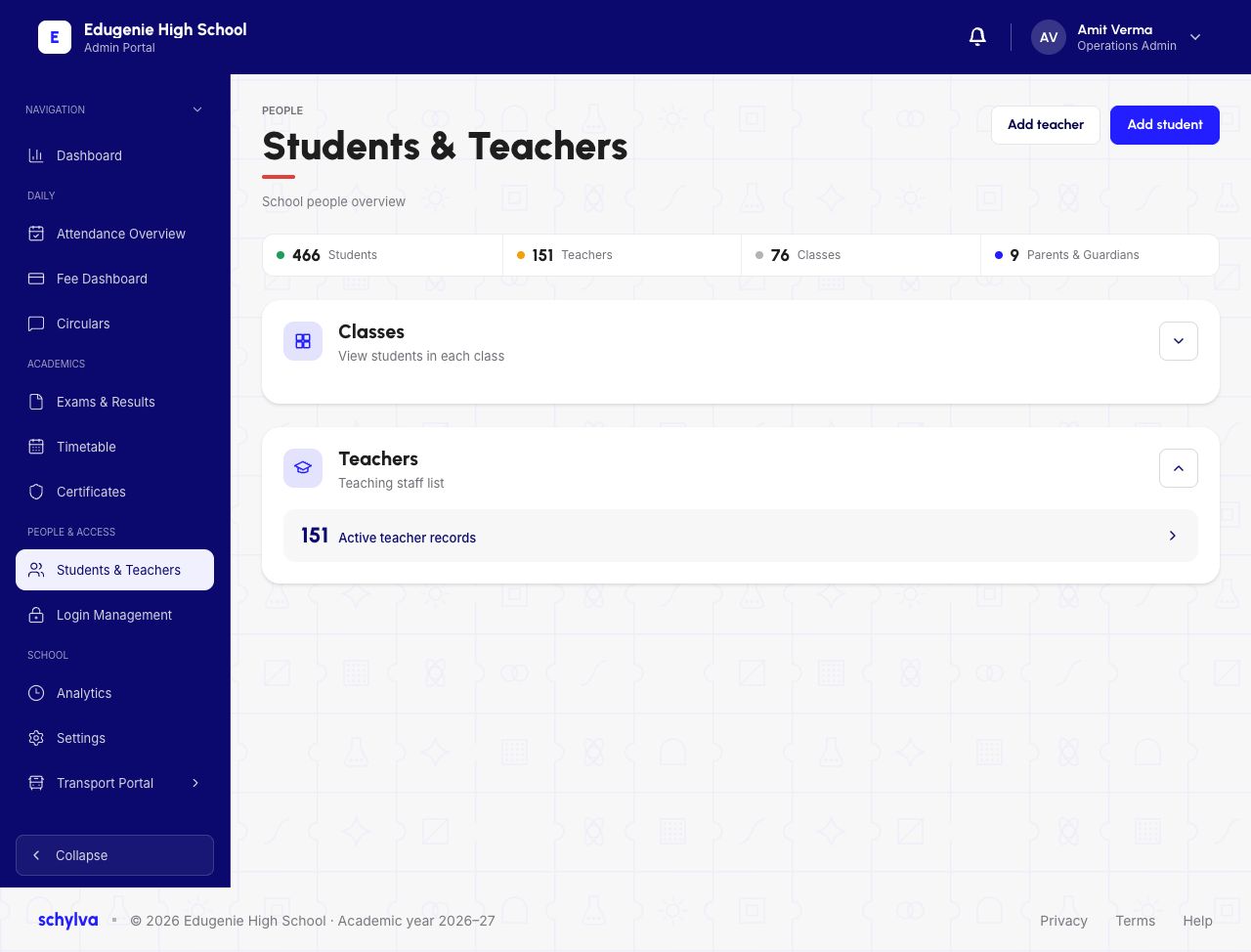
Open Students & Teachers, expand Teachers and select the active-teacher-records row. This leads to the Teachers directory.
The shared overview also contains Classes; that is the route to student rosters rather than teacher profiles.
Demo · Administrator desktop web
 Enlarge screenshot
2. Select the right teacher
Find the intended name in the Teachers list and open that row. The directory example is long, so keep checking the name rather than selecting a neighbouring record.
An Active badge identifies the displayed account/record state. It does not verify that the teacher has signed in or that an allocation was newly saved.
Demo · Administrator desktop web
 View full screenshot
3. Read the identity and responsibility panels
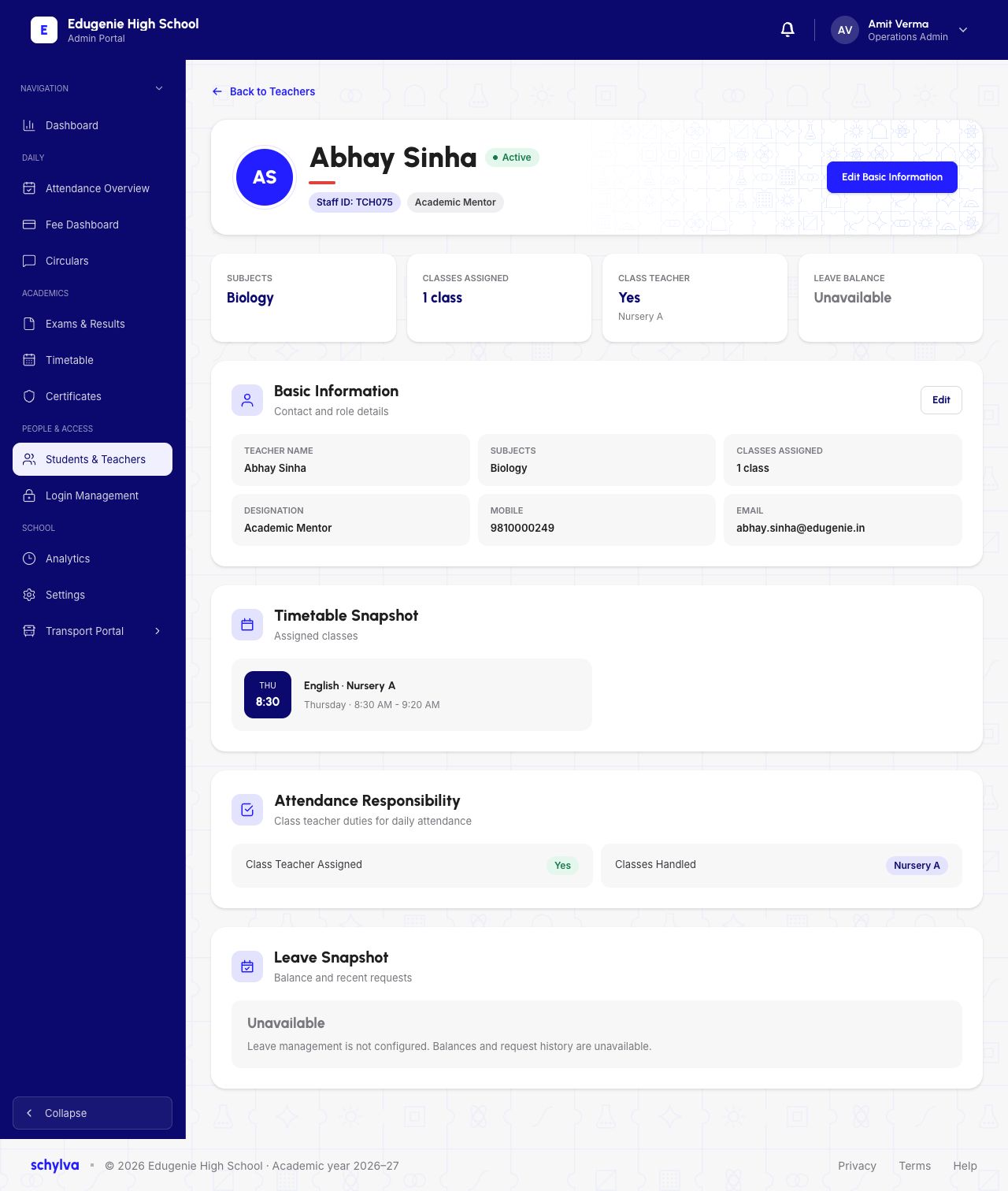
Check the profile name and staff ID first. The example is Abhay Sinha, TCH075, with Academic Mentor shown beside the identity details.
The summary cards show subject information, number of classes assigned, Class Teacher and Leave Balance. In this example, Nursery A is named under class-teacher responsibility.
Read Basic Information, Timetable Snapshot and Attendance Responsibility independently. The example lists Biology in the subject field while its timetable card says English for Nursery A. This screenshot does not explain that difference; ask the school to verify inconsistent fields instead of assuming an assignment rule.
Attendance Responsibility describes class-teacher duties. It does not establish that attendance is editable on a particular date or that a submission succeeds.
Demo · Administrator desktop web
 Enlarge screenshot
If the responsibility is unexpected
- The class or subject looks incorrect
- Confirm the staff identity and academic context, then ask the authorised school administrator to review the allocation.
- Leave information says Unavailable
- Treat the balance as unknown. This guide does not establish leave configuration or requests.
- A teacher cannot mark attendance
- Check the attendance screen’s class/date restrictions separately; the profile alone does not prove write access.