Understand Admin calendar event fields
Read the custom-event calendar and understand dates, times, audience choices and the unsaved-changes prompt.
For Administrator
On this page
Before you begin
- An authorised Admin account with access to the relevant school settings or records.
- Confirm your school and academic year. Names, dates, amounts and counts in the screenshots are fictional/demo examples.
1. Check the month and event scope
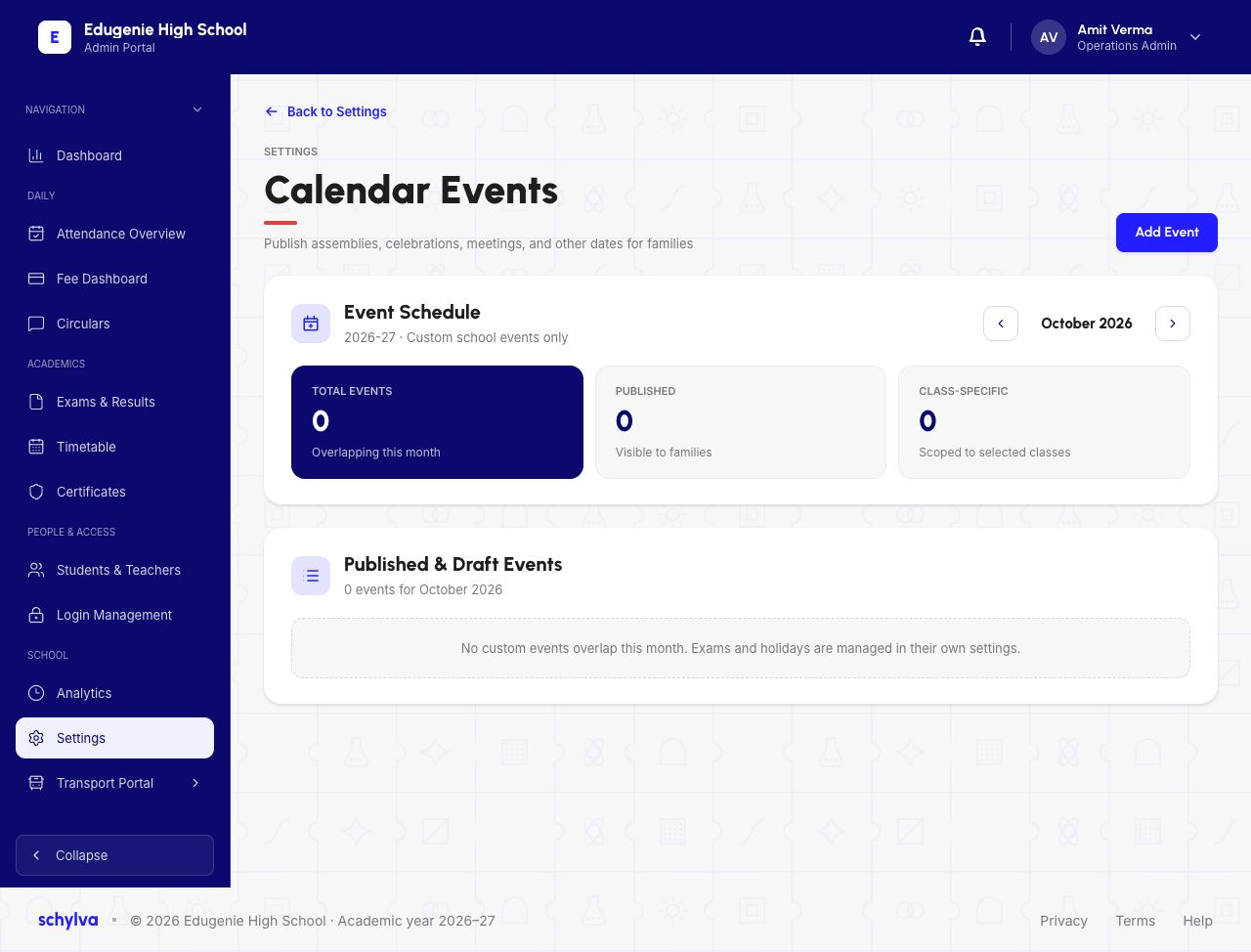
Open Settings, then Calendar Events. The schedule in these captures is for custom school events in academic year 2026–27, with October 2026 selected.
Total Events counts events overlapping the selected month. The page also shows Published and Class Specific counts. The empty October example does not mean that the school has no exams or holidays: those are managed in separate settings.
Demo · Admin desktop web
 Enlarge screenshot
2. Read the event details
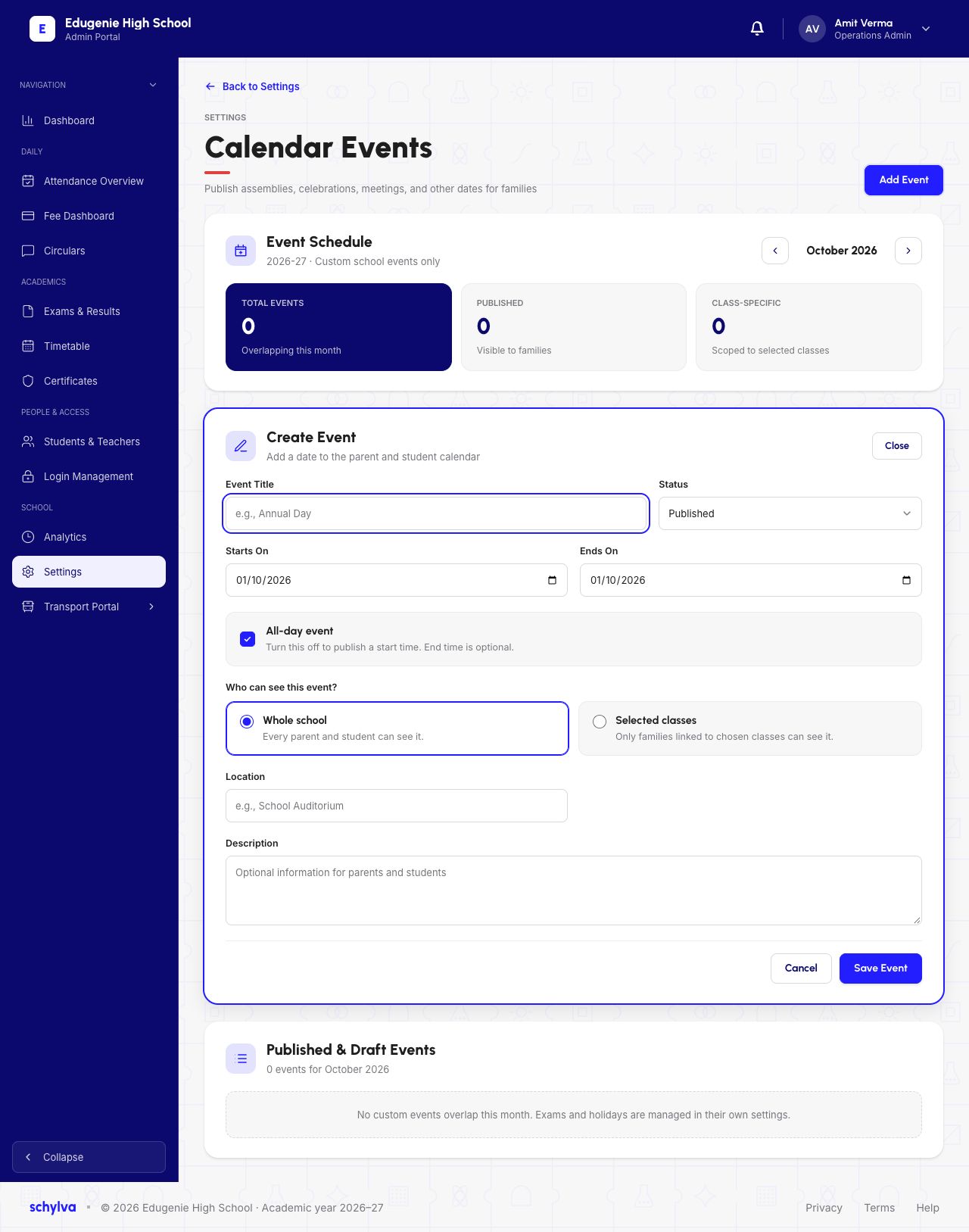
The Create Event form includes Event Title, Status, Starts On, Ends On, Location and an optional Description for parents and students.
Published is selected in the captured Status field, but the form is unsaved and the title is empty. This is not evidence of publication or family visibility.
All-day event is selected in the first form. In the next capture it is cleared and Start Time and End Time fields are visible. The on-screen help describes the end time as optional; the screenshots do not demonstrate time validation.
Demo · Admin desktop web
 Enlarge screenshot
3. Distinguish the audience choices
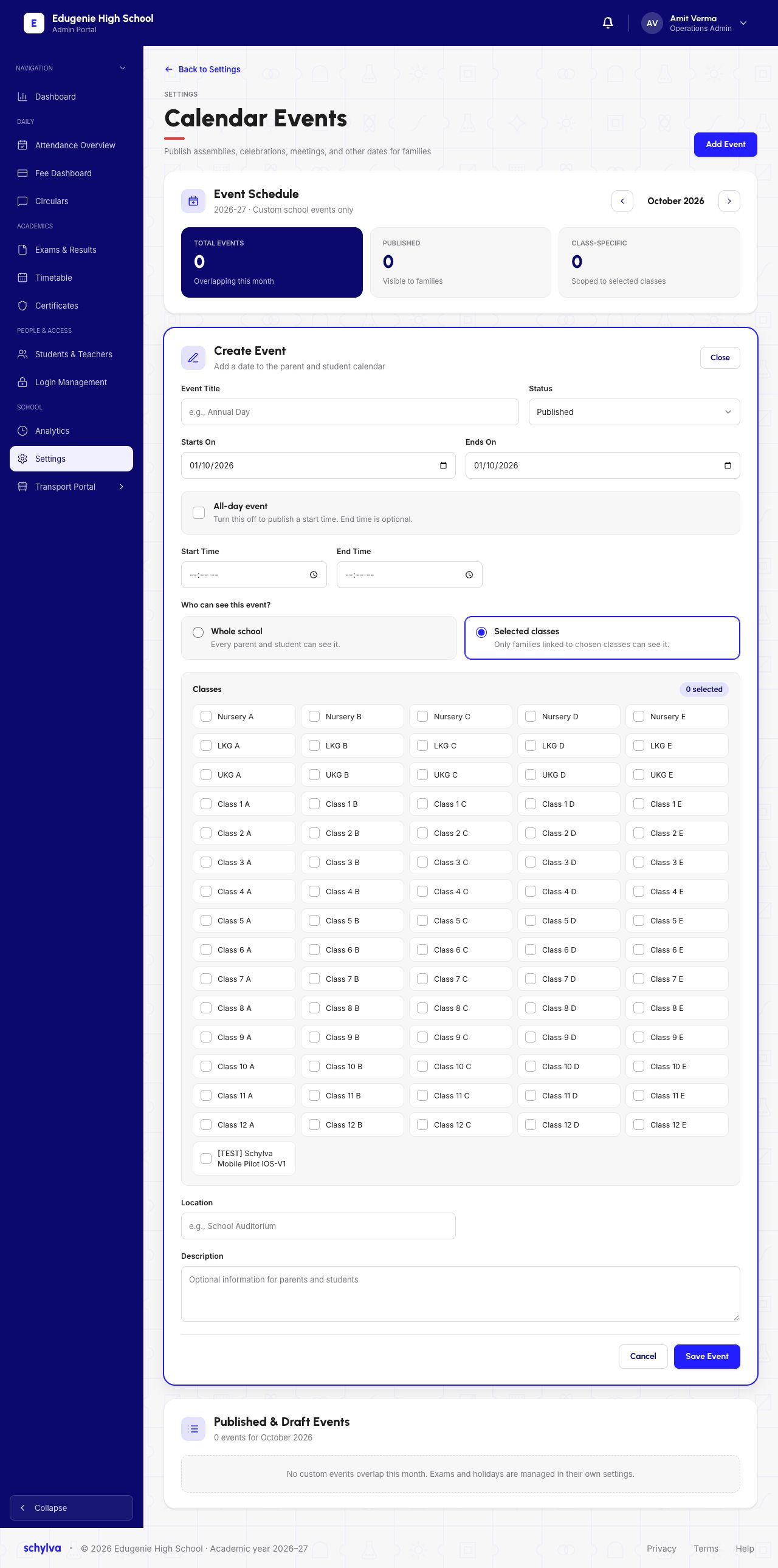
Whole school is described as visible to every parent and student. Selected classes is described as visible only to families linked to the chosen classes.
The targeted example has Selected classes active but shows 0 selected. Choosing the audience mode alone does not complete the class selection. Read the selection count and the actual checked classes together.
Audience settings describe intended visibility. They do not verify delivery of a notification, a parent’s view or a successful publication.
Demo · Admin desktop web
 View full screenshot
4. Recognise the unsaved-changes prompt
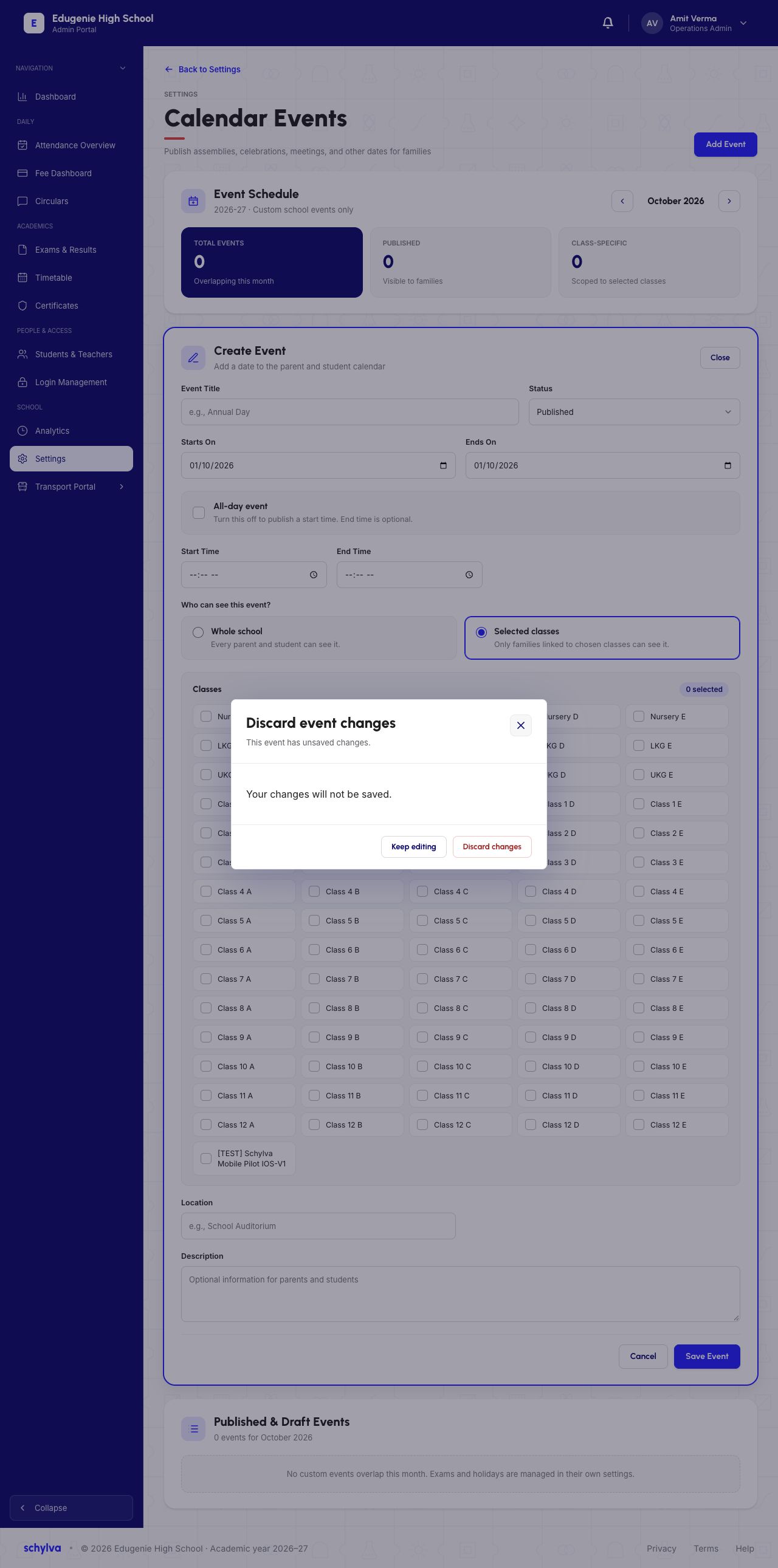
The Discard event changes dialog says the event has unsaved changes and that those changes will not be saved. It offers Keep editing and Discard changes.
This prompt concerns unsaved form edits. It is not evidence that a published event was deleted, nor that a discard was completed.
Demo · Admin desktop web
 View full screenshot