Find school events in the calendar
Open Calendar, check the displayed month, then select a date or event. Use the category filters to narrow the list, and return to All when checking whether an item is missing.
For Parent · Student
On this page
Before you begin
- An authorised Parent or Student account.
- Parents: the right child selected.
- The date or type of school event you want to find.
1. Open Calendar and check the month
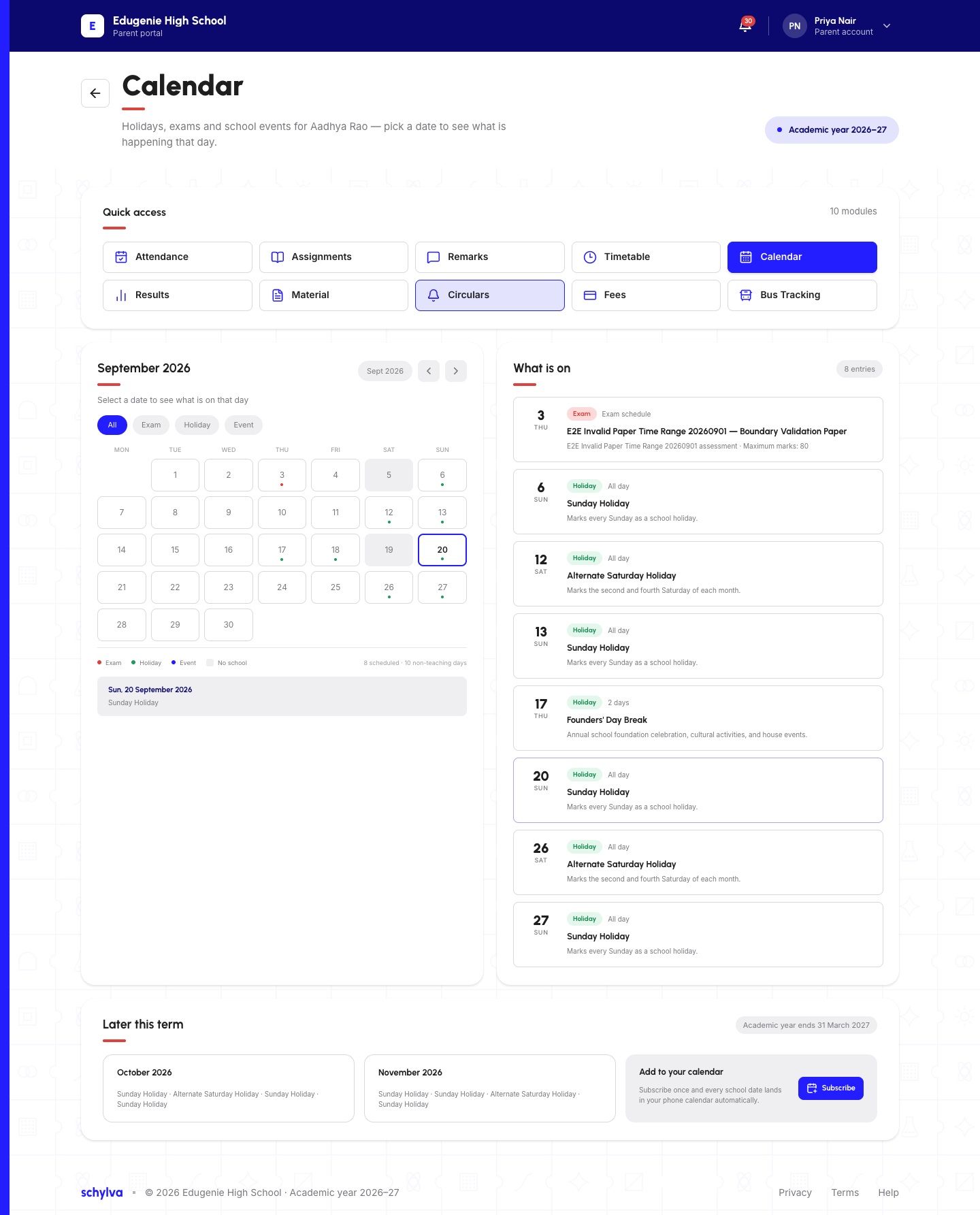
Choose Calendar in Quick access. Check the student named below the heading and the academic-year label.
Read the month above the grid. The example displays September 2026. Month arrows and the selected-date detail belong to the calendar, while What is on lists entries for the current view.
Demo · Parent desktop web
 Enlarge screenshot
2. Filter by the kind of event
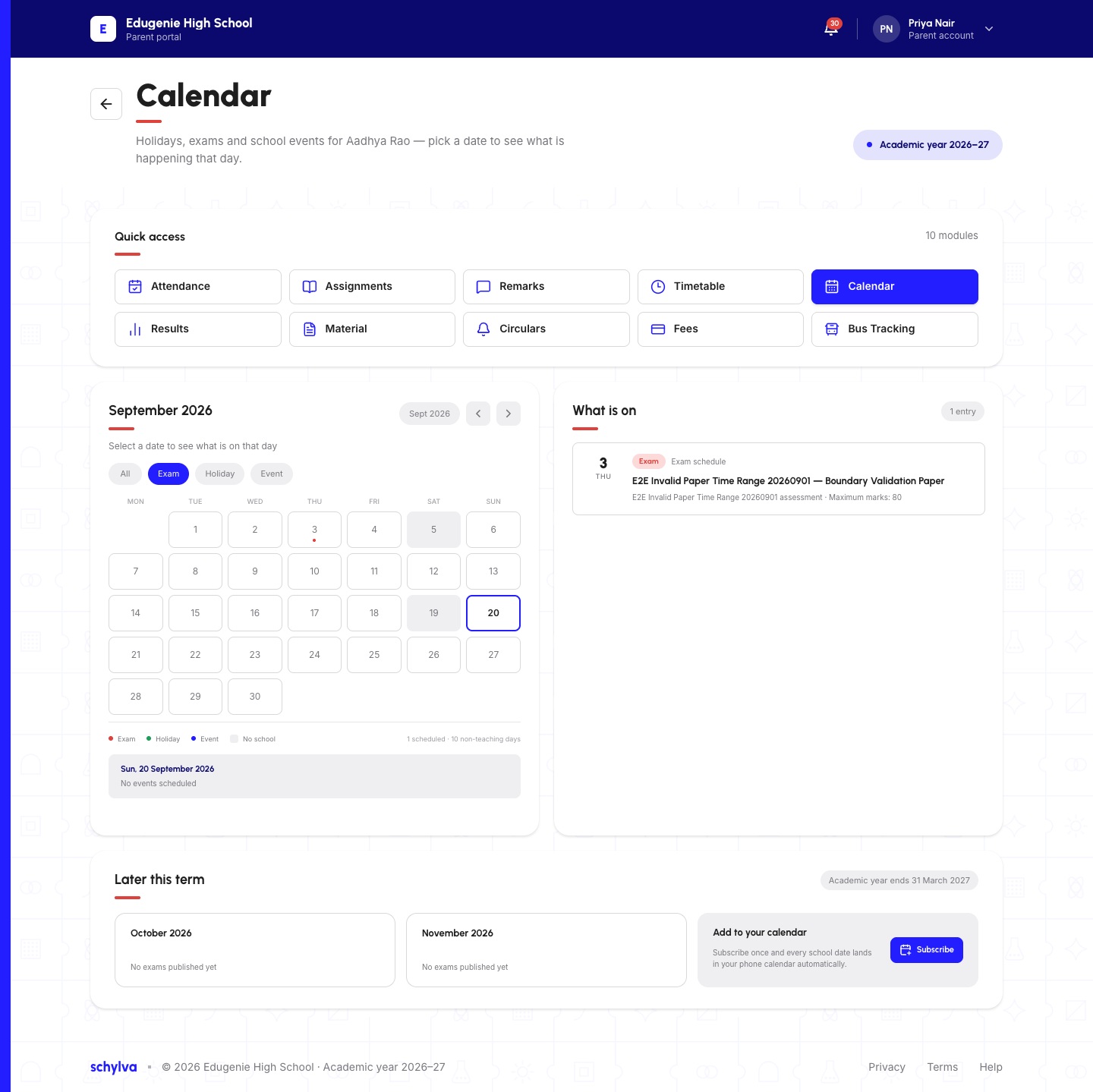
Choose All, Exam, Holiday or Event. Read the highlighted category and the entry count in What is on.
The Exam example narrows the list to one demo entry. If you are looking for a holiday, an Exam filter can hide it. Return to All before concluding that an event is missing.
The pictured exam title is sample data. Check the actual event title, date and details supplied by your school.
Demo · Parent desktop web
 Enlarge screenshot
3. Read a selected date and event
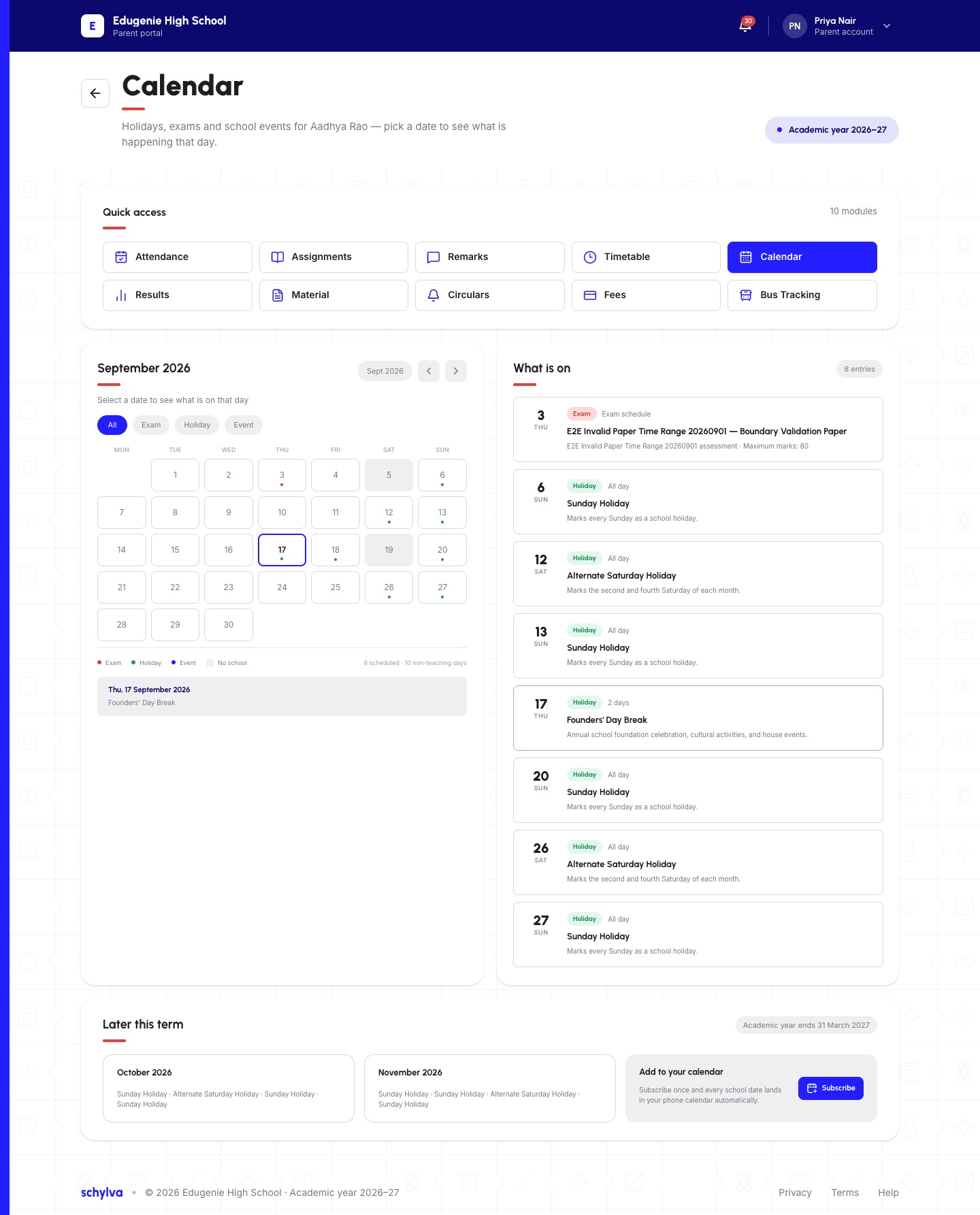
Choose the relevant date or event and read the date detail below the grid together with its entry in What is on.
The example selects 17 September and shows Founders’ Day Break. Its event card includes Holiday and a duration label. Read the actual dates and notes your school publishes rather than relying on the position or colour of a marker.
Demo · Parent desktop web
 Enlarge screenshot
The Student view
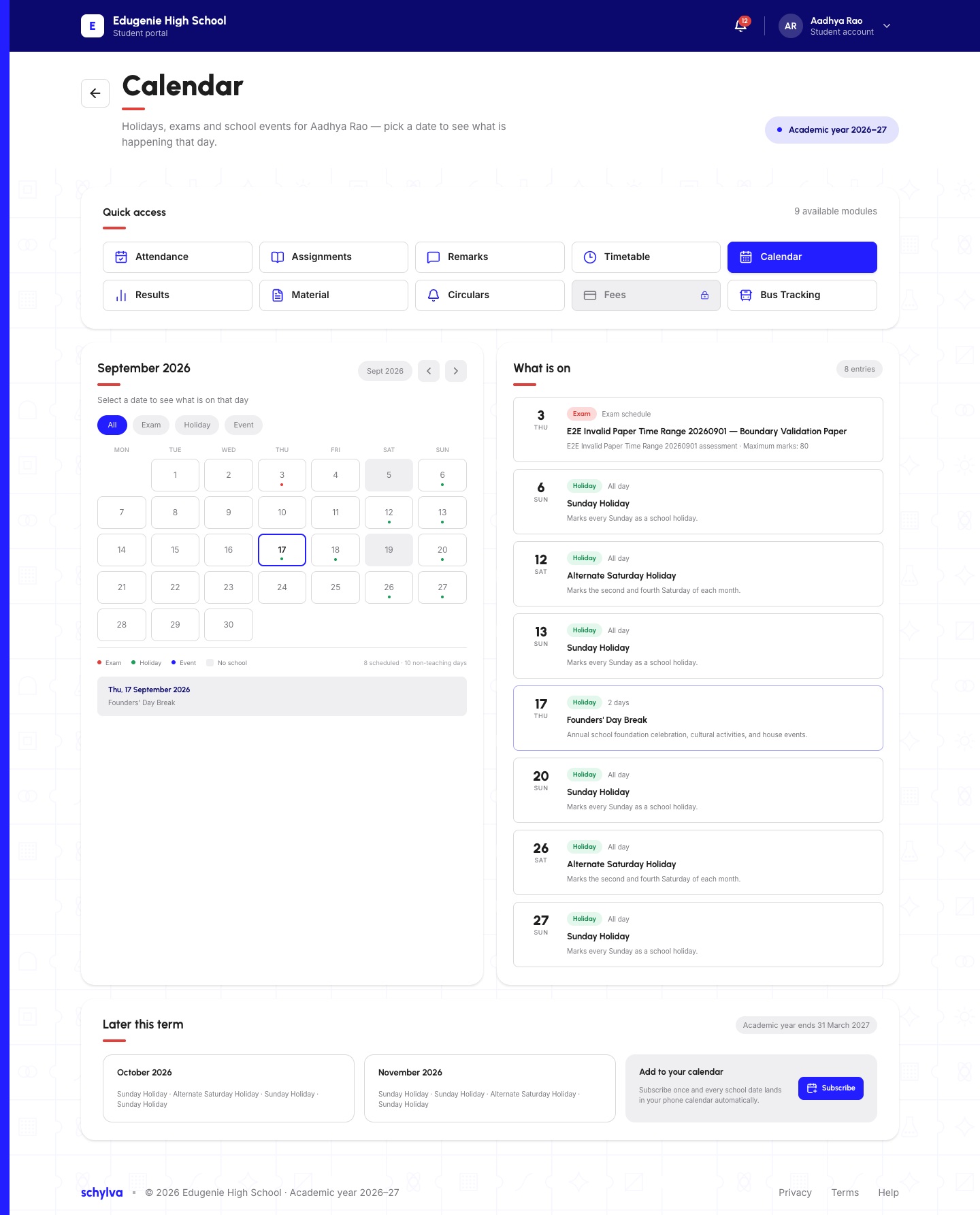
Students use Calendar in their own account. Check your name and academic year; you do not need to use a Parent account to read your visible calendar.
The captured Student view also shows the selected-date detail and What is on. It does not prove that every role or class receives identical events.
Demo · Student desktop web
 Enlarge screenshot
Using the mobile calendar
On mobile web, the grid appears above What is on and Later this term. Scroll to read all three areas.
The selected day remains highlighted in the grid, with its date detail directly below. The Parent retake starts on a different selected date than the desktop example; that is a capture difference, not a calendar error.
Demo · Parent mobile web
 View full screenshot
Demo · Parent mobile web
 View full screenshot
Demo · Student mobile web
 View full screenshot
If you cannot find an event
- What is on is empty
- Confirm the month and select All. An empty filtered view does not establish that the school has no events.
- An exam or holiday looks incorrect
- Ask school to confirm the event and affected class. Do not change attendance or school dates to match the screenshot.
- You see Subscribe or Add to your calendar
- Calendar subscription and synchronisation are outside this verified reading guide. A visible control does not prove a working external feed.