Review homework and share feedback
Open a ready submission, check the Student’s work, save feedback and marks, then confirm the Student can read the review.
For Teacher · Student
On this page
Before you begin
- An authorised Teacher account with access to the assignment and a genuine submitted response.
- The correct Student and submission attempt. The worked example has five full marks and uses a fictional response.
1. Open the correct assignment and Ready submission
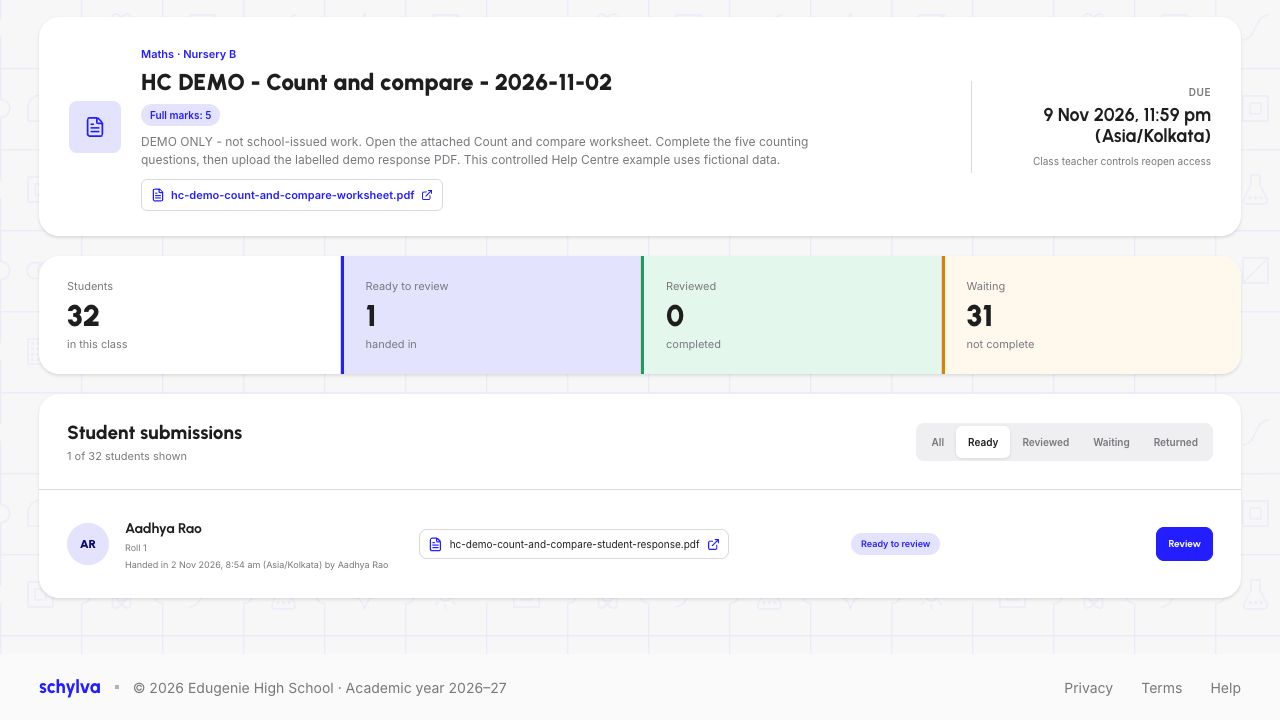
Open the homework’s submission register and choose Ready. Check the assignment title, class, Student and hand-in time before opening the response.
This example has one Ready submission from Aadhya Rao. Open the response listed beside that Student.
Demo school · Desktop web · 2 November 2026
 Enlarge screenshot
2. Open Review and read the available actions
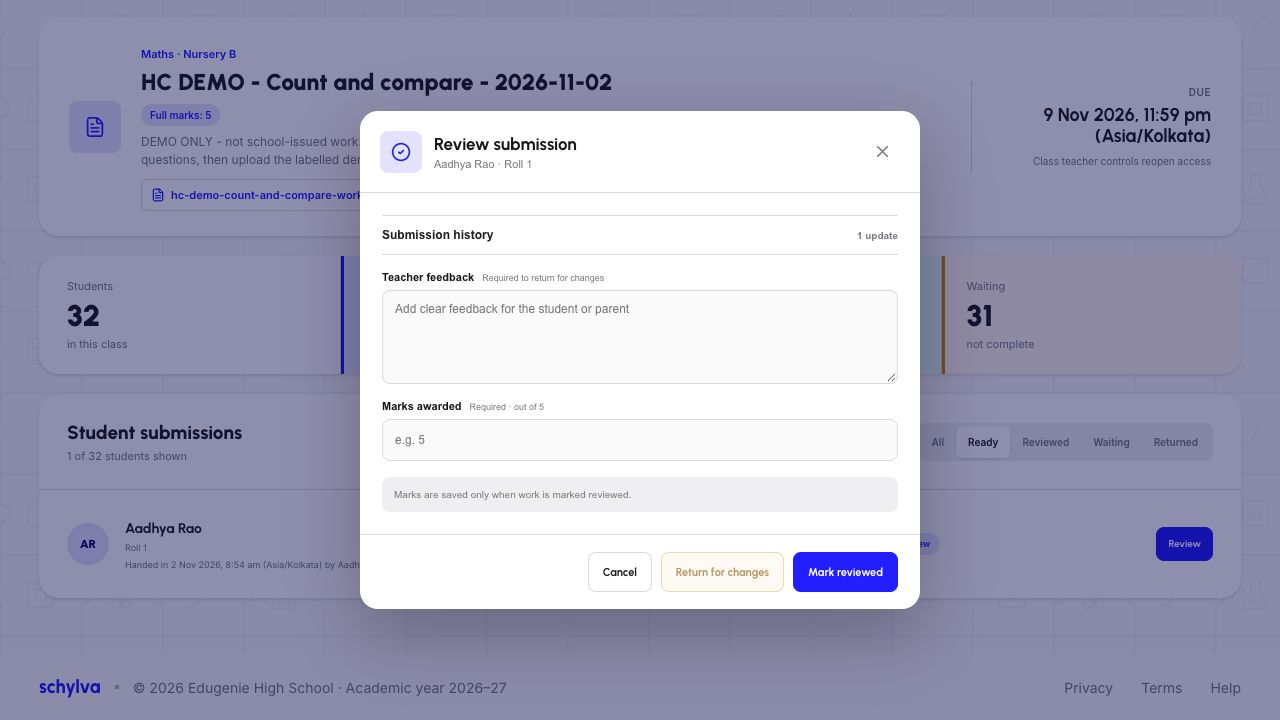
Choose Review beside the correct submission. The dialog is titled Review Aadhya Rao’s submission in the example. It contains Teacher feedback, marks out of 5 and separate Mark reviewed and Return for changes actions.
This walkthrough uses Mark reviewed. The note saying feedback is required to return for changes does not mean that Return for changes is part of this example.
Demo school · Desktop web · 2 November 2026
 Enlarge screenshot
3. Add useful feedback and the intended marks
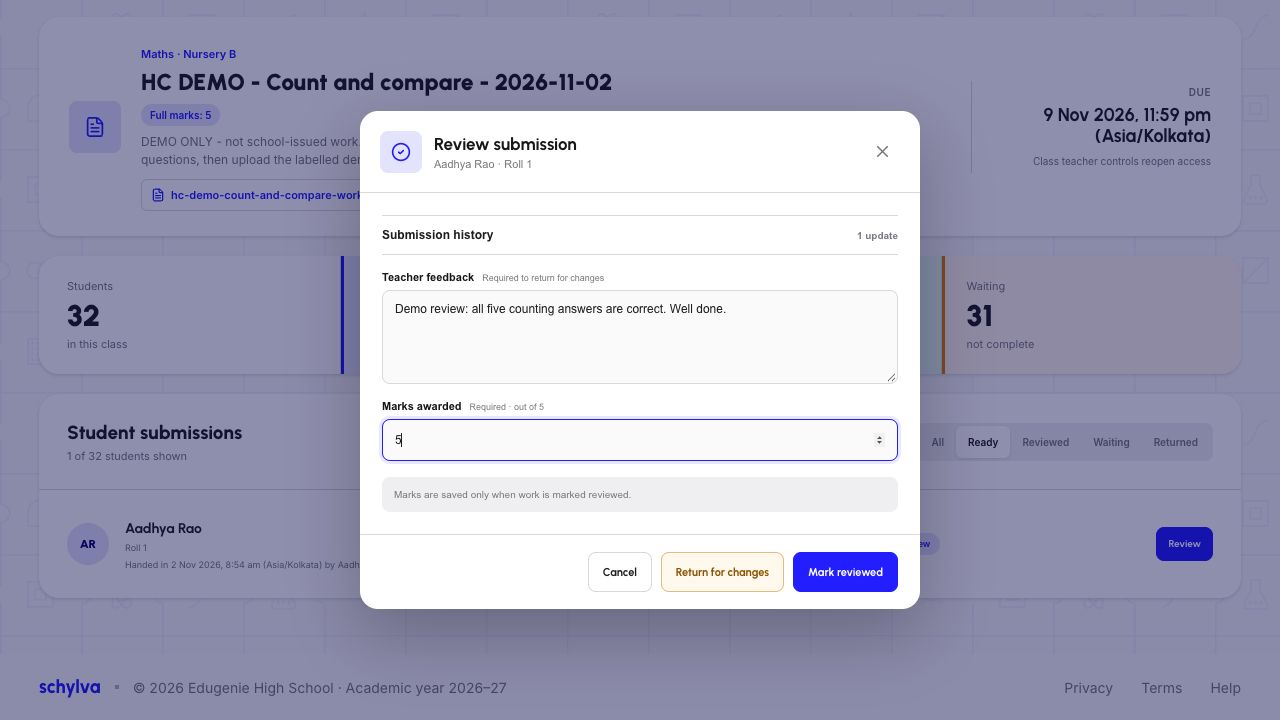
Enter feedback that helps the Student understand the outcome. The example reads: Demo review: all five counting answers are correct. Well done.
Enter 5 out of 5 for this fictional response. Recheck the Student, attempt and score before saving.
Demo school · Desktop web · 2 November 2026
 Enlarge screenshot
4. Mark reviewed and check the saved result
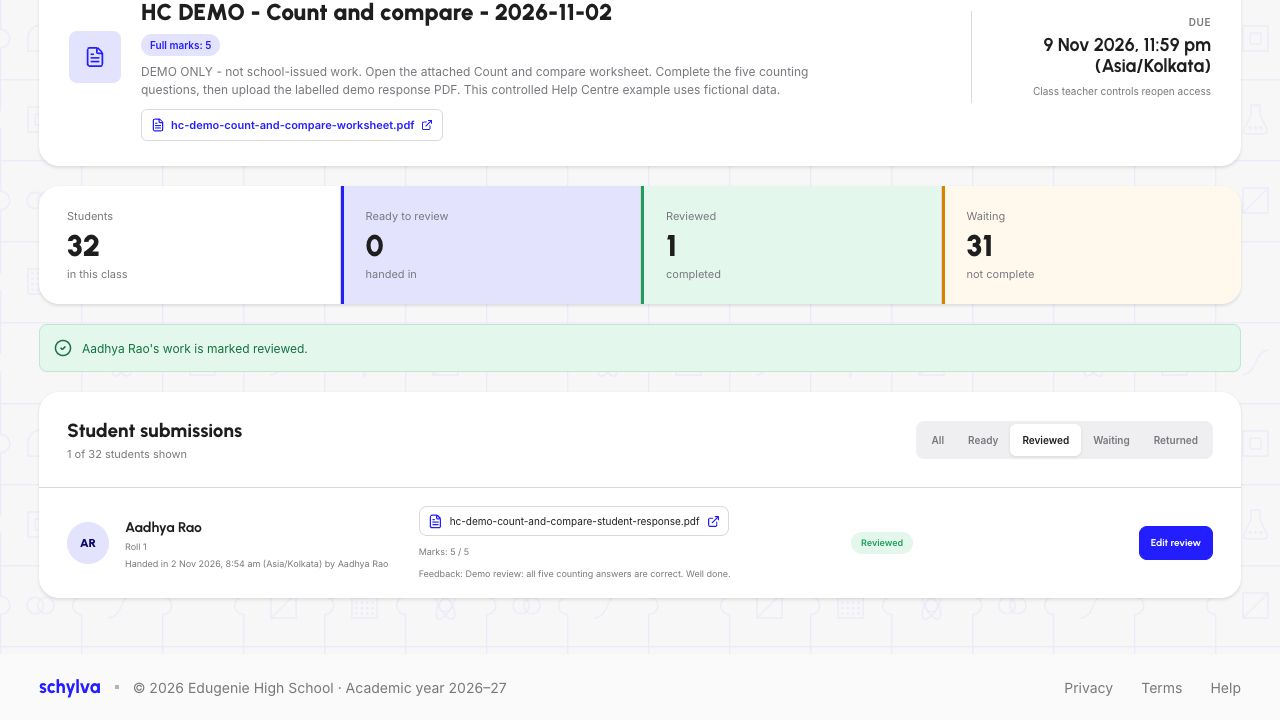
Choose Mark reviewed once and wait for the saved-result message. Open the Reviewed filter to find the Student’s saved feedback and 5 / 5.
The demonstrated counts are 0 Ready, 1 Reviewed and 31 Waiting. They describe this assignment’s response states; the Waiting Students have not received this individual review.
Demo school · Desktop web · 2 November 2026
 Enlarge screenshot
5. Refresh and inspect the saved review
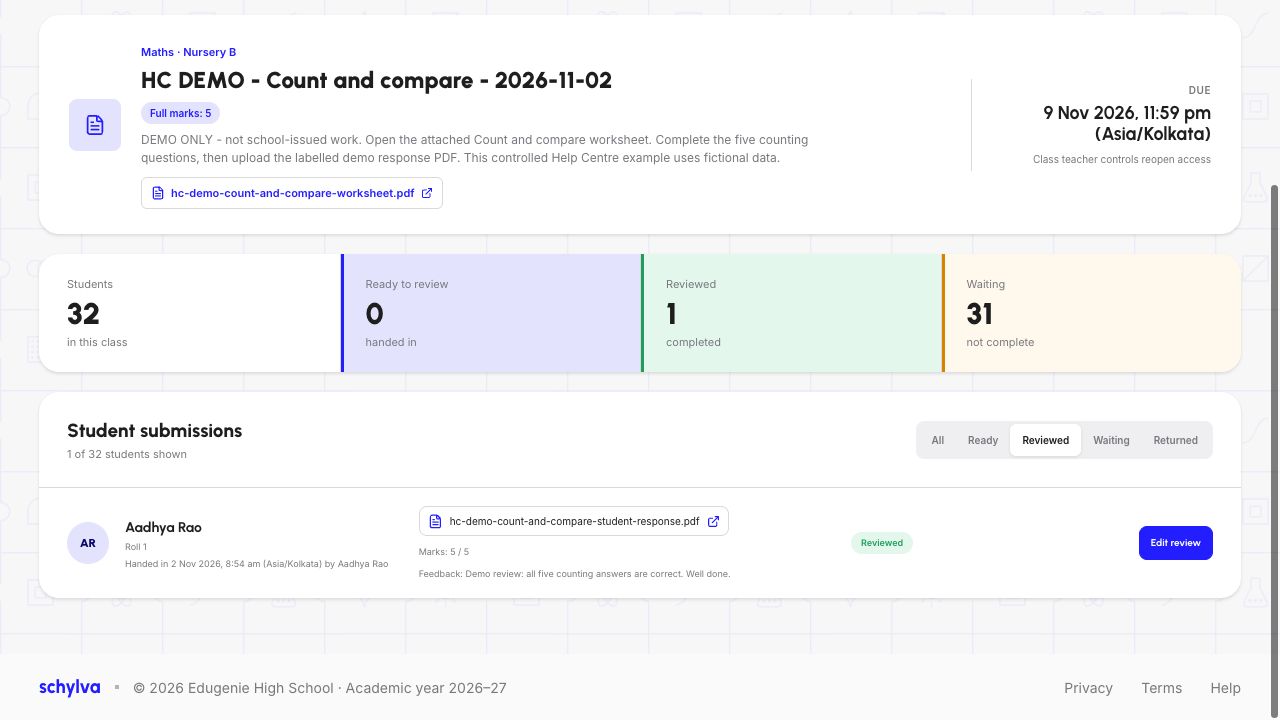
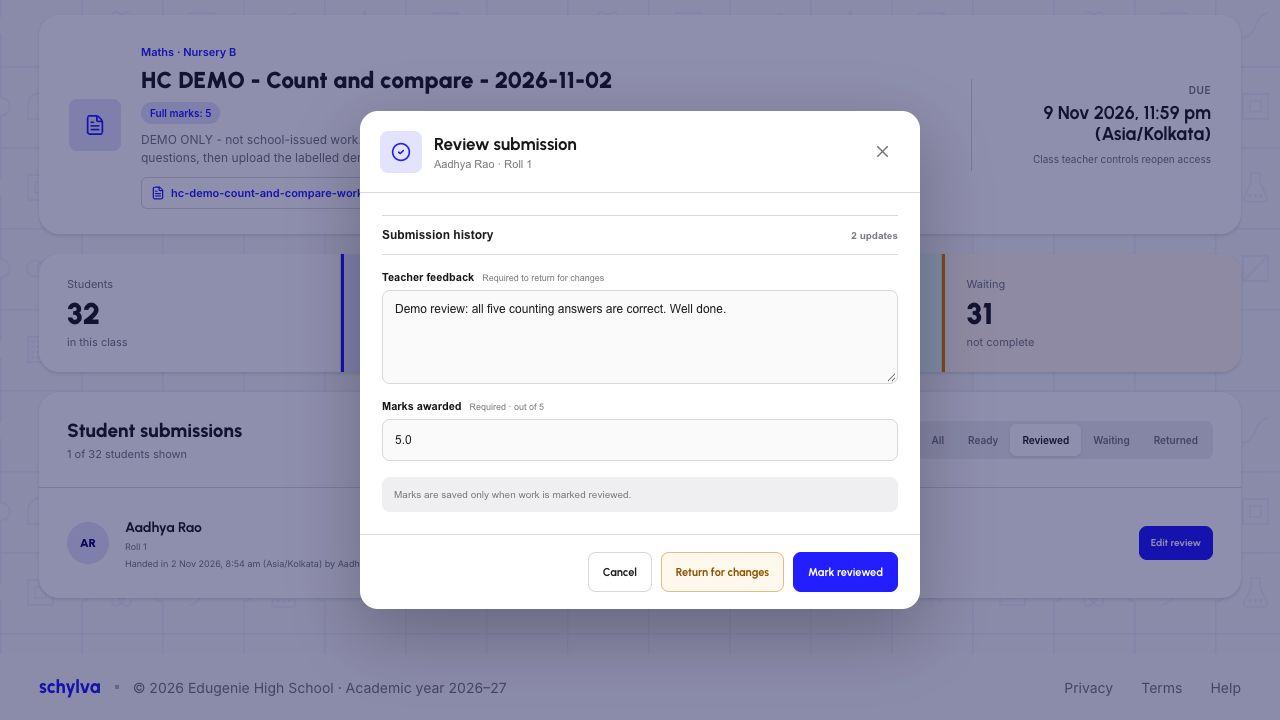
Refresh the register and choose Reviewed again. Check that the feedback and score remain.
The example also opens Edit review to inspect the saved values, then cancels without saving again. Its dialog keeps the Review title and the numeric input may display 5.0, which is the same score as 5 / 5. Editing a saved review is outside this walkthrough.
Demo school · Desktop web · 2 November 2026
 Enlarge screenshot
Demo school · Desktop web · 2 November 2026
 Enlarge screenshot
6. Check the Student’s feedback after refresh
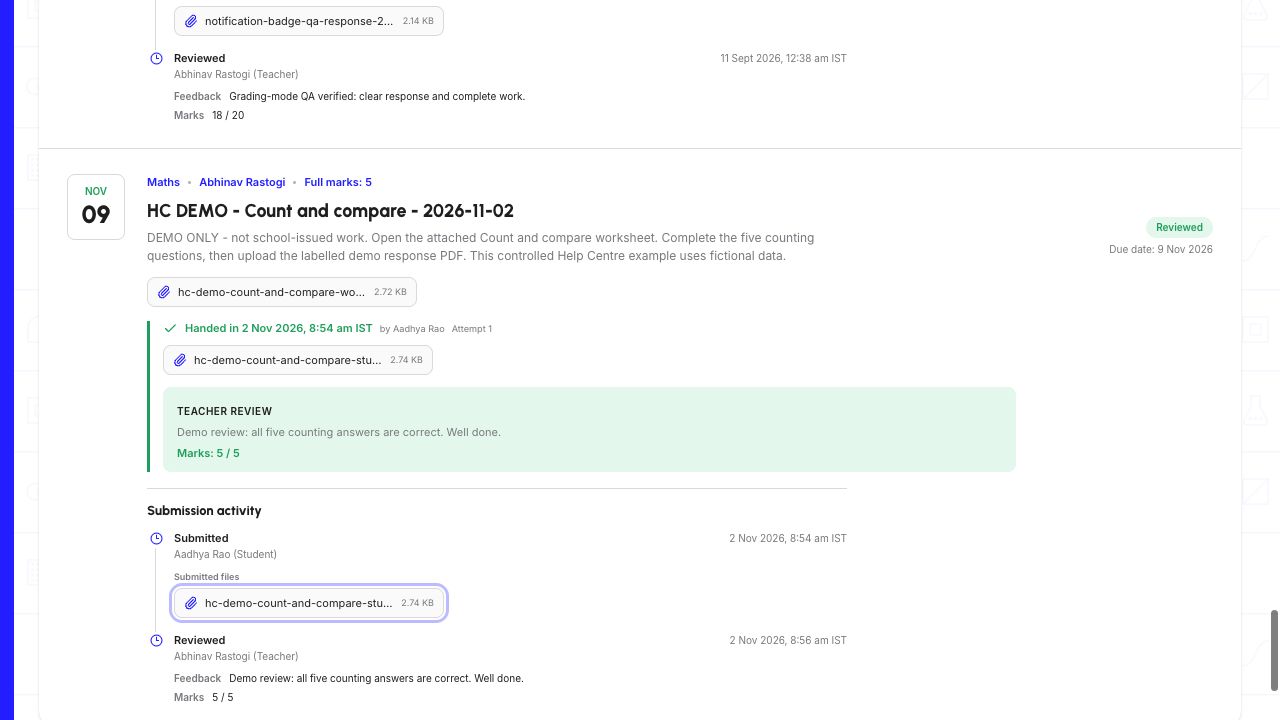
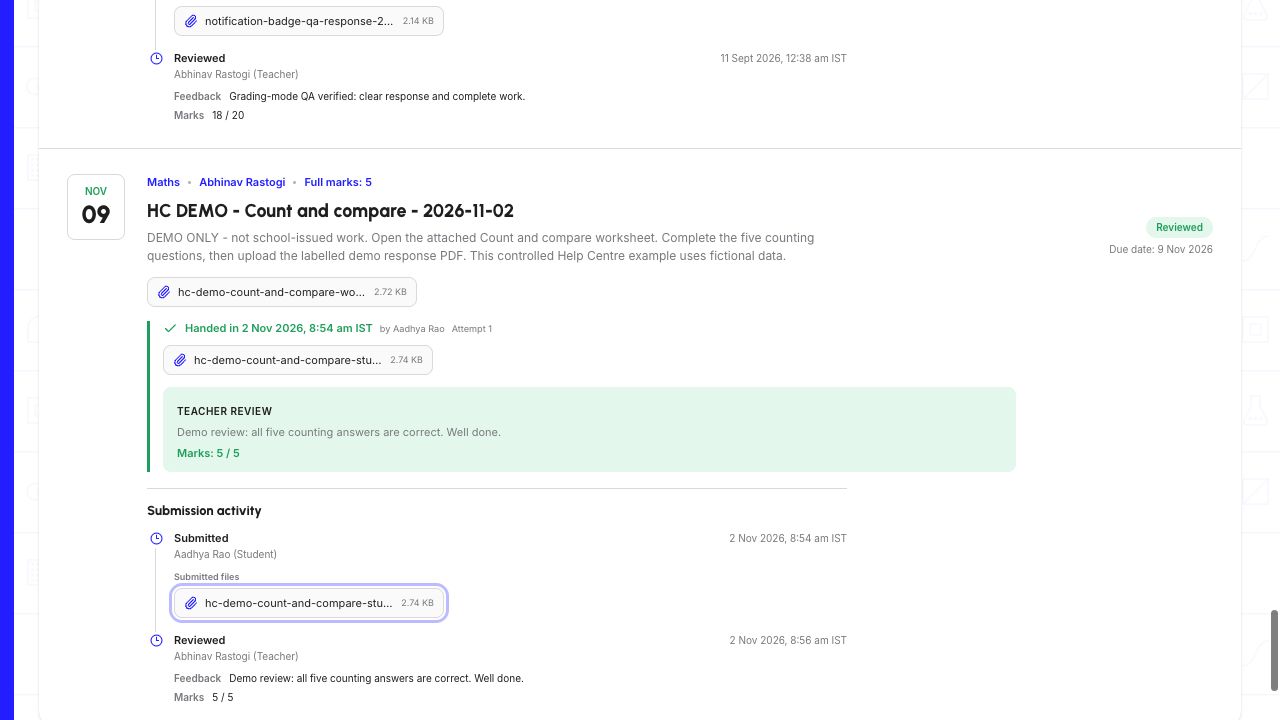
From the Student’s account, open Assignments and find the same task under Submitted Assignments. The card shows Reviewed, a Teacher review panel and Marks: 5 / 5.
Read the submission activity below it: Submitted by the Student, then Reviewed by the Teacher, with the matching feedback. Refresh the Student page and confirm the review remains.
In this example, both the feedback panel and activity remain after refresh. No Parent visibility, external notification, returned-work or resubmission outcome is inferred from that result.
Demo school · Desktop web · 2 November 2026
 View full screenshot
Demo school · Desktop web · 2 November 2026
 View full screenshot