Create and assign homework
Choose the class, subject, grading and deadline, attach a worksheet, then confirm the assignment is saved and visible to a Student.
For Teacher
On this page
Before you begin
- An authorised Teacher account with the intended class and subject available in the form.
- The instructions, grading choice, deadline and any approved files ready before assigning. Example PDFs contain fictional demo work only.
1. Open the homework creation form
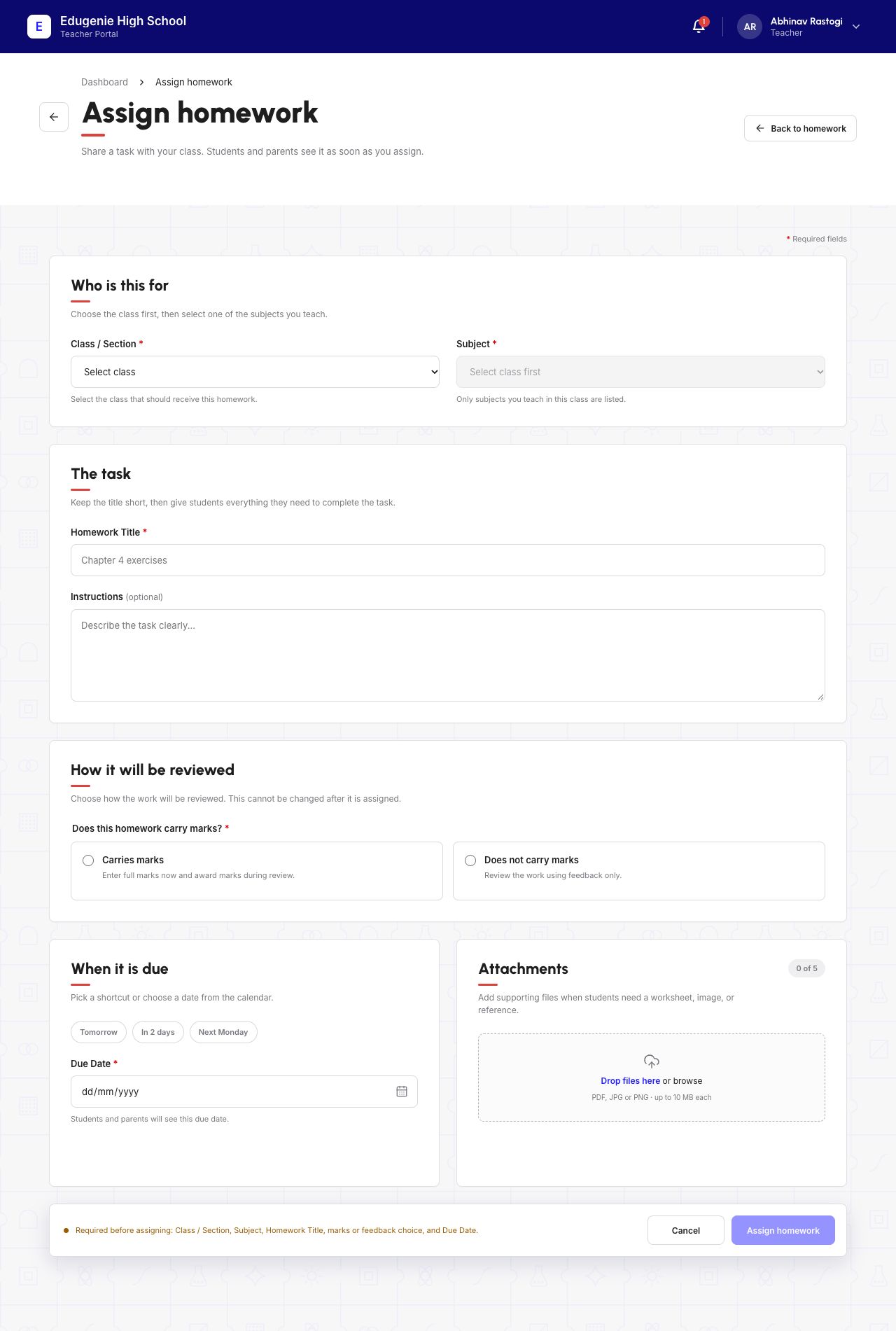
Open Homework from the Teacher navigation and choose the control to add homework. Start by selecting the class/section, then a subject from its available options.
The example selects Nursery B · Maths. Subjects depend on the selected class; do not assume every Teacher sees the same list.
Demo school · Desktop web · 2 November 2026
 View full screenshot
2. Add the task, grading and due date
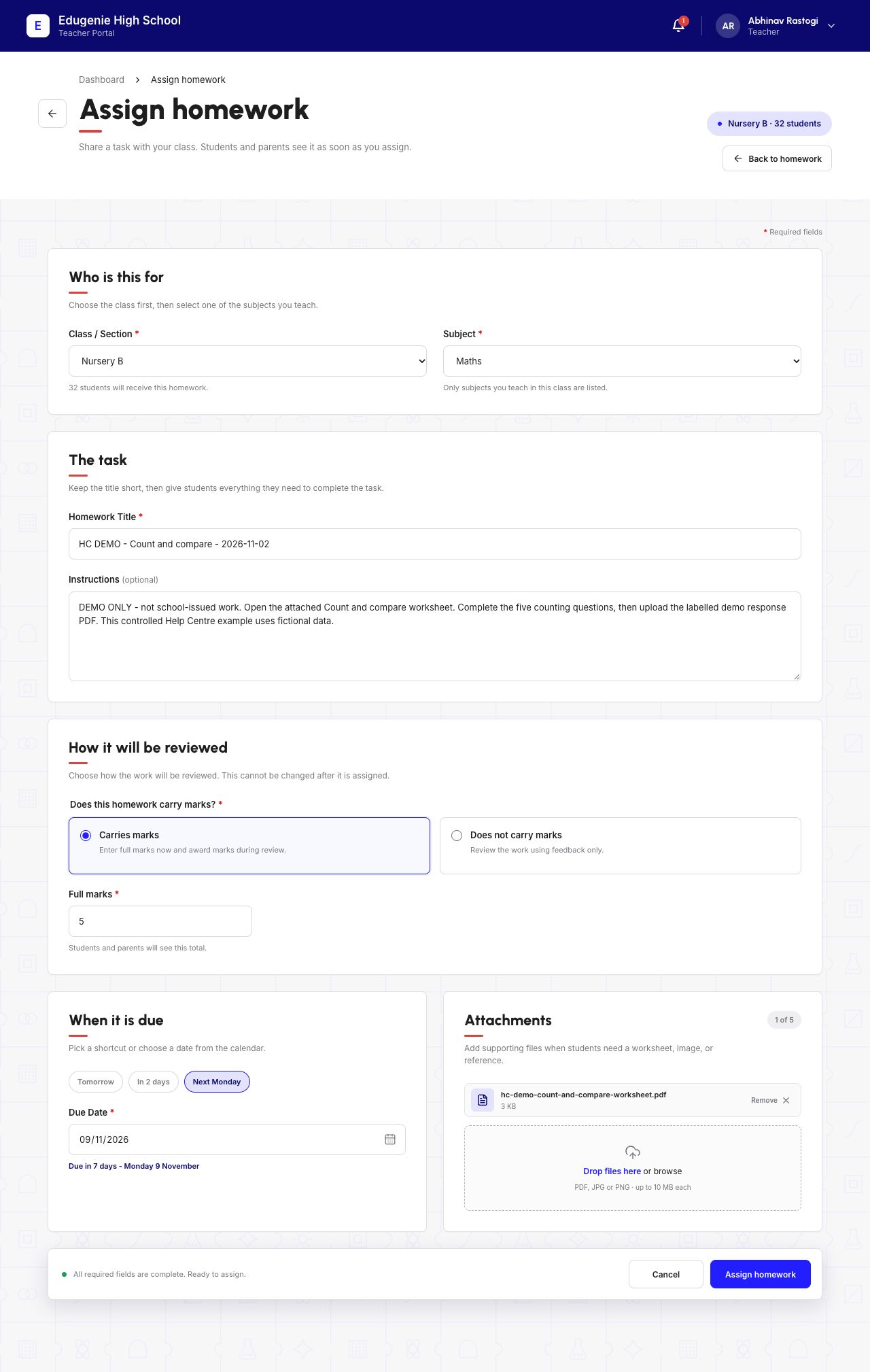
Use a title Students can recognise. Here it is HC DEMO - Count and compare - 2026-11-02, with instructions to complete the five counting questions and upload the labelled demo response.
Choose Carries marks and enter 5 as Full marks. The grading choice is made before assigning; the form warns that it cannot be changed afterwards.
Set the deadline using the date controls. In this example, Next Monday selects 9 November 2026. Recheck the displayed date after completing the other fields.
Demo school · Desktop web · 2 November 2026
 View full screenshot
3. Attach the worksheet and check readiness
Add the file using Add homework attachments. Wait for its name to appear and read the size/type limits shown by your form. This example uses hc-demo-count-and-compare-worksheet.pdf.
Review the title, class/section, subject, grading, due date and attachment before assigning. The readiness message should reflect the completed form.
- The class and subject are correct.
- Students can understand the instructions and expected file.
- The grading and deadline are intentional.
- The displayed attachment is the file you intend to share.
4. Assign once and confirm it remains saved
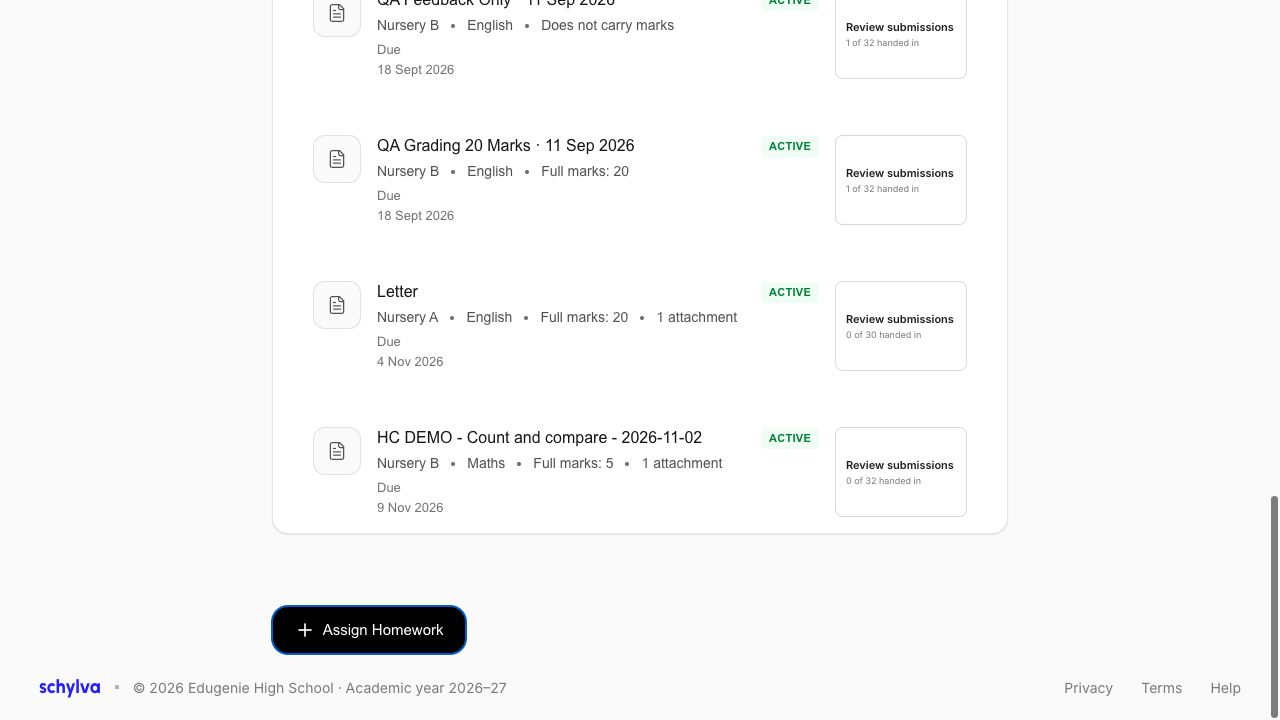
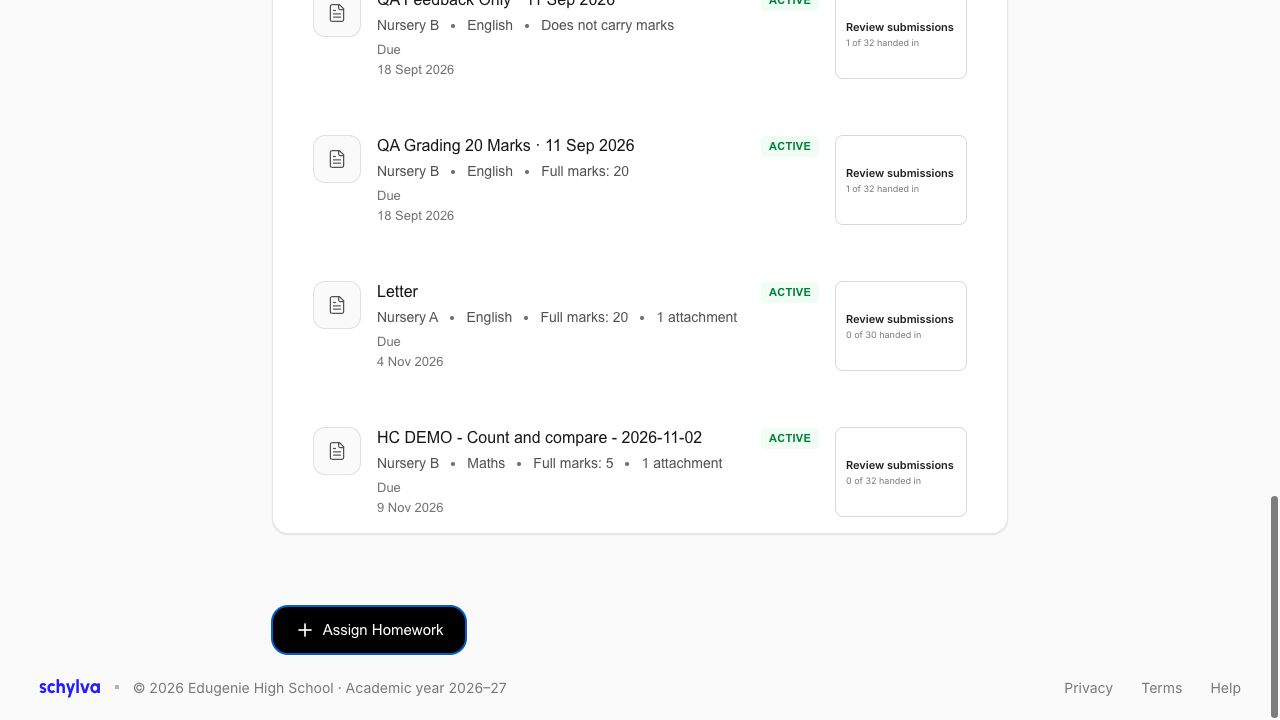
Choose Assign homework once. Wait for the new homework to appear in the Teacher list. The example shows Active, full marks 5, one attachment and a 9 November deadline.
Refresh the page and find the same title again. Its saved details should remain; do not create a duplicate to check persistence.
Demo school · Desktop web · 2 November 2026
 Enlarge screenshot
Demo school · Desktop web · 2 November 2026
 Enlarge screenshot
5. Open its submission register
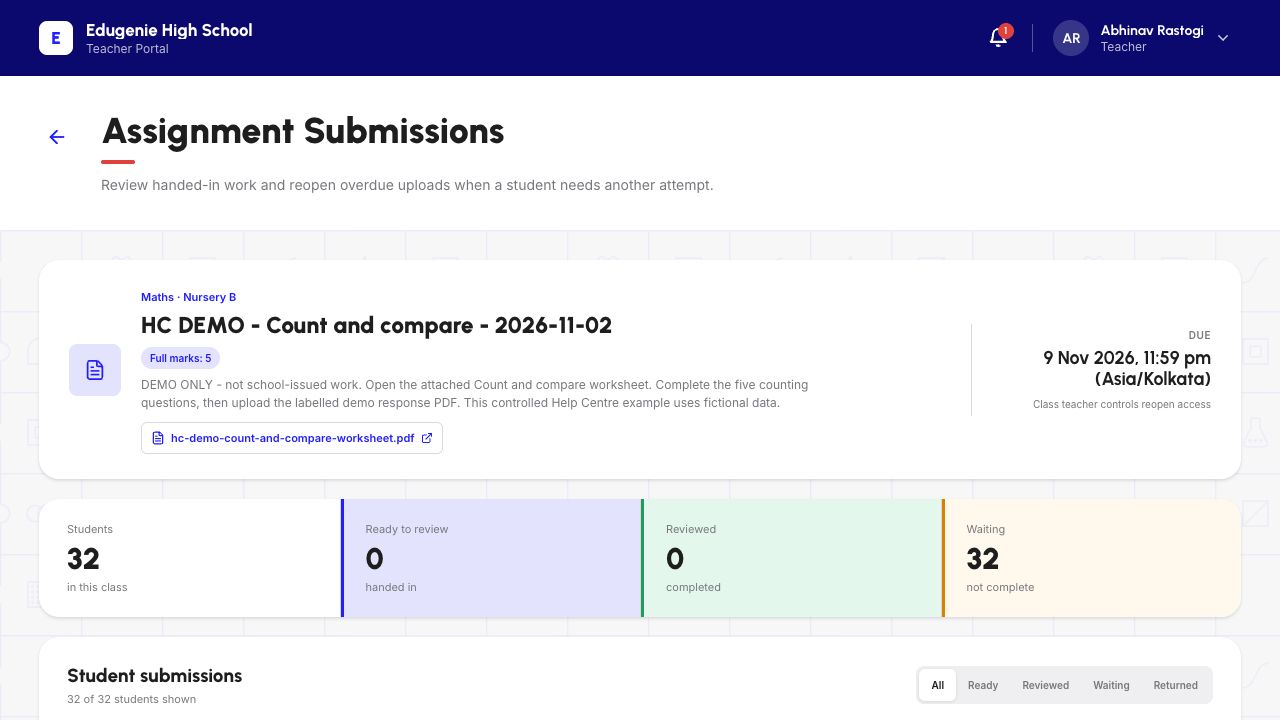
Open the new homework’s submission register. At creation, this example lists 32 Students, 0 Ready, 0 Reviewed, 32 Waiting. Those are submission states, not marks.
Use the title and class to identify the assignment before following up with Students.
Demo school · Desktop web · 2 November 2026
 Enlarge screenshot
6. Confirm the Student can find the same task
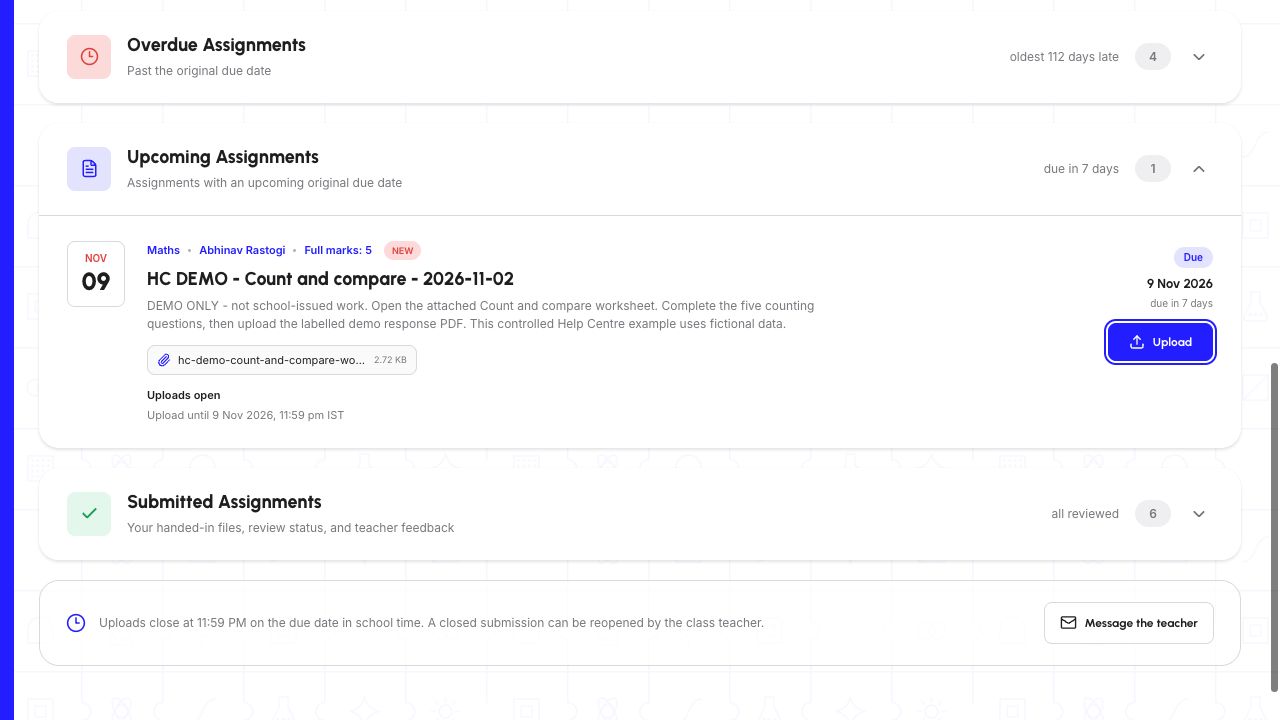
In the demonstrated Student account, open Assignments and find the same title, Teacher, subject, due date and full marks. The attached worksheet can be opened from that card.
The next guide follows the Student’s hand-in; assignment creation alone does not mean any work has been submitted.
Demo school · Desktop web · 2 November 2026
 Enlarge screenshot