Hand in homework as a Student
Open the correct task, upload your response, hand it in and check that the Teacher receives the submitted work.
For Student
On this page
Before you begin
- Your own authorised Student account and the correct class visible in your portal.
- A current assignment that accepts uploads, with your completed file ready. The example response is fictional demo data, not assessed school work.
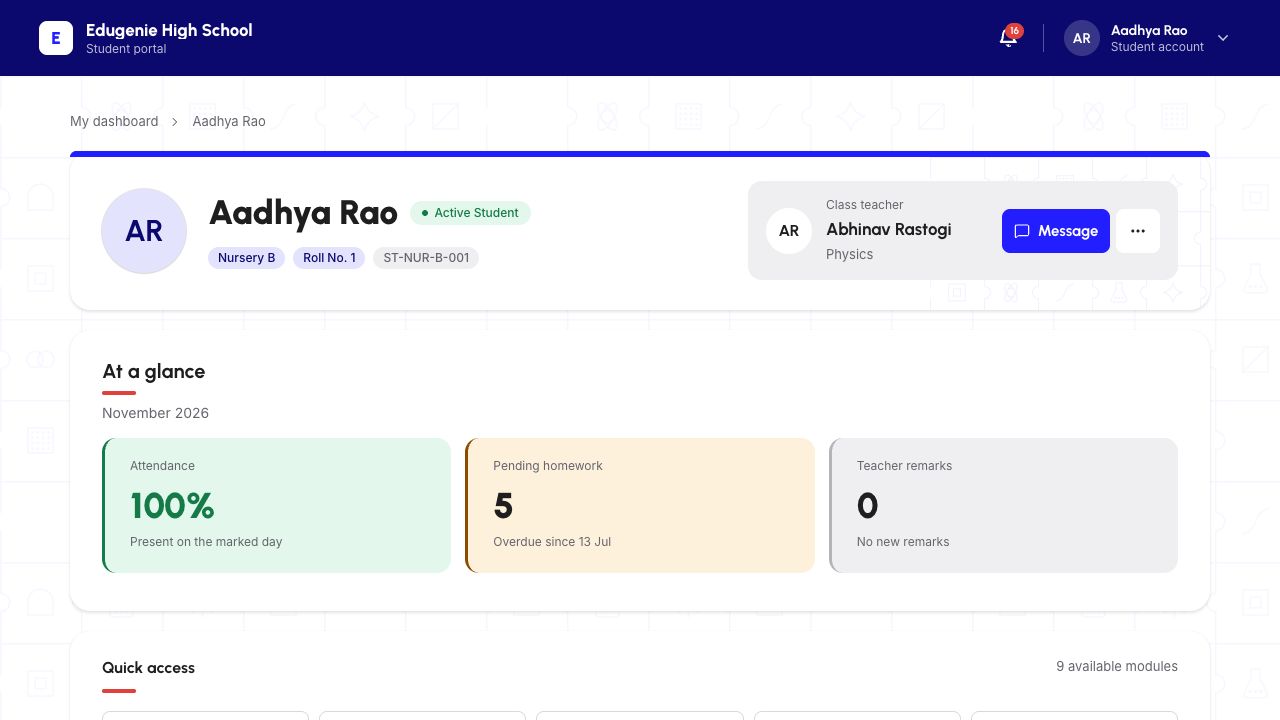
1. Check your Student identity
Before uploading, confirm the Student name, class and roll number. The example is Aadhya Rao · Nursery B · Roll 1.
A Parent’s selected-child view and a Teacher’s submission register are different screens. Use the Student account for the steps below.
Demo school · Desktop web · 2 November 2026
 Enlarge screenshot
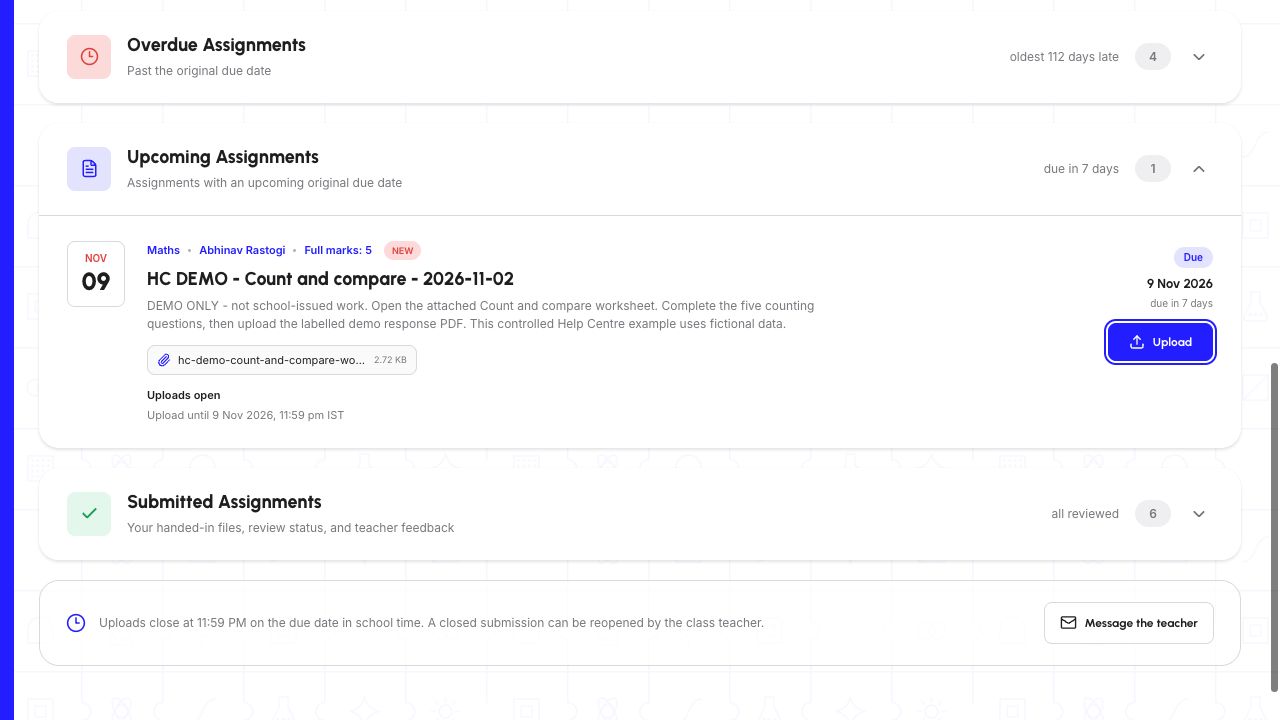
2. Match the assignment and open its worksheet
Open Assignments and find the correct title. Match its subject, Teacher, due date and instructions; this example is the Count and compare Maths homework for 9 November.
Open the attached worksheet before preparing your response. A worksheet attachment is not your submitted response.
Demo school · Desktop web · 2 November 2026
 Enlarge screenshot
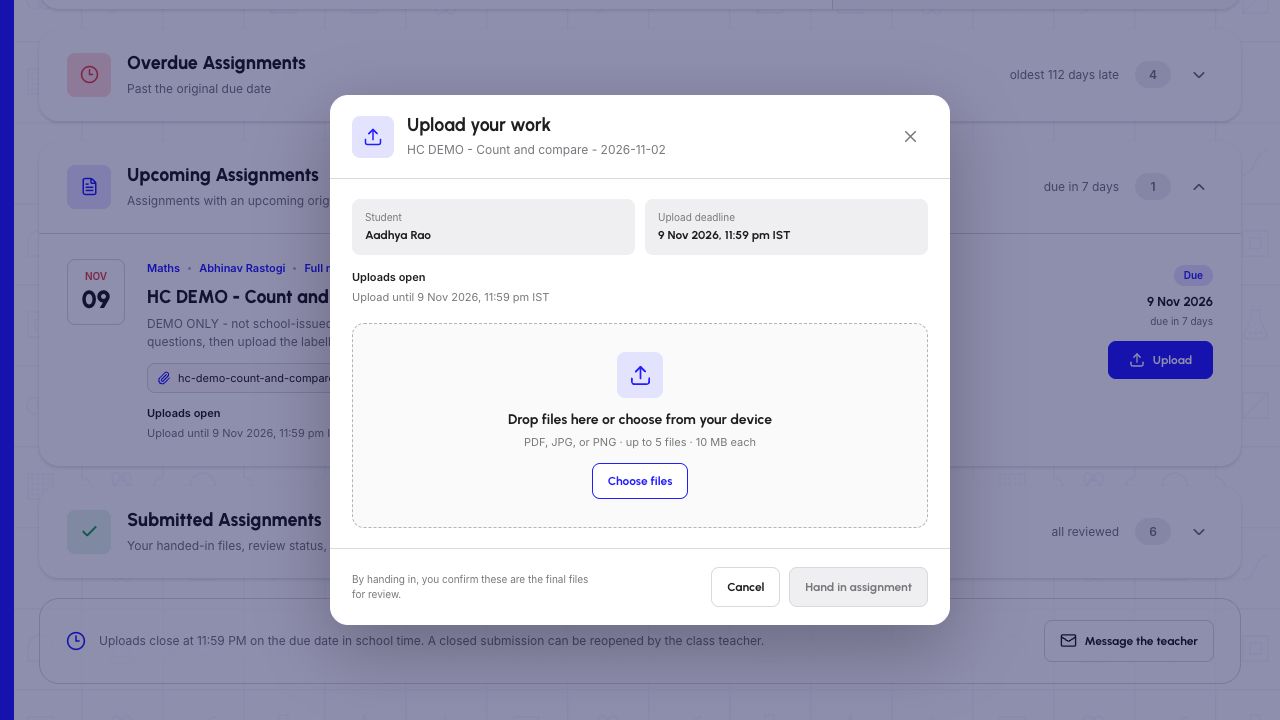
3. Open Upload and read the deadline
Choose Upload for that assignment. Read the upload window and Student identity in the dialog. The example remains open until 9 November 2026, 11:59 pm IST. Use the school-time deadline actually displayed for your task.
Read the supported file types, size and count limits in the dialog. If the task is closed or Upload is unavailable, ask your Teacher; this guide does not bypass a deadline.
Demo school · Desktop web · 2 November 2026
 Enlarge screenshot
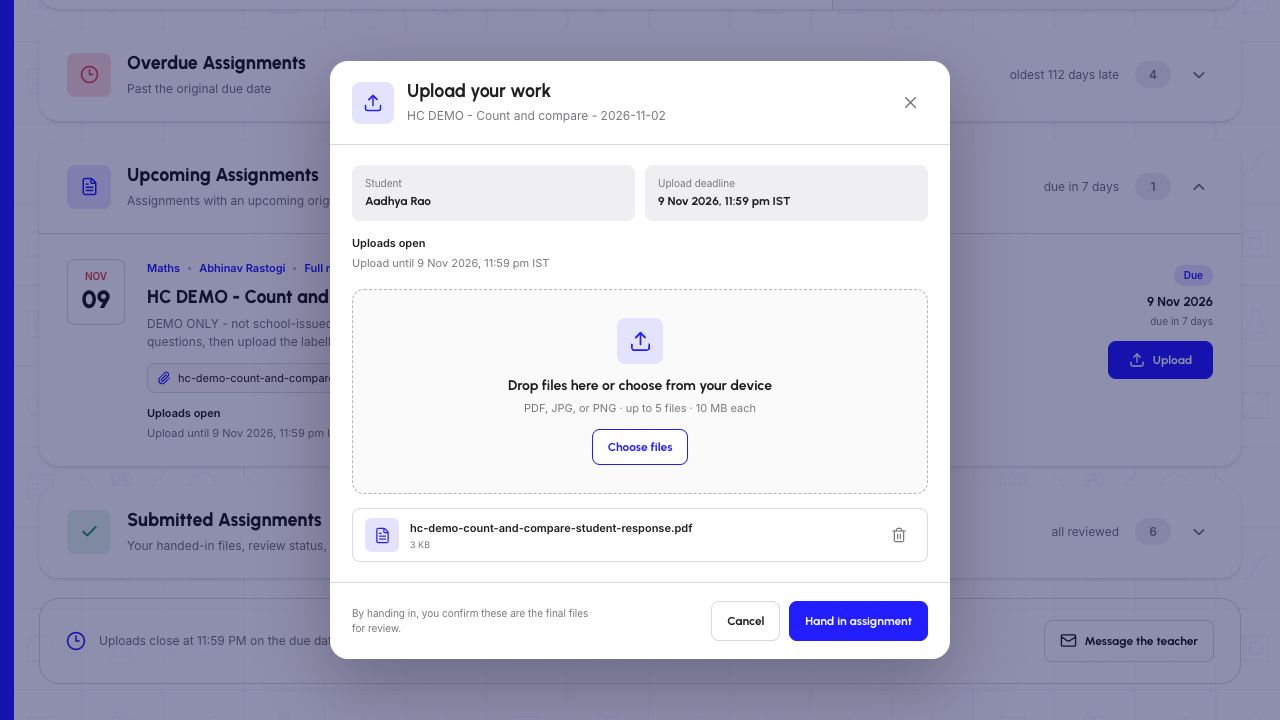
4. Choose the completed response file
Use Choose files and select the work you intend to submit. Check the displayed filename before continuing. Here it is hc-demo-count-and-compare-student-response.pdf.
Choosing a file is only preparation. It is not a successful hand-in until the next action and its result complete.
Demo school · Desktop web · 2 November 2026
 Enlarge screenshot
5. Hand in and wait for confirmation
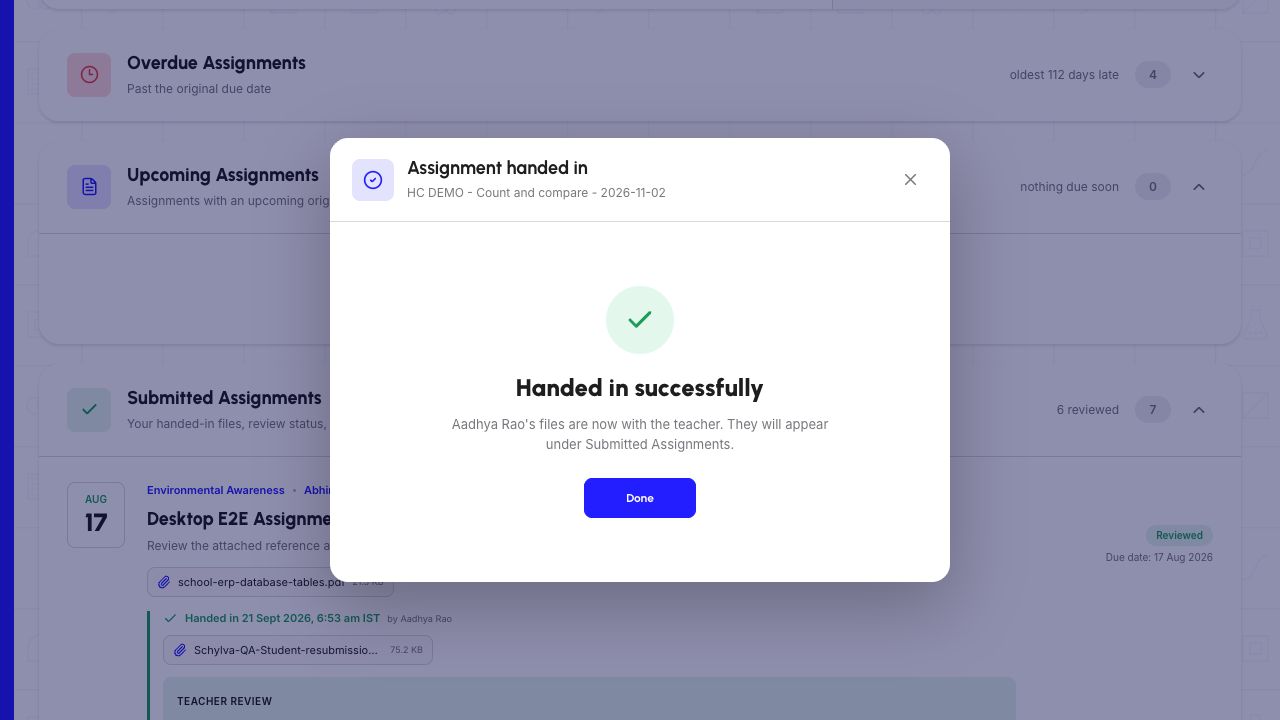
Choose Hand in assignment once. Wait for the Handed in successfully confirmation, then choose Done.
Do not close the page or repeatedly hand in while it is processing. The success dialog confirms this attempt; the saved assignment card provides the next check.
Demo school · Desktop web · 2 November 2026
 Enlarge screenshot
6. Check Submitted, then refresh
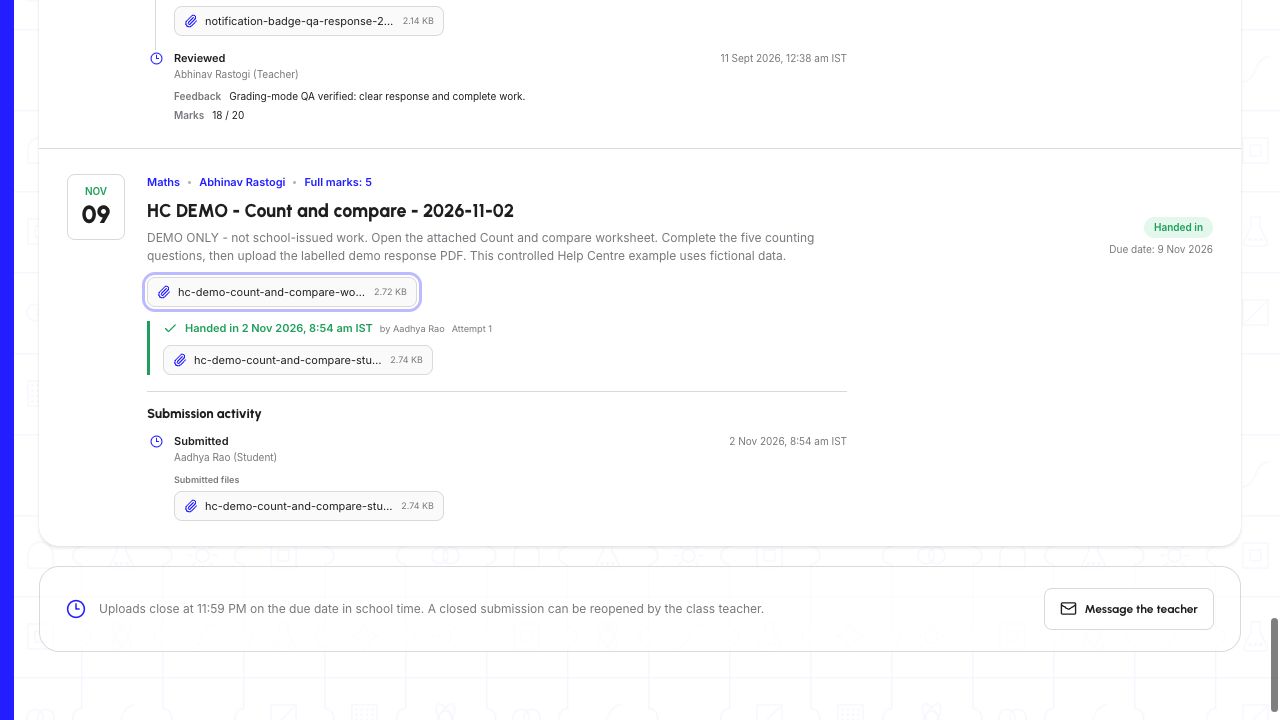
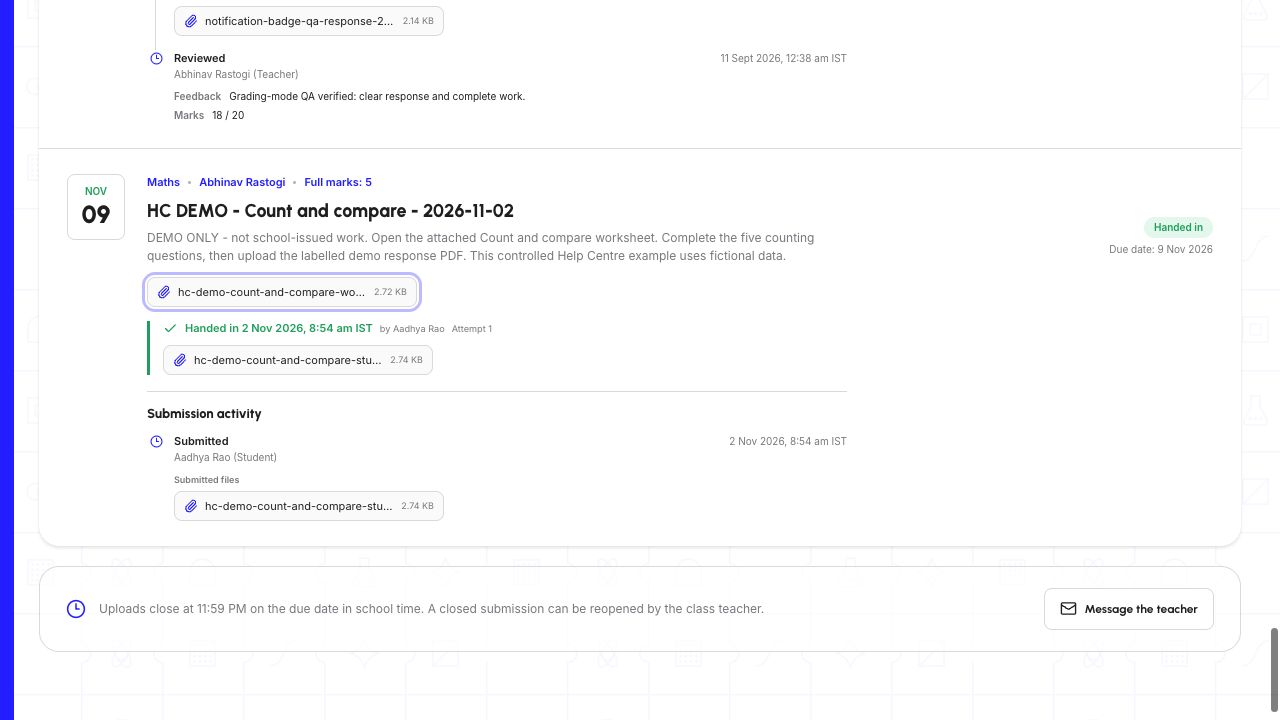
Open the Submitted Assignments group if it is collapsed. Find the same title and check Handed in, the recorded time, Attempt 1 and your response filename.
Refresh the page and reopen Submitted Assignments. In this example, the same hand-in and response remain after refresh. A Teacher review may appear later; Handed in and Reviewed are separate states.
Demo school · Desktop web · 2 November 2026
 Enlarge screenshot
Demo school · Desktop web · 2 November 2026
 Enlarge screenshot
What the Teacher receives
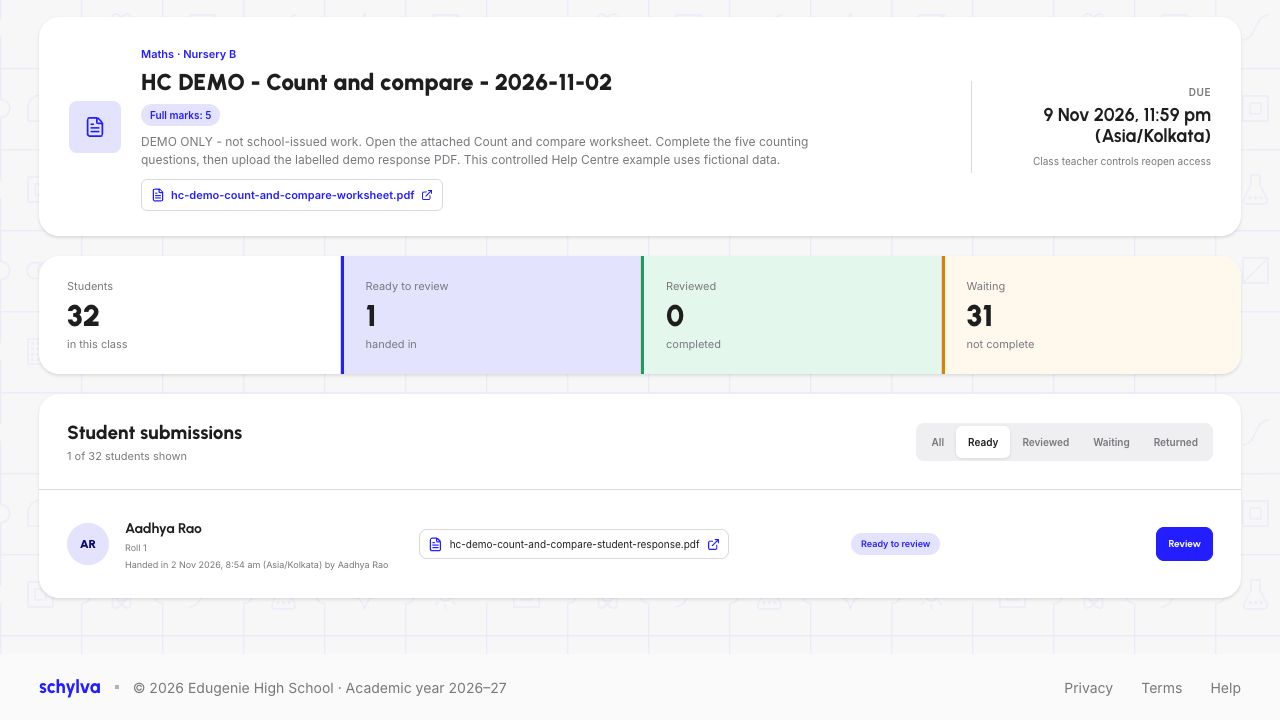
The Teacher’s matching register now shows one Ready submission for Aadhya and 31 Waiting. The Teacher can open the submitted response.
Follow the feedback guide to see how a saved Teacher review appears on this same Student card.
Demo school · Desktop web · 2 November 2026
 Enlarge screenshot