Find homework and read submission status as a Teacher
Use Homework to find work already set for your classes, then open its submission list. Check the assignment and class before interpreting the counts or reading a student’s existing feedback.
For Teacher
On this page
Before you begin
- An authorised Teacher account for your school.
- The assignment title, class/section and subject you want to check.
1. Find the existing assignment
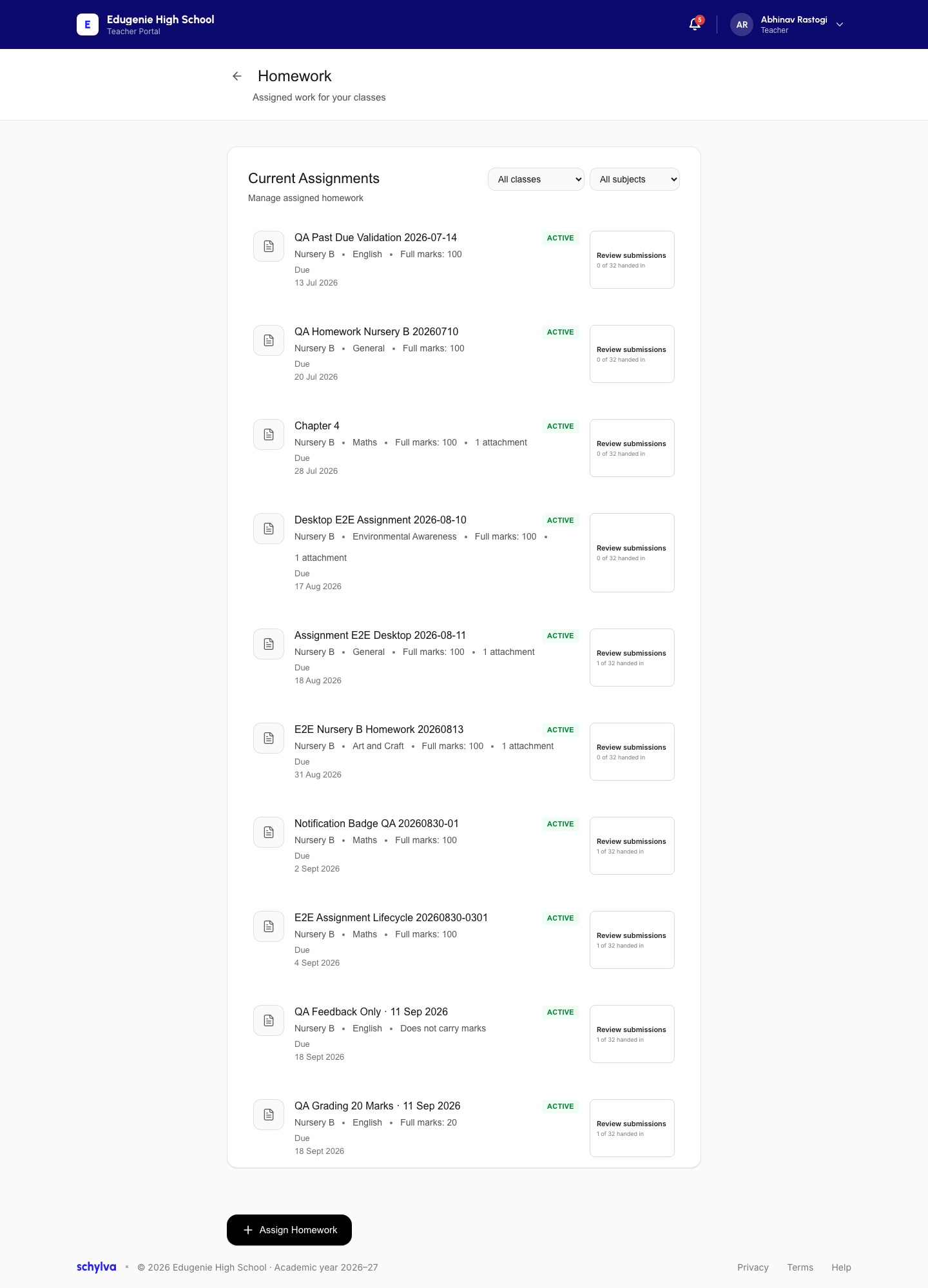
Open the Homework listing in the Teacher portal. Under Current Assignments, use the class and subject filters to narrow the list. Read the title, class, subject and due date together; similar demo titles may refer to different tasks.
A card can show Full marks or Does not carry marks. An Active label alone does not mean its due date is still open. The pictured list includes tasks with past due dates.
Demo · Teacher desktop web
 View full screenshot
2. Open Review submissions
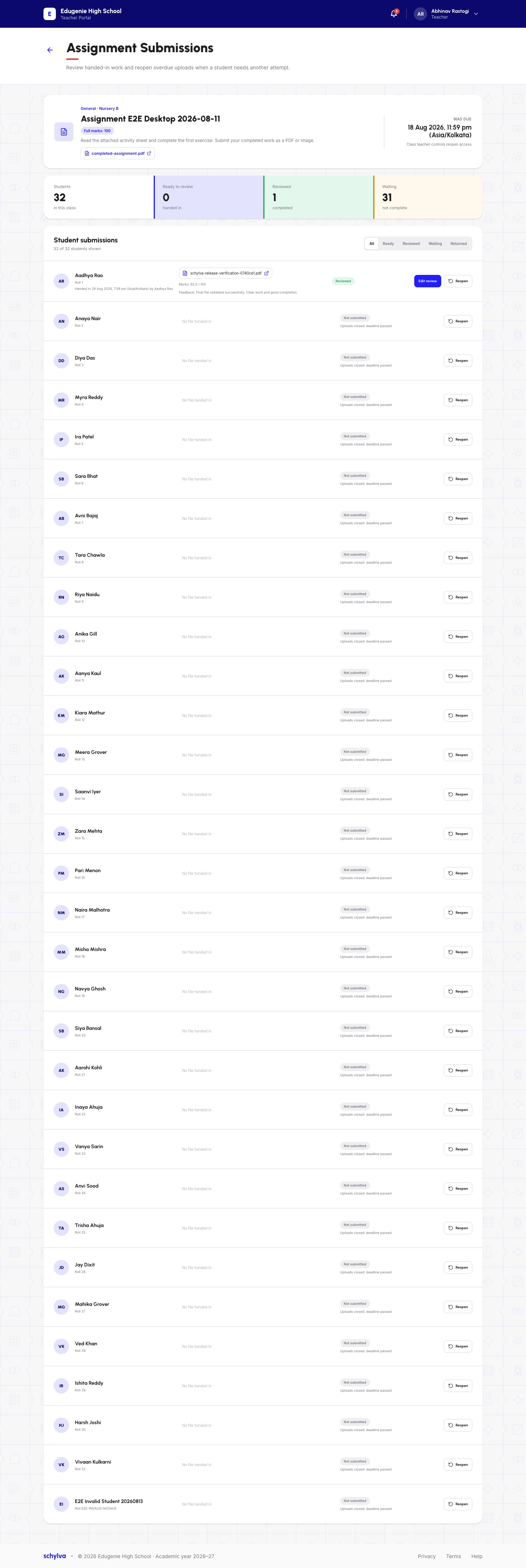
Choose Review submissions on the intended assignment. Confirm its title and class again at the top of Assignment Submissions, then read the instructions, attachment name and displayed due date/time.
The Nursery B desktop example shows 32 students: 0 Ready to review, 1 Reviewed and 31 Waiting. Your class can have different counts.
Demo · Teacher desktop web
 View full screenshot
3. Filter and read existing feedback
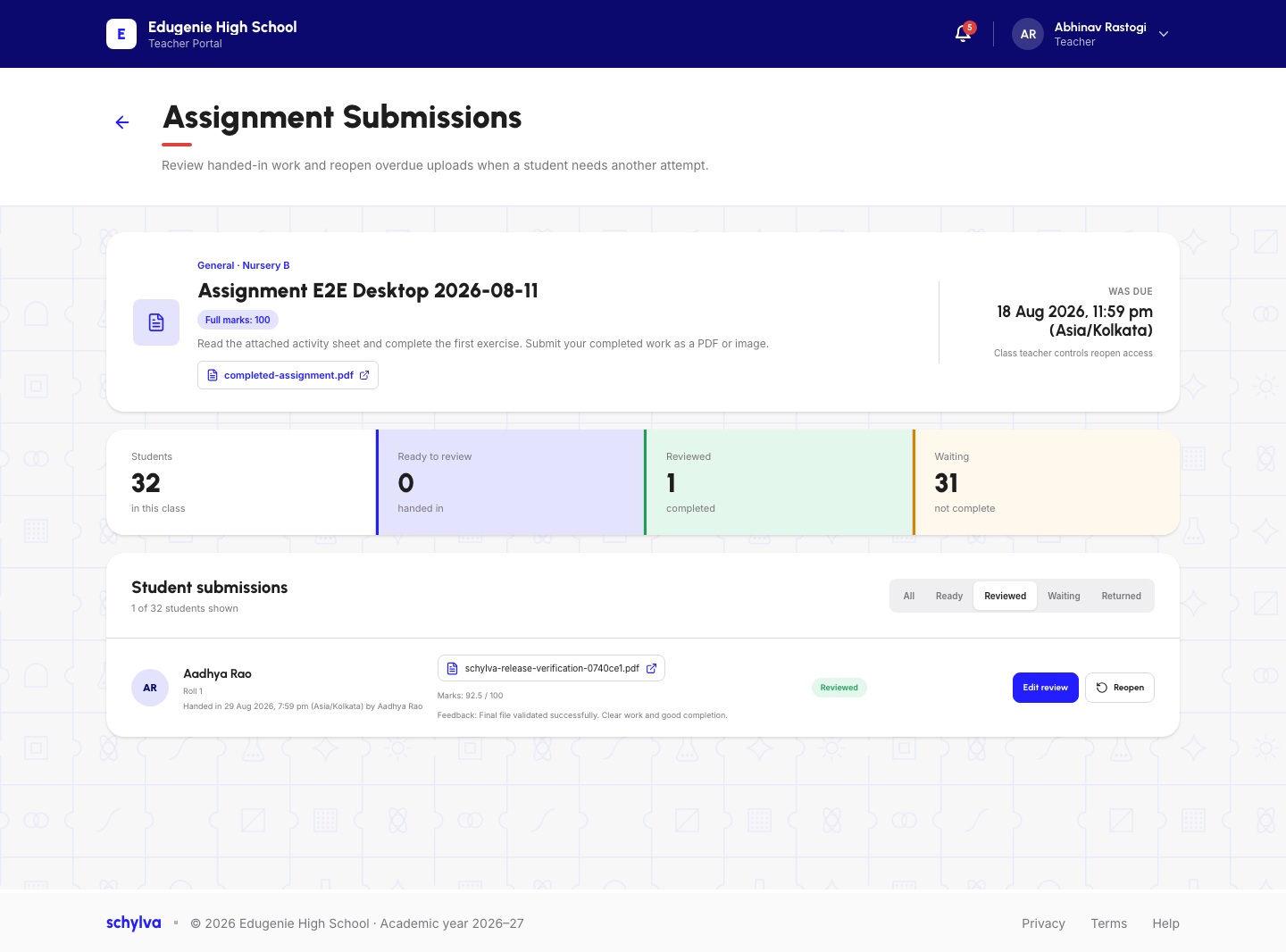
Use the status tabs All, Ready, Reviewed, Waiting or Returned to focus the list. Read the number of students shown so a filtered list is not mistaken for the whole class.
In the Reviewed desktop example, one student is shown. The row contains an existing attachment, marks and feedback. Read the maximum marks for this assignment before comparing a score with another task.
Edit review and Reopen are actions that can change records or access. You do not need them to read the displayed status. A Reviewed badge describes the displayed record; this guide covers reading it, not saving or reopening work.
Demo · Teacher desktop web
 Enlarge screenshot
On the mobile website
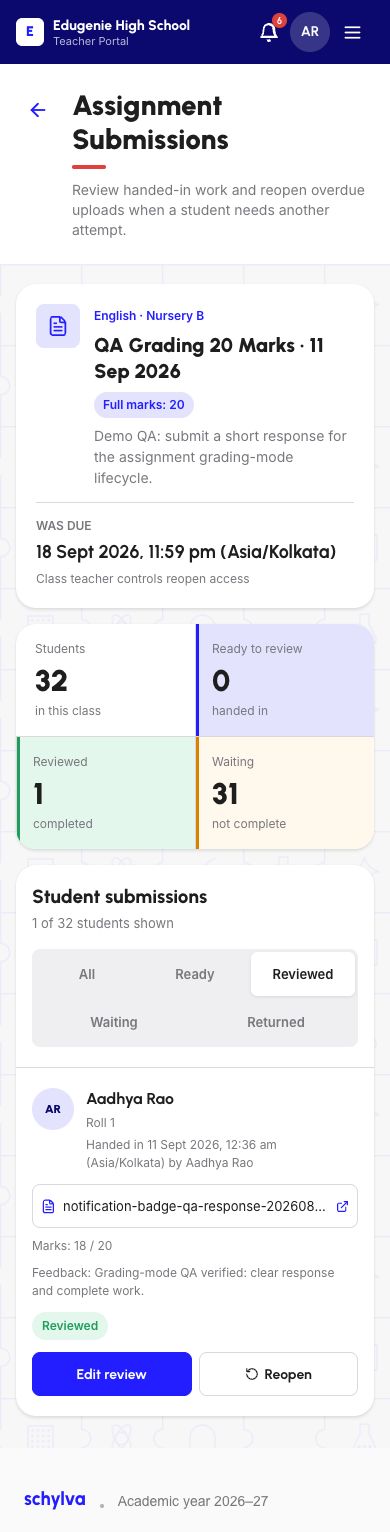
Homework cards stack vertically, with Review submissions beside each task’s progress. Scroll to the intended title before opening it.
The mobile Reviewed example is a different assignment. It shows 18 / 20, while the desktop example uses a different maximum. Check the title and full-marks value before comparing scores.
Demo · Teacher mobile web
 View full screenshot
Demo · Teacher mobile web
 View full screenshot
If the list does not match your expectation
- An assignment is missing
- Return the class and subject filters to their broad options, then check your school account and allocation.
- A submitted item is not visible
- Check All as well as the selected status tab. Confirm the student and assignment before asking the school to investigate.
- A past-due task is still labelled Active
- Read the due date and current availability separately. This guide does not establish that uploads can still be made.