Read teacher remarks and find contact options
Open Remarks to read existing teacher feedback. Check the student, date and author, use the category filters, and find the class-teacher contact options if you need clarification.
For Parent · Student
On this page
Before you begin
- An authorised Parent or Student account.
- Parents: select the intended child first.
- A trusted school contact for questions that cannot be resolved from the note.
1. Open Remarks and read the context
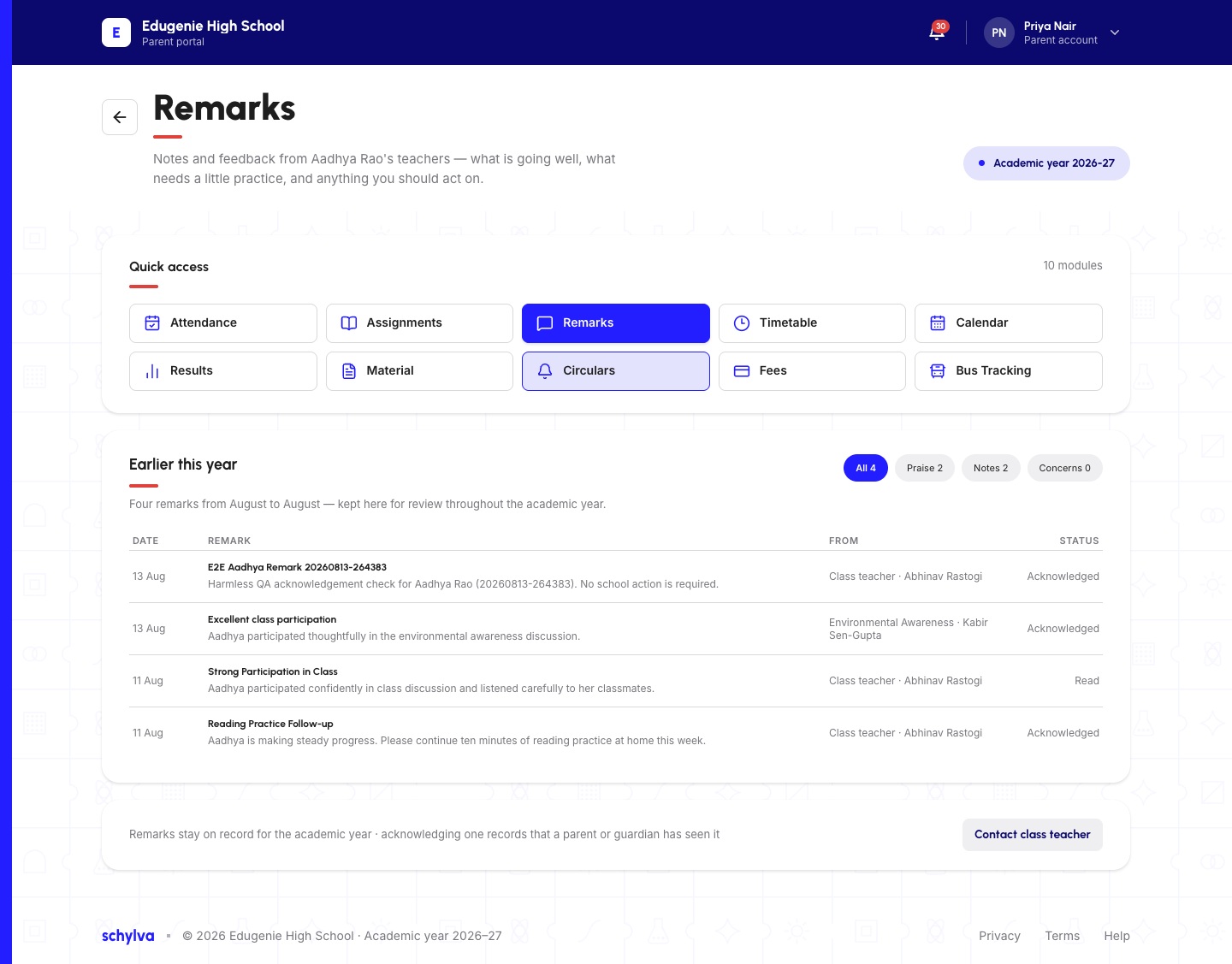
Choose Remarks in Quick access. Confirm the student named beneath the heading and the academic year.
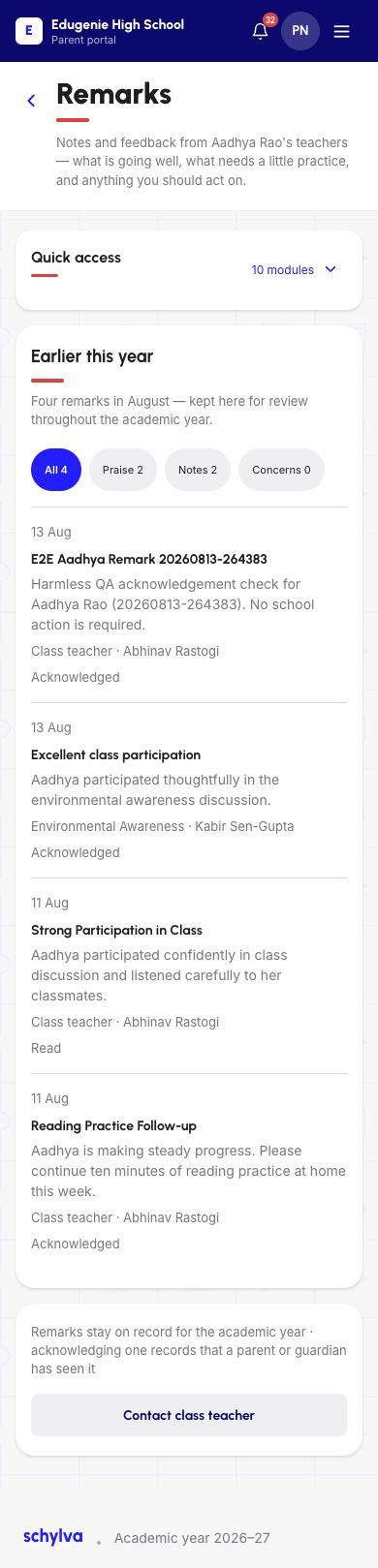
Each remark shows a date, title or message, author and status. Read the full text, not just its category. The examples show sample feedback records, including a test note. Use your school’s actual feedback when deciding what to discuss.
Demo · Parent desktop web
 Enlarge screenshot
2. Use the category filters
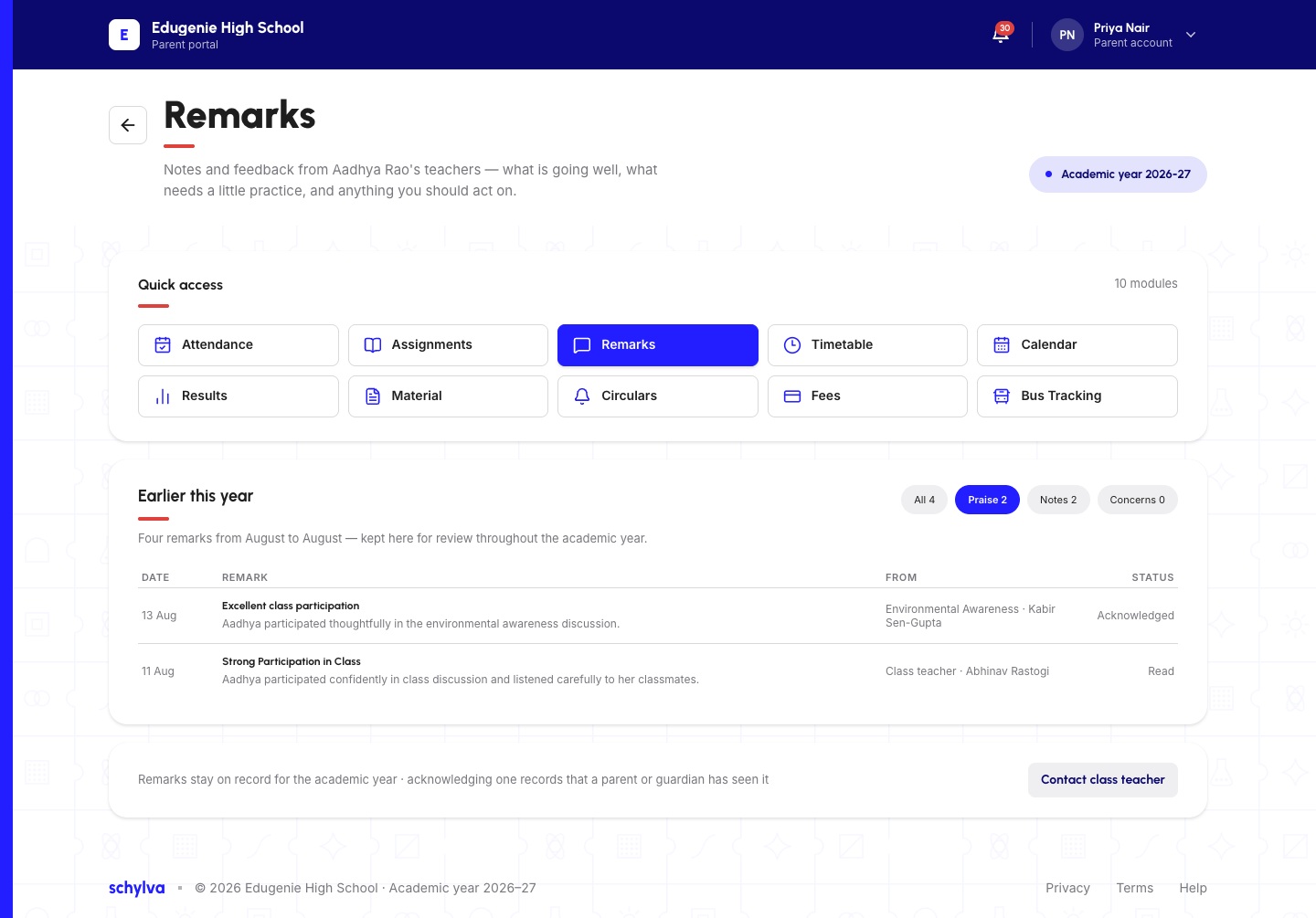
Choose All, Praise, Notes or Concerns. The number beside a category describes that category in the captured view.
The Praise example shows two remarks from the four-item list. Return to All to see the other categories again. A zero count for Concerns does not mean that no other feedback exists.
Demo · Parent desktop web
 Enlarge screenshot
3. Understand the Student view
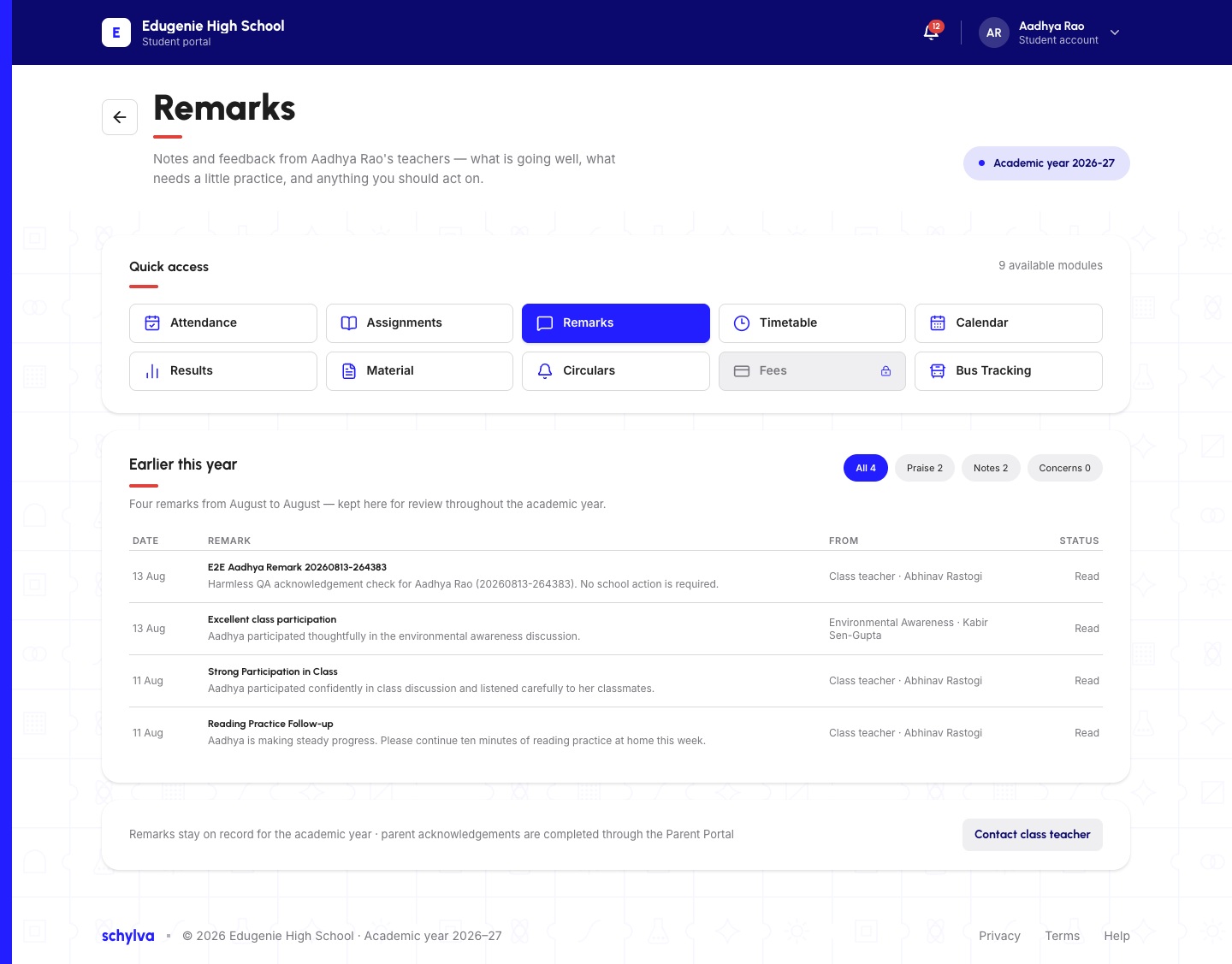
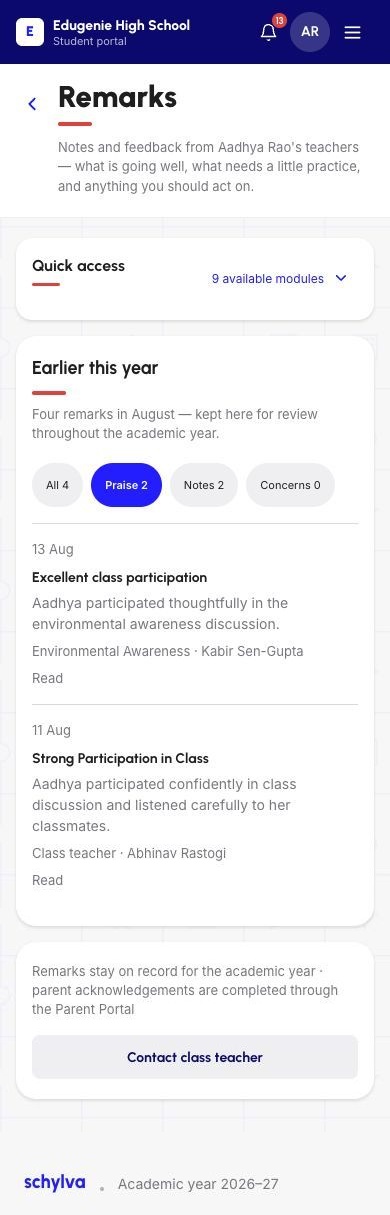
Students can read their own visible remarks and use the category filters. The Student screenshot states that Parent acknowledgements are completed through the Parent Portal.
Read and Acknowledged are different displayed labels. Read the status shown for your own role; another account can display a different state.
Demo · Student desktop web
 Enlarge screenshot
4. Find the class-teacher contact choices
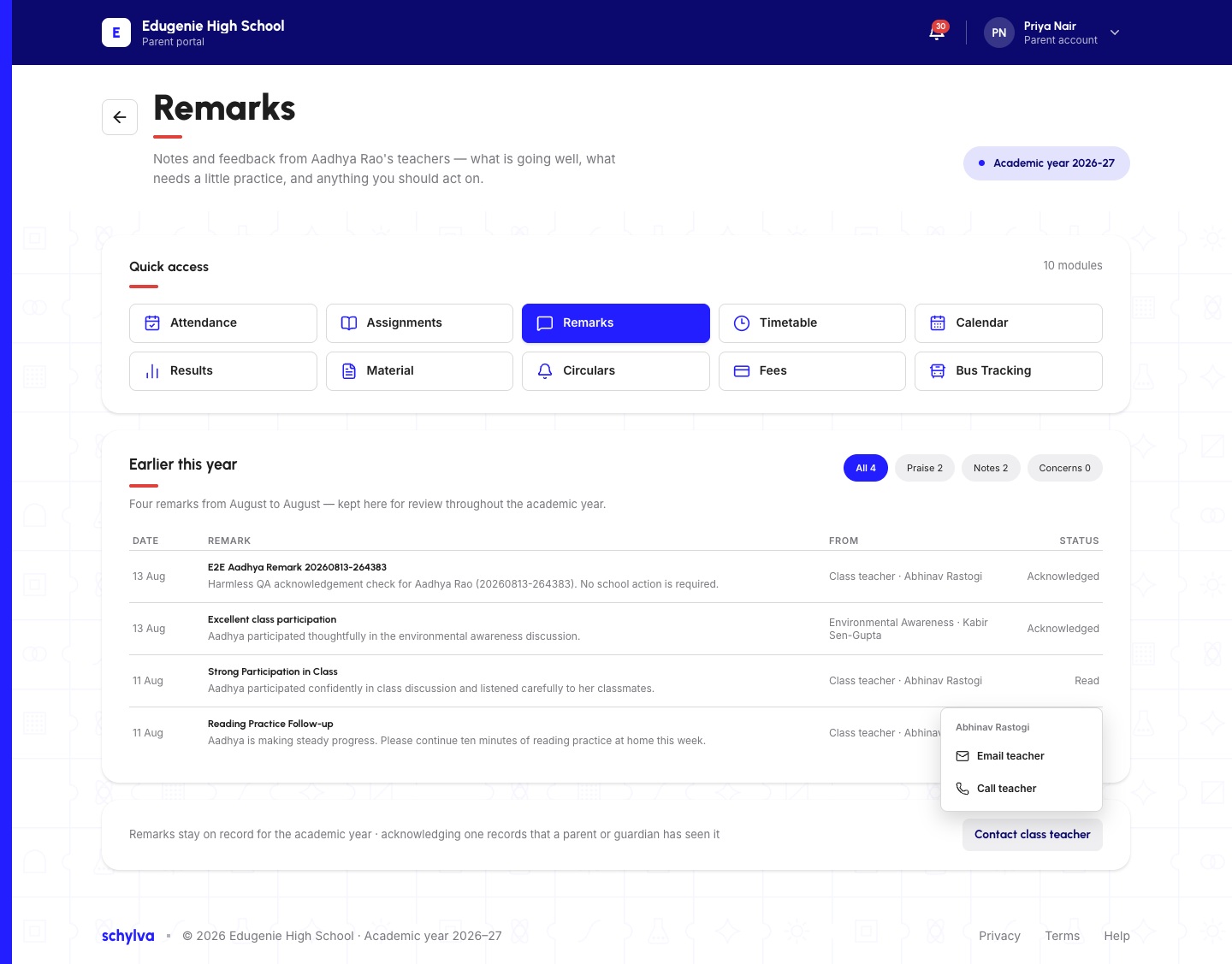
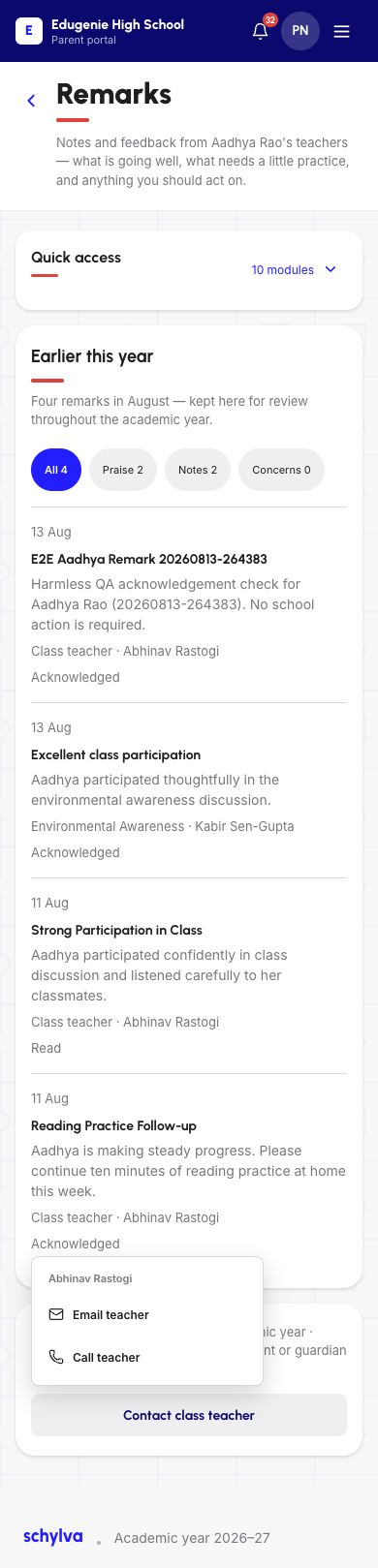
Open Contact class teacher to inspect the available choices. The example menu names the teacher and offers Email teacher and Call teacher.
Use the contact method your school expects. Opening the menu is separate from sending an email or starting a call. This guide covers finding those choices; follow your school’s contact procedure for the next step.
When asking about a remark, identify its date and title. Avoid sending unrelated student records or verification codes.
Demo · Parent desktop web
 Enlarge screenshot
Reading remarks on mobile web
The mobile page stacks each remark’s text, author and status. Read to the end of the card before moving to the next one.
The category filters and Contact class teacher button remain available in the reviewed examples. The Student screenshot shows Praise selected; the Parent screenshot shows All.
Demo · Parent mobile web
 View full screenshot
Demo · Parent mobile web
 View full screenshot
Demo · Student mobile web
 View full screenshot
If the remark or contact option is missing
- A remark disappears after filtering
- Select All and confirm the student/year before asking school to investigate.
- The author or child looks wrong
- Stop and check your account/child context. Ask the school to verify the record.
- Contact choices are absent or outdated
- Use an existing trusted school channel. The guide cannot guarantee the contact details shown by every school.