Find and read a school circular
Open Circulars, choose the notice you need, and read its title, issuer, audience and message. Check any acknowledgement status separately: simply opening the page is not proof that you acknowledged it.
For Parent · Student · Teacher
On this page
Before you begin
- An authorised Parent, Student or Teacher account.
- Parents: the intended child selected.
- The title or approximate date of the circular you need.
1. Find the circular
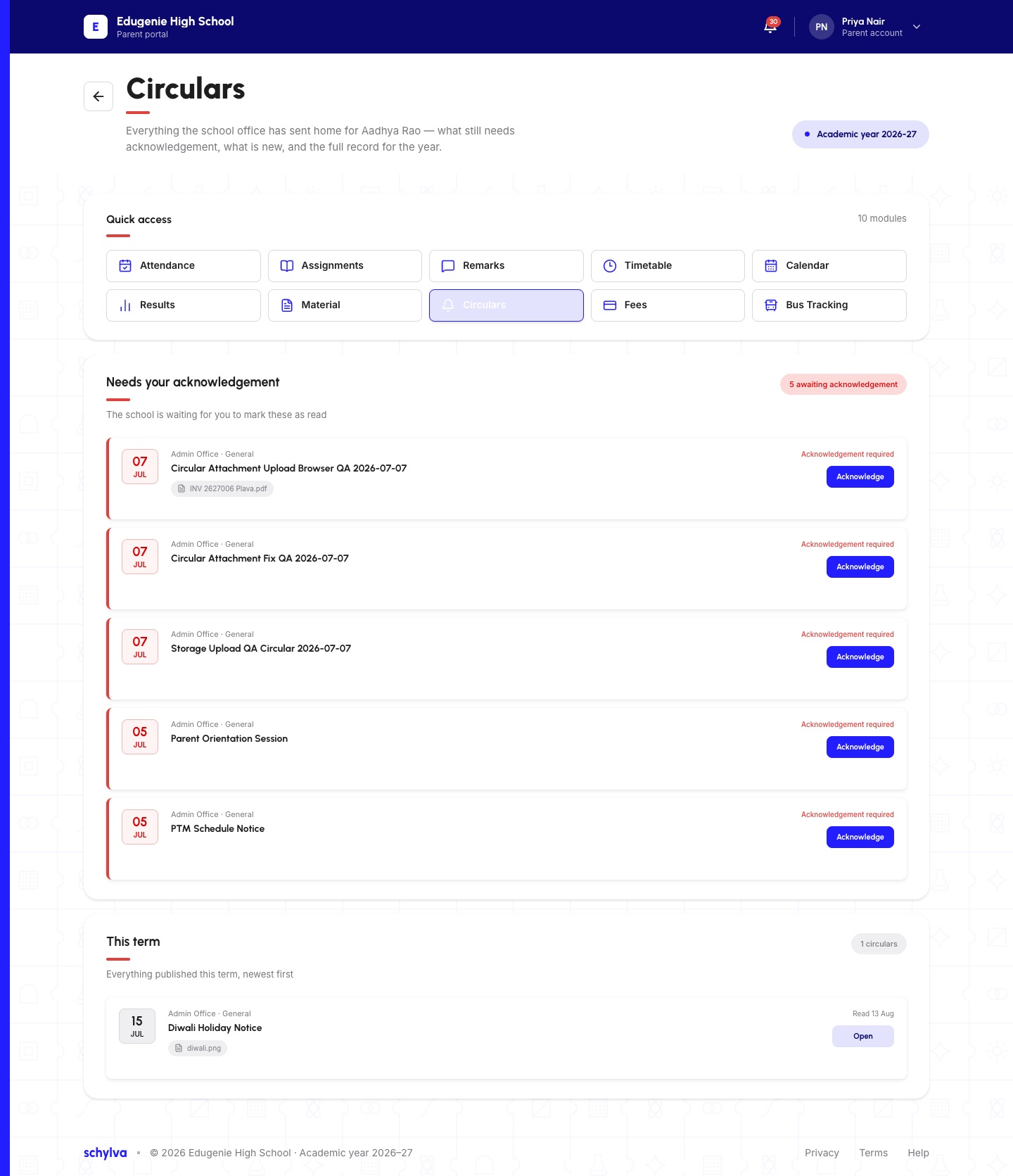
Choose Circulars from your portal navigation. The Parent example separates Needs your acknowledgement from This term. Read the title and date to identify the intended notice.
Open the notice through its title or Open control. The Acknowledge control has a different purpose and is not needed merely to inspect a notice already available to read.
Demo · Parent desktop web
 Enlarge screenshot
2. Check the details before acting
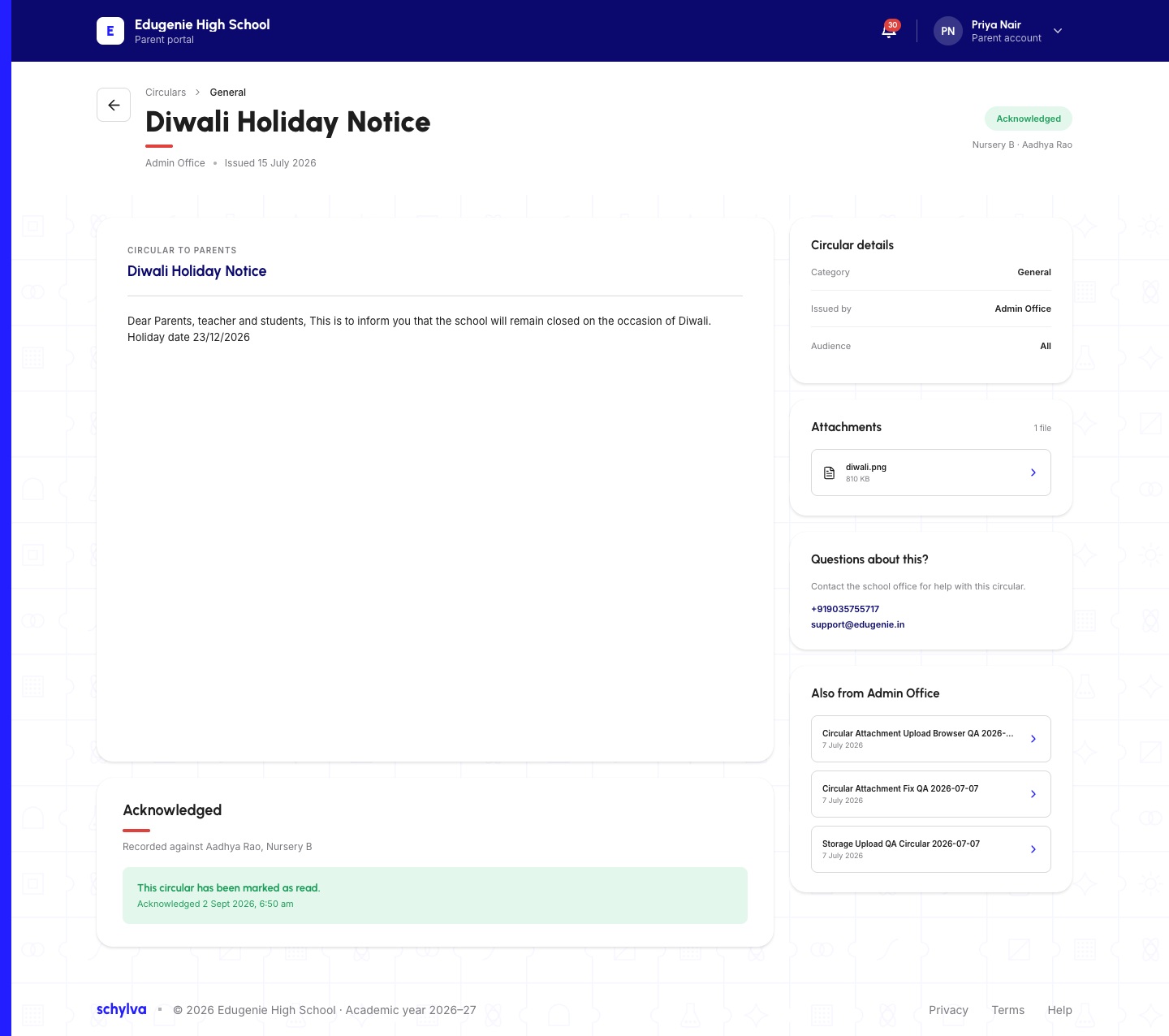
On the circular page, read the issuer, issue date, category and audience alongside the message. A date inside the message can differ from the issue date.
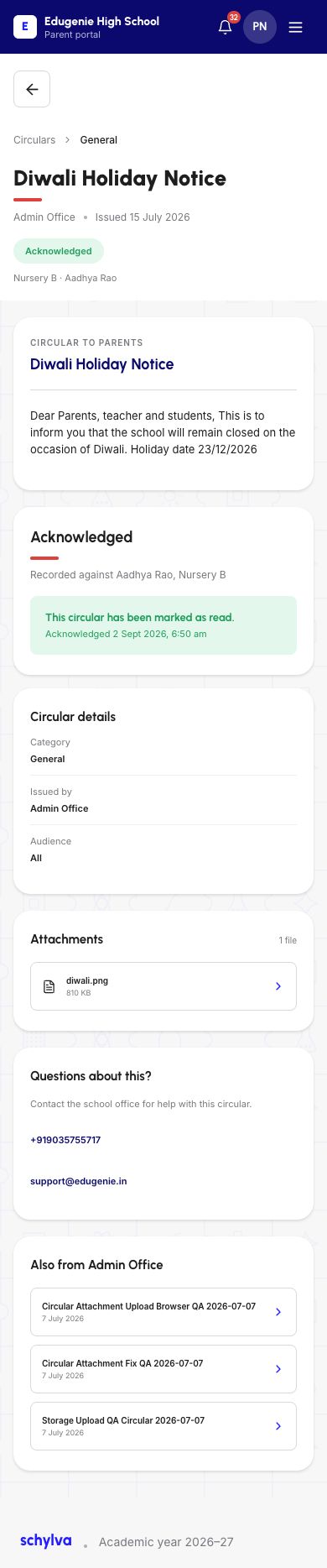
The Parent screenshot shows a holiday notice already marked Acknowledged and recorded against a named child. The example is already acknowledged; simply viewing a page does not establish a new acknowledgement.
Attachments are listed separately. This guide identifies the attachment listing; it does not walk through opening or downloading that attachment.
Demo · Parent desktop web
 Enlarge screenshot
3. Check the state for your own role
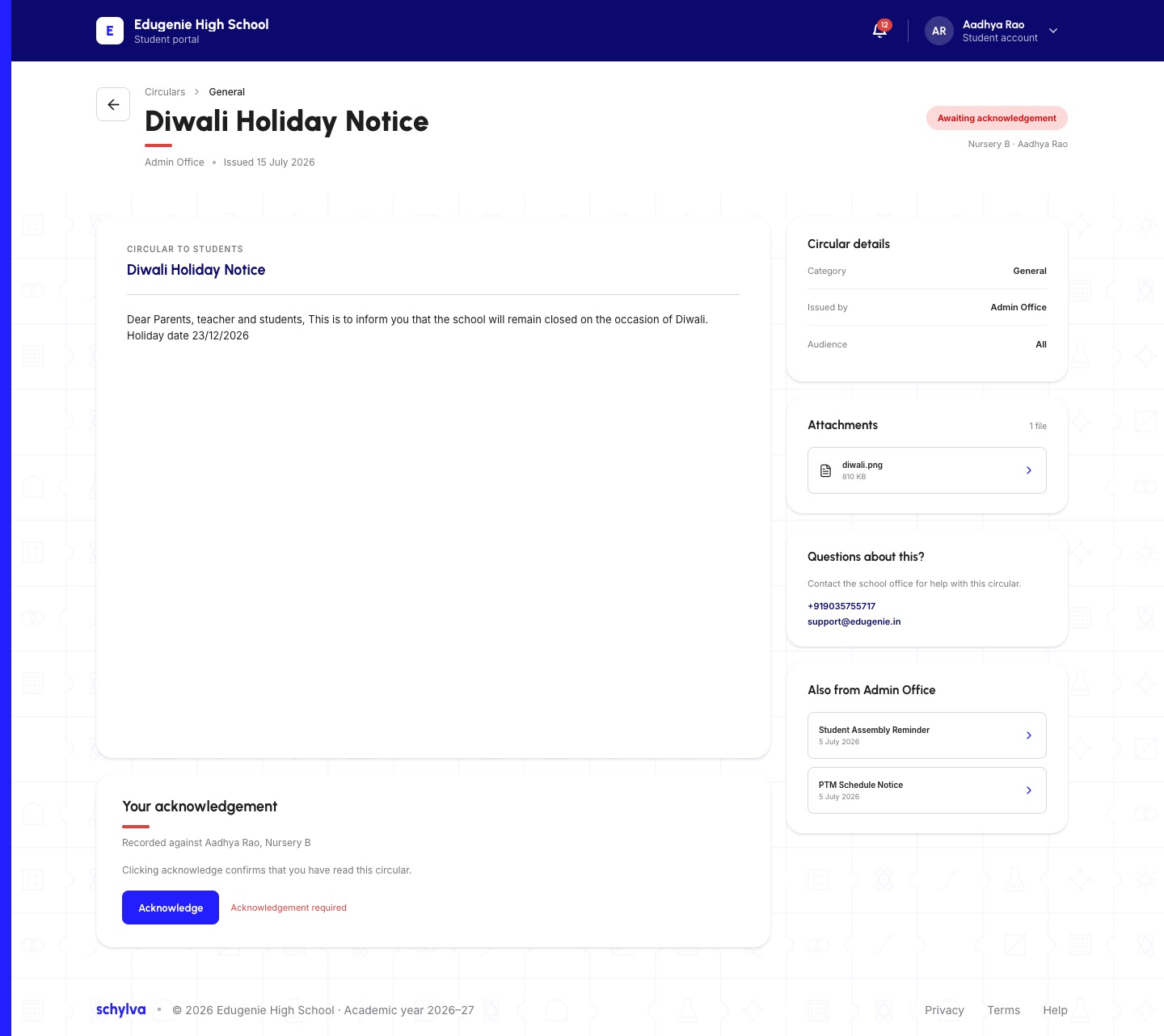
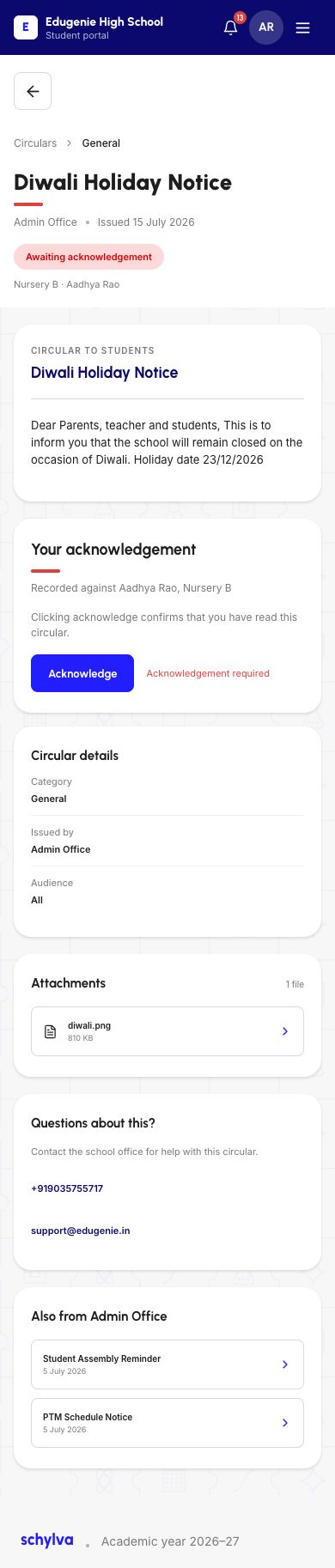
The Student example shows Awaiting acknowledgement, while the Parent example shows Acknowledged. Do not transfer one account’s displayed state to another account.
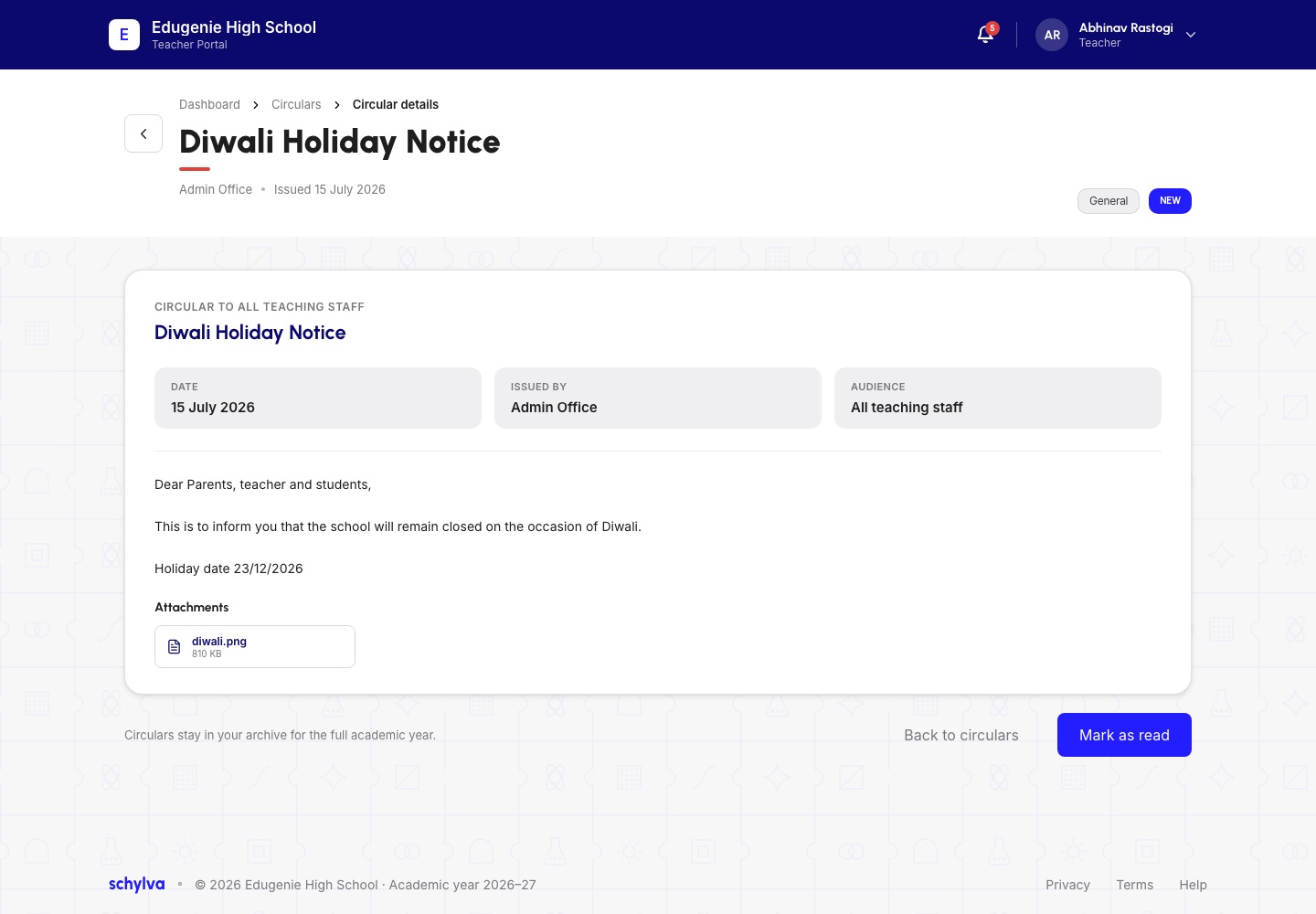
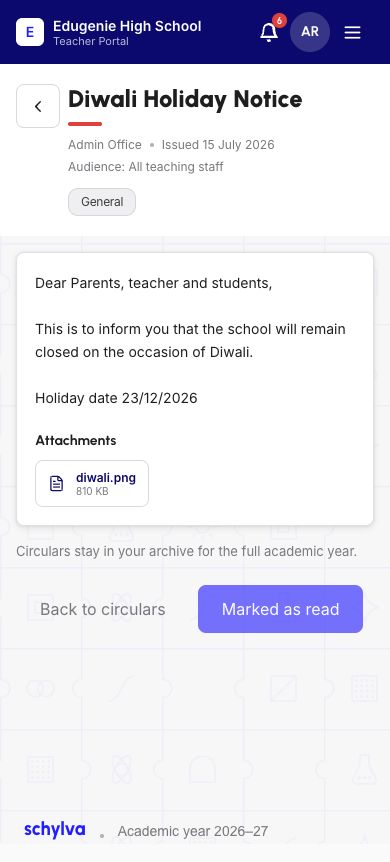
The Teacher page shows the teaching-staff audience and a Mark as read control. Its recorded mobile example shows Marked as read. These screenshots show different existing role states; they are not a before-and-after sequence.
Use this guide to read the displayed status. Ask your school which acknowledgement it requires from your account.
Demo · Student desktop web
 Enlarge screenshot
Demo · Teacher desktop web
 Enlarge screenshot
Reading circulars on mobile web
The mobile page stacks the message, acknowledgement area, details and attachments. Scroll past the message to find the remaining information.
Read the role and child context before comparing statuses. Use the back control to return to the circular list. The screenshots do not prove phone-call, email or attachment delivery.
Demo · Parent mobile web
 View full screenshot
Demo · Student mobile web
 View full screenshot
Demo · Teacher mobile web
 View full screenshot
If the circular is missing or unclear
- The notice is not in your list
- Check the account, selected child and academic year. Ask school to confirm the intended audience.
- The displayed status differs from another account
- Read your own role’s status. Ask school which acknowledgement is required; do not assume the accounts are interchangeable.
- An attachment will not open
- Tell the school the circular title and filename. Do not repeatedly acknowledge a notice to try to repair a file.