Find existing remarks in the Teacher portal
Use the Teacher Remarks list to read notes already shown for students. Check the student, class and author/context on each entry before interpreting its category or acknowledgement label.
For Teacher
On this page
Before you begin
- An authorised Teacher account.
- The student and class/section whose existing note you need.
1. Find the existing note
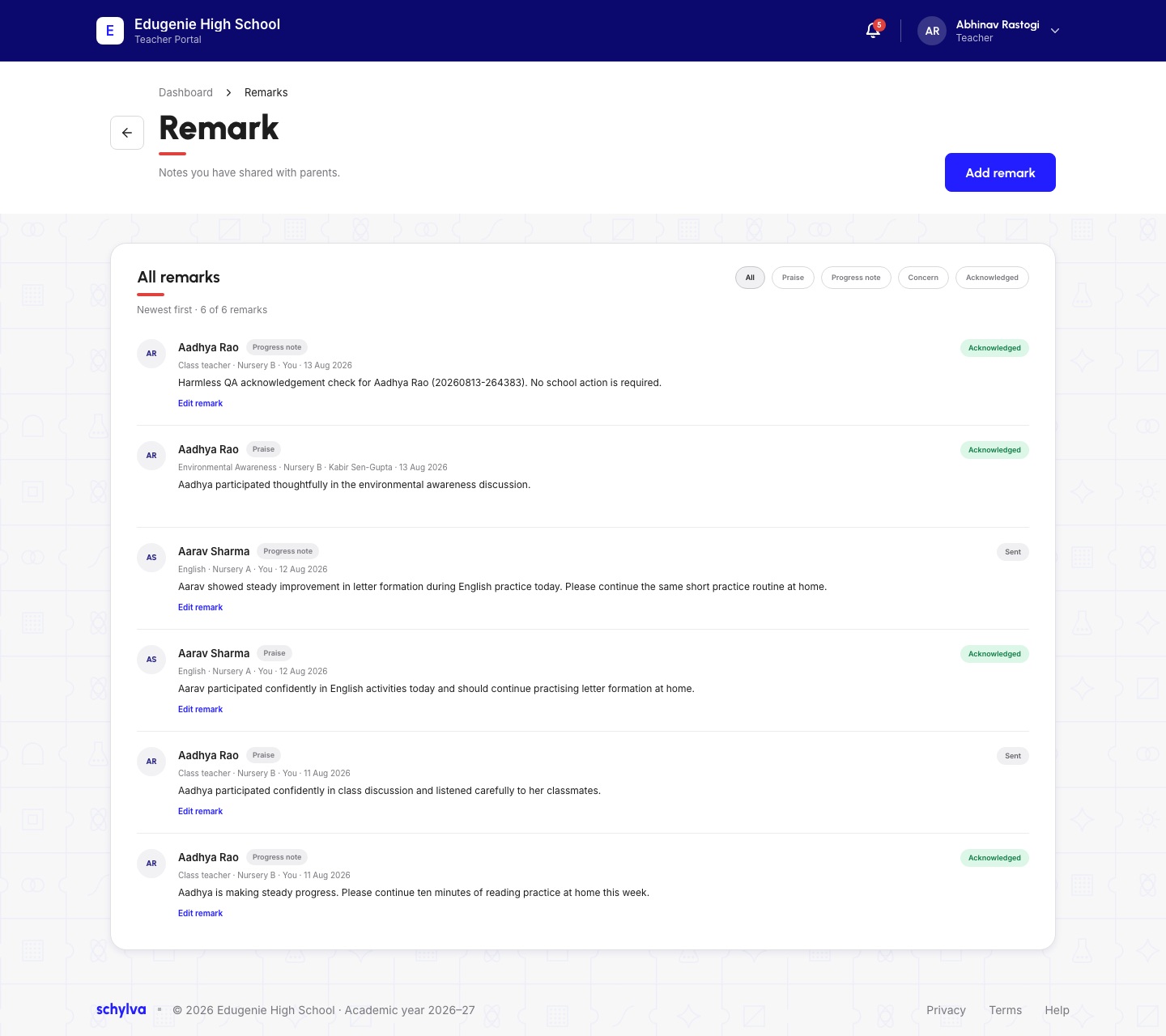
Open Remarks. The All remarks list is ordered newest first and includes All, Praise, Progress note, Concern and Acknowledged filters. Use a category to narrow what you are reading.
Read the student name and the line underneath it: class, subject/context, author and date. Some entries say You; another entry names a different teacher. Do not assume every note in the list was written by the current account.
Demo · Teacher desktop web
 Enlarge screenshot
2. Read the text and status together
Read the entire note before taking action. Praise, Progress note and Concern describe its category. Sent and Acknowledged are separately displayed states.
An Acknowledged label describes the displayed record. A Sent label alone does not tell you whether acknowledgement was requested. Use the school’s normal process if a response is needed.
3. Recognise an edit screen without saving
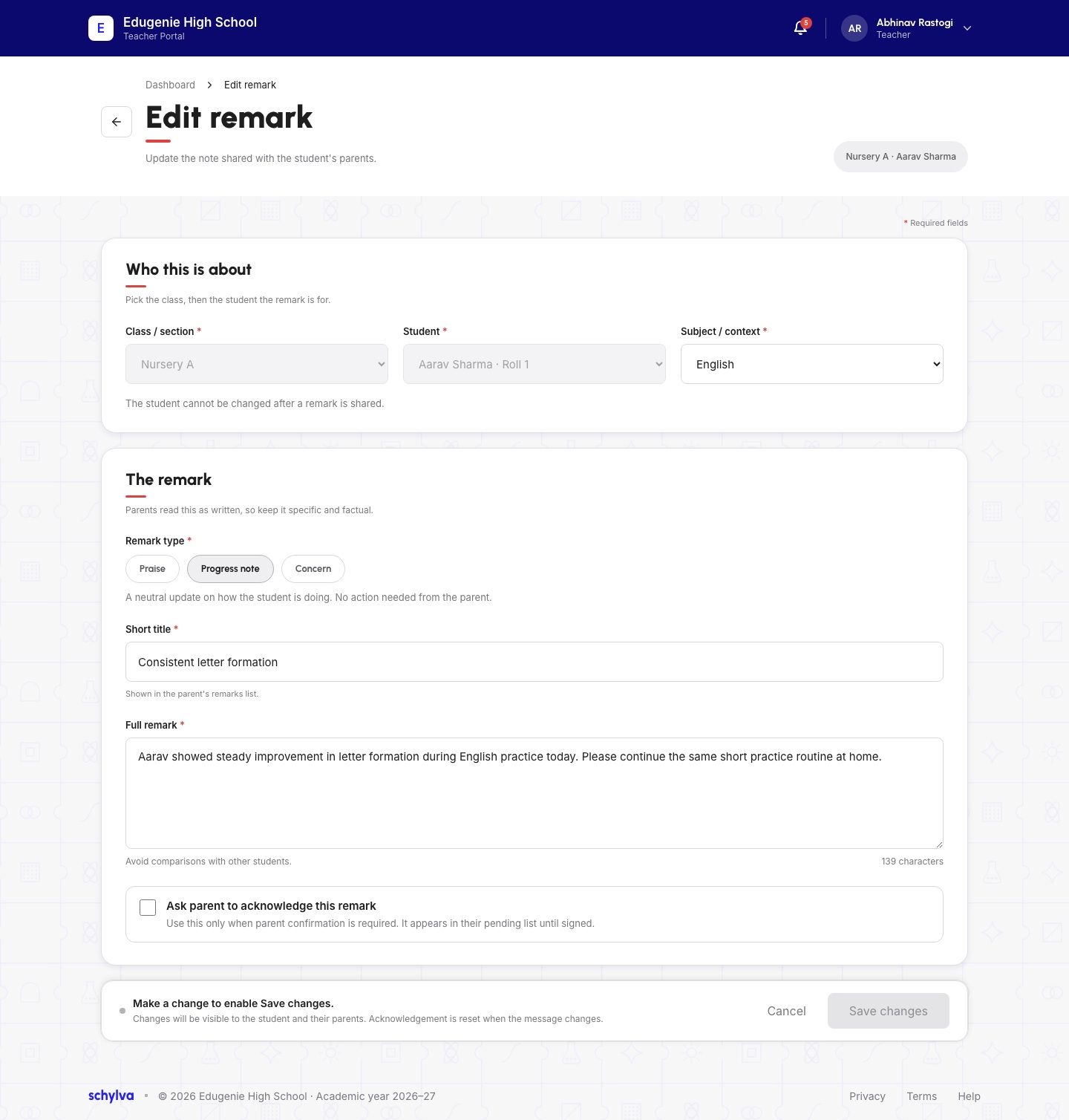
The desktop Edit remark example shows Aarav in Nursery A, English context, Progress note, a short title and the full remark. The class/student controls are disabled, and the page says the student cannot be changed after sharing.
The form also shows an acknowledgement checkbox and disabled Save changes until a change is made. These are visible form states, not evidence of a successful edit. Use Cancel if you opened the editor only to inspect it; do not change a field to enable saving.
Demo · Teacher desktop web
 Enlarge screenshot
Read remarks on mobile web
The category filters wrap above stacked remark cards. Read the title, text and status within the same card.
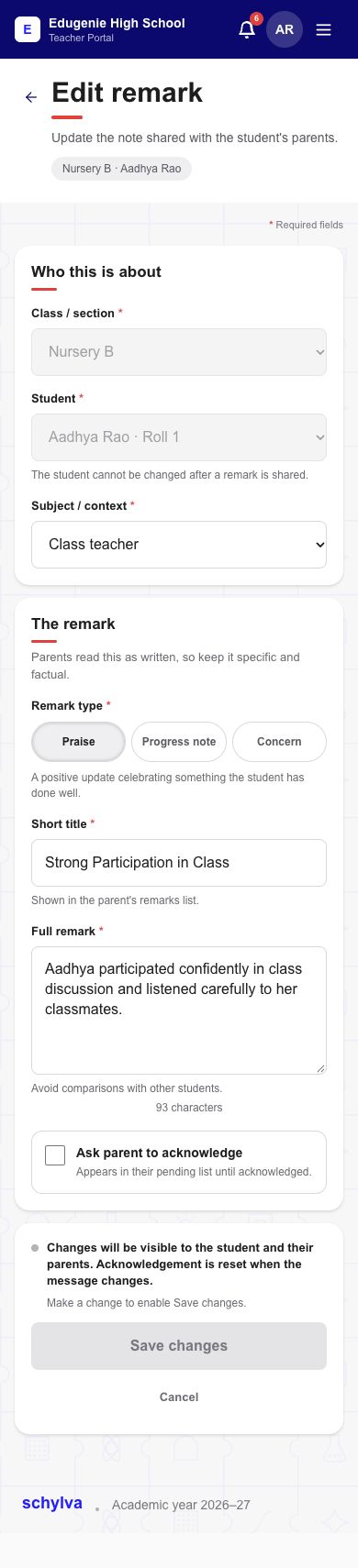
The separate mobile editor example concerns Aadhya in Nursery B and a Praise note. It is a different note from the desktop editor. Its class/student fields and Save changes control are also disabled in the captured state.
Demo · Teacher mobile web
 View full screenshot
Demo · Teacher mobile web
 View full screenshot
If the note is not the one you expected
- The list looks incomplete
- Return to All and check the student, class and displayed author/date.
- The editor names the wrong student
- Cancel and find the correct record. The captured form does not allow changing the recipient.
- A parent says the note is missing
- Ask the school to check the account and child link. Do not resend or edit the note solely to test delivery.