Publish a class reference file and archive it
Use the Admin Study Material Library for class-reference PDFs. Check the class and attachment before publishing, confirm the saved card and Parent download, then verify the result when archiving.
For Administrator
On this page
Before you begin
- An authorised Administrator account and permission to share a file with the intended class.
- The correct class/section and academic year.
- A reviewed file suitable for that audience. Do not use the demo title for a real school document.
- An authorised way to verify recipient visibility. Never request someone else’s sign-in code.
1. Open the Study Material Library
In Admin settings, open Study Material Library, then Add reference material. This is the class-reference workflow shown in the example; it is separate from a Teacher assigning homework.
The illustrated example uses Nursery A and academic year 2026–27. Before starting, check the active school/year and which class should receive the file.
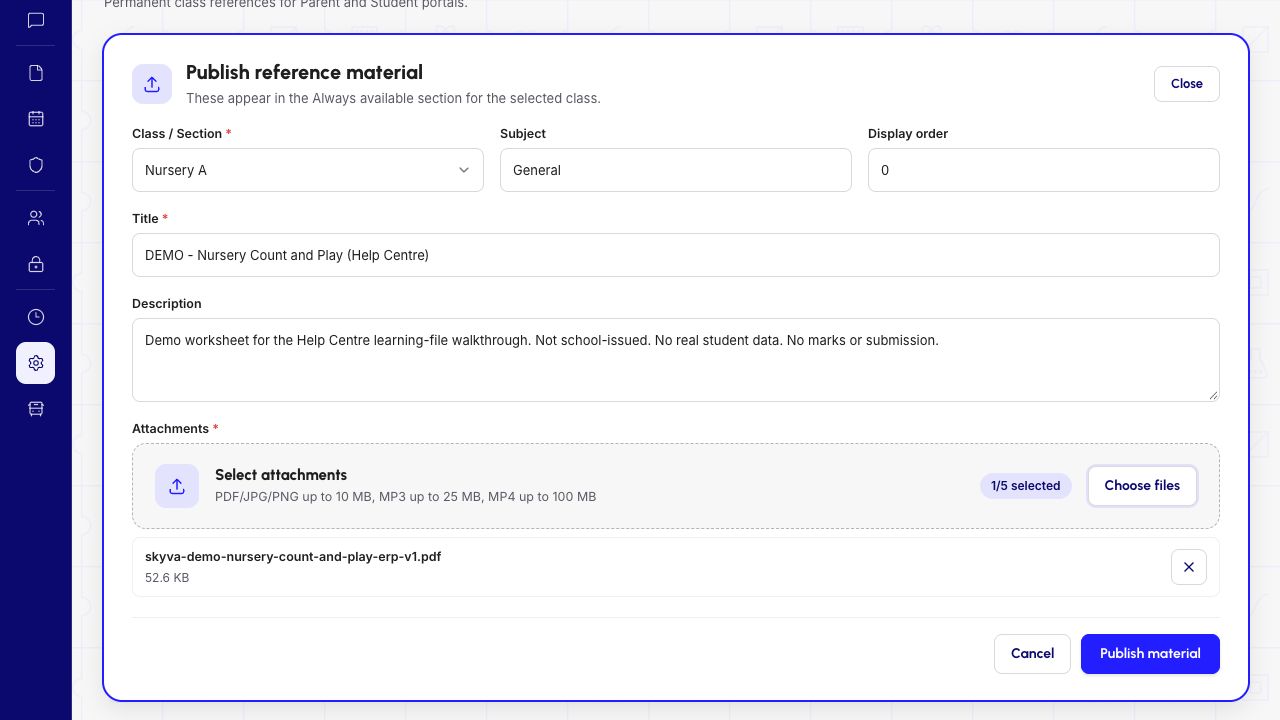
2. Complete and review the reference form
Select the Class / Section, then review Subject, Display order, Title and Description. Use a title and description that tell families what the file is for.
Use Choose files to attach the intended file. Check its filename and displayed size before publishing. The recorded example attached one PDF, skyva-demo-nursery-count-and-play-erp-v1.pdf.
The form shows file-type/size guidance and a selected-file counter. This example uses one small PDF. Other file formats, maximum-size files and multi-file uploads are outside this walkthrough.
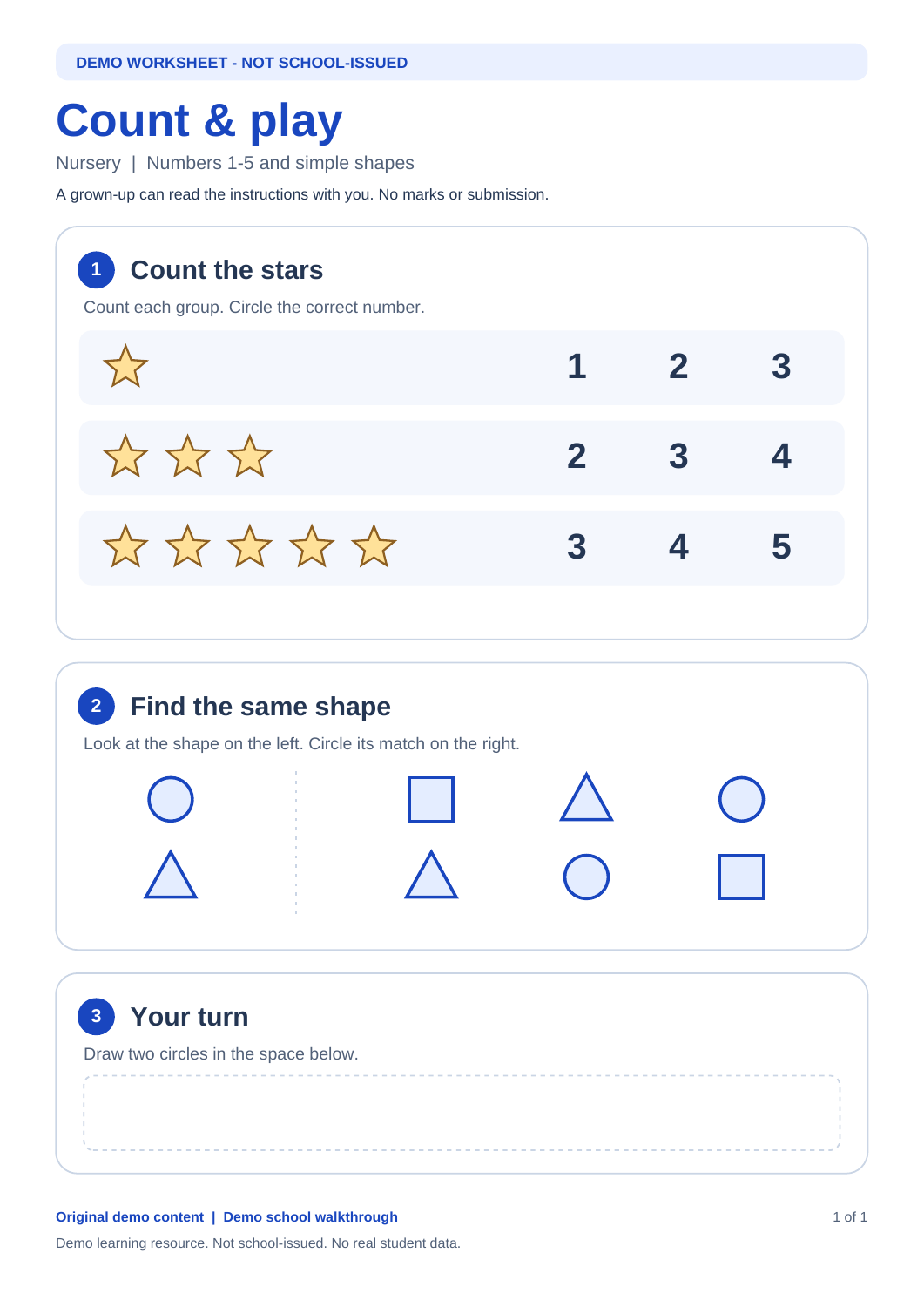
The local demo worksheet is explicitly marked DEMO and not school-issued, with no marks or submission required. Keep those labels when discussing this example.
Demo · Admin desktop web
 Enlarge screenshot
3. Publish and confirm the saved reference
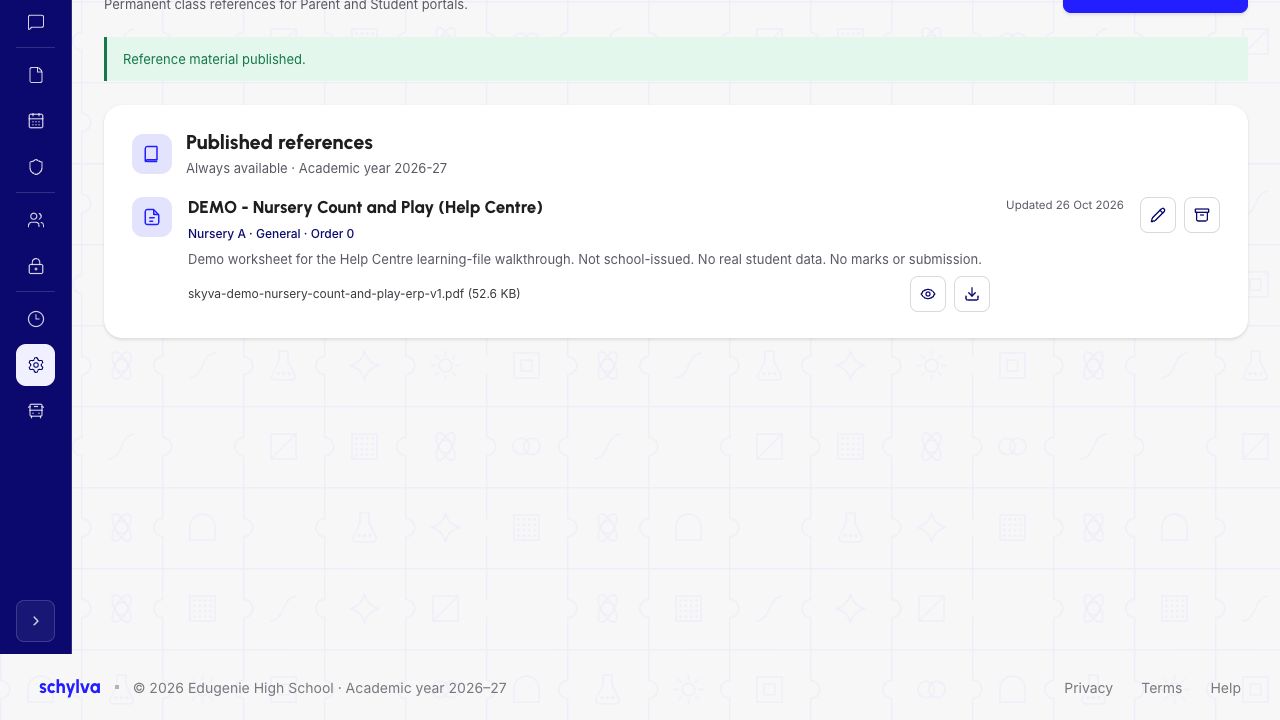
When the class, content and attachment are correct, choose Publish material. After publishing, check for Reference material published and the same title under Published references.
Confirm the title, class/section, subject and filename in that saved card. A closed form alone is not a success check. If the outcome is unclear, inspect the existing library before repeating the action and potentially creating a duplicate.
Demo · Admin desktop web
 Enlarge screenshot
4. Check the intended Parent view and download
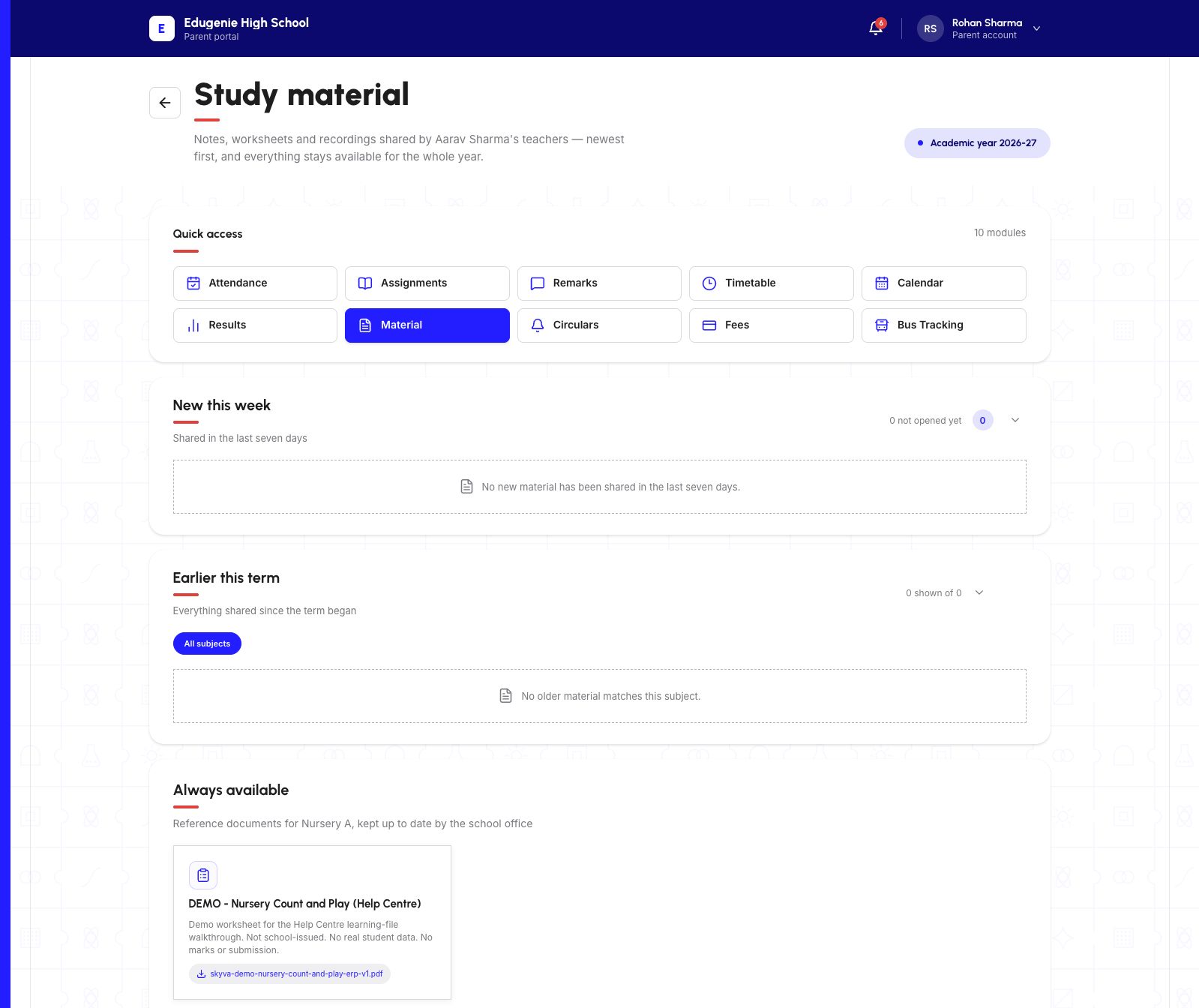
In an authorised Parent view for a child in the selected class, open Material / Study material and find Always available. The illustrated example uses Aarav in Nursery A.
Confirm the reference title and attachment, then open/download the file. The recorded Parent download opened as a one-page PDF and its bytes matched the approved demo source.
This proves that one Parent PDF outcome in the recorded test. The recipient steps in this walkthrough are for Parent desktop web. Student and native-app delivery are outside its scope.
Demo · Parent desktop web
 Enlarge screenshot
Demo · Downloaded demo PDF
 View full screenshot
5. Archive the intended reference
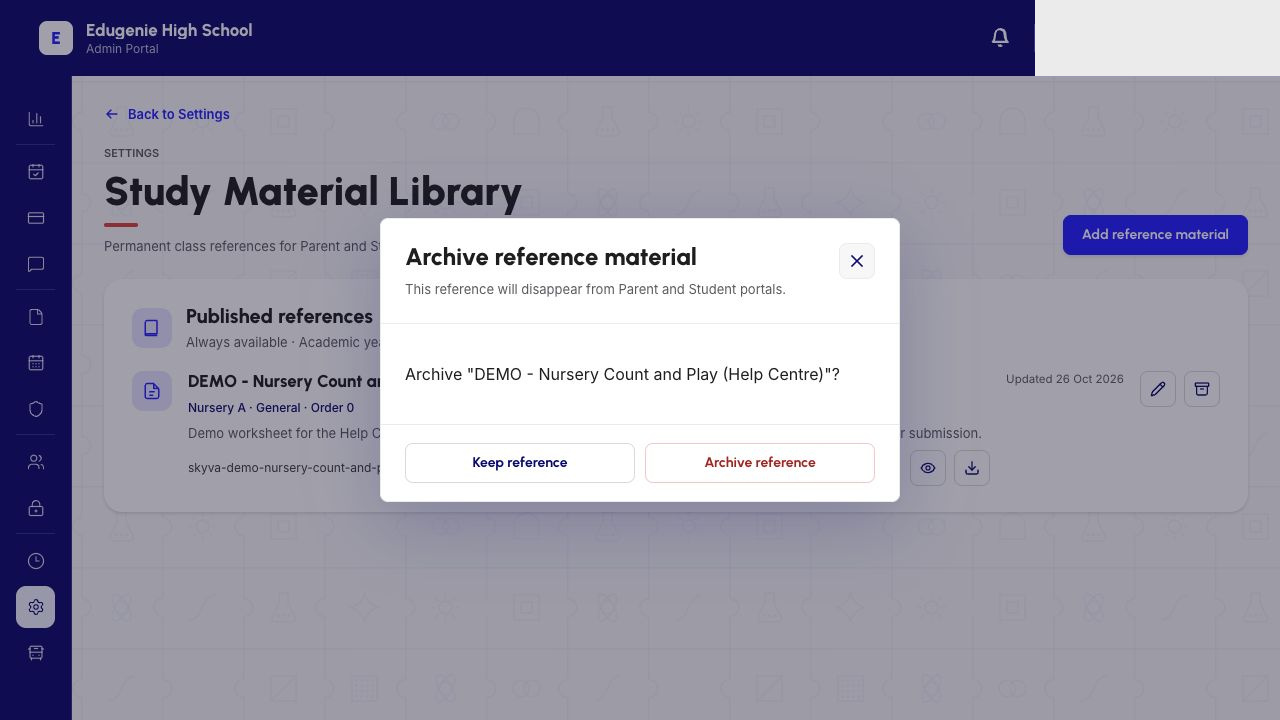
Return to Published references in the Admin library. Open the archive action on the exact reference you intend to withdraw. Read the named item in the confirmation.
The confirmation states that the reference will disappear from Parent and Student portals. Choose Keep reference if the item is wrong or should remain available. Choose Archive reference only for the intended item.
Archiving is not documented here as permanent storage deletion, erasure of downloaded copies or an undo/restore workflow.
Demo · Admin desktop web
 Enlarge screenshot
6. Confirm the resulting library state
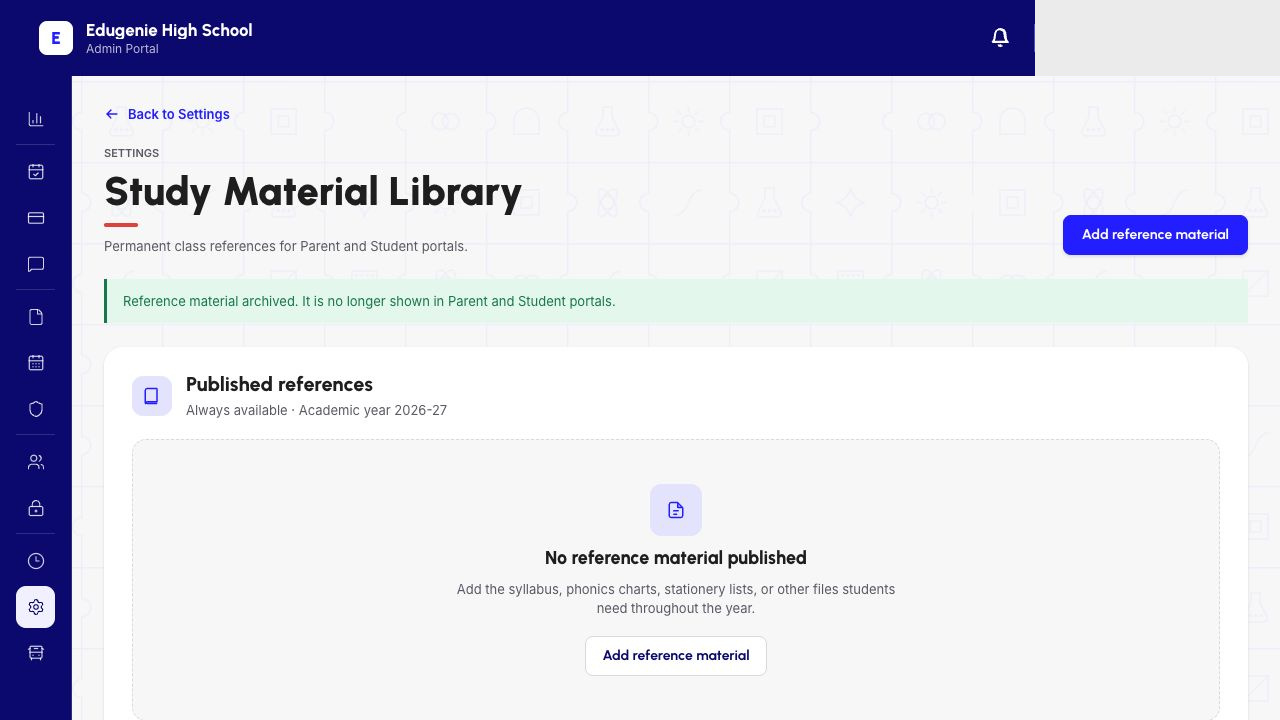
After archiving, check for the Reference material archived message. The Admin Published references area no longer contained the demo item.
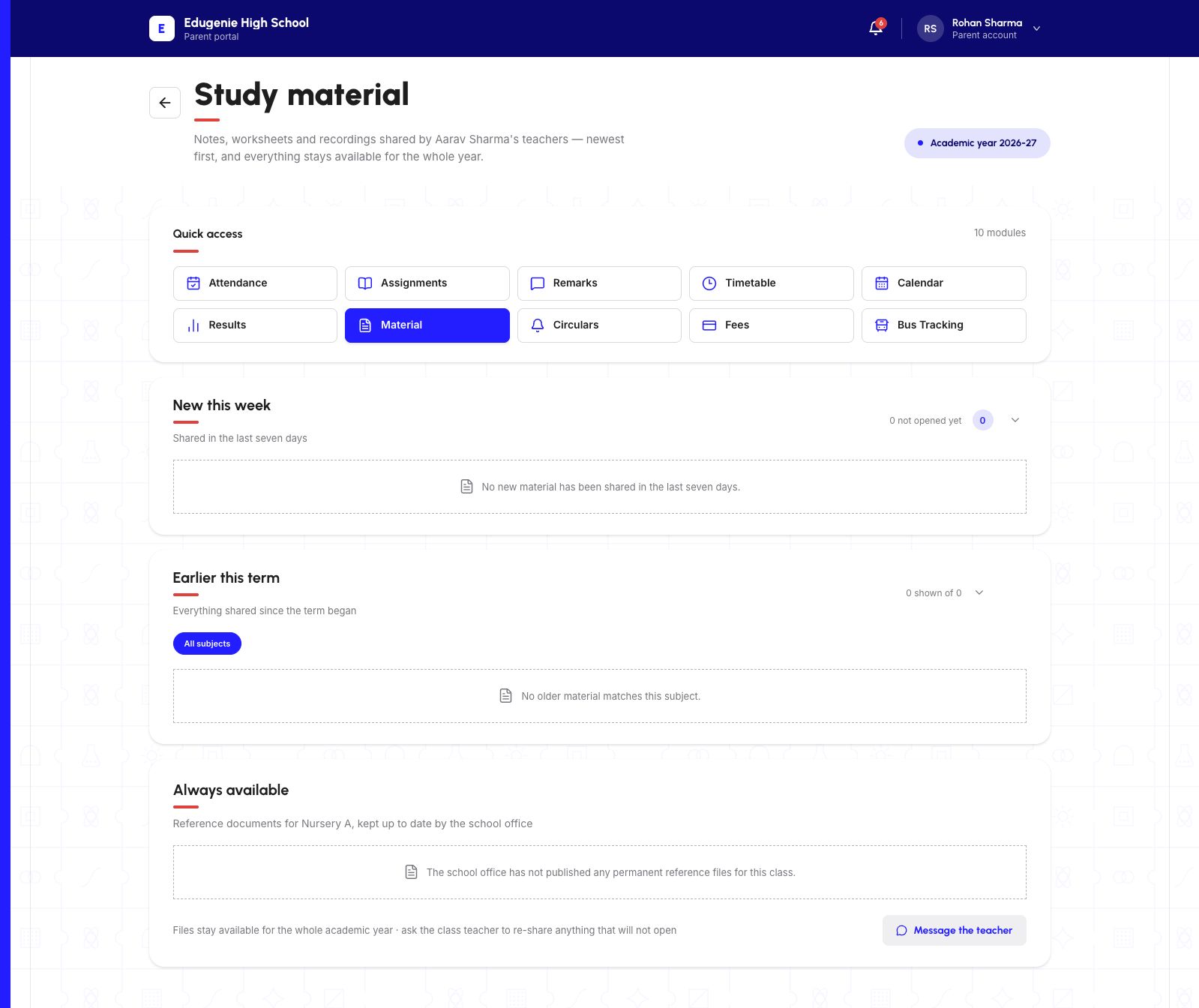
The Parent Always available area was checked again and the demo reference was absent. Confirm the specific title is no longer visible; another school may still have other reference files.
The empty-library screenshot belongs to this one-file demo. Do not expect every school library to become empty when one reference is archived.
Demo · Admin desktop web
 Enlarge screenshot
Demo · Parent desktop web
 Enlarge screenshot
If the expected outcome is missing
- The Parent cannot find the reference
- Check the saved class/section, the selected child and Always available. Confirm the record exists in Admin before uploading it again.
- A download fails or opens the wrong file
- Check the reference title and filename. The one-PDF success does not establish every browser/file combination; report the exact failure.
- The archive response is uncertain
- Reopen the list and verify the intended title before retrying. Do not archive neighbouring items to test the control.