Prepare study material and inspect its edit form
Use the existing Teacher materials list, upload form, file preview and populated editor to understand the fields and controls. Check the intended audience and attachment before any future save.
For Teacher
On this page
Before you begin
- An authorised Teacher account with access to the intended class and subject.
- The correct class, subject and purpose for the material. Follow the school’s normal rules for lesson content and attachments.
- For an existing item, its title, displayed status and current attachment name. Inspect the form and use Cancel when you do not intend a change.
1. Find the existing material and read its context
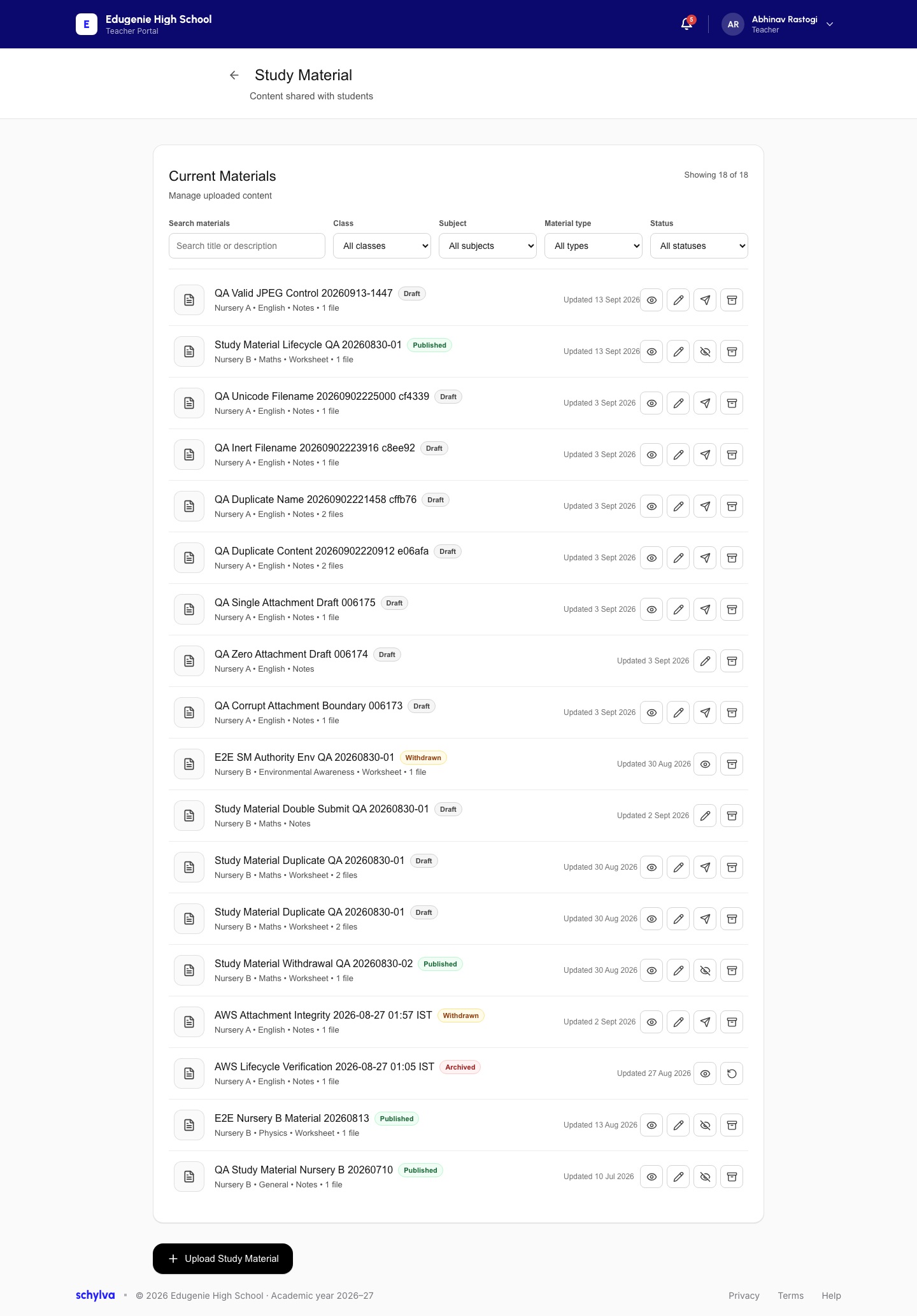
Open Study Material and use the Current Materials search and filters to find the intended item. Read its title, class, subject or category, file count and displayed status together.
The list contains existing demo items with different status labels. Seeing Draft, Published, Withdrawn or Archived records does not demonstrate how one item moved between those states.
For detailed list filtering and viewing steps, use the related Teacher viewing guide. This companion explains the upload and editing fields; it does not require you to change an existing record.
Demo · Teacher desktop web · reference screenshot
 View full screenshot
- Read title, class, subject and status together.
- Existing status labels do not prove a lifecycle transition.
2. Check the class, subject and material type
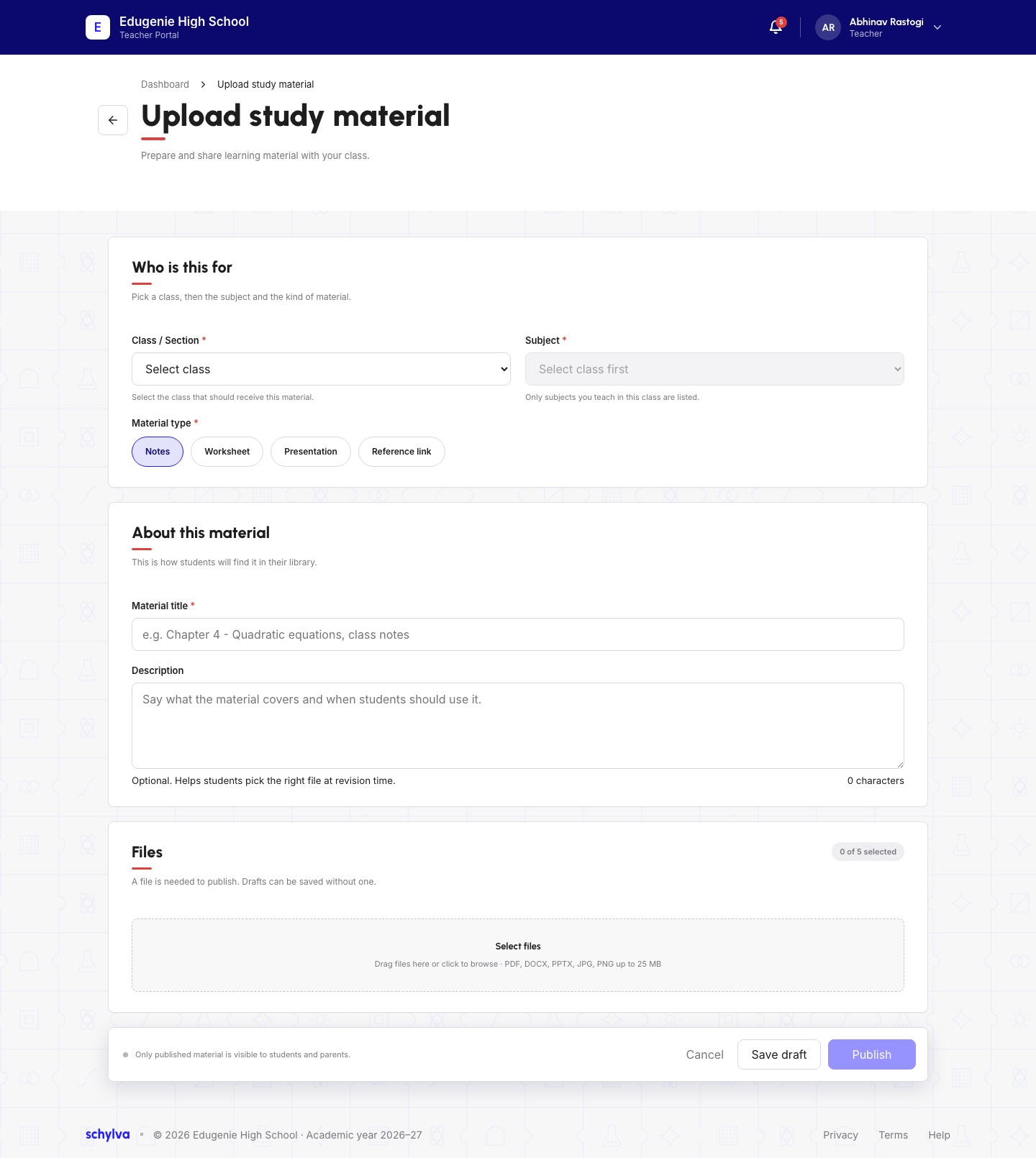
The Upload study material form begins with Class / Section, Subject and Material type. Check the intended class before preparing content. The helper text says that subjects are limited to those the Teacher teaches in that class.
In the captured form, Class / Section still says Select class and Subject says Select class first. The Subject control is disabled. This is an unfilled form, not a completed upload.
The visible material types are Notes, Worksheet, Presentation and Reference link. Notes is selected in this screenshot. The fields or submission behaviour for the other selections are not demonstrated here.
Demo · Teacher desktop web · reference screenshot
 View full screenshot
- No class is selected; Subject is disabled.
- The file picker is empty. Save draft and Publish are different controls.
3. Prepare a useful title and description
Use Material title for a clear description of the intended content. Use Description to explain what it covers and when students should use it. The screenshot marks the title as required and describes the description as optional.
Check that the title and description agree with the selected class, subject, material type and actual file. The populated editor later in this guide is a retained technical QA example; do not copy its test title or description as teaching material.
The illustrated form is incomplete. It does not demonstrate a successful save or every validation rule. Review the school’s content and privacy requirements before any future save.
- Confirm the class and subject.
- Use a title that identifies the actual lesson or resource.
- Describe the resource accurately without including unnecessary personal information.
- Check the attachment itself rather than relying on its filename.
4. Read the file picker and save controls
The captured Files helper says a file is needed to publish, while a draft can be saved without one. The empty picker shows 0 of 5 selected. Its hint lists PDF, DOCX, PPTX, JPG and PNG, with an up-to-25-MB statement. These are displayed instructions, not demonstrations of accepted files, enforced limits or rejected-file behaviour.
The footer separates Cancel, Save draft and Publish. Read the action label before using a control. The form states that only published material is visible to students and parents; that statement does not prove a newly saved item reached either account.
The empty form illustrates the controls before an upload. It does not demonstrate a successful Save draft or Publish action. Check the required fields and intended audience before any future save; a completed upload and matching recipient views are outside this guide’s illustrated scope.
5. Inspect the existing file preview
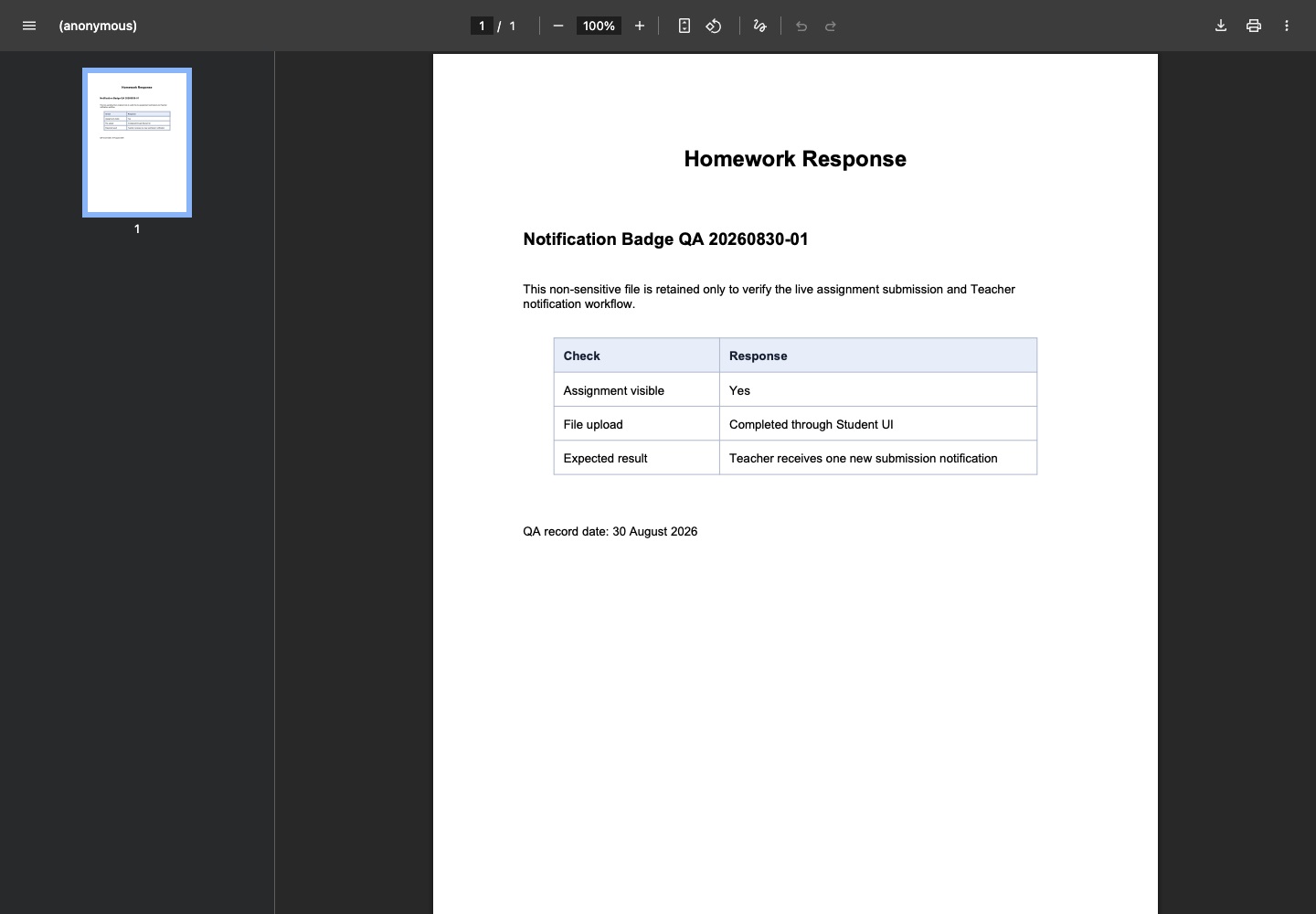
The preview screenshot shows an existing one-page technical demo PDF. Check its own title and content as well as the material’s displayed title and subject.
The document is headed Homework Response. It illustrates the preview interface and is not a classroom worksheet recommendation. Statements inside a technical test file are not verification results for this Help guide.
A visible preview does not demonstrate a completed download, every supported file format, or matching Parent/Student access.
Demo · Teacher desktop web · reference screenshot
 Enlarge screenshot
- The technical demo document is headed Homework Response.
- A preview is not a completed download or delivery check.
6. Inspect an existing material without saving
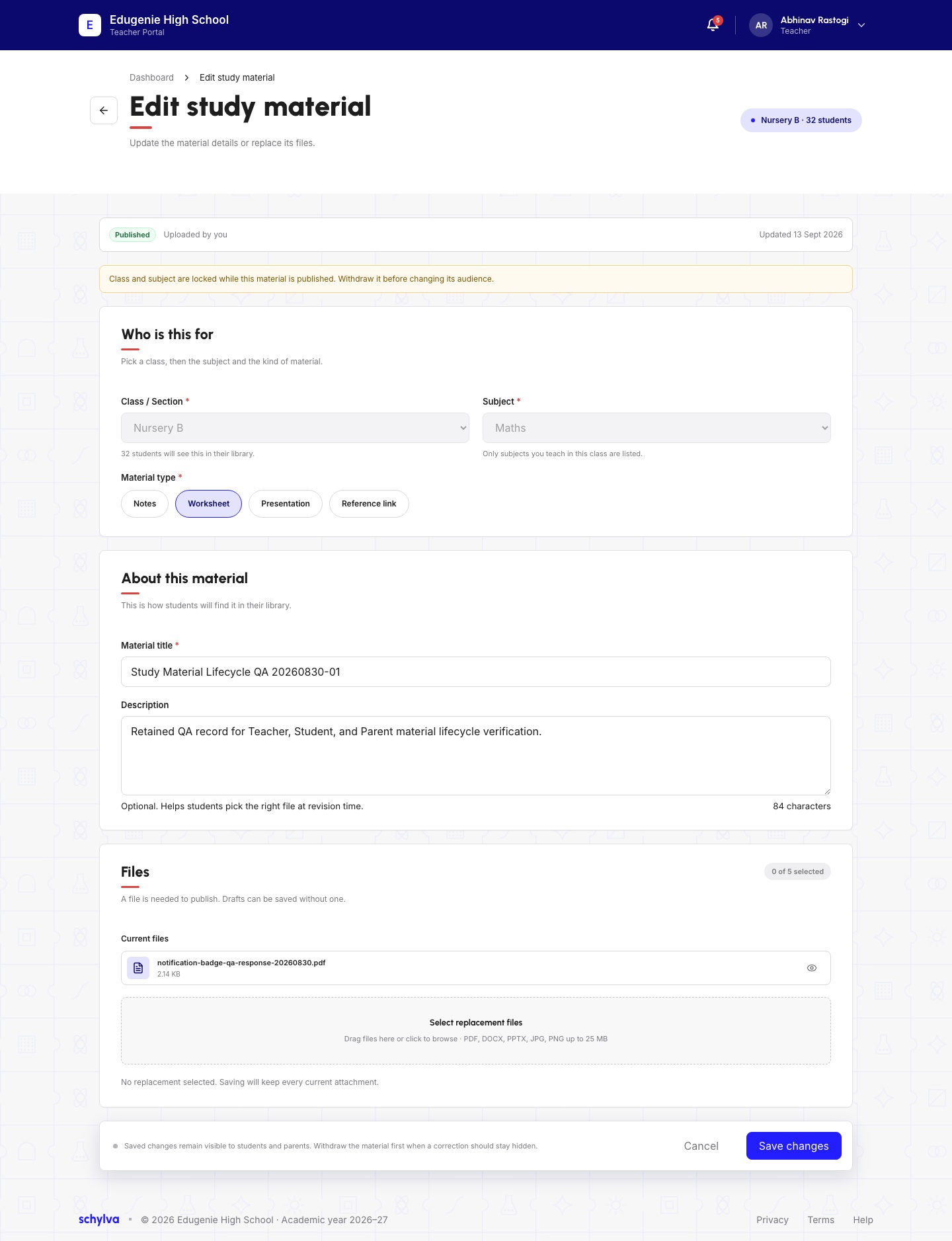
The Edit study material example is marked Published and names Nursery B, Maths and Worksheet. It contains an existing technical QA title, description and one entry under Current files. Check that these details identify the material you intended to inspect.
Class and subject are disabled in this capture. The warning explains that the audience is locked while the material is published and refers to withdrawal before changing the audience. Withdrawal and audience changes are not illustrated here.
Read Current files separately from Select replacement files. One current attachment is visible while the replacement picker says 0 of 5 selected. The helper says that saving without a replacement keeps current attachments. That text is not evidence of a saved edit or replacement.
The page offers Cancel and Save changes. Inspecting a populated editor or seeing Save changes does not demonstrate changed values, a successful save, persistence after refresh or delivery to recipients. Use Cancel if you opened the editor only to inspect it.
Demo · Teacher desktop web · reference screenshot
 View full screenshot
- Published status is shown; class and subject are locked.
- Current files and selected replacements are separate.
- Save changes is not evidence of a successful save.
What these examples do not demonstrate
These reference examples illustrate fields and controls. The following outcomes are outside this guide’s illustrated scope.
- A completed valid Teacher upload form and successful upload or draft save.
- Successful publication and the same material, status and attachment after refresh and reopening.
- The same newly published or edited material and attachment in the intended Student and Parent views.
- A successful edit or attachment replacement with refreshed values and matching recipients.
- Withdrawal, archive, restore or audience changes.
- Validation failures, file-limit enforcement, other material types and notification delivery.
If the fields or file look wrong
- Subject says Select class first
- Check the intended class. The empty screenshot has no class selection and does not establish which subjects are available for an actual account.
- The editor shows the wrong class or material
- Cancel and find the correct record. Check the intended class, subject and attachment before making any change.
- The title and attachment appear unrelated
- Inspect the actual content and ask the authorised school contact to confirm the intended resource. The technical PDF in this guide is only a viewer example.
- A family cannot find the material
- Check the account, linked child and displayed material context with the school. Do not assume an existing Published label proves this item reached that family.
- You need proof that a change was saved
- Follow the school’s process for checking the saved record and intended recipient. Successful saving, refreshed values and matching delivery are outside this guide’s illustrated scope.