Find study materials and inspect a preview as a Teacher
Open Study Material to find content already listed for your classes. Check the selected material’s context before opening its attachment; viewing an item does not publish it.
For Teacher
On this page
Before you begin
- An authorised Teacher account.
- The material title or class/subject you need.
1. Search Current Materials
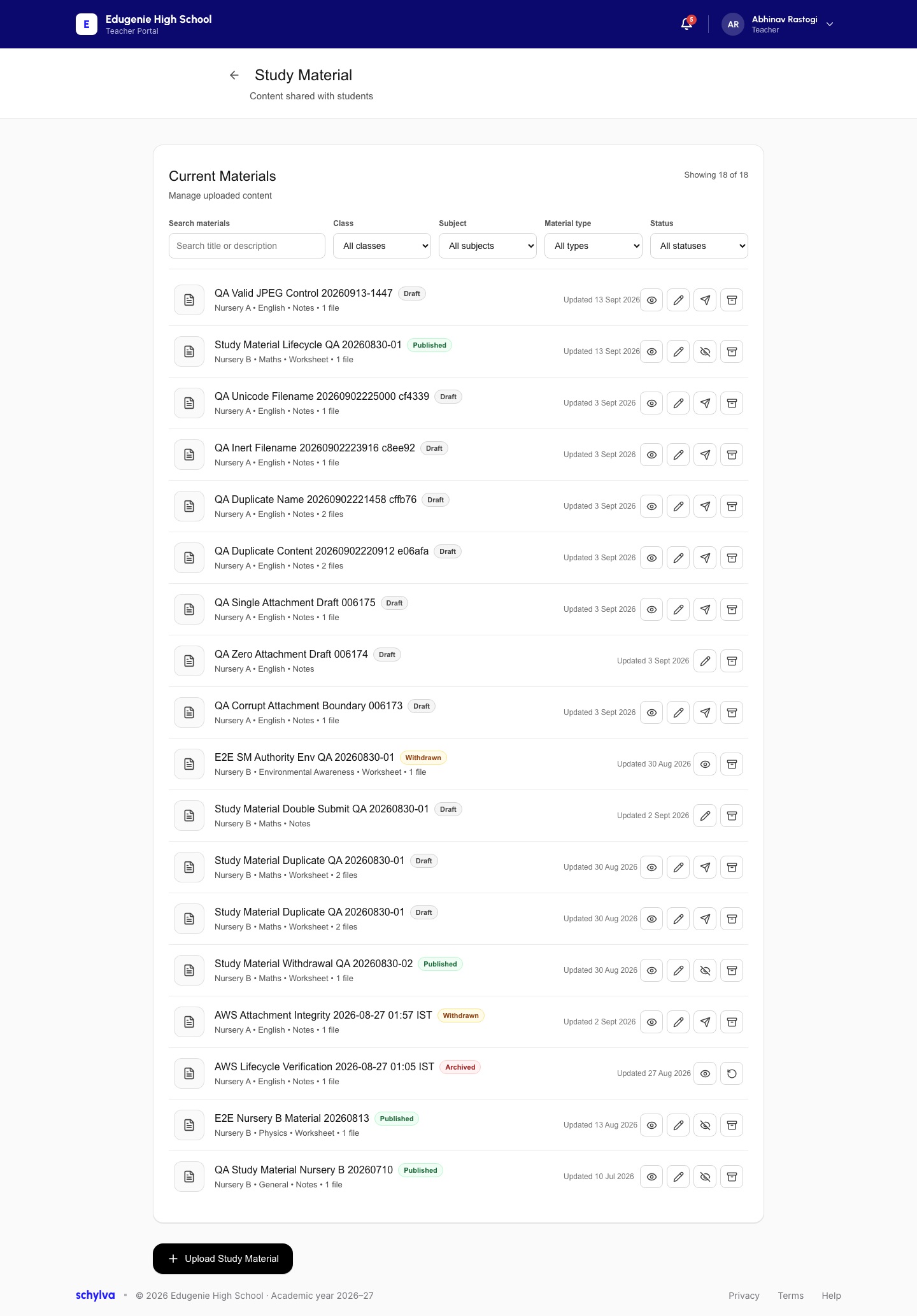
Open Study Material and look under Current Materials. Search by title or description, then use Class, Subject, Material type and Status to narrow the results.
Read the displayed result count and the values of all filters. If an item seems missing, clear the search and restore the broad filter options before concluding it has gone.
Demo · Teacher desktop web
 View full screenshot
2. Read the material details
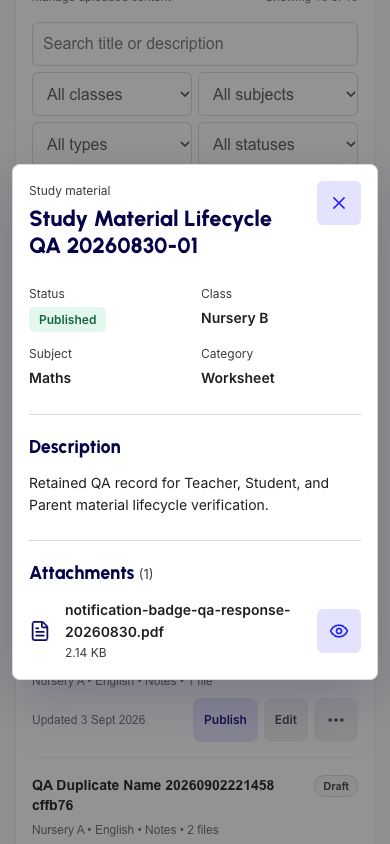
Check the title, class, subject/category and file count on the selected record. Use its viewing control rather than Publish, Edit, Archive or Restore when you only want to inspect it.
The mobile detail example shows Published status, Nursery B, Maths and Worksheet, with one PDF attachment. Read the title and attachment name together before opening a file. The pictured record is a technical demonstration, not recommended lesson content.
Demo · Teacher mobile web
 View full screenshot
3. Recognise the attachment preview
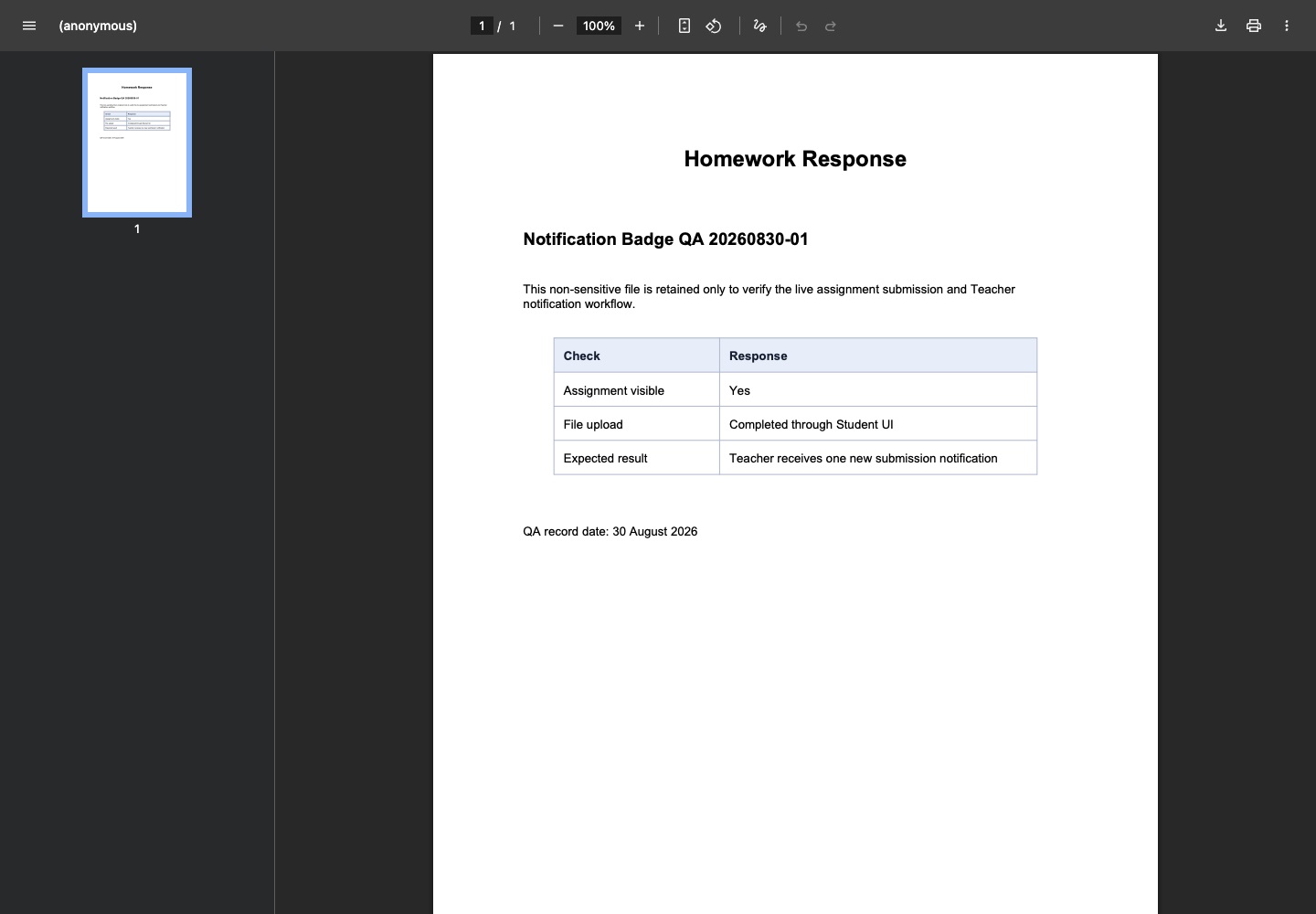
Use the attachment’s viewing control to recognise its preview. The desktop example shows a one-page PDF headed Homework Response.
Check the file’s own title and content, not only its category. The pictured technical demo document illustrates the viewer layout and is not a pupil worksheet. Statements inside it are example text, not outcomes established by this guide.
A visible preview does not establish a completed download, every supported file format, or the same outcome on mobile or native apps.
Demo · Teacher desktop web
 Enlarge screenshot
Find the same controls on mobile web
The search and filters stack above the material cards. The mobile example uses text controls such as View and Edit, with additional actions on some records.
Check the action label carefully. A mobile details panel is evidence of reading that material’s fields; it is not evidence that its PDF opened in a mobile viewer.
Demo · Teacher mobile web
 View full screenshot
If the item or file is unexpected
- Nothing matches the search
- Clear the search and check the class, subject, material type and status filters.
- The preview contains a different subject or document
- Confirm the title and filename. Ask the authorised school contact to verify the intended material; do not replace it just to test.
- A file does not open
- Report the exact item, filename and visible error. The reviewed PDF does not establish that every file opens successfully.