Prepare an Admin login and inspect access fields
Use the captured Login Management and Admin screens to prepare school-approved account details and review the access controls before a future save. Start by checking whether the intended person already has an account.
For Administrator
On this page
Before you begin
- An authorised Administrator account and the school’s approval to prepare or manage administrative access.
- The intended person’s school-approved name, mobile number, email and designation. Check existing records before preparing a new login.
- The school’s agreed role and required modules. Review broad defaults carefully and use Cancel when opening a form only to inspect it.
1. Start with Login Management
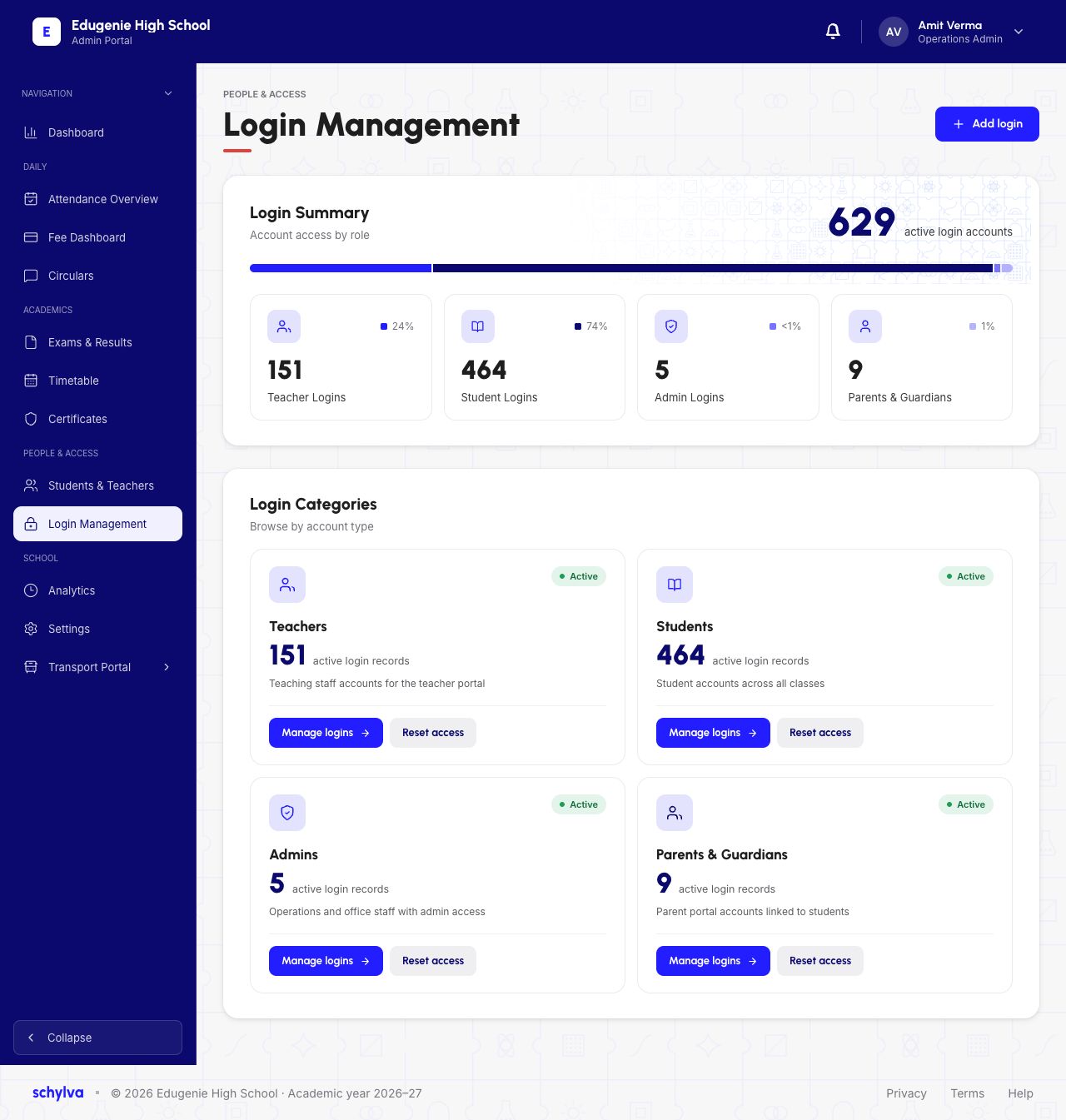
The captured Login Management page groups Teacher, Student, Admin and Parent/Guardian accounts. The Admins category includes Manage logins, and the page has an Add login control.
The summary numbers belong to this demo capture. They are not the number your school should have, a current inventory or evidence that a new account was created.
Reset access is also visible, but these screenshots do not show what it changes or any confirmation. This guide does not provide a reset procedure.
Demo · Administrator desktop web · reference screenshot
 View full screenshot
- The Admins category and Add login control are visible.
- Summary counts are illustrative; Reset access has no demonstrated outcome.
2. Recognise the Add login choices
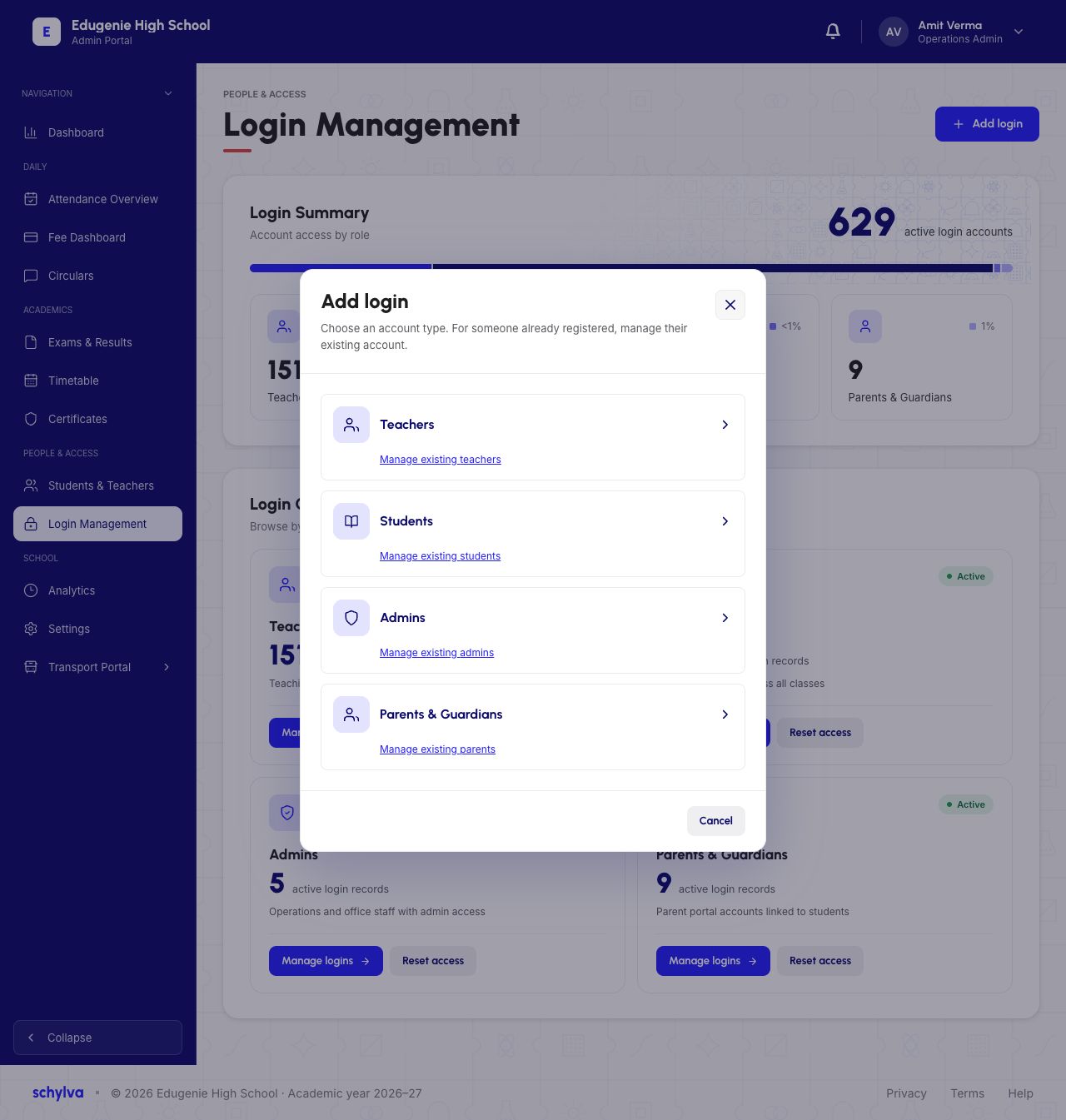
The Add login dialog lists Teachers, Students, Admins and Parents & Guardians. Its message says to manage an existing account when someone is already registered.
The Admins choice and Manage existing admins link are separate controls. The captured dialog helps you identify the intended account type; it does not demonstrate the result of selecting either control.
Use Cancel or the close control if you opened this chooser only to inspect it. The Admin list and form examples below are separate reference captures, not a recorded click-to-save sequence.
Demo · Administrator desktop web · reference screenshot
 View full screenshot
- The dialog separates Admins from the other account types.
- Manage existing admins is a separate link; no selection result or save is shown.
3. Check the Admin login list
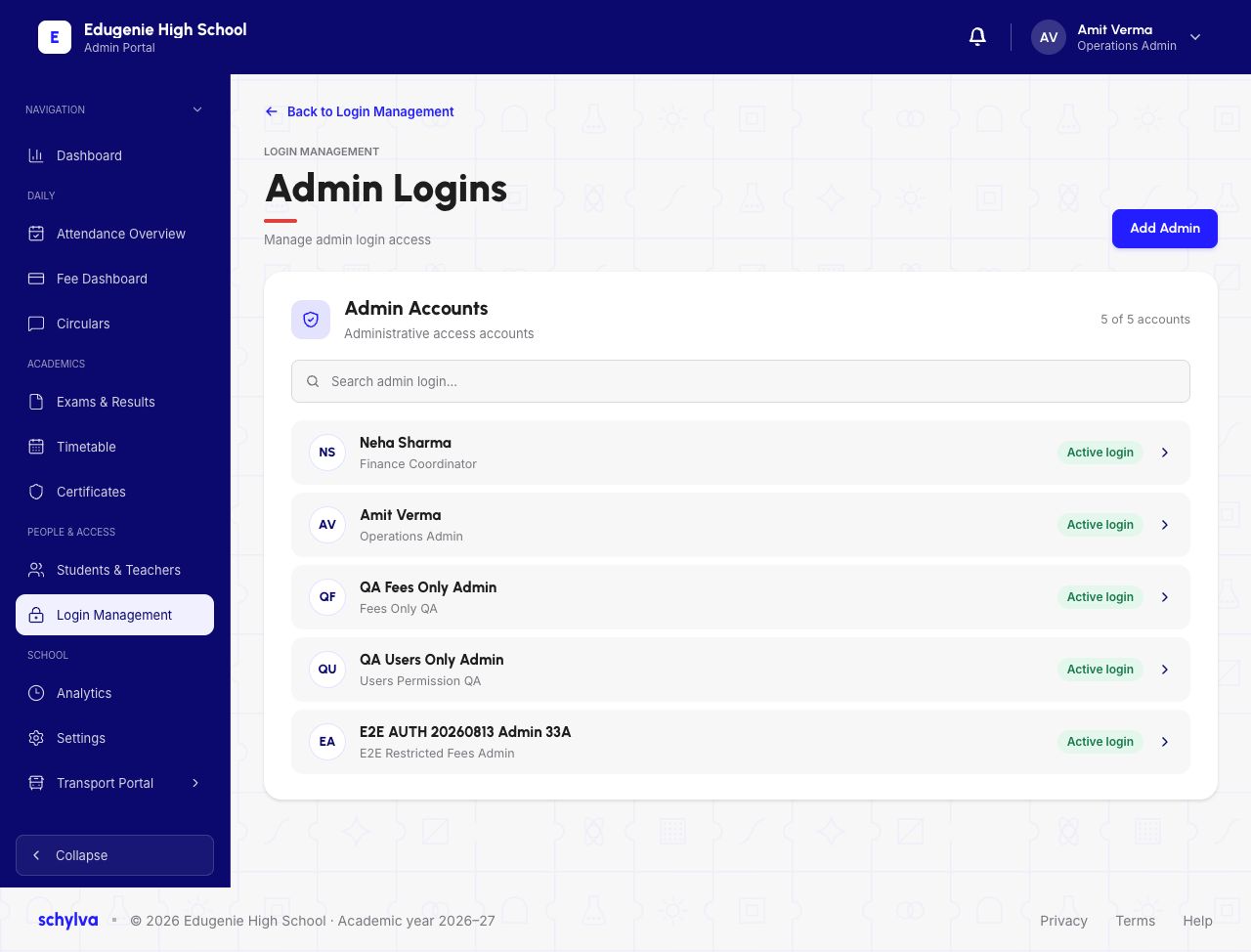
The Admin Logins example shows an Admin Accounts list, a Search admin login… field and Add Admin. Each pictured row includes a name, designation and Active login label.
Check the intended person against the school’s approved details. Similar names, a designation or a row labelled Active login do not prove a successful sign-in or the exact permissions that person can use.
The list is an existing snapshot. It is not the result of saving the empty Add Admin form shown next.
Demo · Administrator desktop web · reference screenshot
 Enlarge screenshot
- This is the existing Admin Logins directory.
- Active login is a displayed label, not a verified sign-in or permission result.
4. Prepare the Add Admin fields
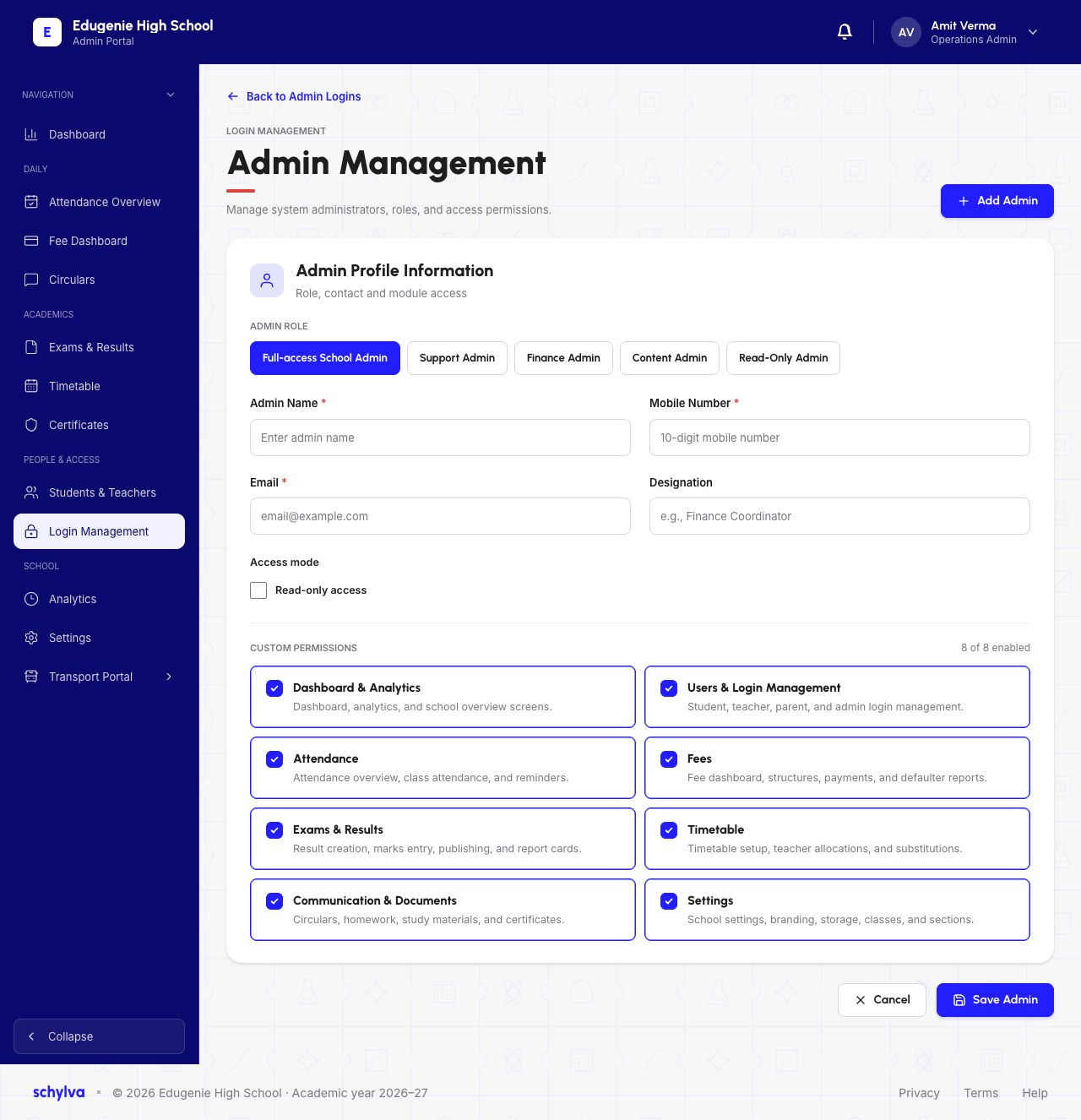
The empty Admin Management form has Admin Profile Information and an ADMIN ROLE row. Five role choices are visible: Full-access School Admin, Support Admin, Finance Admin, Content Admin and Read-Only Admin.
The example has Full-access School Admin selected. Treat this as the captured starting state, not a recommendation for every new administrator. Agree the required access with the school before any future save. The other presets’ resulting settings are not shown.
Admin Name, Mobile Number and Email have required markers. Designation is shown without one. The mobile placeholder asks for a ten-digit number; it does not establish validation, duplicate handling or OTP delivery.
An Access mode area has a separate Read-only access checkbox. The role preset and this checkbox are different visible controls. Their interaction, precedence and enforced restrictions are not demonstrated.
The empty form offers Cancel and Save Admin. No completed valid form or successful creation response is captured.
- Confirm the intended person and check for an existing account.
- Prepare the school-approved name, mobile number, email and designation.
- Agree the role and required modules; review the displayed broad default.
- Keep the read-only control, module choices and later access test as separate checks.
Demo · Administrator desktop web · reference screenshot
 View full screenshot
- Admin Name, Mobile Number and Email are marked required.
- Full-access School Admin and eight checked categories are the captured default, not recommended access for every person.
- The role preset and Read-only access checkbox have no demonstrated precedence or enforcement result.
5. Read the module-access categories
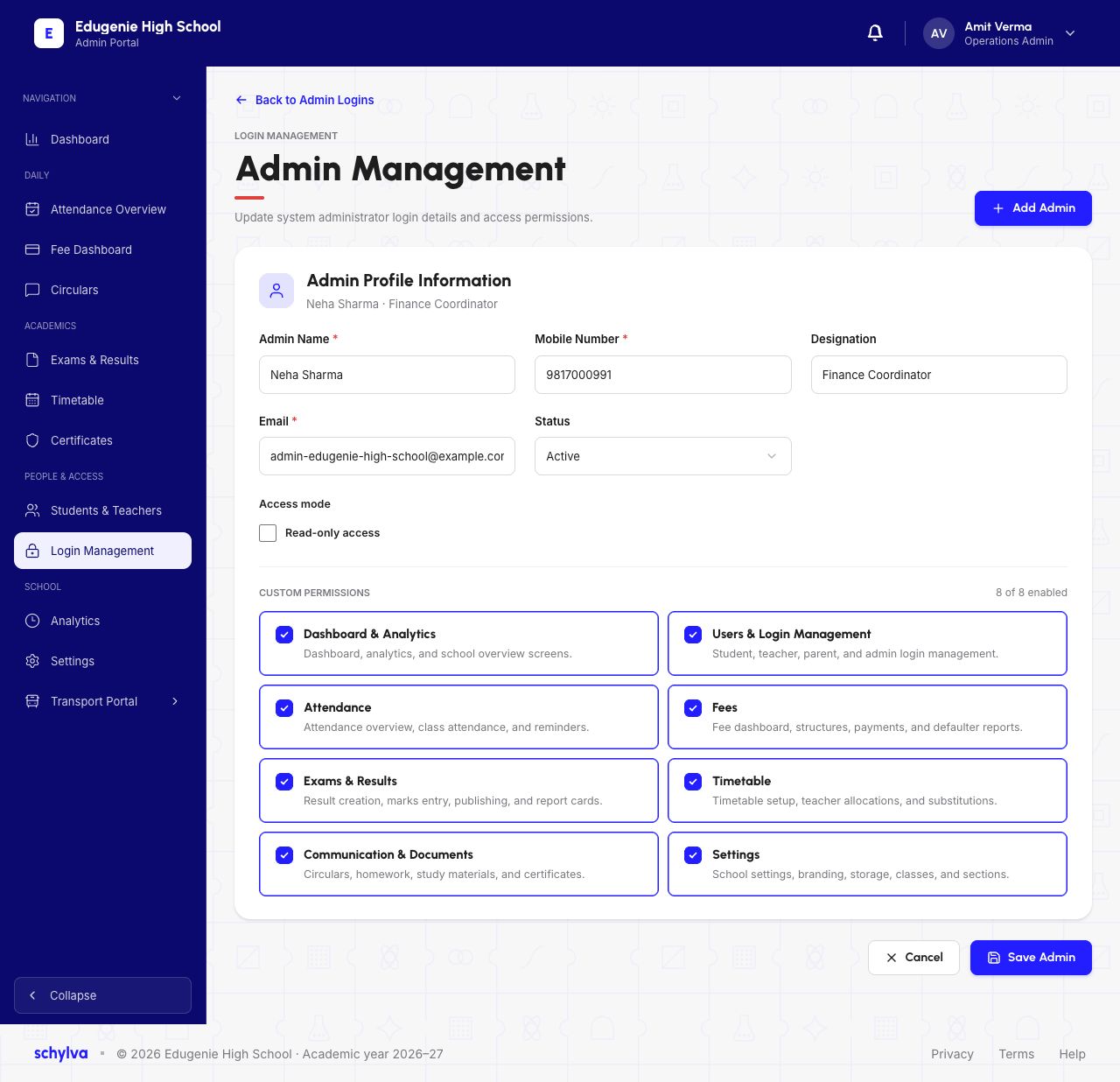
The Add Admin screenshot above shows CUSTOM PERMISSIONS, 8 of 8 enabled, and these eight checked categories. The existing editor below shows the same displayed selection.
Use these labels to discuss the person’s required work with the school. A checked category or its description is not proof that every listed action is available, that a saved restriction is enforced or that an existing session has changed.
- Dashboard & Analytics — dashboard, analytics and school overview screens.
- Users & Login Management — Student, Teacher, Parent and Admin login management.
- Attendance — attendance overview, class attendance and reminders.
- Fees — fee dashboard, structures, payments and defaulter reports.
- Exams & Results — result creation, marks entry, publishing and report cards.
- Timetable — setup, teacher allocations and substitutions.
- Communication & Documents — circulars, homework, study materials and certificates.
- Settings — school settings, branding, storage, classes and sections.
6. Inspect an existing Admin editor
The populated Admin Management example is an existing Neha Sharma · Finance Coordinator record. It shows identity/contact fields, designation, a Status selector displaying Active, Read-only access and eight enabled custom-permission categories.
The five role-preset buttons from the empty Add Admin form are not visible in this editor capture. Do not infer a demonstrated role-change step or assume the designation Finance Coordinator determines the enabled modules.
The pictured Read-only access box is unchecked. The Status selector is closed, so its other choices and the effects of changing status are not shown. Neither control establishes what happens to an already signed-in session.
Use the school’s identifiers to confirm the correct account before considering any change. Do not replace another person’s details to create a new administrator. Cancel and Save Admin are visible, but no successful edit, refreshed state or access result is captured.
Demo · Administrator desktop web · reference screenshot
 Enlarge screenshot
- This is an existing Neha Sharma editor, not a newly created Admin.
- The edit capture shows status and module fields but no role-preset row.
- No save, refresh, activation/deactivation or session effect is demonstrated.
What this guide does not demonstrate
The screenshots establish the visible fields and separate reference screens. These practical outcomes remain outside this guide’s illustrated scope:
- A version-confirmed creation entry, completed valid form and genuine successful Admin save.
- The intended account and settings retained after refresh and reopening.
- Saved role, read-only or module changes and verified allowed/denied actions for the intended Admin.
- Activation/deactivation, reactivation and the effects on new and existing sessions.
- The intended person signing in to the correct school and Admin account.
- Validation errors, duplicate handling, OTP delivery and Reset access behaviour.
If the account or access looks unexpected
- The person may already have an account
- Check the existing Admin directory and school-approved contact details before preparing another login.
- The empty form shows more access than intended
- Review the role and eight module categories with the authorised school owner before a future save. The captured Full-access default is not an instruction to grant every module.
- Read-Only Admin and Read-only access seem to overlap
- They are separate visible controls. Confirm the supported current behaviour and test the intended restrictions through the school’s process; these captures do not establish precedence.
- Active login is displayed but sign-in fails
- Use the sign-in troubleshooting guide and the school’s support process. A status label does not diagnose an OTP, role or session problem.
- You need to disable an account or reset access
- Follow the school’s authorised process. The screenshots do not demonstrate a completed disable/reset operation or its session effects.