Understand school circular fields
Read a circular’s message, audience, acknowledgement and attachment fields, using separate existing detail screens for reference.
For Administrator
On this page
Before you begin
- Use an authorised Admin account for the correct school.
- Confirm the academic year and the class, student, invoice or result set relevant to your task.
1. Separate the monthly list from latest circulars
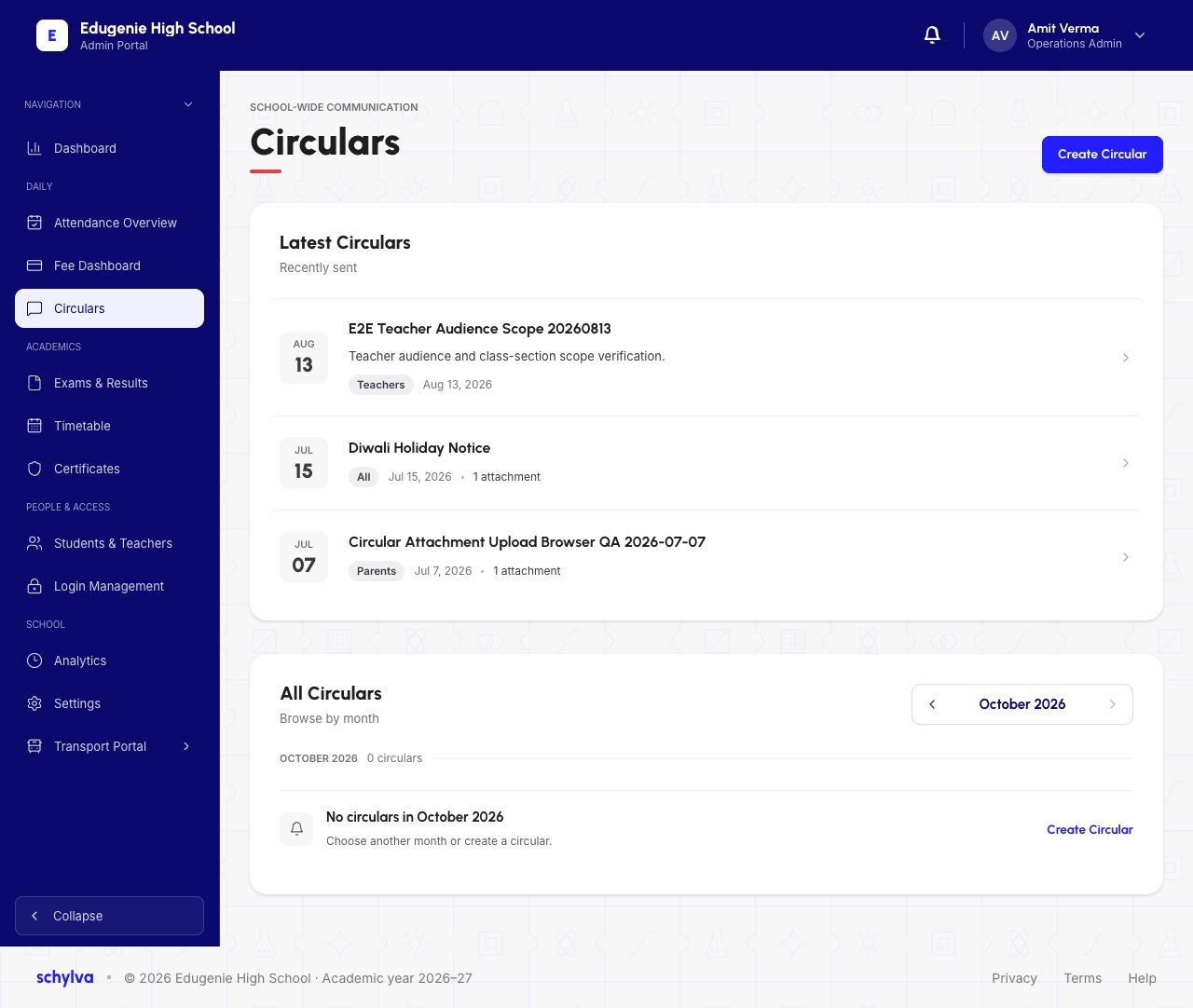
Open Circulars. Latest circulars is separate from All Circulars for the chosen month.
The October 2026 list is empty while Latest circulars contains older notices. An empty month does not mean the school has no circular history.
 Enlarge screenshot
2. Read the message fields
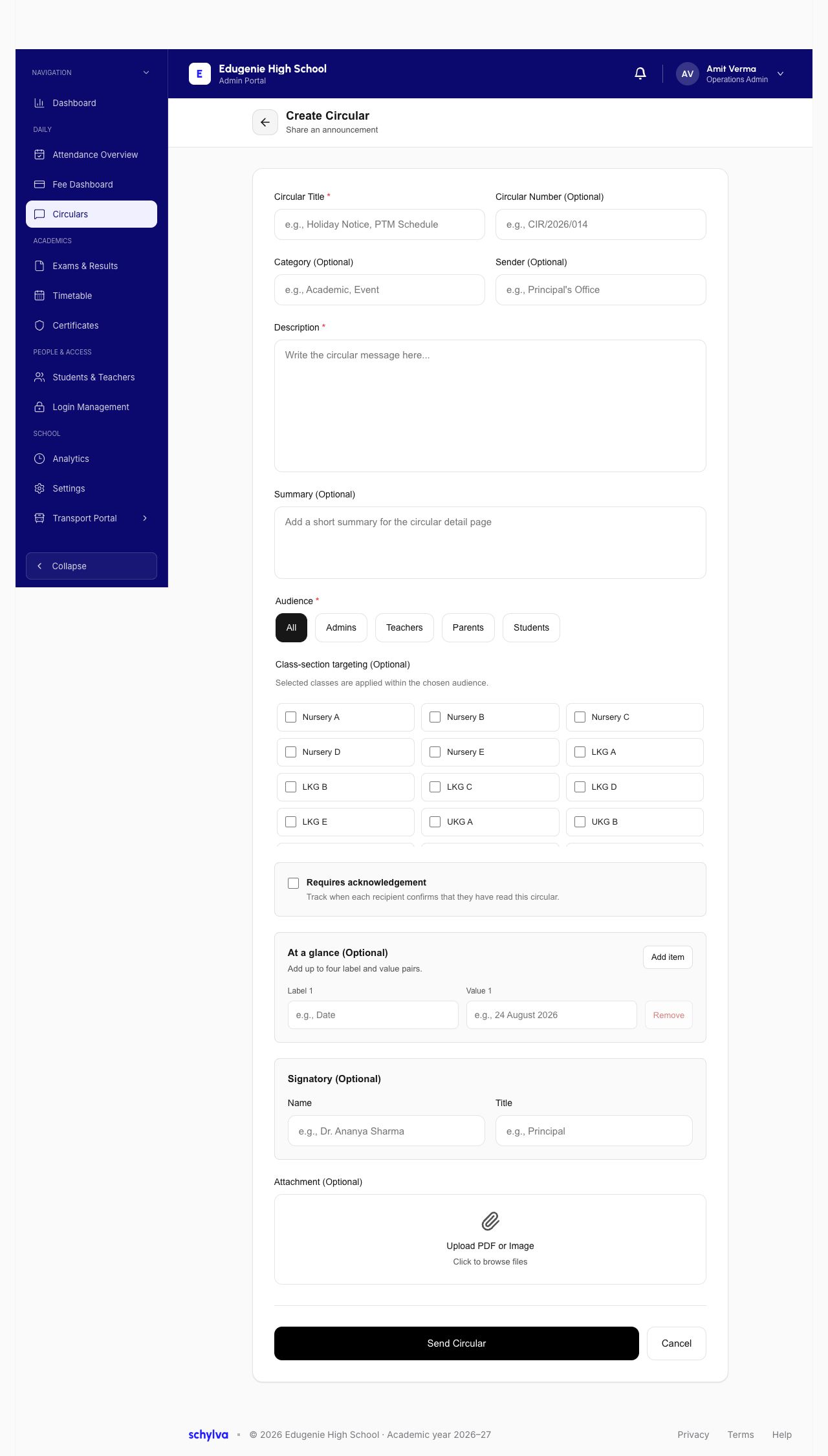
Create Circular begins with required Circular Title and Description. Circular Number, Category, Sender and Summary are optional.
Use the title and description to identify the actual message. Placeholder text in an empty form is not a published circular.
 View full screenshot
3. Understand audience and acknowledgement
Audience offers All, Admins, Teachers, Parents and Students. Optional class-section targeting narrows the chosen audience according to the on-screen explanation.
Requires acknowledgement is separate. Its helper text says it tracks when each recipient confirms reading the circular. Audience selection alone does not confirm notification delivery or that someone has read a notice.
View full screenshot4. Read supporting details and attachment controls
At a glance accepts up to four optional label-and-value pairs. Signatory has Name and Title fields. Attachment offers Upload PDF or Image.
The form ends with Send Circular and Cancel. A visible attachment control does not establish that a file has been uploaded, and an open form does not confirm a sent notice.
View full screenshot5. Compare an existing acknowledgement report
A separate existing circular detail shows Audience All, an attachment named diwali.png and an Acknowledgement Report with 500 recipients, 4 acknowledged and 496 pending.
The report lists role and student/class context. A Parent’s acknowledgement and a Student’s acknowledgement are separate rows. An attachment listing does not confirm a successful download.
This existing report is not the result of the blank creation form above.
 View full screenshot